

What a public web form is
A public web form lets someone submit information without signing in to Feldwerk. It is based on a form for an object, so the selected fields and layout determine what the visitor sees. The submission creates a record through Feldwerk’s normal record-writing path, including validation and configured automation.
Publishing a form does not publish the object’s ordinary record list. Public forms exclude lookup fields; visitors cannot browse or select related records through an internal lookup. Choose the fields you actually need from a visitor. In the handbook example, Request a conversation collects a contact’s name, email address and notes.
Prepare and activate a form
- As an administrator, open Setup → Object Manager and choose the target object.
- Open Forms. Create a clearly named form or select an existing one.
- Open Builder and arrange the fields and sections. Include required fields the visitor needs to supply.
- Save the layout and activate the web form using its action in the Forms list.
- Keep spam protection enabled. The Forms list shows the web form’s status, public link and spam-protection state.
- Open the public link in a separate browser context without an authenticated Feldwerk session.
Use the actual link shown by Feldwerk, such as /f/16 on the example instance. The numeric form ID is assigned by your instance and will differ from the example.
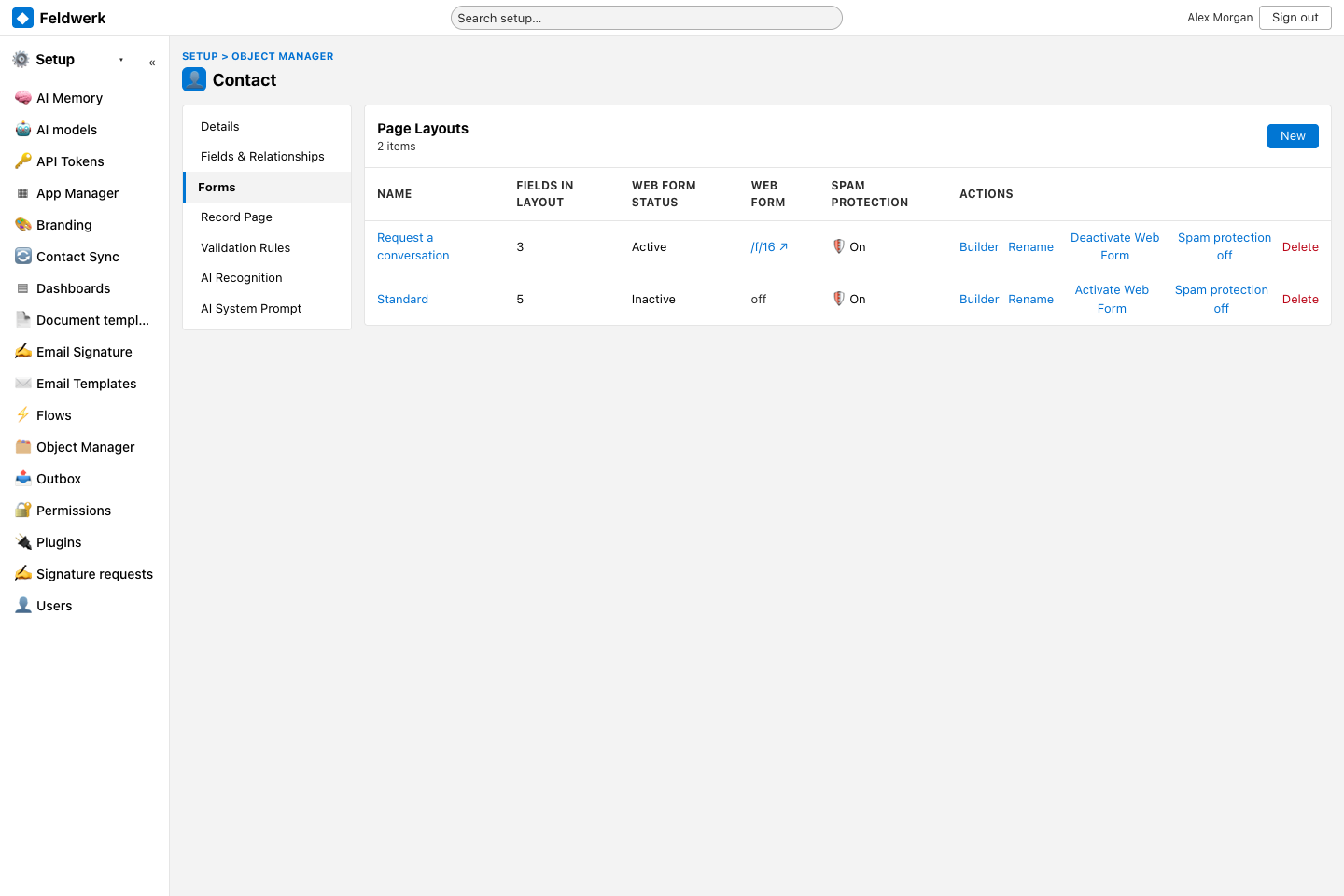
- Check the active status and public link.
- Keep spam protection on.
- Deactivate the public form when collection ends.
Select the screenshot to open the full-size image.
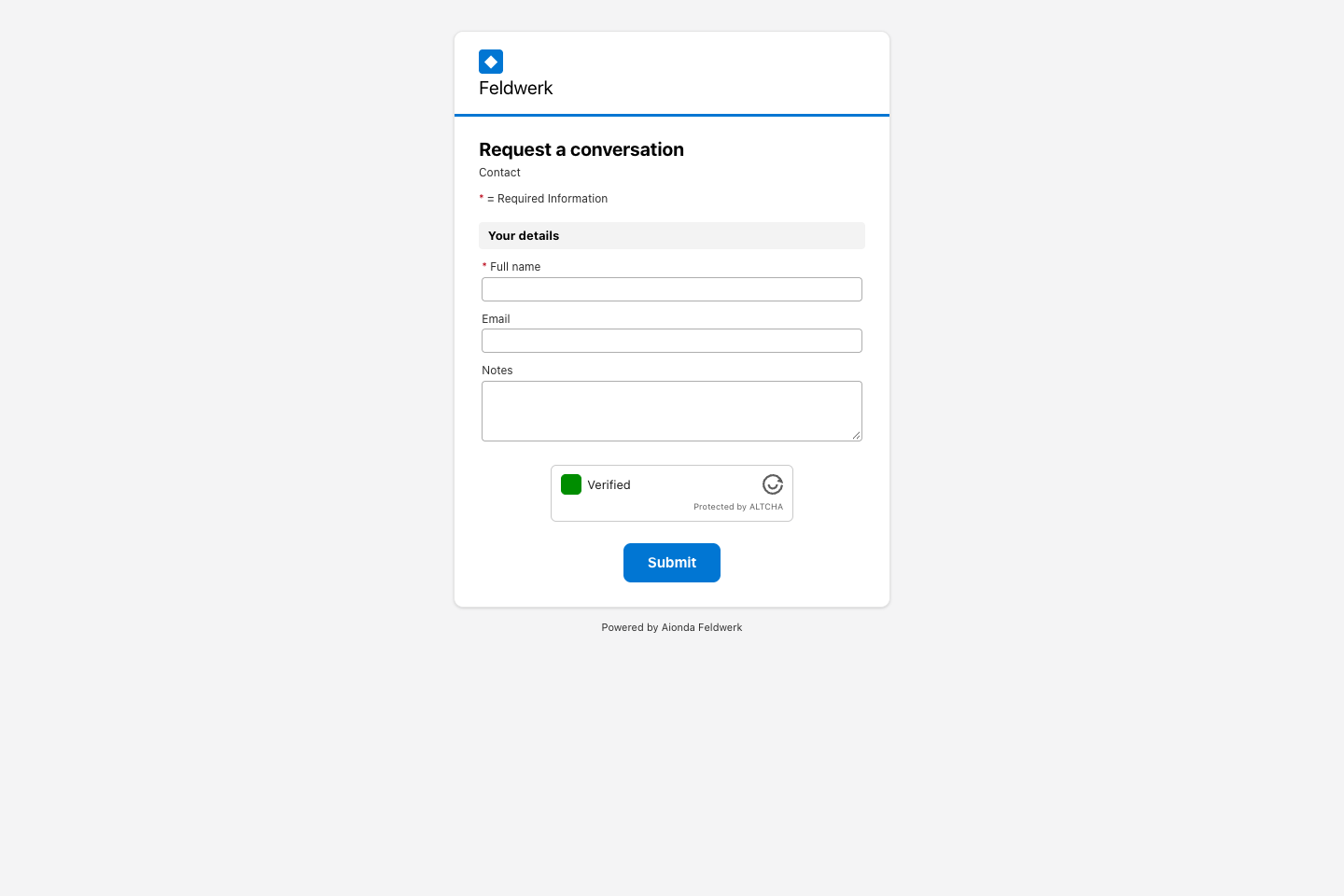
- Enter the requested information.
- Check spam-protection verification.
- Submit and wait for confirmation.
Select the screenshot to open the full-size image.
Submit and check the result
- Enter a fictional name and email address for your test.
- Complete the fields marked with an asterisk. Check the spam-protection status and follow any instruction it displays.
- Select Submit.
- Wait for Thank you! and the confirmation that the information was saved.
- In the authenticated workspace, find the newly created record and check its values and any expected automation results.
Submit another entry returns to the form for a new submission. It creates another record; it does not edit the previous submission. Each submission needs a fresh spam-protection verification.
Interface language and form content
Without a signed-in account, the browser language selects the supported interface language. With a signed-in account, the account language applies. Buttons, status messages and spam protection are translated. Your form title, section headings, field labels and custom validation messages remain as configured. Prepare those texts for the audience receiving the form.
Prefill a link
Query parameters can supply initial values using field API names. For example, /f/16?name=Jordan%20Reed prefills the name field when that field belongs to the form. URL-encode values. A fest parameter can make an already prefilled field read-only in the form, for example &fest=name.
These parameters are part of the link and can be changed by its recipient. A read-only display is not proof that the submitted value is authorised. For reference-based links, configure the supported server-side reference check and, where appropriate, an alternative form.
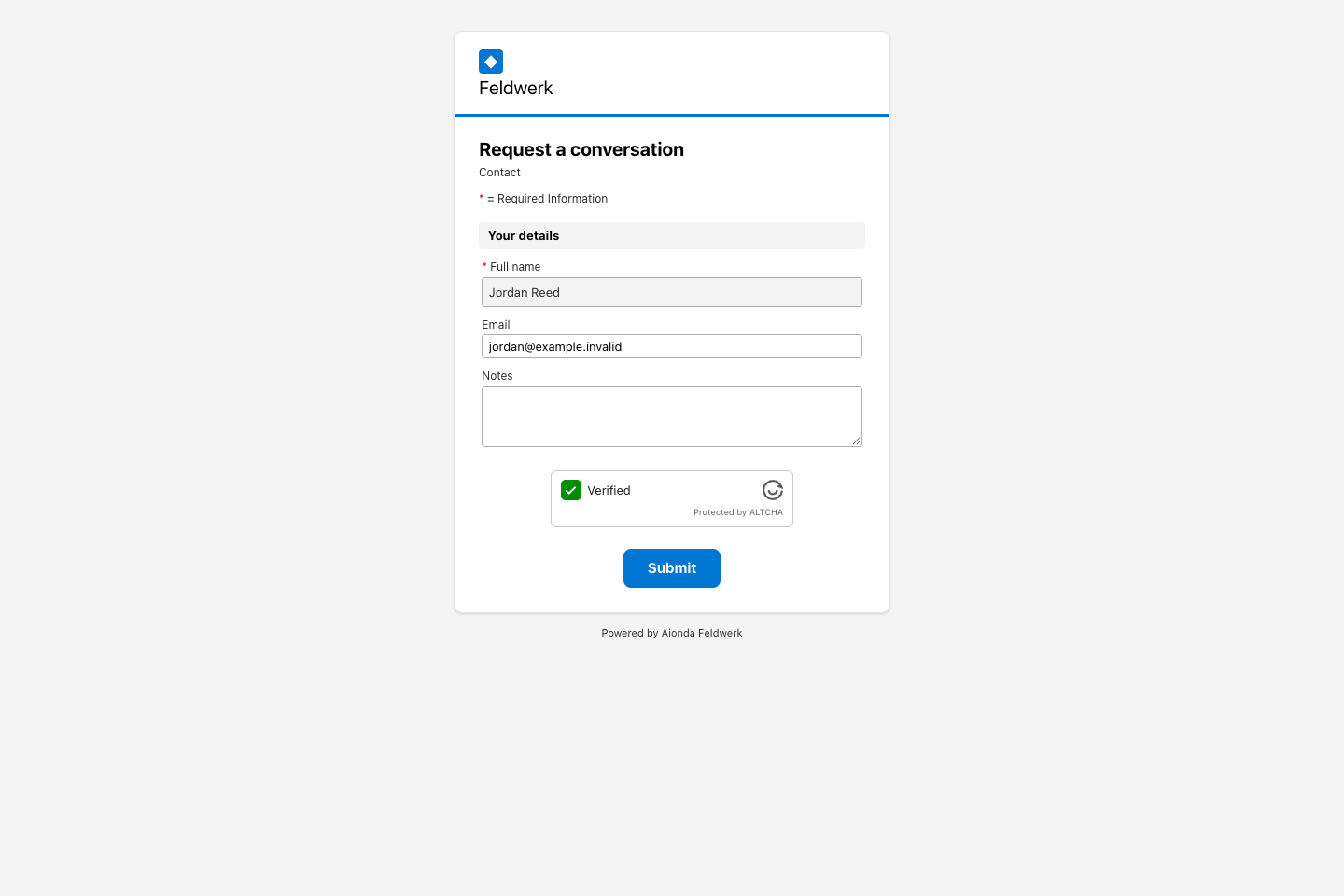
- The prefilled name is displayed read-only.
- The prefilled email address remains editable.
Select the screenshot to open the full-size image.
Configure reference-based links
Reference checks are field options configured through the API or the generic MCP API tools. They are not a separate switch in the form builder. On the text field used for the reference, set optionen.webformPruefung with the target object’s API name in objekt and its reference field’s API name in feld. Read the current field first and include its current version when updating it. Preserve its other options.
The submitted reference must match an existing value in that target field. Use a dedicated, hard-to-guess reference value for personalised links. A matching name or a read-only URL parameter does not identify the visitor. Include the reference field in the public form’s layout so both the initial link check and the submission check apply.
Optionally set fallbackFormularId to an active alternative form. The recovery link passes the failed value as ?referenz=…&fest=referenz; include a suitable referenz field in that alternative form if it needs to retain this value. Test the recovery path before distributing links. Without an alternative form, Feldwerk asks the visitor to contact the person who sent the link.
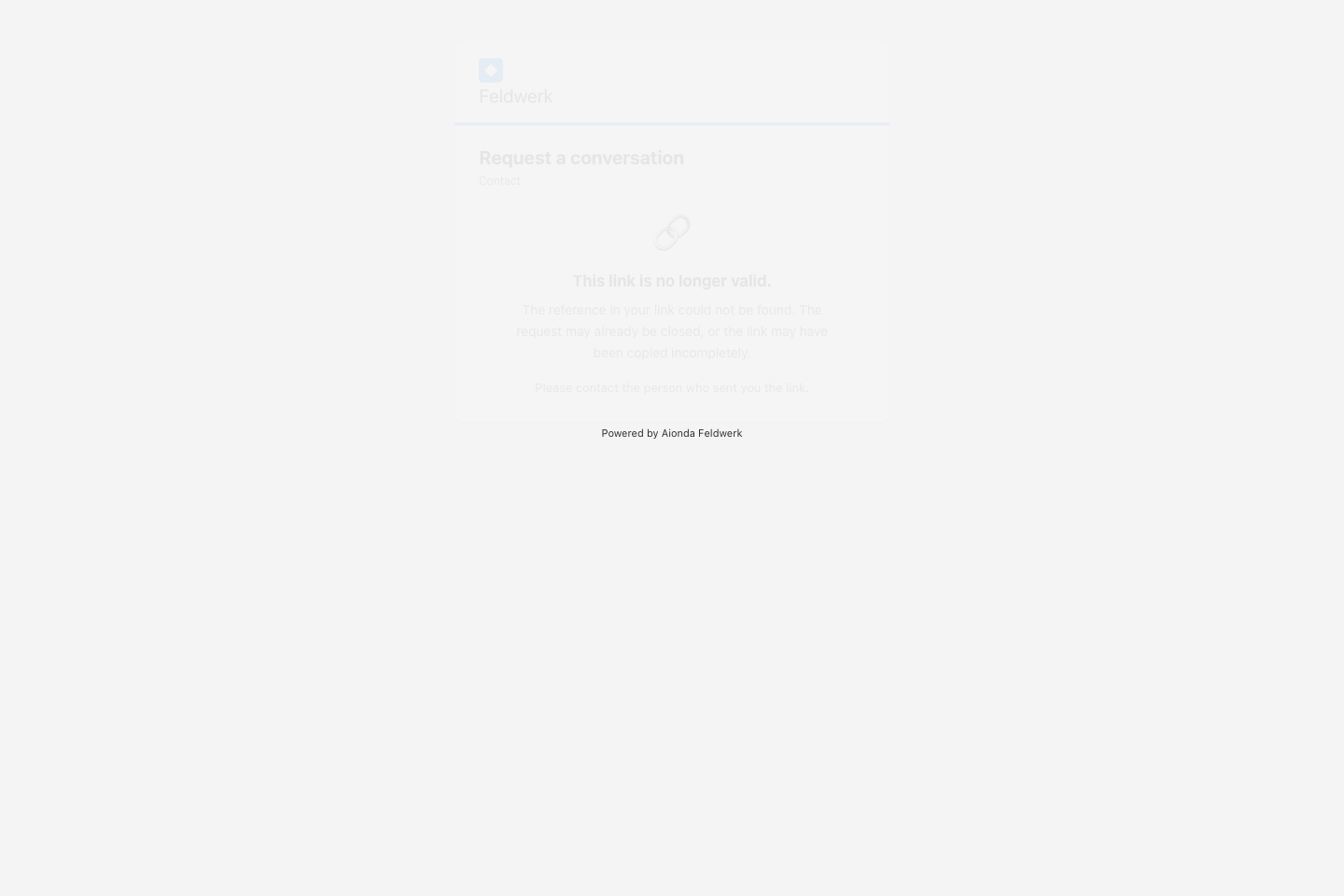
- An unmatched reference prevents submission.
- Follow the contact instruction when no alternative form is configured.
Select the screenshot to open the full-size image.
Resolve common problems
- Form not available: check that it exists and its web form is active. Visitors should contact the person who sent the link.
- Invalid reference: the referenced value could not be matched. Use the alternative form if one is provided, or request a fresh link.
- Highlighted fields: correct the indicated values and submit again. A record is not accepted merely because all visible fields contain text.
- Spam-protection failure: follow the message and reload the form if necessary. Re-enter any unsaved information before retrying.
Stop collecting submissions
Select Deactivate Web Form in the Forms list. The public link then shows an unavailable message. Deactivation does not delete records already collected; handle those through the normal record workflow.