

Understand the access layers
Feldwerk combines object permissions, field permissions and record sharing. An object permission answers whether a person may read, create, edit or delete records of that type. Field permissions control individual values. Sharing controls which records a person can access. A visible tab alone grants none of these rights.
Administrators have full access. Use a member account when checking restrictions: testing with an administrator cannot demonstrate that a field is protected. A member can have several permission sets; grants combine across their assignments. A restrictive set does not cancel access granted by another set.
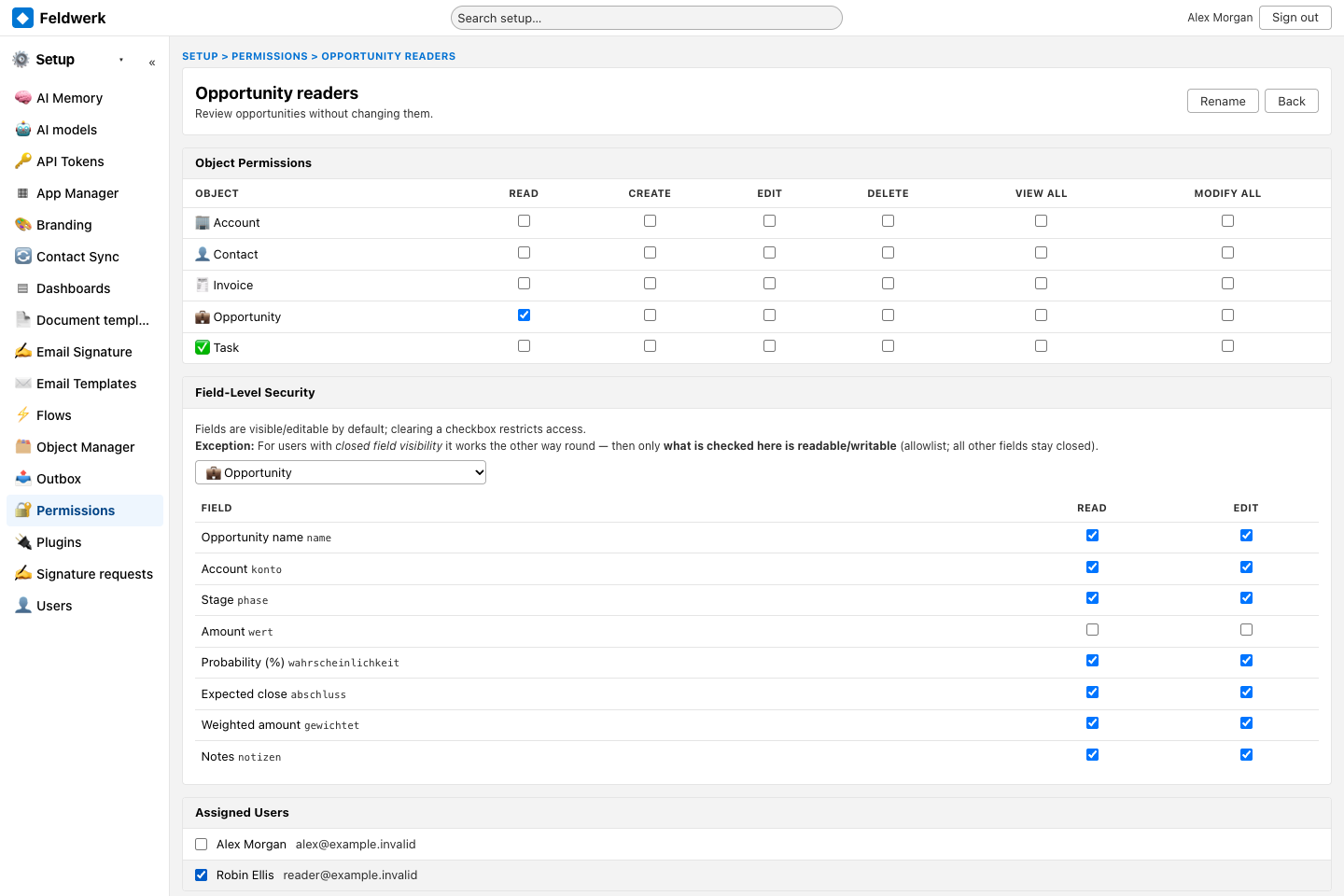
- Grant Read on Opportunity without granting Edit.
- Restrict both Read and Edit for Amount.
- Assign the set to Robin Ellis.
Select the screenshot to open the full-size image.
Create a permission set
- Open Setup → Permissions and select New Permission Set.
- Give the set a clear name, such as Opportunity readers, and describe its purpose.
- Open the set and grant the required object permissions. Start with Read for Opportunities if the role only needs to review the pipeline.
- Review field permissions for that object. For example, hide Amount when the role should see the opportunity without its commercial value.
- Assign the set to the intended users and review their other assignments.
- Sign in as a member and test the resulting access.
View All and Modify All are broad object-level overrides of record sharing. They are different from ordinary Read and Edit. Give them only to roles that need access across all records of that object.
Check field access carefully
In normal field-access mode, fields are available by default within the granted object access unless restricted. Another assigned set can grant the field again. For a narrowly scoped integration account, Closed field access in the user settings changes the default: only explicitly granted fields are available, including when administrators add fields later.
A calculated field has its own field permissions. Hiding an input does not automatically hide a formula derived from it. Review related formula and roll-up results as well as the original field. Lookup display names also deserve a separate check; a name shown in a relationship is not equivalent to permission to open the linked record.
Control individual records
The object’s sharing default can be private, publicly readable, or publicly readable and writable. Ownership, manual sharing and criteria-based sharing can add access. Object permissions are still required. A user who can read a shared record does not automatically gain permission to edit it.
- Choose the object’s sharing default in Object Manager.
- Use an appropriate owner for each record.
- Add a sharing rule when a repeatable criterion should grant access to a user or permission set.
- Use an individual record share for an exceptional case, choosing read or read/write deliberately.
- Retest lists, individual records, related lists, search and reports with the affected account.
Manage users and support access
Use Setup → Users to manage accounts and their administrator or member role. An administrator can use the sign-in-as-user action to inspect an active account’s view. The resulting session uses that user’s permissions, and a visible banner provides the return action. Return to the administrator session when finished; changing the view is not a reason to grant the user administrator rights.
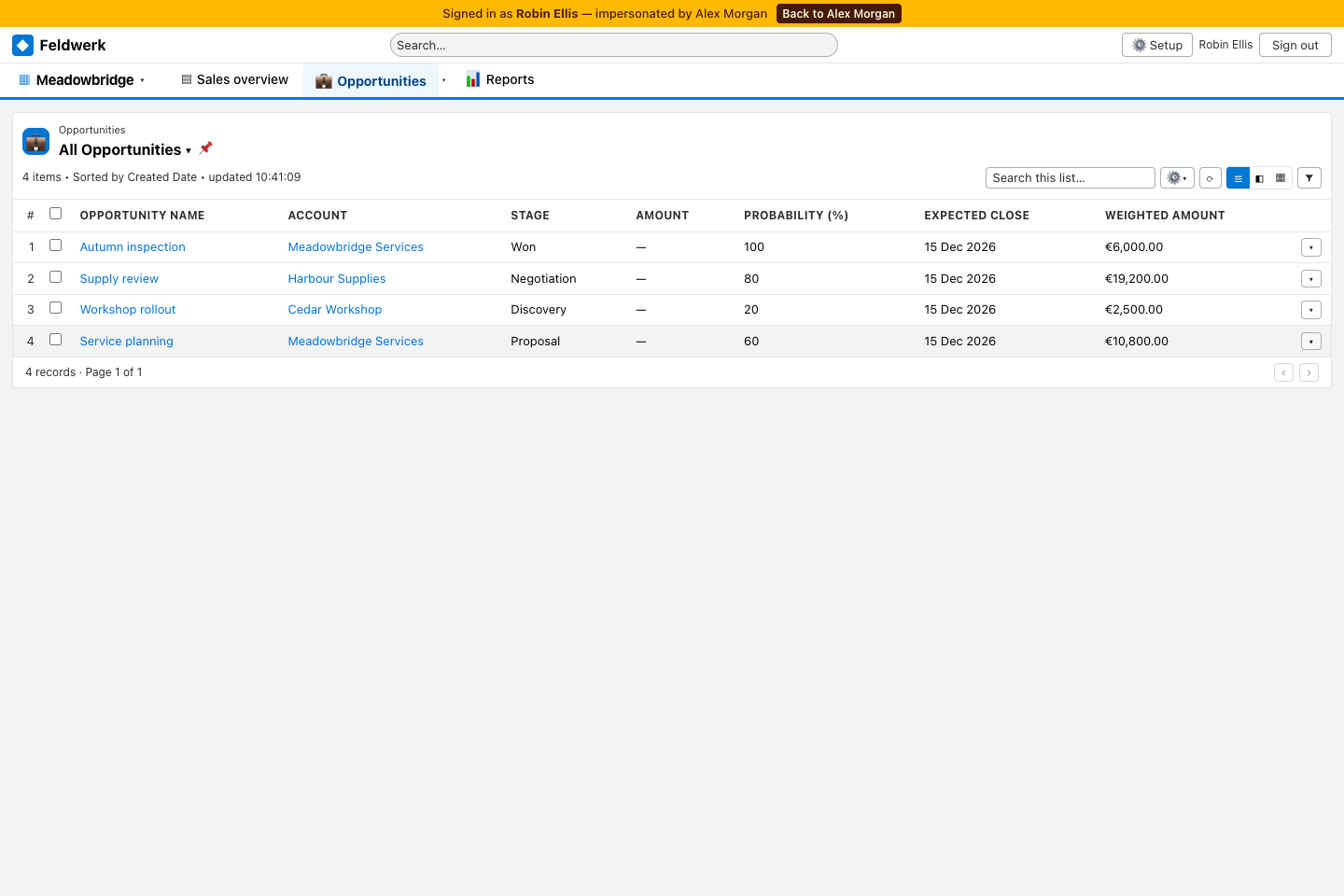
- Check whose permissions are active.
- Return to the administrator account.
- The restricted Amount values are hidden; calculated fields have separate permissions.
Select the screenshot to open the full-size image.
Worked check: a read-only opportunity reviewer
In the handbook example, Robin Ellis receives Read on Opportunities and cannot read Amount. Robin can retrieve Service planning, while the wert field is omitted. Editing the name is refused, and permission-set administration is refused. The same read through an authenticated MCP client omits Amount too. Alex Morgan, the administrator, retains full access.
Repeat this check after changing assignments. For integration use, also test the account’s token, because an administrator’s token would hide mistakes in the member configuration. See API and MCP.