

What a validation rule does
A validation rule checks a record when it is saved. Its formula describes the invalid case: when the result is true, Feldwerk rejects the save and shows the message configured for the rule. This is different from a required field, which simply requires a value, and from automation that changes a value.
Administrators configure rules on the object. People editing records encounter the resulting messages without needing access to Setup. Rules also apply when changes arrive through the regular API or an automation that uses the record service.
Example: reject a negative opportunity amount
Our Opportunities object has an Amount field with the API name wert. A negative amount is invalid for this example. The rule formula is wert < 0, and its message is Enter an amount of zero or more. The message explains what the person can do next.
- Open Setup → Object Manager and select the object.
- Open Validation Rules, then choose New.
- Name the rule so another administrator can identify its purpose.
- Enter the invalid-case formula using the actual field API names.
- Enter a specific error message and save the rule.
- Check that the rule is active. An inactive rule does not protect subsequent saves.
Use ordinary field API names in validation formulas. The $Datensatz.field notation used in Flow conditions belongs to the Flow context; do not copy that notation blindly into this formula.
Test both outcomes
- Open a test opportunity and select Edit.
- Set Amount to
-1and select Save. - Confirm that the dialog remains open with the configured correction message. The invalid value has not been saved.
- Set Amount to
18000, save again, and check the value on the record page.
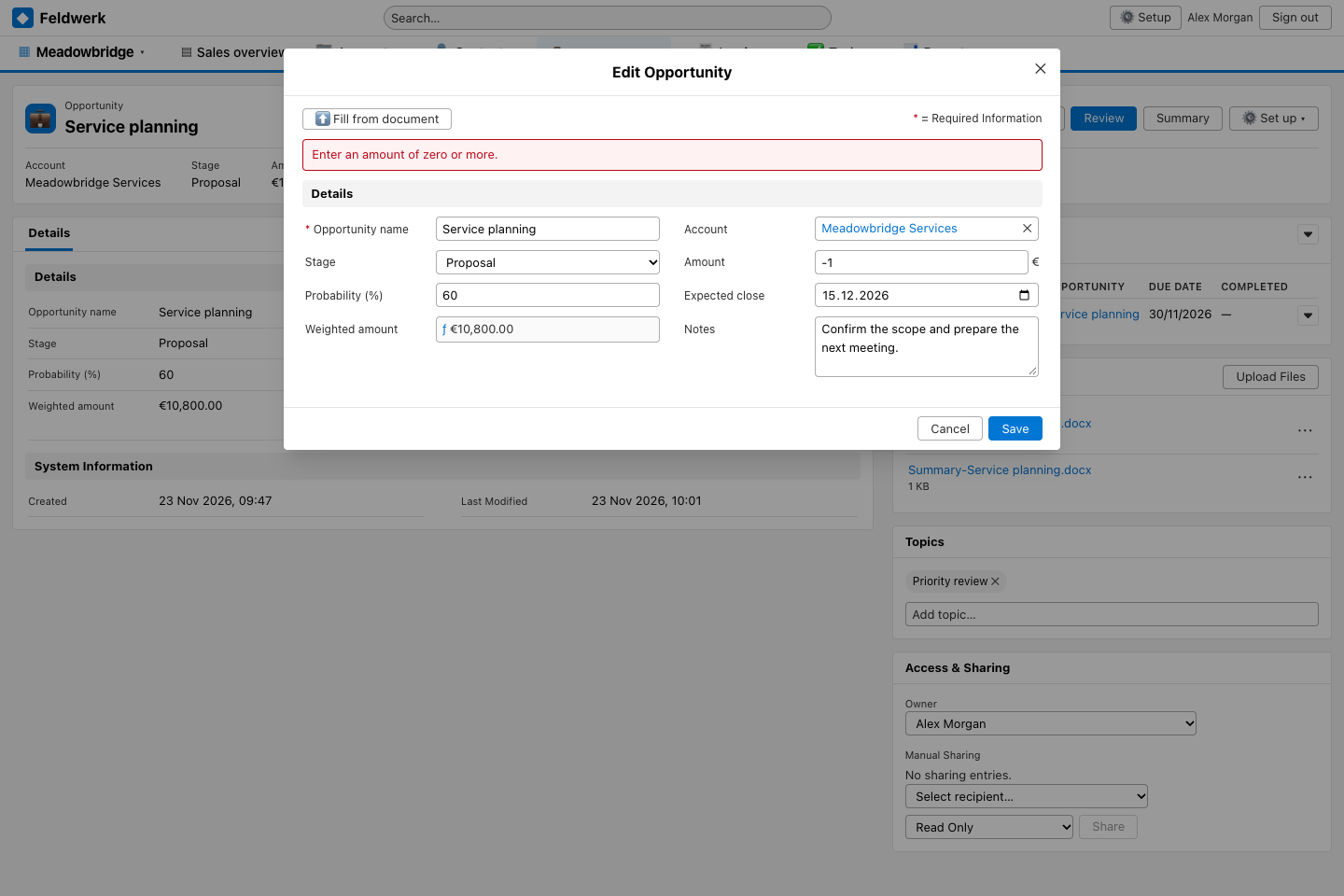
- Read the configured correction message.
- Replace the invalid amount.
- Save the corrected record.
Select the screenshot to open the full-size image.
In the example, the negative save returns a validation error; the corrected save succeeds. Also test zero, an empty value if the field allows it, and any boundary relevant to your business rule. A formula that rejects every record can interrupt everyday work.
Add an upper limit when needed
A separate rule can reject amounts above a business limit. The configuration below uses wert > 100000 with the message Enter an amount of 100000 or less. It accepts exactly 100000 and rejects 100001. In our example, zero and a blank Amount also pass this upper-limit rule. If blank amounts must be rejected, use the field’s required setting or a separate rule.
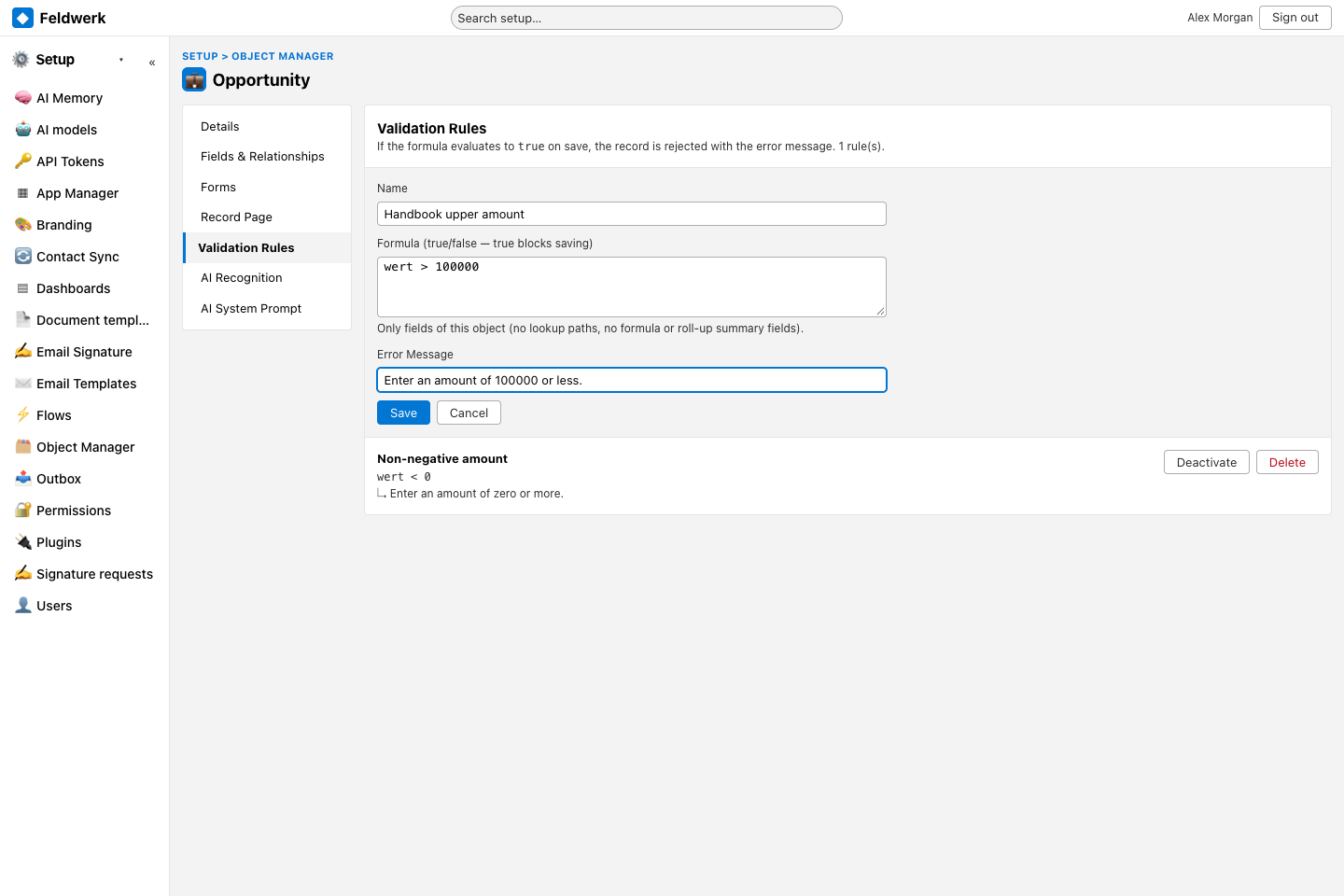
- Give the rule a meaningful name.
- True means the save is rejected.
- Explain how to correct the value.
Select the screenshot to open the full-size image.
Write messages people can act on
Describe the correction, not just the fact that validation failed. For example, “Choose an end date on or after the start date” is more useful than “Invalid record”. Configured messages are your organisation’s content and remain in the language in which you wrote them; changing the interface language does not translate them.
Change or deactivate a rule
Use the rule’s controls in Validation Rules. Deactivation stops future enforcement but does not repair existing data. Before deleting a rule, record why it existed and test the replacement. If an unexpected rule blocks work, give an administrator the object, the attempted change and the exact message; never include credentials.
When the message is unexpected
Check the formula’s direction first: true means reject. Then check field API names, blank values and other active rules on the same object. Saving can also run configured automation. Correct the rule or the underlying data instead of relying on a different entry screen to bypass validation.