

Before you start
Feldwerk brings your organisation’s records, forms, reports and workflows into one workspace. Your administrator decides which objects and apps are available. The example objects in this handbook, such as Contacts and Tasks, illustrate one configuration; your workspace may use different names.
Ask your administrator for your Feldwerk address and account details. Use the address for your organisation, then open the sign-in page. You need an account with permission to read the records you want to work with.
Sign in
- Enter your Email address and Password.
- Select Sign in.
- Wait for your workspace to open. If a message appears, check the address and credentials and try again. If access still fails, contact your administrator with the message, without including your password.
If you see Initial setup and Create account, this is an instance with no user account yet. The first account receives administrator rights. This screen is for the person setting up the instance; it is not a general registration page for additional users.
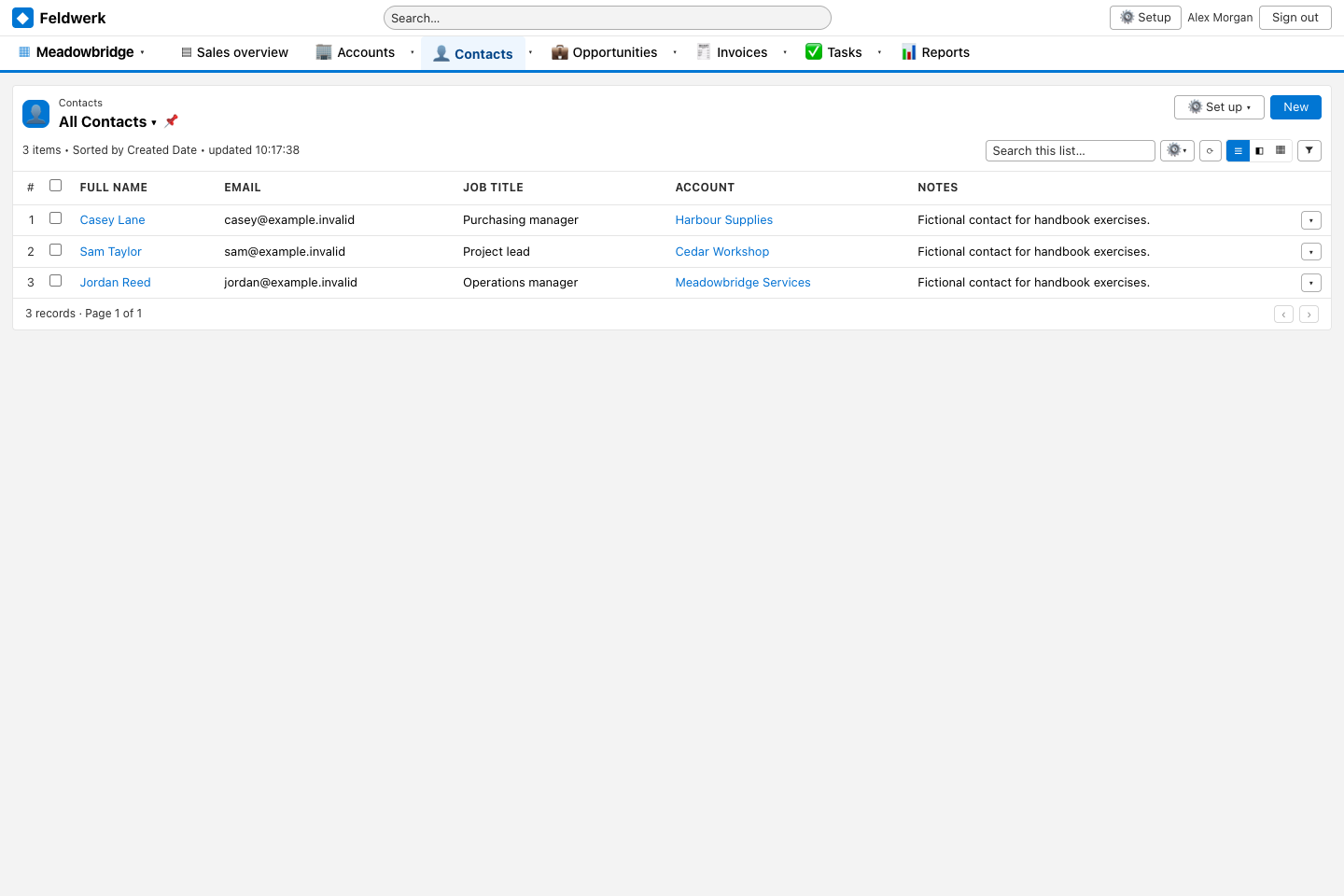
- Choose an app or an object tab.
- Choose the list view.
- Create a contact with New.
Select the screenshot to open the full-size image.
Find your work
- Open the app selector beside the current app name, such as Meadowbridge, to choose the workspace for your task.
- Choose an object tab. An object groups records of the same kind: for example, Contacts contains individual contact records.
- Choose a list view to narrow the records shown. A view changes how you see the records; it does not create a separate copy.
- Select a record to open its details. Related records, files and actions depend on the page your administrator configured and your permissions.
You can also use Search to find records across the objects you are allowed to access. If a record is missing, check the selected view and its filters, then ask your administrator to check your access.
Make your first change
- Open a test record that you are allowed to edit.
- Select the edit action, change an ordinary text field and save.
- Check the saved value on the record page. If validation refuses the change, read the message and correct the indicated value before saving again.
Formula and roll-up fields are calculated from other data. You cannot change them by typing a replacement value. Saving may also run configured automation; use a dedicated test record while learning.
Know when you need Setup
Working with an existing contact or task is different from changing its structure. Administrators use Setup to define objects, fields, forms, permissions and automation. If you need a new field or cannot see a required object, ask your administrator. A missing tab does not by itself prove that the underlying records have been deleted.
Learn the terms
Use the glossary when a term is unfamiliar. Start with object, record, field and list view; these describe most of the everyday workspace.