

Forms and record pages have different jobs
A form arranges the fields used to enter or edit values. A record page arranges components such as Details, related lists and Files. Changing the form does not create new fields or change the object’s permissions.
Administrators open Setup → Object Manager → the object → Forms and choose Builder for a form. The builder header identifies which layout is being edited. Check that name before saving when the object has several forms.
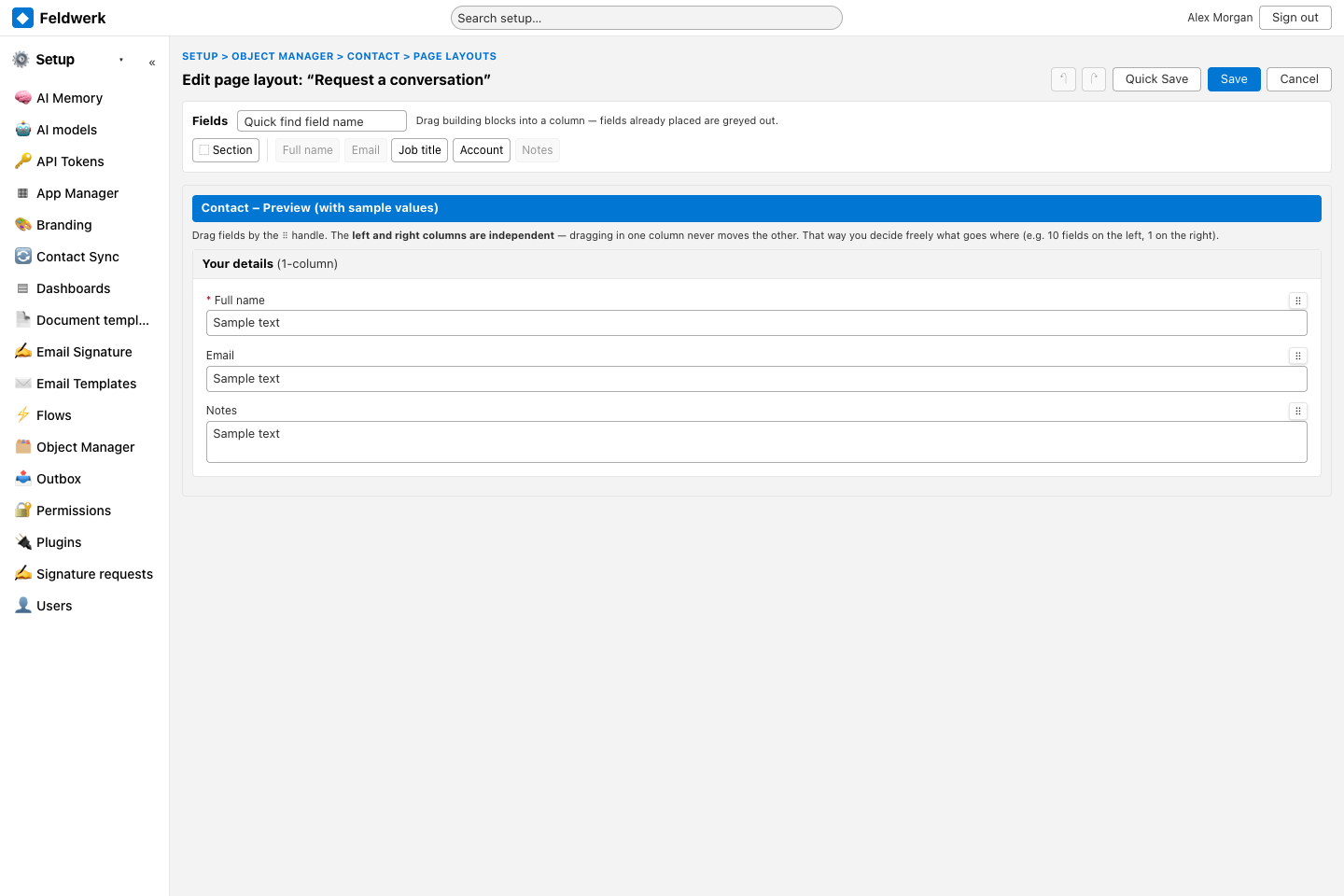
- Choose fields and section building blocks.
- Arrange fields in independent columns.
- Save the form and verify it with real records.
Select the screenshot to open the full-size image.
Arrange fields
- Find a field in the Fields palette, using Quick find field name when needed.
- Drag it into a section column. Fields already placed are greyed out in the palette.
- Use the field’s drag handle to move it to the intended position.
- Review the sample preview and continue arranging the other fields.
The left and right columns are independent. Moving a field in one column does not move the corresponding field in the other. A long notes field can therefore sit below several short fields without forcing a rigid row-by-row pairing.
Configure sections
Drag a Section building block into the layout and open its properties. Choose a section name, whether to show its heading, and one or two columns. Select a tab order across rows or down columns, then confirm the properties.
Changing the column count redistributes the existing section contents. Review the resulting order and keyboard navigation. Group fields around a user task, such as contact details, rather than around their technical field types.
Keep required inputs reachable
Required fields cannot simply be removed from the layout. A section containing required fields is also protected against removal. If a field should no longer be required, review that business rule at the field definition rather than trying to hide the input.
Removing an optional field from a layout does not delete its definition or existing values. It also does not restrict access to that field. Use field-level permissions for access control.
Save and verify
- Use Undo and Redo to review recent layout changes.
- Select Quick Save to save while staying in the builder, or Save to save and return.
- Open the actual record creation or editing form that uses the layout.
- Check field order, required markers, help text, lookups and keyboard navigation.
- Save a test record and verify its values.
The builder preview uses sample values. It does not prove that a real lookup is available or that validation accepts a record. Test with the intended user’s permissions as well as an administrator account.
Forms used publicly
A form can also back a public web form when activated in the Forms list. Before publishing its link, check the exact fields and wording a visitor will see. Platform buttons follow the supported interface language; your labels and section headings remain configured content.
If changes do not appear
Confirm that the save succeeded and that you edited the form actually used by the workflow. Check for several forms on the same object and refresh the target screen. If a save reports a concurrent-change conflict, another editor has saved a newer version. Your attempted save is rejected. Select Reload to discard your unsaved layout and load the current version, then apply the changes you still need. Note your intended changes before reloading. The example shows a two-column layout whose save was rejected; the layout displayed below the warning is still the local draft.
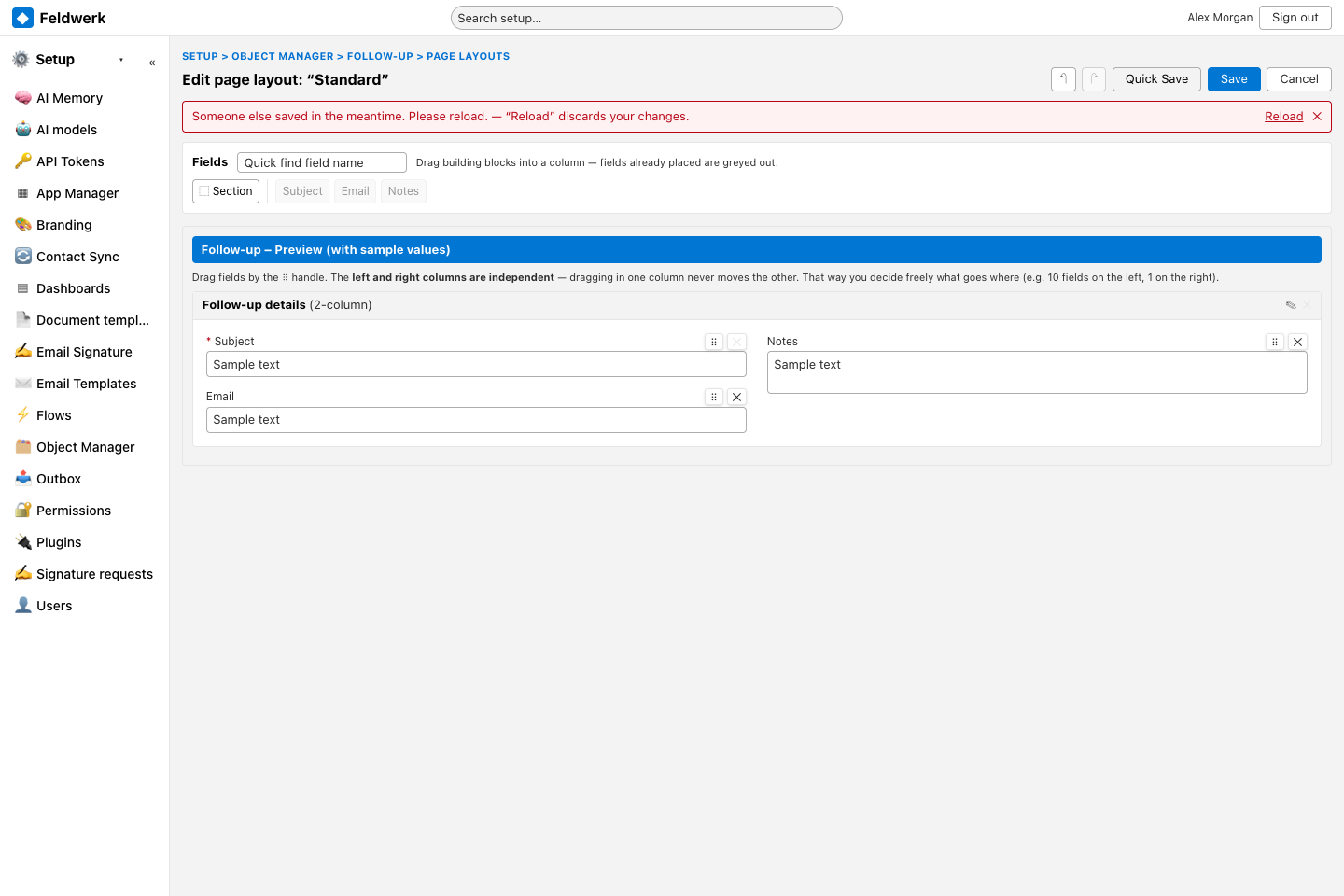
- The save was rejected because a newer version exists.
- Reload discards this draft and opens the latest saved layout.
- These fields still show the local draft until you reload.
Select the screenshot to open the full-size image.