Choose a workspace for the task
An app groups navigation tabs into a workspace. It can contain object lists, dashboards and supported pages. It does not copy records or create a separate database. The same Contacts object can appear in several apps, and access still follows the user’s permissions.
Use the app switcher at the top left to change apps. A configured landing tab opens when switching. In the Meadowbridge example, Contacts is the landing tab, with Sales overview, Accounts, Opportunities, Invoices, Tasks and Reports available alongside it.
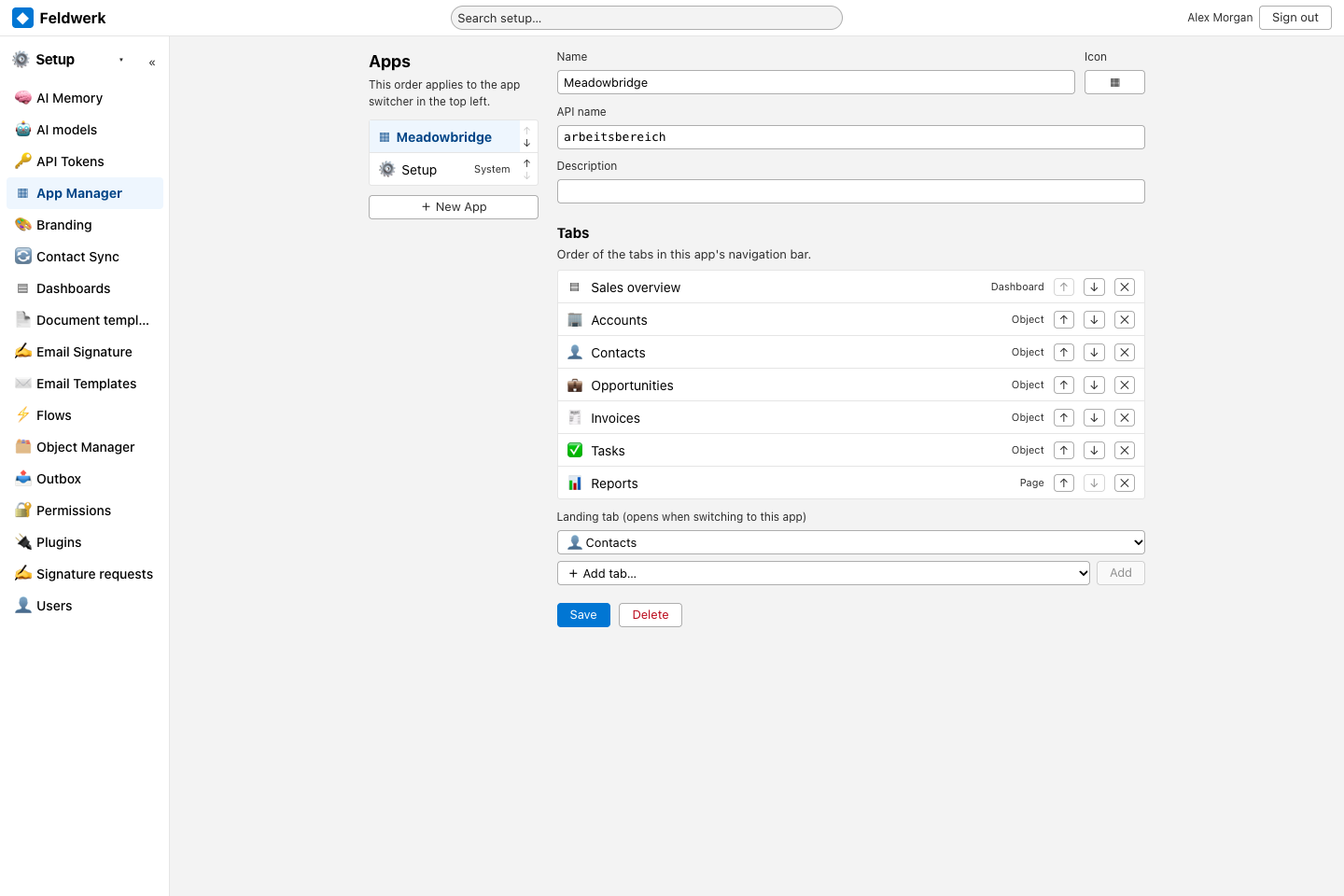
- Select or create an app.
- Arrange its tabs.
- Choose the landing tab.
- Save the app.
Select the screenshot to open the full-size image.
Create or change an app
- Open Setup → App Manager.
- Select an existing app, or choose New App.
- Enter its name, icon, API name and description. Use a name that tells the team what the app is for.
- Use Add tab… to select an available object, dashboard or page, then select Add.
- Move tabs with the up and down controls. Remove a tab with its remove control if it should no longer appear in this app.
- Choose the Landing tab. If no explicit destination is selected, the default is the first object tab.
- Select Create app for a new app, or Save for an existing one. Switch to the app and verify the navigation.
The arrows in the app list change the order of apps in the switcher; the arrows beside tabs change navigation inside the selected app. Removing a tab does not delete its object or records. Deleting an app removes that navigation configuration, so check who uses it first. The Setup app is a system app.
The configuration below places Accounts before Contacts, but explicitly selects Contacts as the landing tab. Switching to the app therefore opens Contacts even though Accounts appears first.
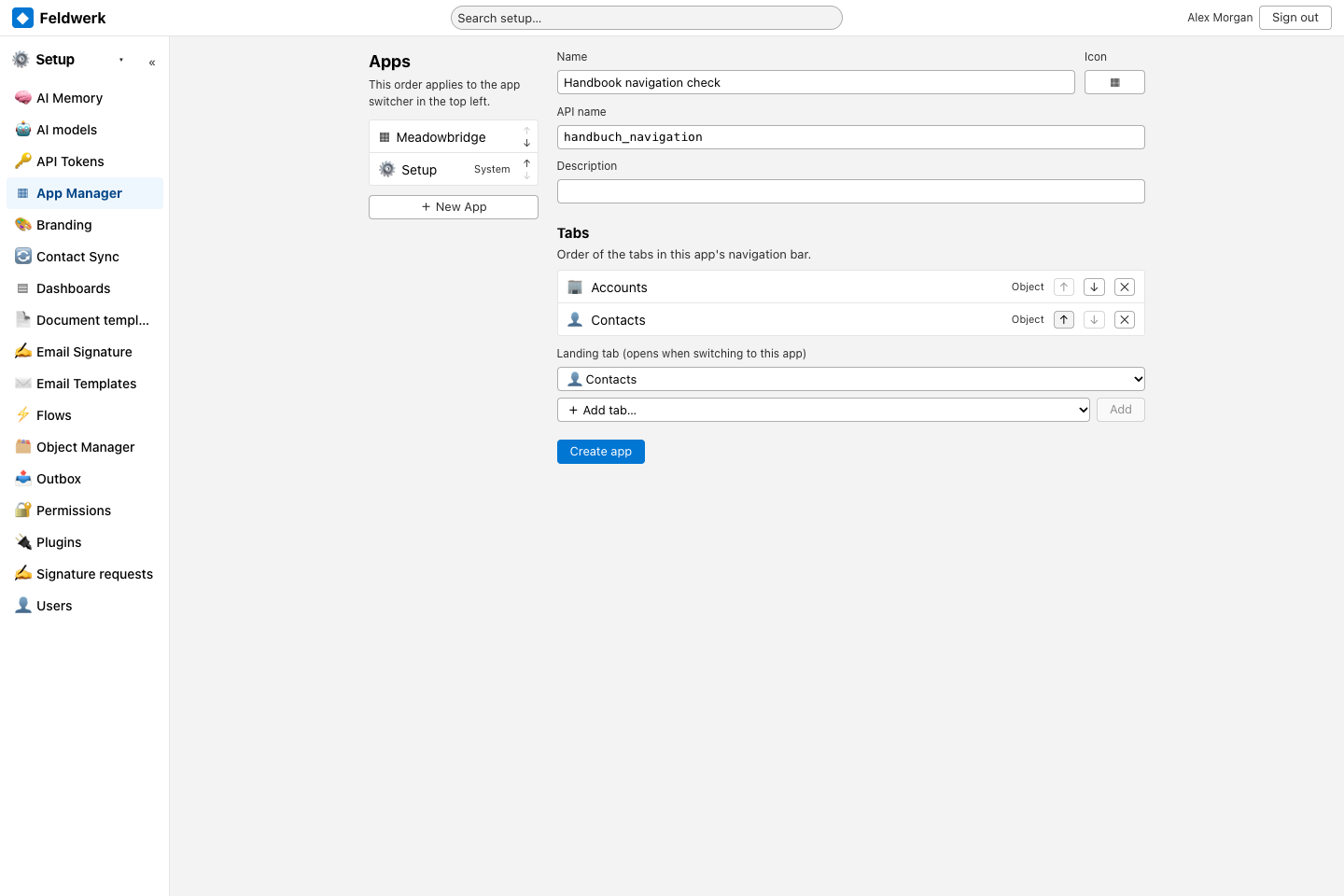
- Arrange the tabs and remove unwanted entries.
- Choose the destination opened when switching apps.
- Add another object, dashboard or supported page.
Select the screenshot to open the full-size image.
Add a useful landing dashboard
Create and save the dashboard before adding it as a tab. For a sales team, Sales overview can show a pipeline report and a task list. Select it as the landing tab if users should see the overview first. Dashboard widgets still use the current user’s access; an administrator’s preview can show more information than a member’s view. See Dashboards.
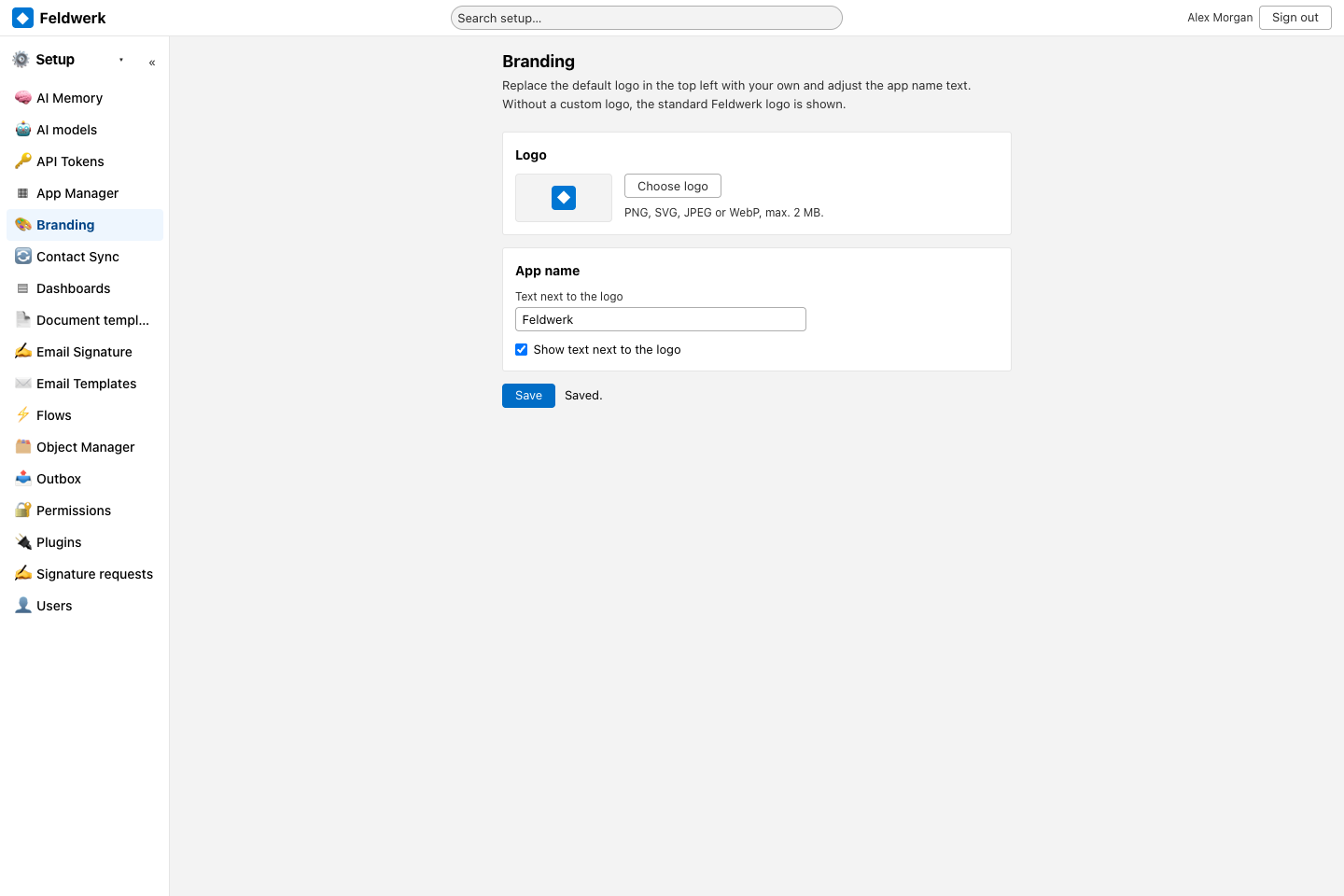
- Upload or remove the logo.
- Set the name and its visibility.
- Save the text settings.
Select the screenshot to open the full-size image.
Change the logo and name
- Open Setup → Branding as an administrator.
- Select Choose logo and choose a PNG, SVG, JPEG or WebP file of at most 2 MB. The upload is applied separately from the text settings.
- Check the logo preview and the header.
- Enter the text to show beside the logo and choose whether that text should be visible.
- Select Save to apply the text settings.
Use Remove logo to return to the standard logo. With no custom logo, Feldwerk uses its standard mark. Branding is shared across the instance, rather than attached only to the currently selected app.
Check the result
Test the switcher, landing tab and each navigation item with a team member’s account. If an object is missing, review both its app tab and its access permissions. If a dashboard is empty, inspect its widgets and data permissions before changing the app. Check the logo at a narrow browser width as well as on a desktop.
Choose an account’s interface language
An administrator can open Setup → Users, edit the intended user, select Language and save. The setting belongs to that account, so colleagues can use different languages in the same instance. For your own account, the API operation PUT /api/auth/sprache accepts {"sprache":"en"} or {"sprache":"de"}; MCP also provides the language tools.
The interface language changes platform controls and supported system metadata. Your organisation’s object names, field labels, custom validation messages, form content and record values remain as configured. Translate those deliberately for their audience rather than expecting an interface-language change to rewrite them. Public visitors without an authenticated account use their browser language for supported platform text.
The language names are shown in their own language, such as Deutsch and English, so they remain recognisable when the current interface language is unfamiliar.
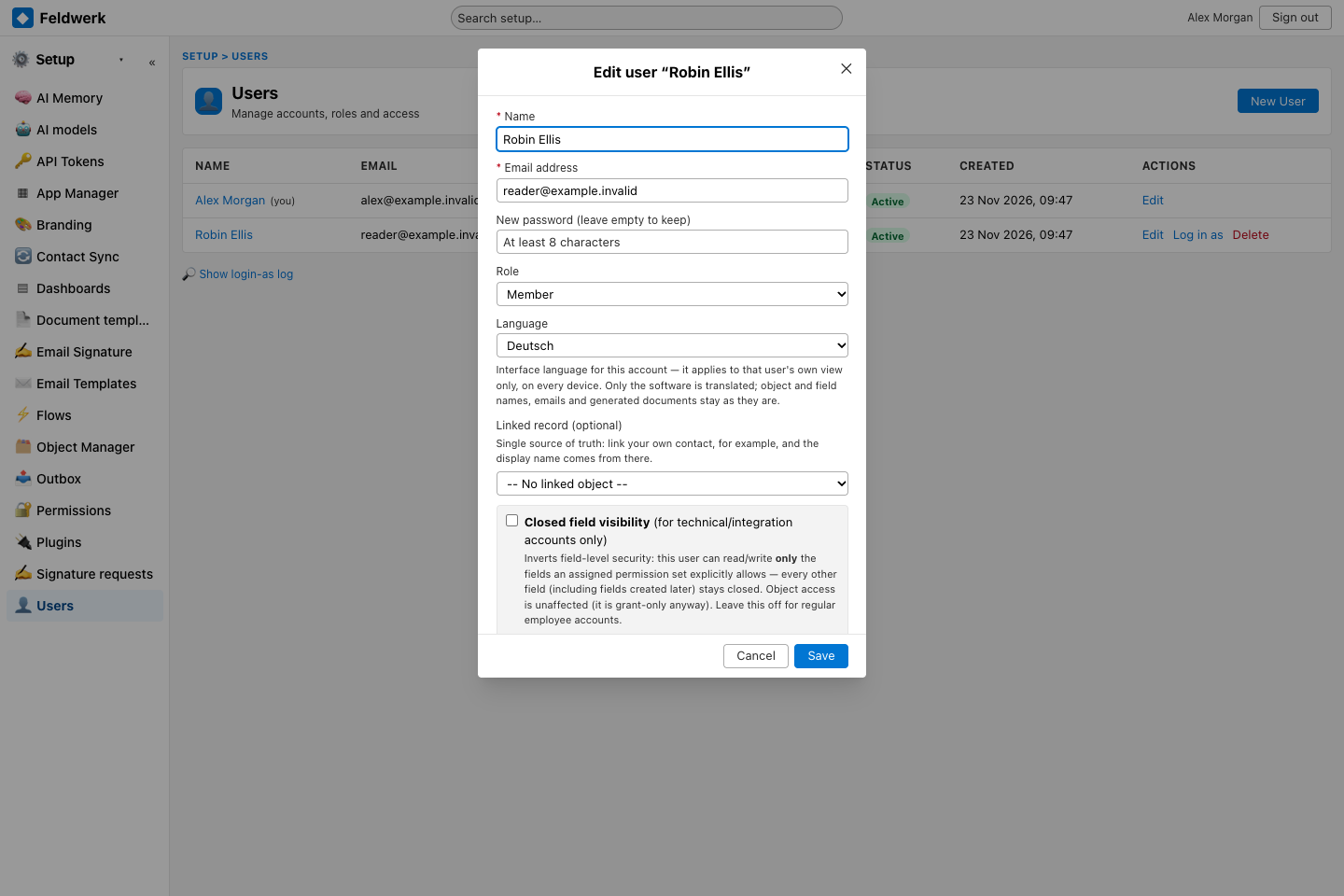
- Choose the interface language for this account.
- Save, then check the user’s own session.
Select the screenshot to open the full-size image.
Reset a dedicated demo instance
Setup → Demo is relevant only to an instance explicitly configured for demonstration. On an ordinary instance it states This instance is not running in demo mode. This is not a way to undo one mistaken edit.
- Confirm that you are in the intended demo instance and that its displayed initial snapshot is the one you want to restore.
- Select Reset demo data.
- Read the confirmation: records, objects, fields, forms, flows, reports, uploaded files and user accounts created or changed since the snapshot will be lost.
- Choose Cancel to keep the current state, or Reset to restore the snapshot.
- Wait for the server to restart, then sign in again with an account from the restored snapshot.
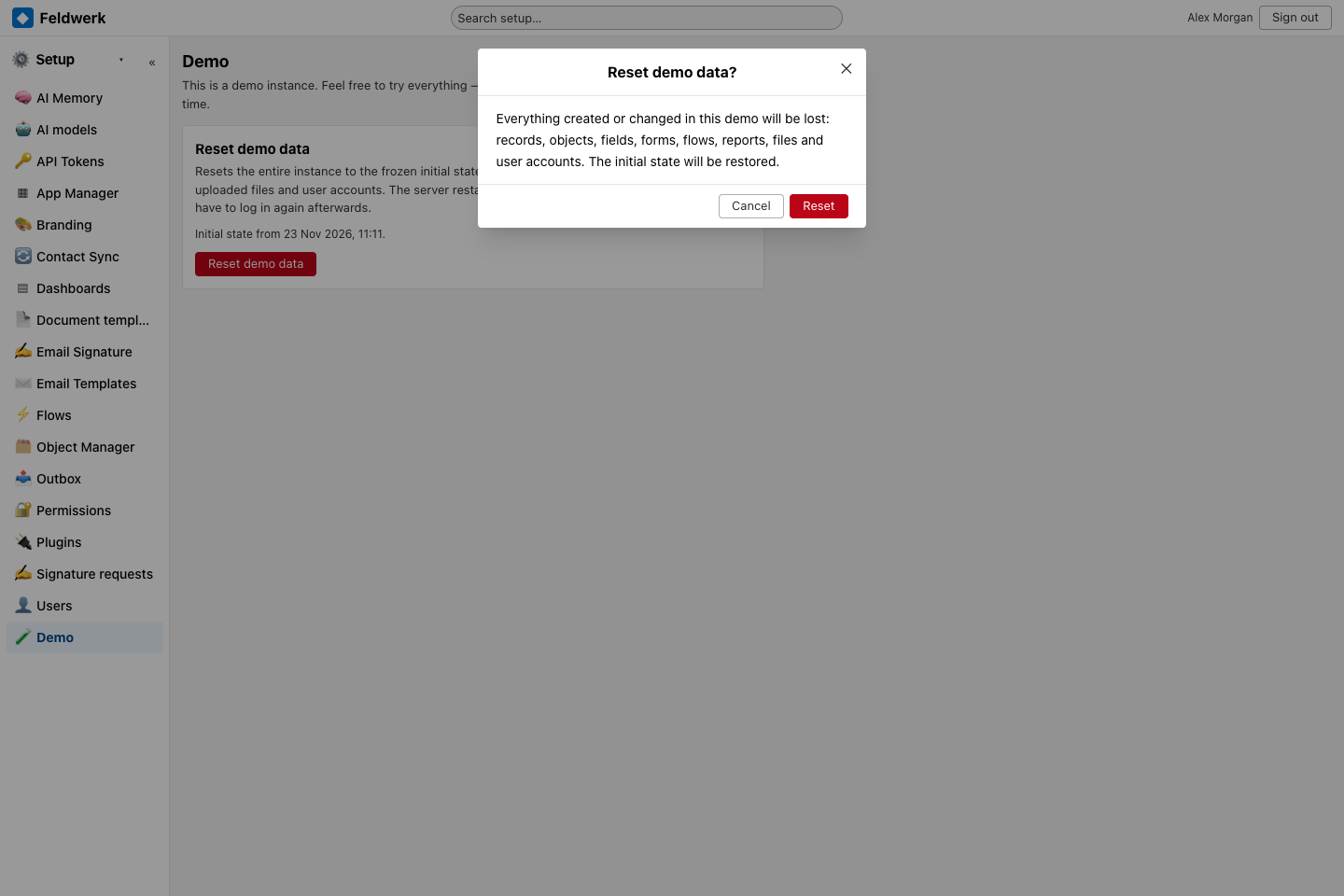
- Check the scope of the reset before proceeding.
- Cancel preserves the current demo; Reset restores its snapshot.
Select the screenshot to open the full-size image.
The reset button is disabled when no initial snapshot is available. If the restart does not complete, use the displayed reload instruction and contact the instance administrator. A demo reset is unrelated to deleting an app or removing one navigation tab.