

What a lookup stores
A lookup points to another record. For example, a Contact has an Account lookup. Many contacts can point to the same account; the account’s related list can show those contacts. The relationship belongs to the lookup field on the child object.
Use a lookup when the target is a record with its own identity and data. Typing an account name into a plain text field does not create the same relationship. An Object Reference identifies an object definition and is also different from a record lookup.
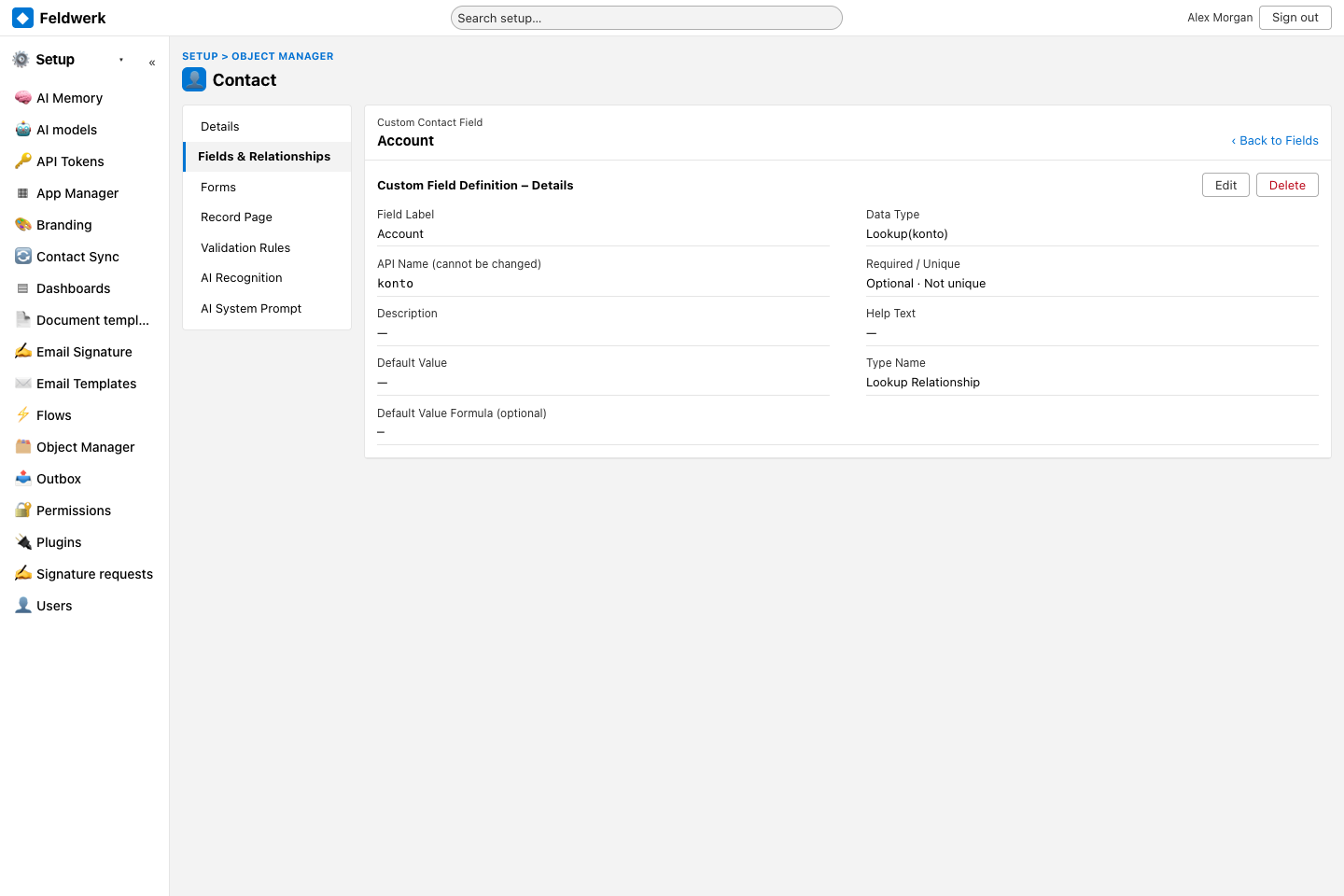
- The field label is shown to users.
- The lookup target is part of the field definition.
- Use the stable API name in configuration.
Select the screenshot to open the full-size image.
Configure the target
- In Object Manager, choose the child object and open Fields & Relationships.
- Create a field of type Lookup Relationship.
- Choose one Target Object. The current field wizard creates a relationship to one fixed object.
- Set the label, API name and other supported properties, then save.
- Place the field on the appropriate form and check the corresponding related-list configuration on the parent page.
The platform also supports a fixed set of target objects or any permitted object. These multi-object relationships are configured through the regular API, not through the current field wizard. To allow Accounts and Contacts, use their actual API names in the field definition:
"optionen": {
  "zielObjekte": ["konto", "kontakt"]
}
Use exactly one target mode: zielObjekt for one object, zielObjekte for a fixed set, or zielBeliebig: true for an open relationship. With more than one possible target, the user must also choose the target object. The target mode and target set are immutable after creation; create a new relationship and plan a migration if the model must change.
Select a related record
- Edit the source record.
- For a multi-object lookup, select the intended object first.
- Type a distinctive part of the record name and choose the correct suggestion.
- Save and verify the linked value on the record page.
Use other identifying information when several suggestions have the same name. Clear selection to remove an optional relationship, or select another record to replace it. A required lookup cannot be left empty, including when you edit an existing record. Save is rejected until you select an allowed target. An open relationship still lists only objects you can access; it does not bypass object or record permissions.
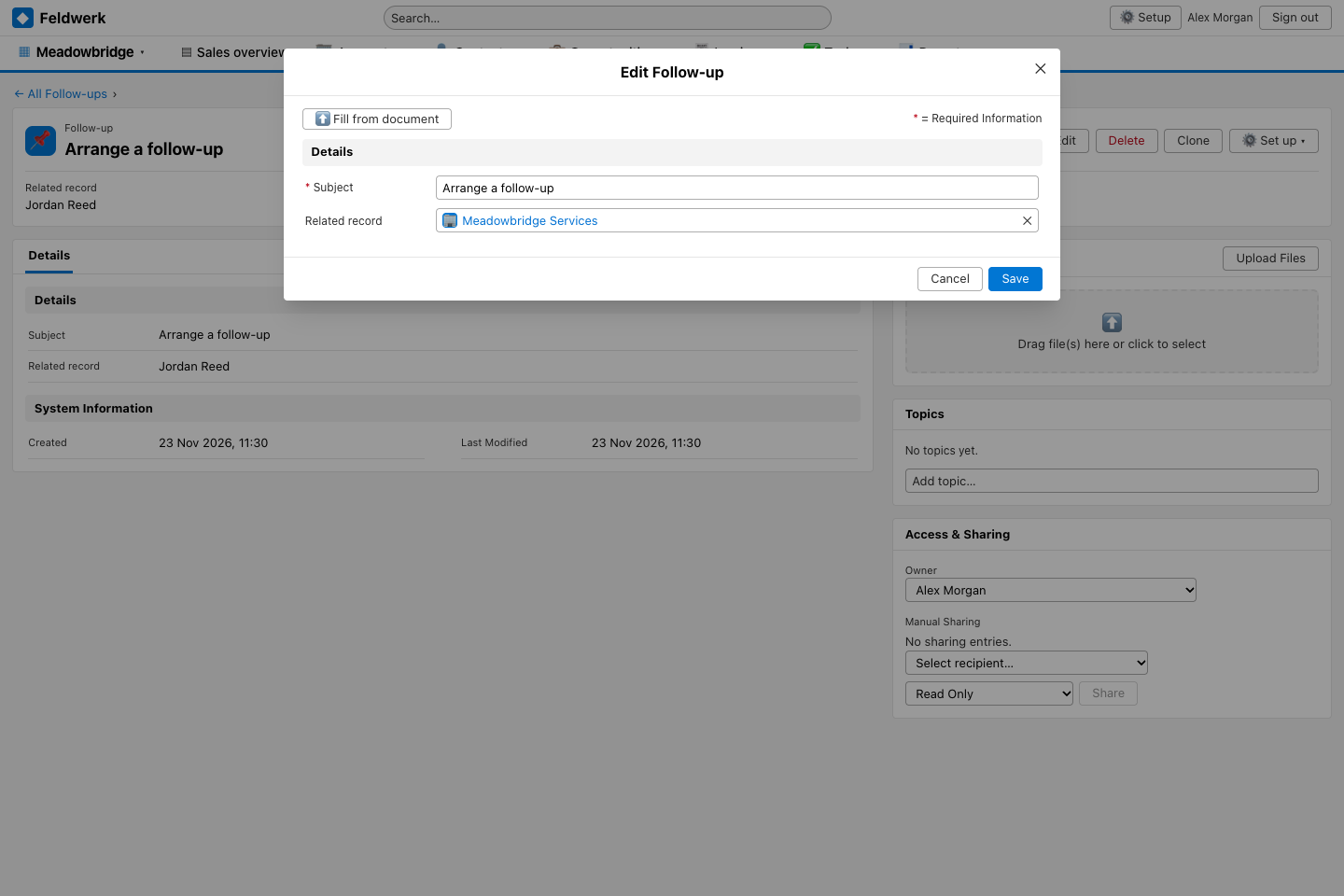
- Check the selected record and its object icon. This field allows Accounts or Contacts.
- Clear the selection to remove or replace the relationship.
- Save to persist the change; the background still shows the previously saved contact.
Select the screenshot to open the full-size image.
Follow the relationship
Select the lookup link to open the related record. On the parent record, a configured related list identifies the child records pointing to it. A related-list filter changes the scope of a list; it does not create a new set of records.
In the handbook, Service planning points to Meadowbridge Services. Its Tasks related list uses the Opportunity lookup on Tasks. The Account’s Total invoiced field follows the Account lookup on Invoices to calculate its roll-up.
Use lookup paths
Formulas can traverse supported lookup paths using field API names, for example konto.name for the related account’s name. The formula editor’s field picker helps choose a valid path. Missing relationships and inaccessible data require deliberate blank handling; test those cases instead of only testing a fully populated record.
In Flow conditions, record fields use the Flow context notation, for example $Datensatz.konto. Do not mix that notation with a plain field formula without checking the expression context.
Check access and lifecycle
A relationship is not a permission grant. The user still needs the appropriate access to select or open the target. If a relationship cannot be selected, check target configuration, permissions and whether the target exists.
Before deleting a referenced record, review the incoming relationships and the effect on related lists, formulas and automation. Do not assume all child records will be deleted with the parent. After an intentional deletion, verify the surviving records and repair any business process that depended on the relationship.