

Roll up child records
A Roll-Up Summary field belongs to the parent object and calculates across child records that point to it through a lookup. Choose the relationship carefully: the field on the child determines which records contribute.
Our Accounts object has Total invoiced. It follows Invoices · Account, sums the child field Net amount, and displays a Currency result. The two Meadowbridge invoices contribute 2400 and 6000, producing 8400.
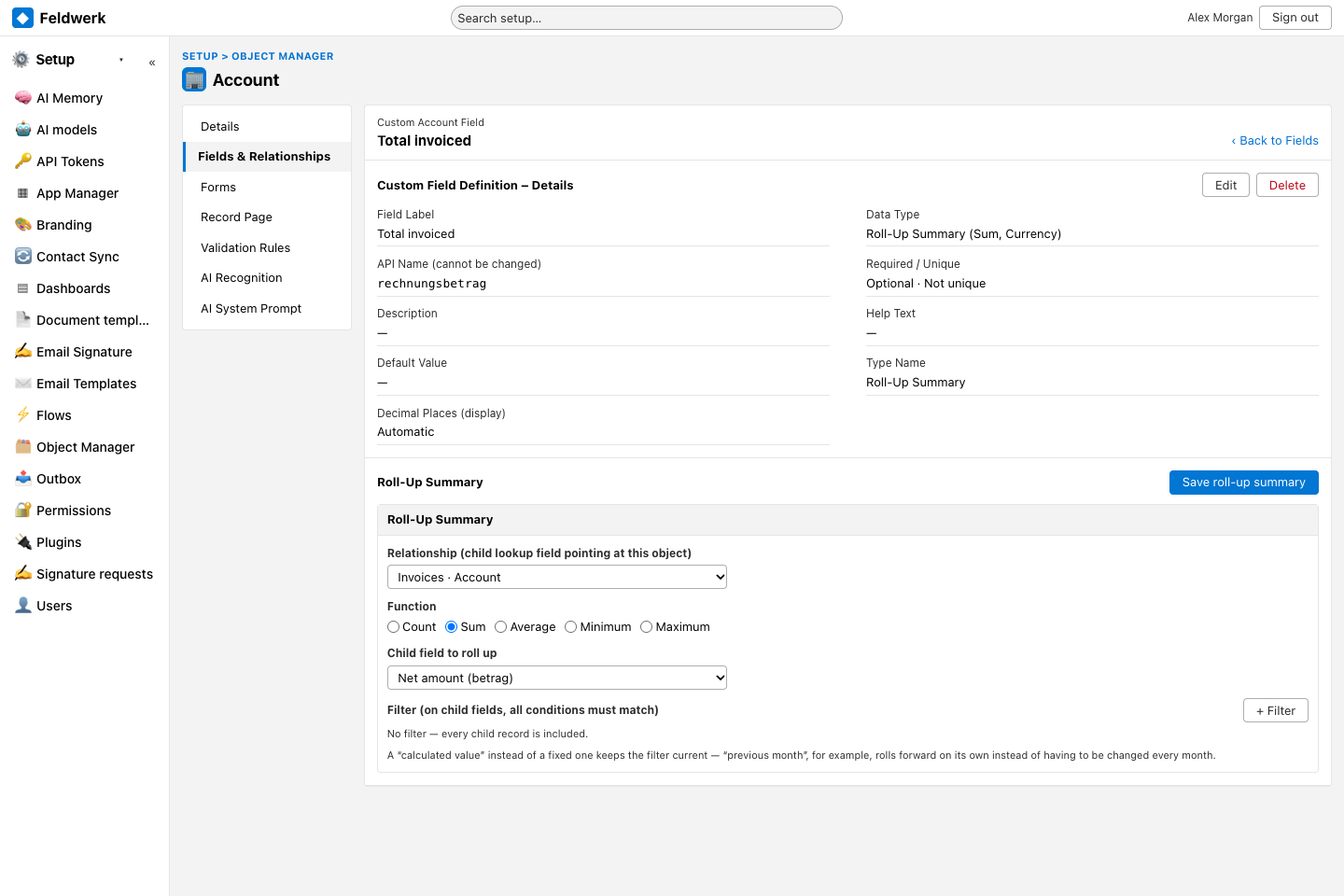
- Select the child relationship.
- Choose the aggregation function.
- Select the child value field.
- Limit contributors with optional filters.
Select the screenshot to open the full-size image.
Configure a roll-up
- Open the parent object’s Fields & Relationships and create a Roll-Up Summary field.
- Choose the child lookup relationship pointing at this object.
- Select Count, Sum, Average, Minimum or Maximum.
- For functions that need a value, choose a compatible child field.
- Add child-field filters if only some related records should contribute.
- Select Save roll-up summary and check the result on a parent record.
Count counts matching records. Sum adds the chosen values. Average, Minimum and Maximum summarise the chosen compatible field. Their result type depends on the input and function. Roll-up values are calculated when records are read and are read-only; change the contributing records to change the result. Count includes matching records even when the selected value field would be blank. The other functions ignore blank values: amounts 100, 200 and blank give a sum of 300 and an average of 150. With no usable matching values, the result is blank rather than zero; Count returns zero for an empty set. Minimum and Maximum also support compatible date fields.
Filter the contributing records
Filters apply to child fields, and all configured conditions must match. Without filters, every child record in the relationship contributes. For a moving date range, use a supported calculated or relative value rather than manually changing a fixed date each month.
Test a matching child, a non-matching child, a changed value and a removed relationship. In the handbook test, creating two linked invoices of 100 each raises Total invoiced from 8400 to 8600; deleting those test invoices returns it to 8400.
A filtered cost example
The isolated Cost plans example has three related Cost items with amounts 100, 200 and blank. Choose Sum, Amount, then add the filter Amount is greater than or equal to 150. The total becomes 200. Changing the contributing item to 250 changes the total to 250; clearing its Cost plan lookup or deleting it leaves a blank total because no item matches.
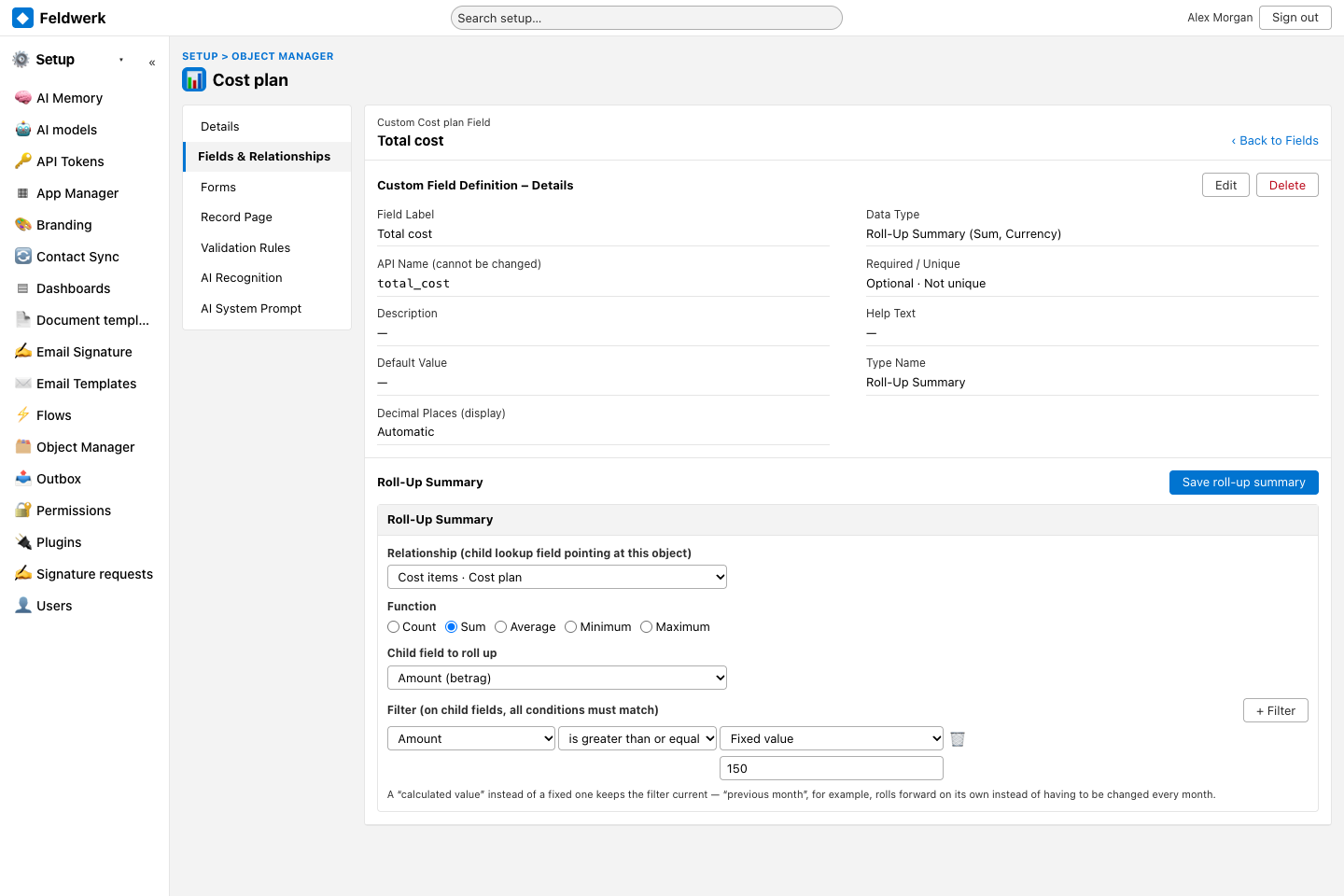
- Choose the child relationship, Sum and Amount.
- Include only amounts of at least 150.
- Save the configuration and read the parent again.
Select the screenshot to open the full-size image.
Select Save roll-up summary after changing the function or filters, then refresh the parent record. Changing the selected relationship clears the draft child-value field and filters; choose them again for the new relationship.
Assign automatic numbers
An Auto Number field assigns a formatted sequence value. It is not editable record input. The example Invoice number uses INV-{0000} with a start of 1001, producing values such as INV-1001.
- Create an Auto Number field on the object.
- Choose a format containing exactly one zero placeholder, such as
{0000}. - Set the initial sequence value and save the field.
- Create two test records and check that they receive distinct successive numbers.
The zero placeholder sets the minimum padded width. The sequence is assigned by Feldwerk; integrations and users must not supply their own replacement value. Adding the field to an object with existing records also assigns numbers to those records, so review the intended starting value before doing this on business data.
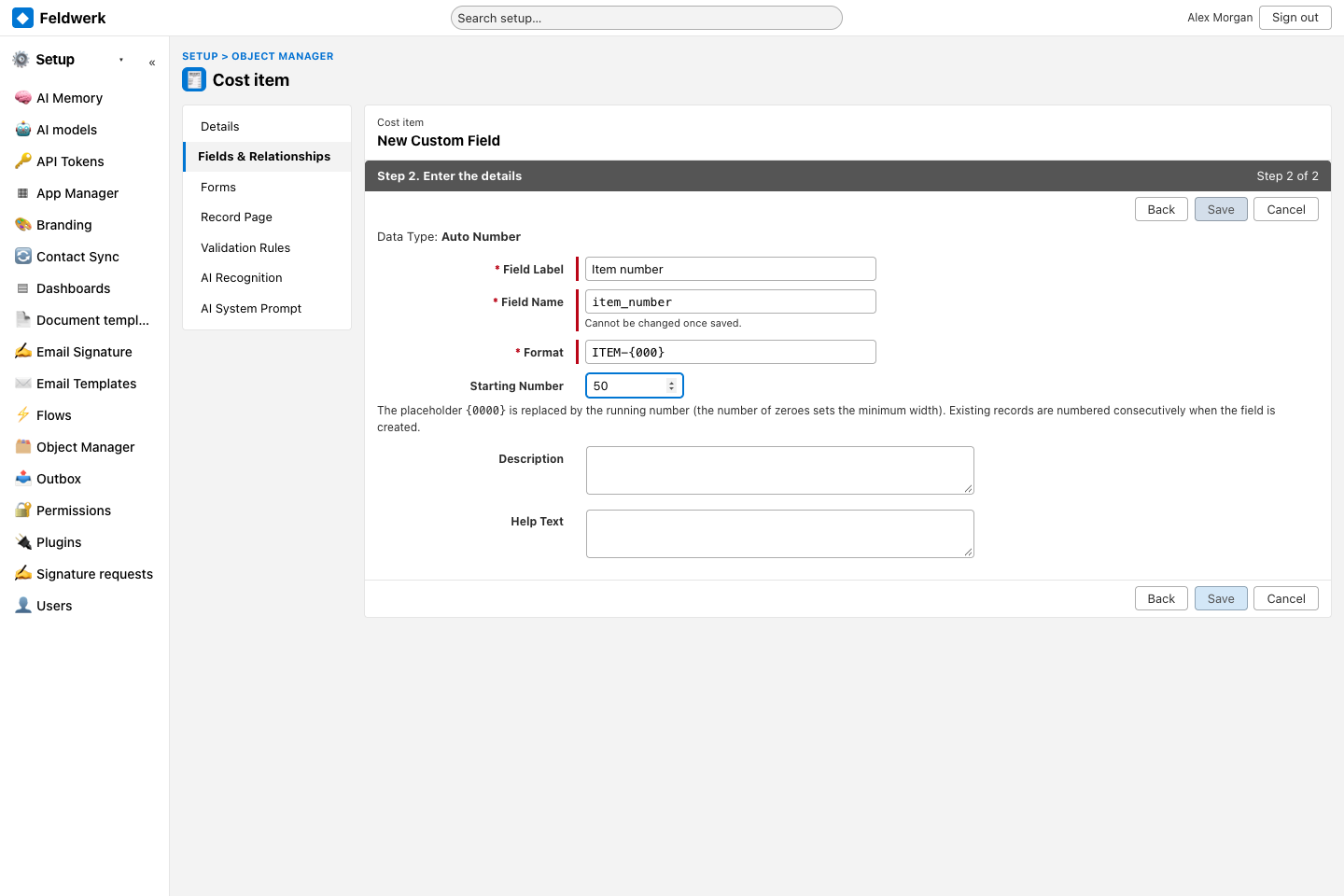
- Name the field; its API name stays fixed after creation.
- Use one zero placeholder and choose the initial number.
- Save; existing records receive numbers too.
Select the screenshot to open the full-size image.
In the illustrated Cost items check, ITEM-{000} with a starting number of 50 assigns ITEM-050 and ITEM-051 to the two existing records. A new record receives ITEM-052. After deleting that record, the next new record receives ITEM-053. Supplying a replacement number through the API does not override the generated or previously assigned value.
Understand sequence behaviour
Automatic numbers are identifiers, not a count of current records. Deleting a record does not make its number available for ordinary reuse. Test records consume numbers too. A gap therefore does not prove data loss, and the highest number does not tell you how many records remain.
A formatted business number differs from the record’s internal/public identity. Integrations should use the supported record ID when addressing a specific record. Changing a display label does not change that identity.
Check unexpected results
- Wrong roll-up total: inspect the child lookup, selected field and filters, then refresh the parent.
- No relationship offered: create or check the child lookup pointing to this parent object.
- Read-only value: edit the source values or configuration, not the calculated field.
- Number differs from the example: the local sequence state and starting value determine it; the handbook numbers are illustrative.