

Use the global search
- Select Search… in the application header. On a narrow screen, use the search icon to open the search control.
- Type at least two characters. Wait for the suggestions to finish loading.
- Select a suggested record, or press Enter to open Search Results.
Focusing an empty search can show Recently Viewed records. These are navigation shortcuts, not a new search. When you search from an object, that object is preferred in the result ordering.
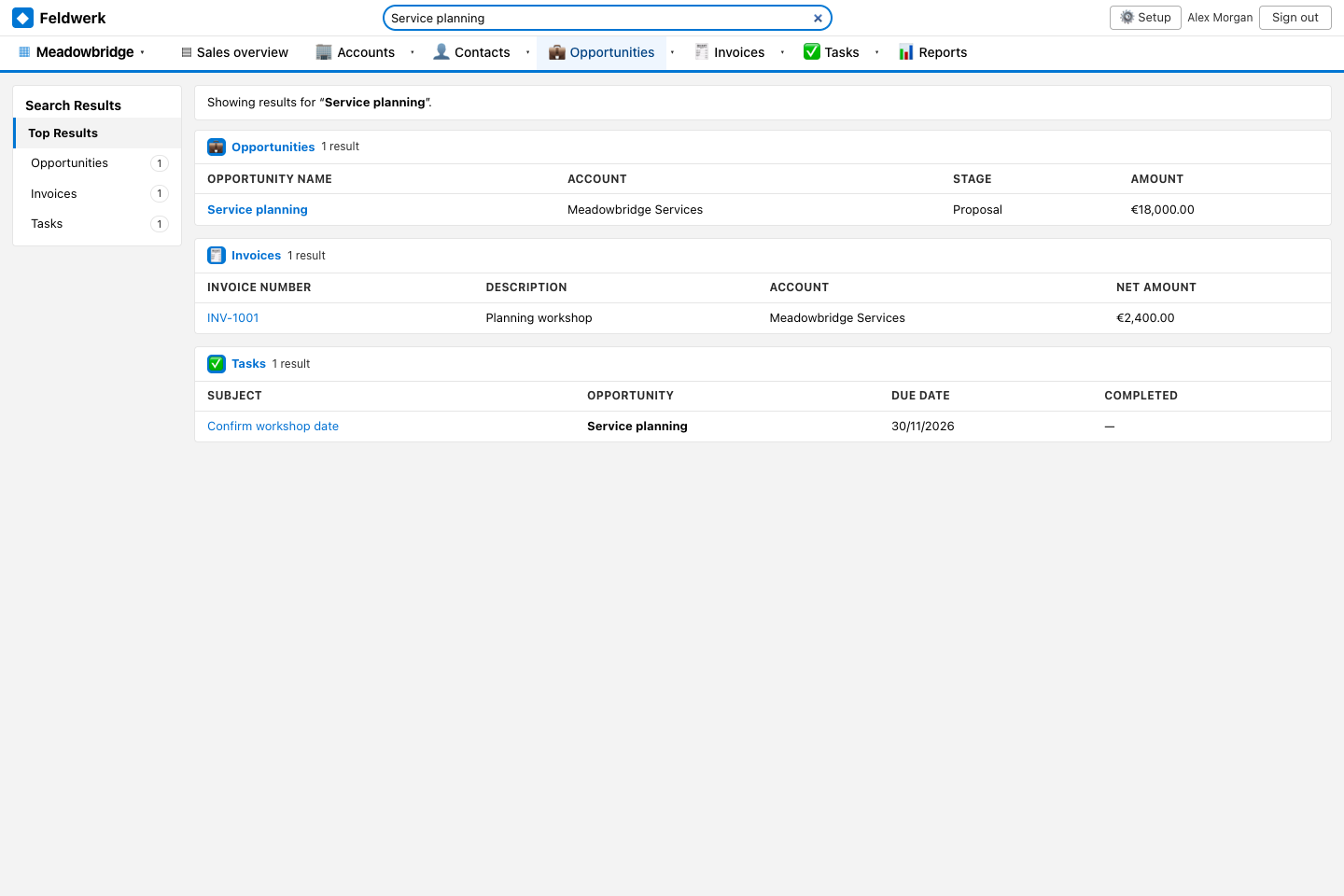
- Enter a search term in the global header.
- Choose Top Results or an object group.
- Open a matching record and inspect its values.
Select the screenshot to open the full-size image.
Read the results
Results are grouped by object. Top Results shows a cross-object overview; the object choices narrow the displayed group. On narrow screens, these choices appear above the results. Use Show More where offered to load additional results. Select a record name to open it.
In the example, searching for Service planning finds the opportunity and records containing the same text in their stored values, including relationship display information. The result title need not be the matching field. Read the row and open the record before assuming it is a duplicate.
If you know a record’s public ID, paste the complete ID into global search. An exact ID match is placed first. This is useful when names are similar; your normal object and record permissions still apply.
Global search versus list search
The header search spans the objects you can access. Search this list… belongs to an object list and works within that list’s scope. A list’s filters, owner scope or relationship filter can hide a record even when another authorised route can find it. Clear the list search and inspect the filters when a record seems to be missing.
What is searchable
The current global search searches stored record values. It is not a general full-text index of every attached file. Uploading a PDF does not by itself make all text inside it searchable.
If document text must be searchable, an administrator can configure an attachment-triggered flow to extract supported text and write it into an appropriate record field through the normal record pipeline. The field, object, permissions and extraction rules determine the resulting search behaviour. Do not promise a match in file contents before that workflow exists and has been tested.
When you cannot find a record
- Check spelling and try a shorter distinctive part of a stored value.
- Use at least two characters for the global search.
- Check whether you are searching the global header or only a filtered list.
- Open the expected object directly and check its views.
- Ask an administrator to verify object access, field access and record visibility if the record still cannot be found.
No results does not prove that the record was deleted. Search respects access, and newly extracted document text must first have been saved into a searchable record field.