

Open the right record
Select a record name in a list, search result or lookup link. Check the object name and record title before editing. Names are not necessarily unique; use the other fields to distinguish records with similar names.
A record page combines components chosen by your administrator. Your page may have different tabs, fields, related lists and buttons from the handbook example. The example opportunity uses a highlights area, Details, related Tasks, Files, Topics and Access & Sharing.
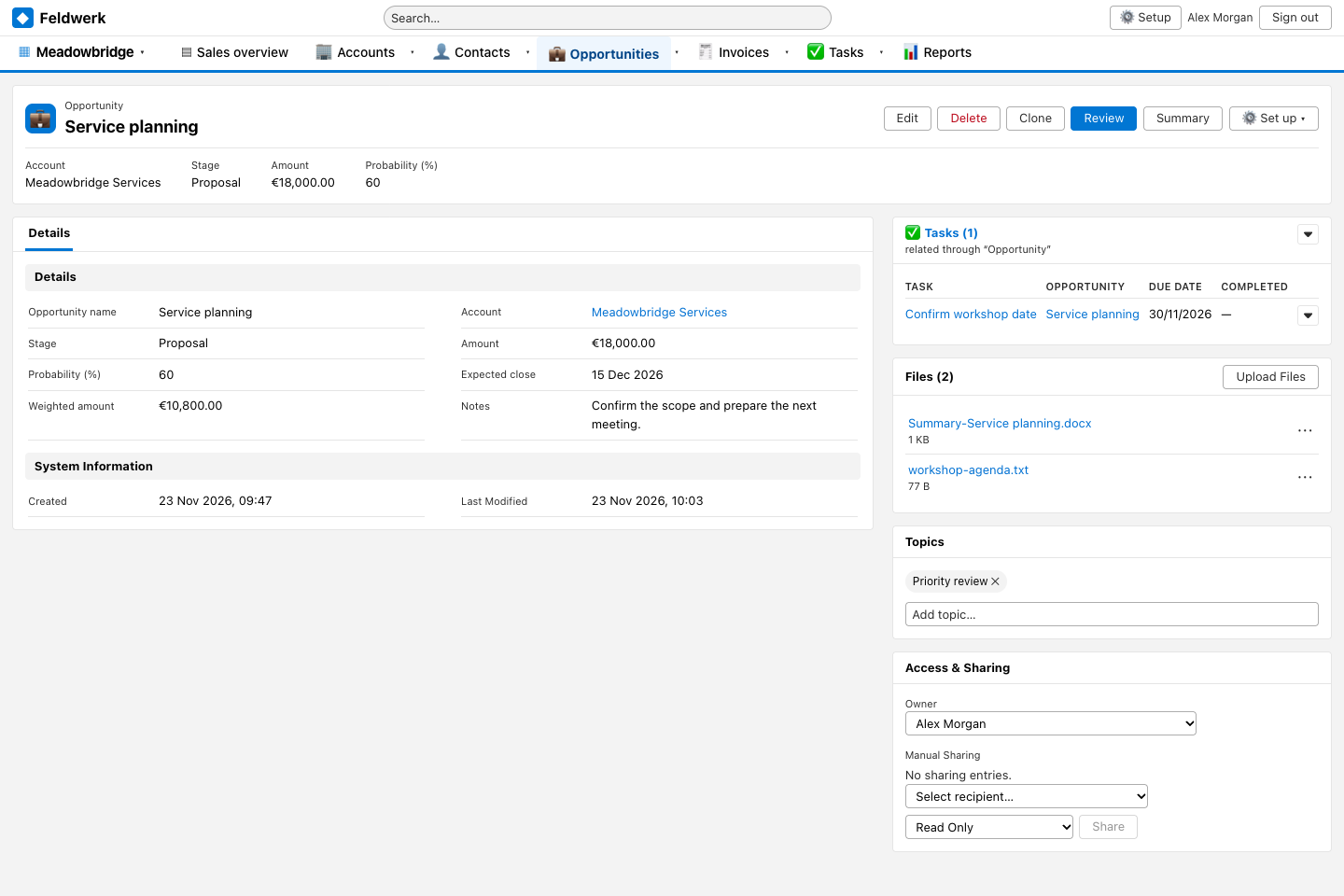
- Confirm the record and choose an action.
- Read fields and system timestamps.
- Follow related tasks through the configured relationship.
Select the screenshot to open the full-size image.
Read the details
The top area summarises important values. The Details area contains the configured fields. A blue lookup value opens the related record; it does not copy that record’s information into a separate object.
Formula and roll-up values are calculated. Automatic numbers are assigned by Feldwerk. Read-only fields cannot be edited through the ordinary input. System Information shows creation and modification timestamps and helps you check whether a recent change has reached the record.
Make a change
- Select Edit, or use an available field-edit control on the page.
- Change the intended value. For a relationship, search and select the correct target record.
- Select Save.
- Confirm the displayed value after saving. If a message blocks the change, correct the value and try again.
Use Cancel to discard unsaved input. A successful save may also run automation, so review dependent values. For the handbook opportunity, Amount 18000 and Probability 60 produce a Weighted amount of 10800.
Work with related information
A related list shows records connected through the relationship named below its heading. The opportunity’s Tasks list shows tasks whose Opportunity lookup points to this record. Select a related record to open it. Controls such as View All and row menus depend on the configured component and your access.
- In the Tasks related list, open the Actions arrow beside the list heading and choose New.
- Enter the task’s Subject and other required details. Check that Opportunity already points to the current record.
- Save and verify that the task appears in this related list.
- Use the task’s row Actions menu to edit or delete it. Deletion asks for confirmation and removes the task, not its parent opportunity.
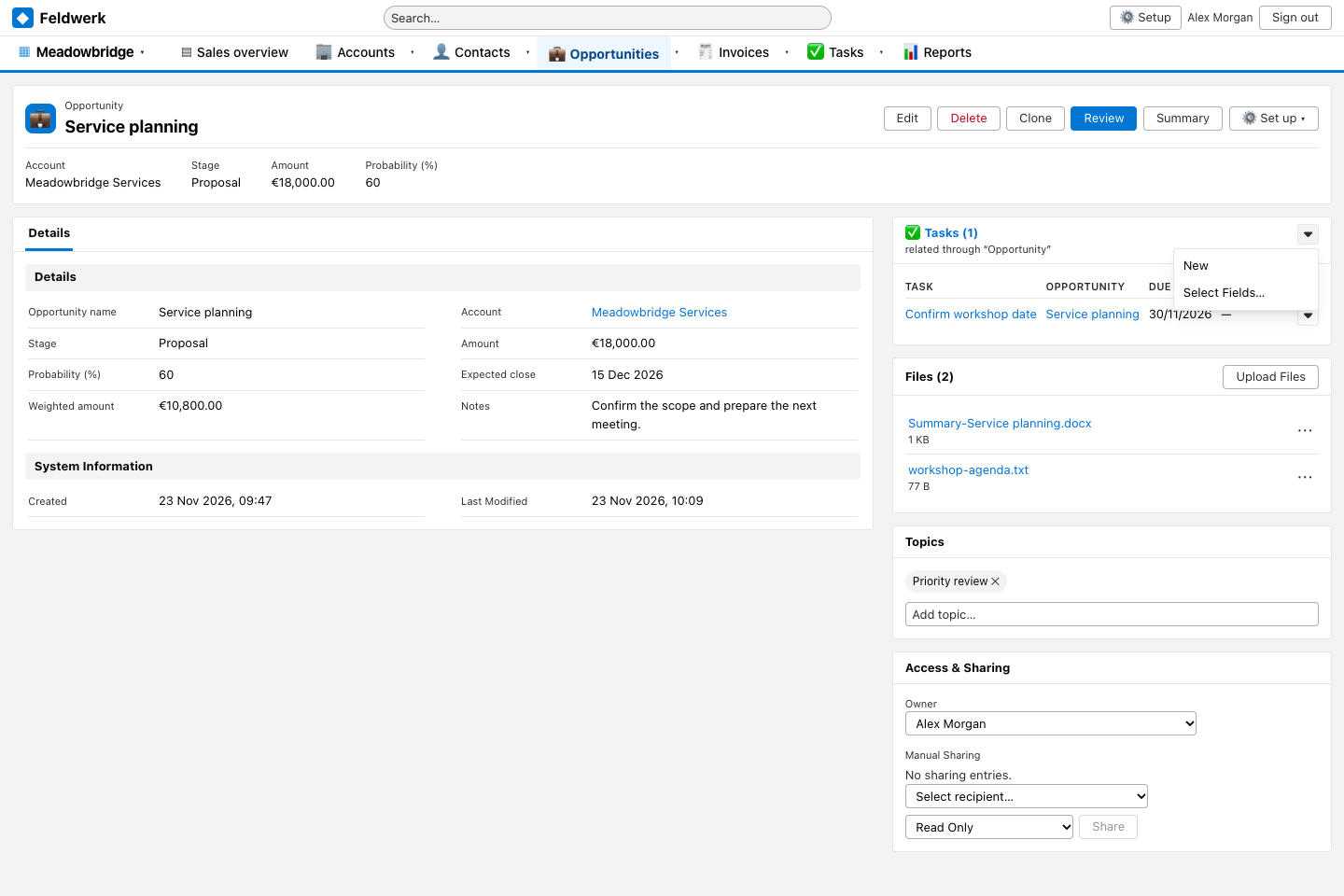
- Open all tasks linked to this opportunity.
- Create a task with the Opportunity relationship already filled in.
- Open an individual related task; its row menu provides permitted edit and delete actions.
Select the screenshot to open the full-size image.
Select the Tasks (count) heading to open the complete Tasks list with a relationship filter. Remove related filter returns to the list without that relationship restriction; the saved view’s own filters still apply. Creating, editing and deleting require the corresponding object permissions.
If the page includes an activity timeline or email area, use its configured controls to inspect or link entries. A record page can also show attachments from a related record; check the panel title before deciding where a file belongs.
Understand record actions
Standard actions include Edit, Delete and Clone when configured. Other buttons may run a screen flow, invoke a plugin, generate a document or open an email action. Their labels are chosen by the administrator.
In our example, Review opens a guided next-step screen. Summary generates a DOCX from the opportunity. Wait for the action’s result before repeating it. Generating an unchanged DOCX again downloads it again while recognising an identical existing attachment.
Files, topics and access
Use Files to upload or open attachments and Topics to organise records with tags. Access & Sharing, when present and permitted, shows the owner and explicit sharing controls. Changing a visual layout does not grant access. A missing action can result from permissions, configuration or the current record state.
Clone or delete deliberately
Clone opens a new record based on the source values. Review the new record before saving. Delete asks for confirmation; check the record name in that confirmation. Cancelling a dialog does not reverse a deletion that has already completed.
When the page looks wrong
Refresh after changes made elsewhere. If a field is absent, check the active page and form configuration as well as field permissions. If a related list is empty, check the relationship on the child records and your visibility. Give an administrator the object, record and exact message when asking for help.