

Attach a file to the right record
Open the record and find its Files panel. Check the panel title: some page layouts show files from a related record, so the visible page alone does not always identify the attachment’s owner.
- Select Upload Files, or drag files onto the upload area. When the panel is empty, you can also focus the upload area with Tab and press Enter or Space to choose a file.
- Choose one or more files and wait for the upload to finish.
- Check that each filename appears in the panel.
- If the page reports a failed upload, review the filename and error before retrying.
The current upload limit is 25 MB per file. Uploading several files can partially succeed; do not assume the entire selection failed because one file was rejected. File operations follow the record’s access rules.
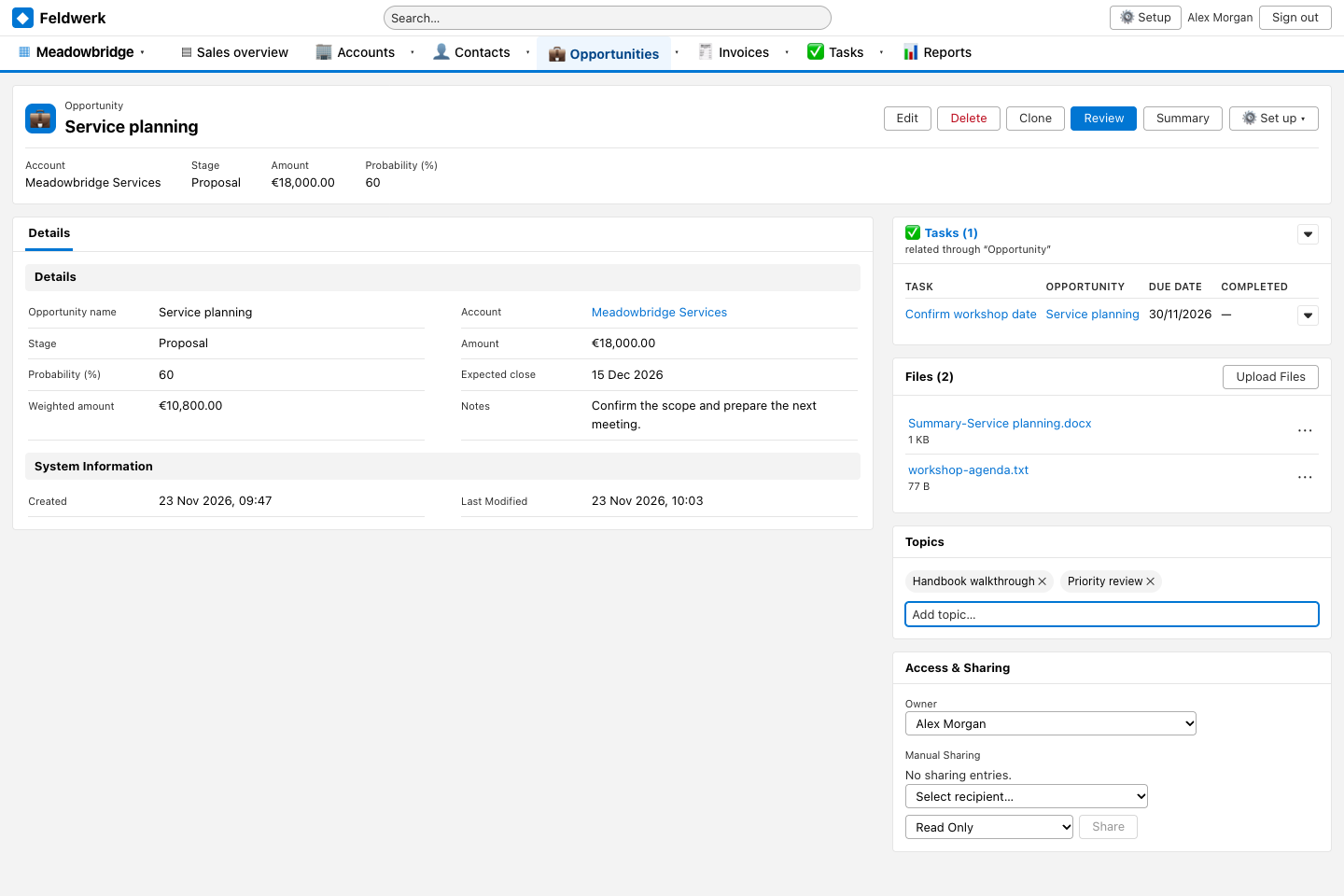
- Check the files attached to this record.
- Add or remove topics.
- Upload supporting files.
Select the screenshot to open the full-size image.
Files from a related record
An administrator can configure the page to include files from records linked through lookup fields. In this example, the opportunity has its own Files panel and a separate Files – Account: Workshop related account panel. Uploading through the Account panel stores the file on that account. It does not create another copy on the opportunity. Check the panel heading before uploading or deleting.
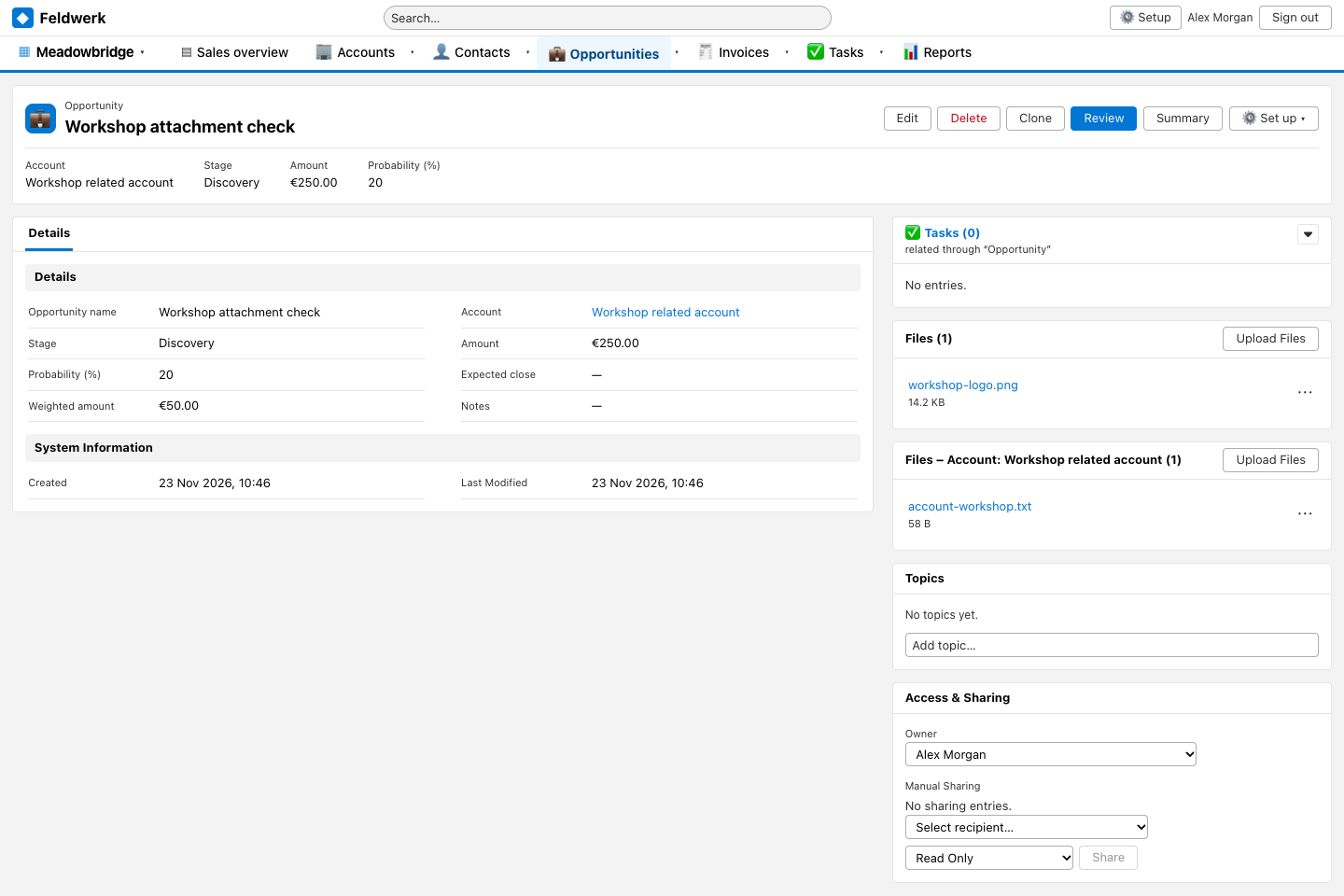
- Files owned by the opportunity.
- Files owned by the linked account.
- This upload button adds files to the account.
Select the screenshot to open the full-size image.
Open or remove an attachment
Select the filename to download the attachment, then open the downloaded file with a suitable application. The Files panel’s filename link is a download action; it does not open an in-page preview. Use the attachment’s More actions menu for its available actions, including deletion. Confirm the filename before deleting. Removing an attachment does not delete the parent record.
Generated documents can also appear here. The document action normally attaches its output as well as downloading it when permitted. An unchanged generated DOCX can reuse the identical attachment; a changed document is a different output. Check the action’s result message.
Add and remove topics
- Find the Topics panel.
- Type in Add topic….
- Select an existing suggestion, or press Enter to add the typed topic.
- Confirm the topic appears as a chip.
Use the remove control on a chip to remove that topic from this record. This removes the association; it does not delete the record. Prefer consistent existing topic names so related work can be grouped predictably.
Topics complement structured fields. Use fields for values requiring a defined type, calculations, validation or controlled business states. A topic is not a substitute for an ownership rule or a permission.
Files and search are separate
A file being attached does not automatically make its contents part of the global record search. For searchable document text, configure extraction into a record field. An attachment-triggered flow can perform that work using the supported extraction action and the ordinary record update pipeline.
Resolve common problems
- File absent after upload: wait for the result, check the reported filename and refresh. Check whether the panel refers to a different related record.
- File too large: reduce its size below the supported limit and retry.
- Access denied: ask the owner or administrator to check record and object permissions.
- File does not open: first check that the download completed, then use an application that supports its format.
- Topic not added: read the error and check editing access; simply typing without confirming does not create the association.