

Before you start
The AI assistant needs a configured, available model. Administrators manage model records under Setup → AI models. If the assistant is unavailable, ask the administrator to check the model and provider configuration. A conversation cannot be completed simply by opening the panel when no provider is configured.
The assistant uses the same application tools and permission checks as supported API and MCP operations. It can help find records, explain data and prepare changes. Its answer still needs review, particularly before sending information or applying changes.
Ask a question with clear context
- Open the object or record you want to discuss, then select Assistant in the top bar.
- Check the object or record context displayed in the panel.
- Ask a specific question, such as “Summarise the Service planning opportunity and list the next actions mentioned in its notes.”
- Review the tool results and open the referenced record to check important facts.
- Ask a follow-up if the answer lacks the scope, date range or fields you need.
Use New chat for a separate topic. History lets you reopen previous conversations and rename or delete them. Expanding the panel or using full screen gives more room for a longer response.
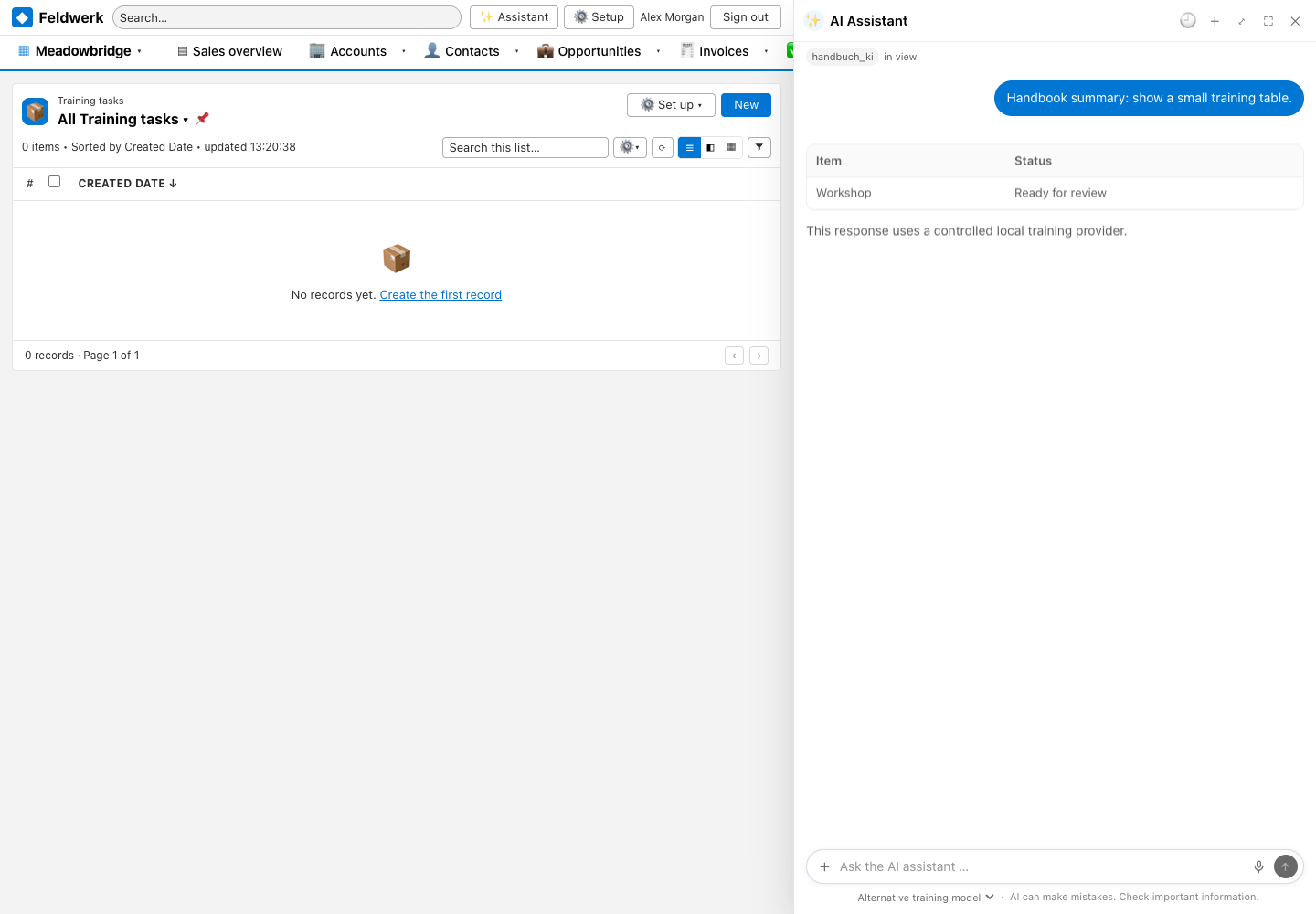
- Check the current object context.
- Open history, start a new chat or resize the panel.
- Enter a prompt, attach a supported file and send.
Select the screenshot to open the full-size image.
Review proposed actions
When a tool needs confirmation, inspect the proposed operation and its arguments. Approve only when the target and values match your request. Reject an incorrect proposal and describe the correction. Always allow permits that tool for the rest of the session without asking again; it is broader than approving one operation.
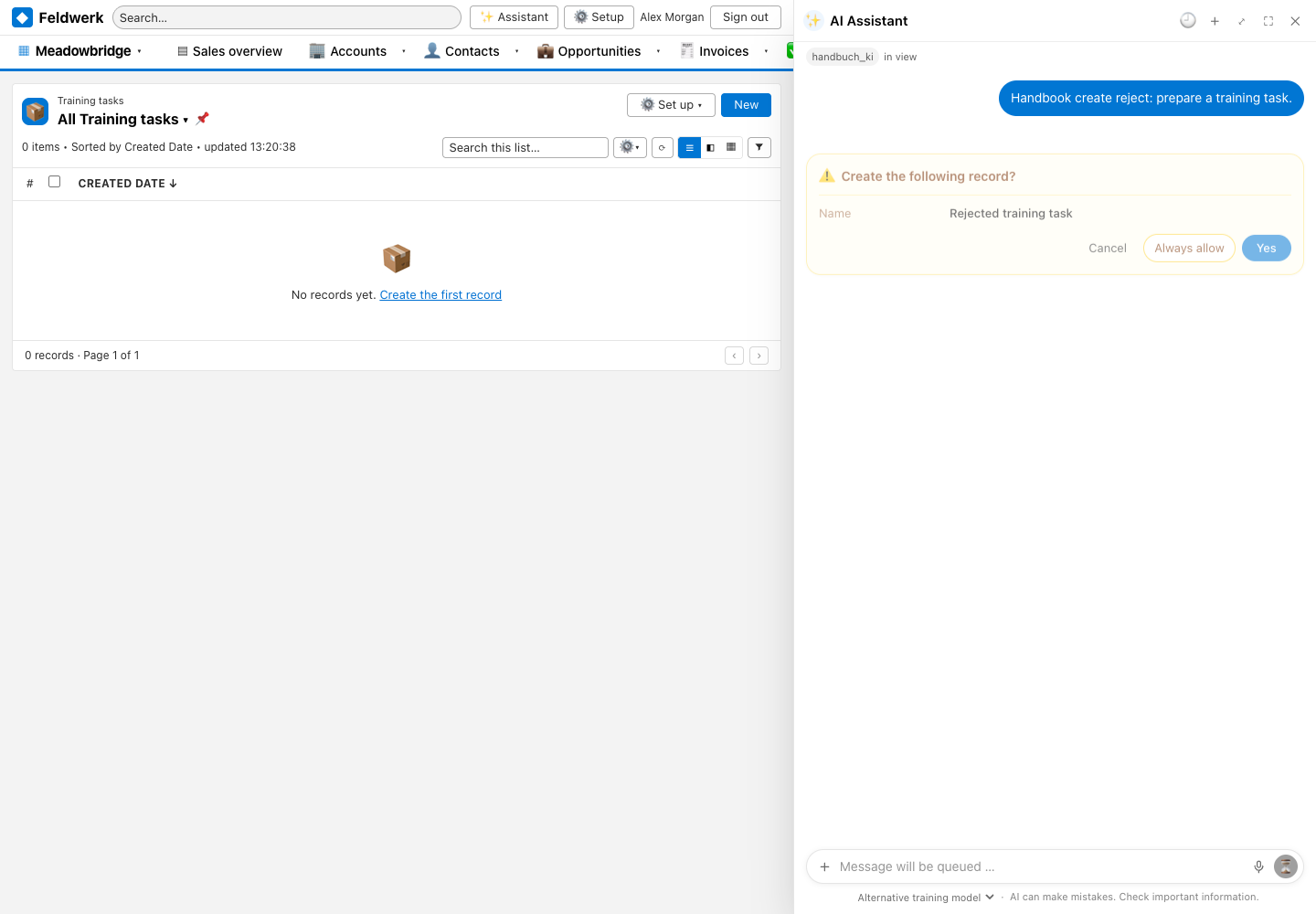
- Read the proposed operation.
- Check the field value.
- Cancel, allow this tool for the session, or approve this one operation.
Select the screenshot to open the full-size image.
Use Stop to stop an ongoing response. Stopping is not an undo operation for changes already executed. Check the affected records before retrying a request that might have completed. Messages entered while the assistant is busy can be queued; remove an unwanted queued message before it is sent.
Use files and dictation
The assistant supports attaching PNG, JPEG and WebP images, PDFs and Word (.docx) documents through its attachment control or by dropping files into the panel. Check the selected files before sending; the current interface reports unsupported types and files over 10 MB. Each message accepts up to eight files. PDF and Word text is extracted on the server; a scanned PDF with little selectable text may need to be supplied as an image. Images require a configured vision model. The selected model provider receives the conversation context and the prepared file content. Dictation requires browser microphone permission and a configured transcription service. Review transcribed wording before relying on names, amounts or dates.
Attaching a file to a chat is different from attaching it to a business record. For record file management, use Attachments and topics. For document recognition during record creation, review the extracted fields before saving the record; recognition is not proof that the values are correct.
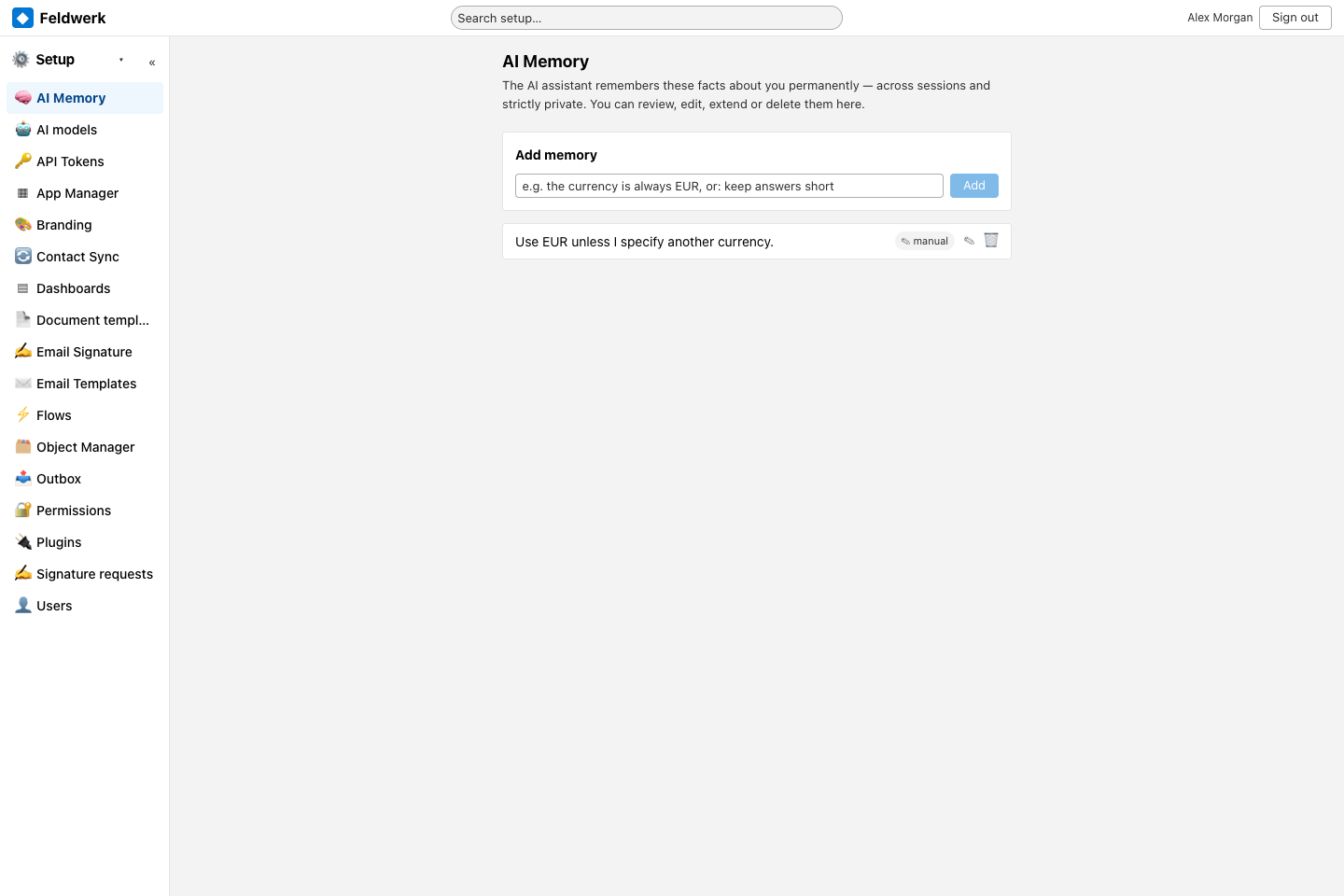
- Memories belong to your account.
- Add a lasting preference.
- Review and manage stored facts.
Select the screenshot to open the full-size image.
Manage remembered preferences
- Open Setup → AI Memory.
- Enter a stable preference, such as “Use EUR when I do not specify a currency,” and select Add.
- Use the edit control to correct a stored fact, then save it.
- Use the delete control and confirm to remove a fact that should no longer guide the assistant.
Memories persist across conversations and belong to the current user. Deleting a conversation and deleting a memory are separate actions. The memory list identifies whether a fact was added manually or by the assistant. Keep individual customer facts on their records, where they can be maintained with the rest of the business data.
Give the assistant lasting business context
An administrator can maintain an object’s business AI system prompt in Object Manager. Explain what the object represents, how fields are interpreted and which procedures matter. This context accompanies relevant AI/MCP tool results. Do not place one record’s temporary facts in an object-wide prompt.
The document-recognition prompt serves a different purpose: it describes how to read typical source documents and map their information to fields. Keep both prompts specific and check results with representative examples. Business context does not override application permissions.
When an answer or action fails
Check the selected model, connection and account permissions. If a response was interrupted, inspect the current record before submitting the same change again. If the assistant cannot find a field, provide its exact label or API name and the intended object. For external assistants and tool discovery, see API and MCP.
Configure a model
- Open Setup → AI Models and choose New.
- Enter a name that users can recognise. Choose the purpose: chat for conversations and structuring extracted text, or vision for reading images.
- Enter the provider’s model identifier, compatible base URL and API key. These values must belong to the same provider. Never include a key in screenshots or support reports.
- Choose the parameter style and optional reasoning settings supported by that model. Mark the model active and select the default where appropriate.
- Save and reopen the assistant. When more than one chat model is available, use the selector below the input to choose one.
- Try a simple read-only question, then check a proposed change without approving it. Verify both the provider response and your account’s permitted operations.
Active, complete model records are used before the server’s legacy environment configuration. An unavailable provider is still an error even when its model appears in the selector. An administrator must correct the connection or choose a working configuration.
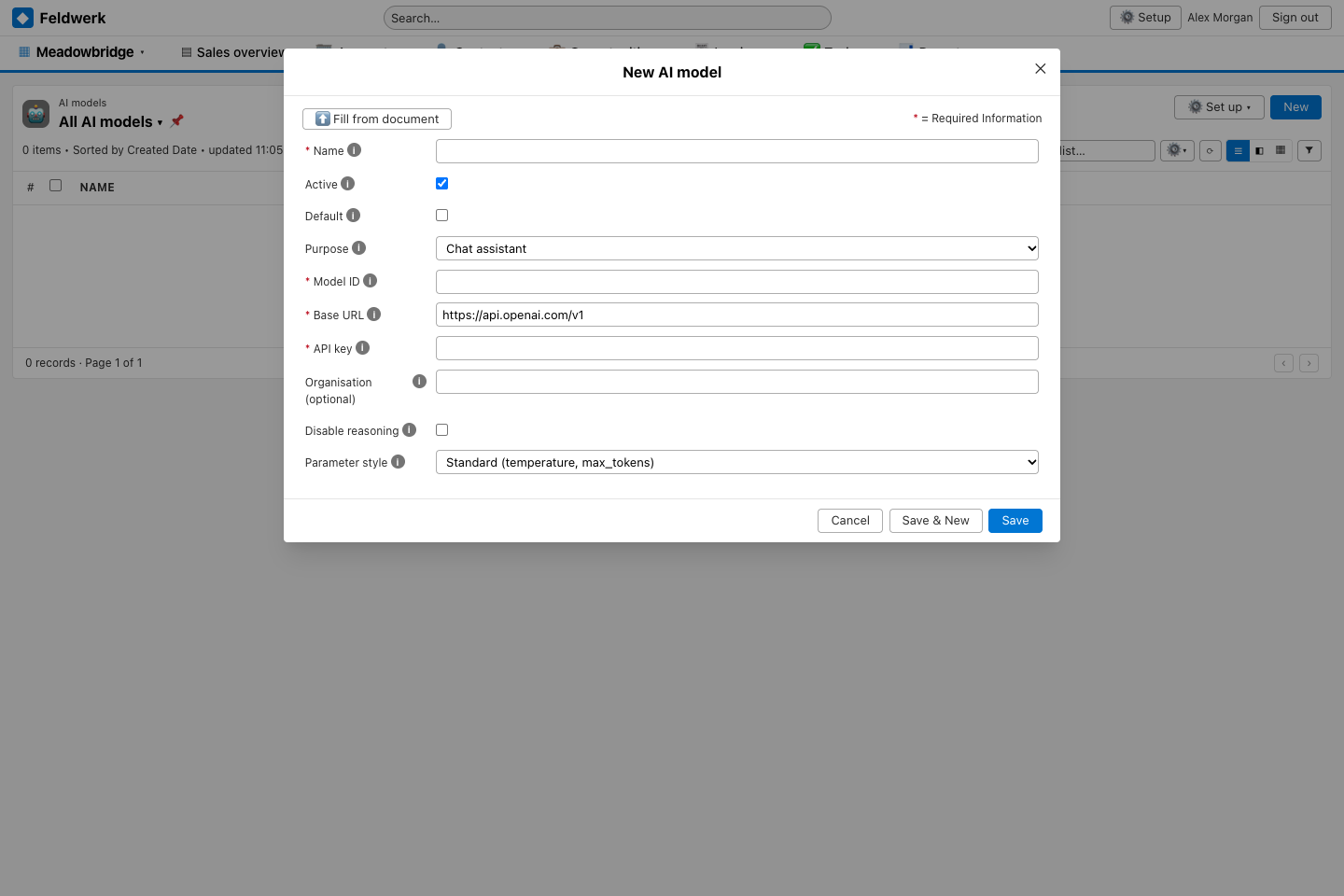
- Choose the model’s purpose.
- Configure the provider’s model ID, base URL and API key.
- Select only options supported by that model.
Select the screenshot to open the full-size image.
Review extracted values before saving
- Open a new record and select Fill from document.
- Paste source text or choose the files to read. Use the formats shown in this dialog; its source options differ from chat attachments.
- Select Extract and wait for the form to be populated.
- Check each recognised field, any warnings and suggested relationships. Resolve a relationship to the intended existing record, rather than treating the suggested name as a saved link.
- Correct the fields and save the record only when the result is right. Cancel leaves the unsaved record uncreated.
Extraction only proposes form values. It does not save a record by itself. Your object and field permissions still apply. Object Manager’s document-recognition prompt can explain recurring source formats; it is distinct from the object’s general business context.
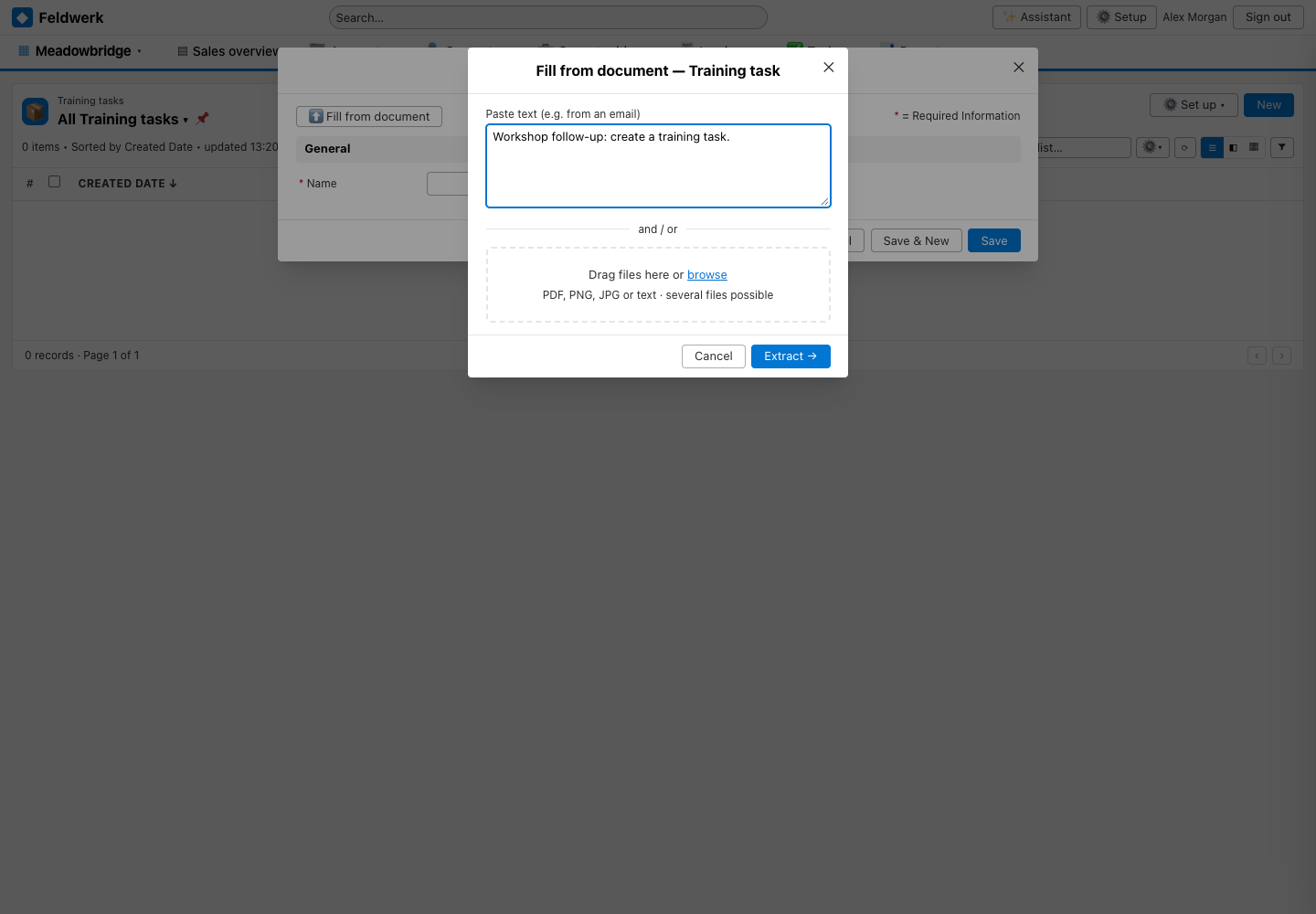
- Paste source text.
- Add supported files if needed.
- Extract field suggestions.
Select the screenshot to open the full-size image.
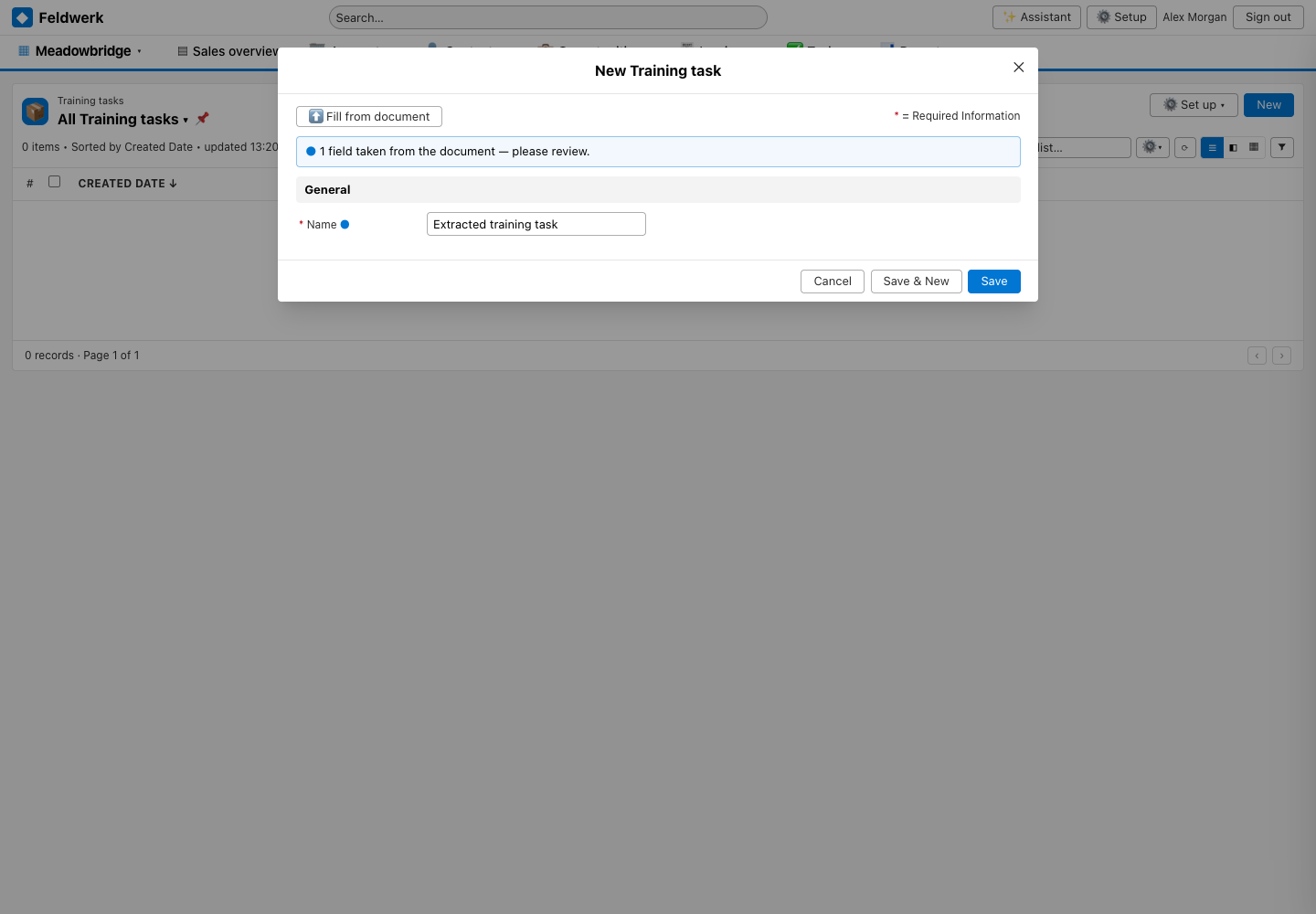
- Read the recognition summary.
- Review the marked field and correct it if necessary.
- Save the record or cancel; extraction alone has not saved it.
Select the screenshot to open the full-size image.
Read a provider error
In the example below, a controlled local provider deliberately returns HTTP 503. The assistant shows the error so the user can distinguish a failed provider request from a successful answer. Ask the administrator to check availability and configuration. Before retrying a change, inspect whether an earlier tool call already completed.
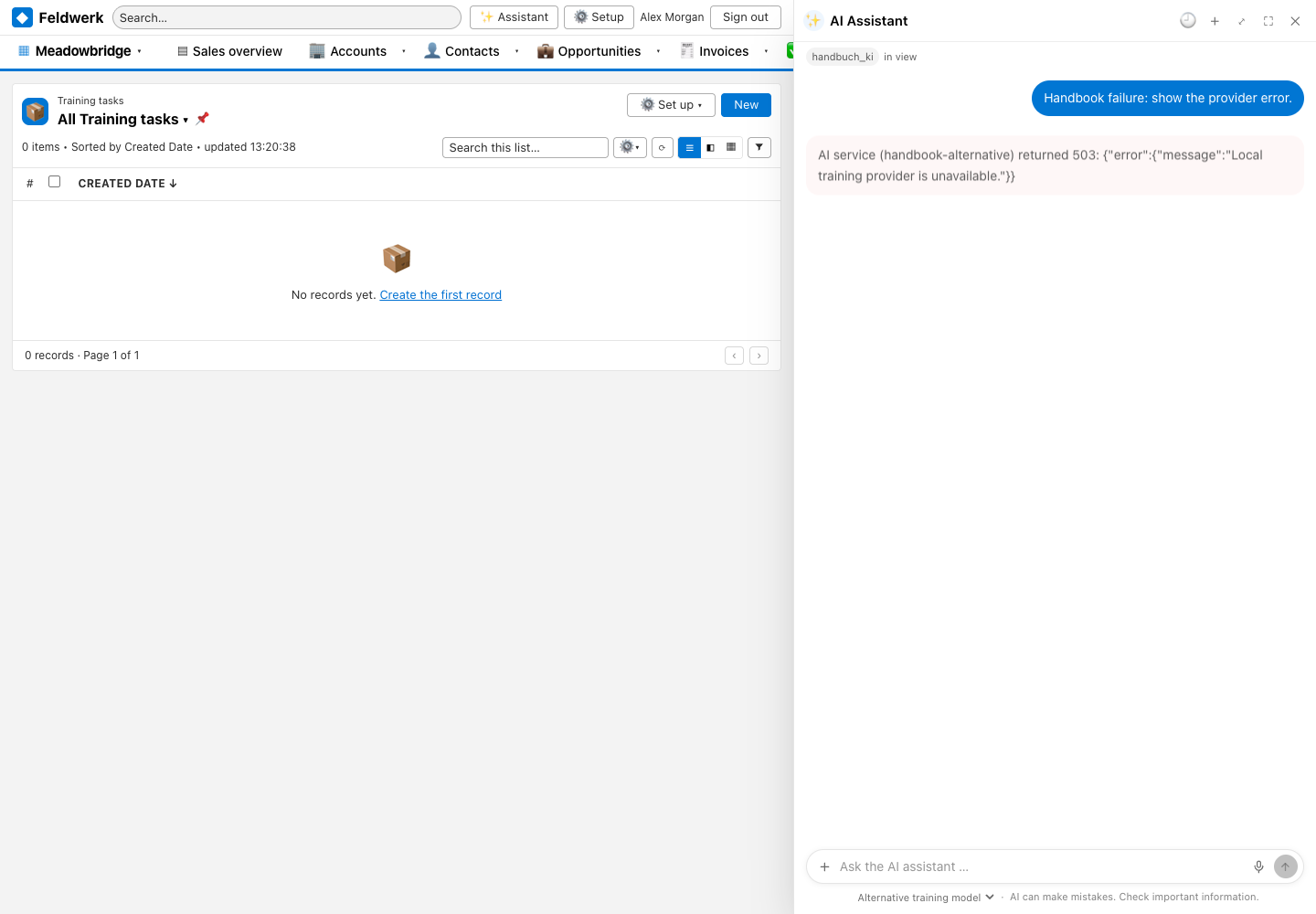
- Read the provider error and status.
- Check the outcome before sending a retry.
Select the screenshot to open the full-size image.
The training screenshots use a local, deterministic provider. They demonstrate the interface and confirmation workflow; they do not measure a model’s answer quality.