Sign in, find your workspace and make sense of your first record.
Before you start
Feldwerk brings your organisation’s records, forms, reports and workflows into one workspace. Your administrator decides which objects and apps are available. The example objects in this handbook, such as Contacts and Tasks, illustrate one configuration; your workspace may use different names.
Ask your administrator for your Feldwerk address and account details. Use the address for your organisation, then open the sign-in page. You need an account with permission to read the records you want to work with.
Sign in
Enter your Email address and Password.
Select Sign in.
Wait for your workspace to open. If a message appears, check the address and credentials and try again. If access still fails, contact your administrator with the message, without including your password.
If you see Initial setup and Create account, this is an instance with no user account yet. The first account receives administrator rights. This screen is for the person setting up the instance; it is not a general registration page for additional users.
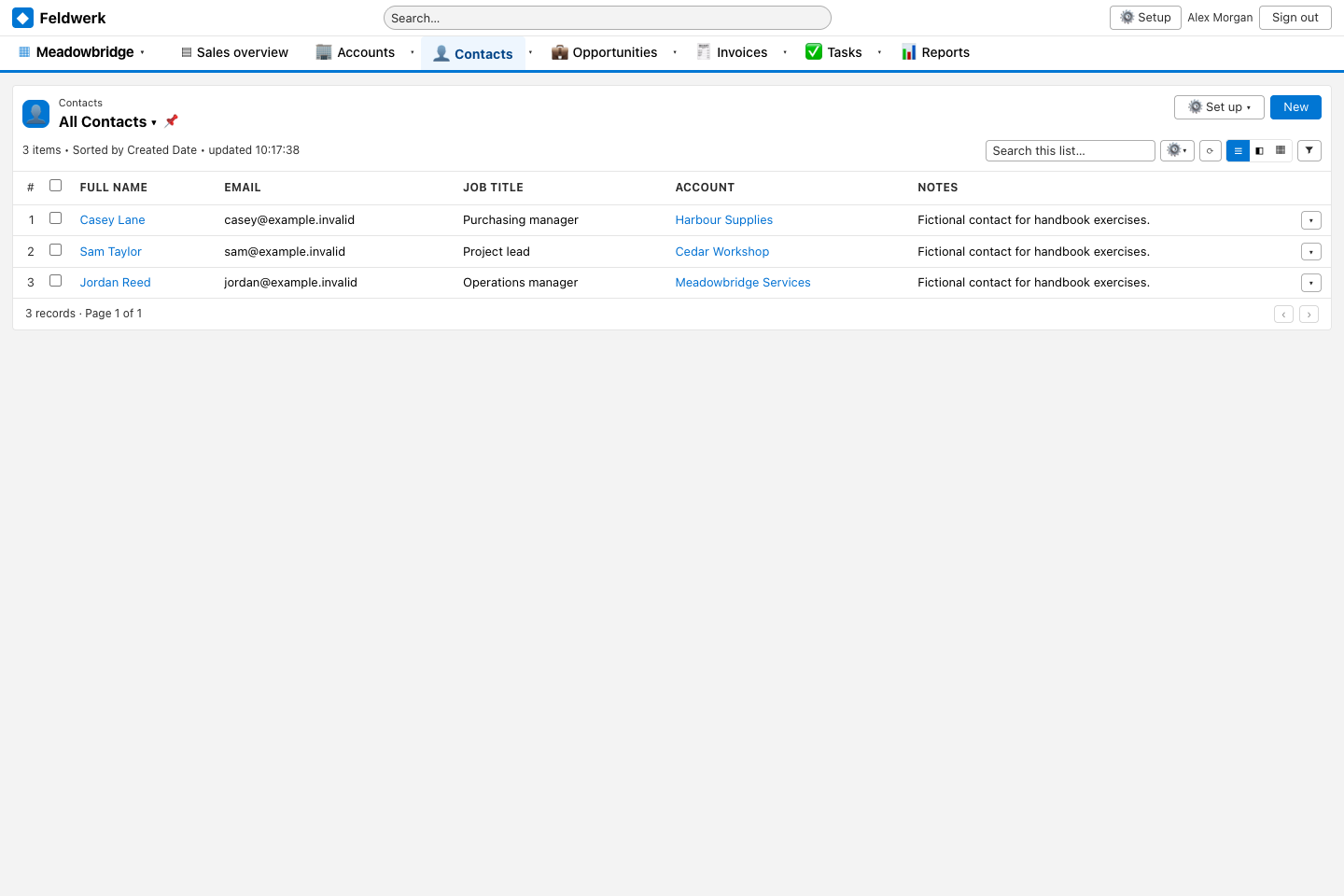
Choose an app or an object tab.
Choose the list view.
Create a contact with New.
Select the screenshot to open the full-size image.
Find your work
Open the app selector beside the current app name, such as Meadowbridge, to choose the workspace for your task.
Choose an object tab. An object groups records of the same kind: for example, Contacts contains individual contact records.
Choose a list view to narrow the records shown. A view changes how you see the records; it does not create a separate copy.
Select a record to open its details. Related records, files and actions depend on the page your administrator configured and your permissions.
You can also use Search to find records across the objects you are allowed to access. If a record is missing, check the selected view and its filters, then ask your administrator to check your access.
Make your first change
Open a test record that you are allowed to edit.
Select the edit action, change an ordinary text field and save.
Check the saved value on the record page. If validation refuses the change, read the message and correct the indicated value before saving again.
Formula and roll-up fields are calculated from other data. You cannot change them by typing a replacement value. Saving may also run configured automation; use a dedicated test record while learning.
Know when you need Setup
Working with an existing contact or task is different from changing its structure. Administrators use Setup to define objects, fields, forms, permissions and automation. If you need a new field or cannot see a required object, ask your administrator. A missing tab does not by itself prove that the underlying records have been deleted.
Learn the terms
Use the glossary when a term is unfamiliar. Start with object, record, field and list view; these describe most of the everyday workspace.
Getting started · Chapter 2
Glossary: the terms you will meet in Feldwerk
Plain-English explanations of objects, records, views, automation and access.
These terms describe Feldwerk’s configurable workspace. Example object names are illustrative; your organisation may choose different names.
Object
A type of information your organisation stores, such as a contact or an invoice. Objects define the fields available on their records.
A named value on a record, such as an email address, due date or status. Its field type controls what you can enter. Required fields must have a value before you can save.
The stable technical name of an object or field. A label is the name shown to people; an API name is used by integrations and configuration. Changing a label does not rename the API name.
A saved way to display records, with columns, sorting and filters. Several views can show the same underlying records. A Kanban view groups cards into columns based on a picklist field.
A field that links a record to another record. For example, a contact can refer to an account. Select the intended record rather than relying on a name alone when several records share that name.
Records linked to the current record through a relationship. For example, an account page can show contacts that refer to that account. Which lists appear depends on the page configuration and access rights.
An arrangement of fields and sections used to enter or edit information. A public web form lets people submit information without signing in; its available fields and checks differ from an internal form.
A rule that can reject a save and explain what needs correcting. Administrators define the condition and message; users correct the record before trying again.
Configured automation made of steps and decisions. Depending on its trigger, it can react to a saved record or uploaded attachment, run on a schedule, or guide a user through screens. Its allowed steps depend on the trigger.
A command available in a record page or list, such as editing a record, starting a screen flow or producing a document. Available actions depend on configuration and permissions.
An analysis of records using selected fields, filters, grouping and calculations. A dashboard combines configured widgets, such as reports and record lists, on one page.
Permissions determine which operations and fields you can use. Sharing determines access to individual records. Seeing a record does not automatically give permission to edit or delete it.
A file stored with a record. Access to it is checked through the record. Attaching a PDF does not by itself make its full text available in global record search.
A credential used by an integration to act as its owner. Keep it private and revoke it when it is no longer needed. Its access follows the owner’s permissions.
Model Context Protocol: a way for a compatible assistant to discover and call Feldwerk tools. These tools use the same permission-checked application operations as other supported access paths.
A page that combines reports, lists, screen flows and text without a single current record. Add it to an app as a tab. See Dashboards.
Start working
Follow Getting started to sign in and find your first record.
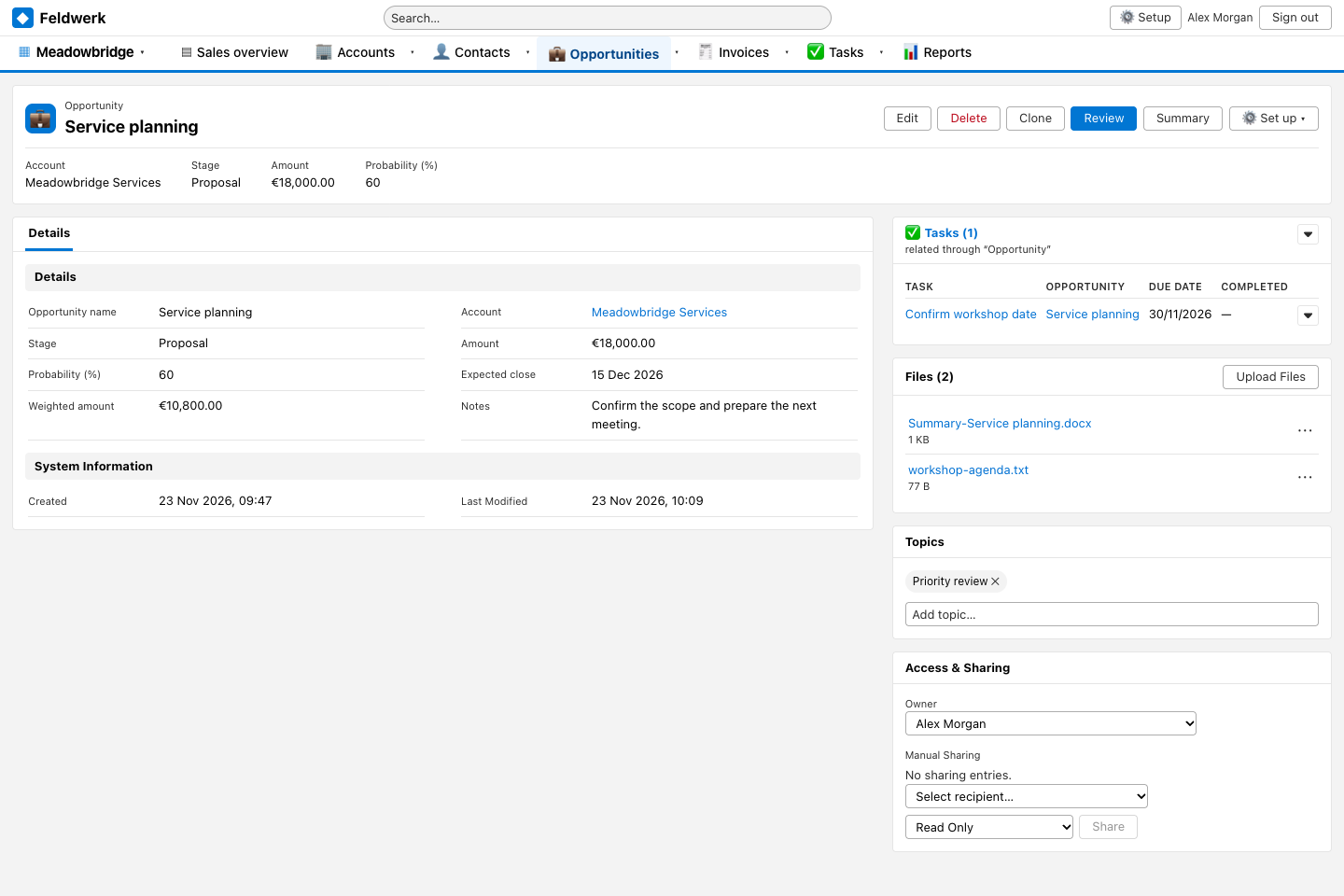
Fields hold the values of this record.
The Account lookup links to another record.
A related list shows records linked to this opportunity.
Select the screenshot to open the full-size image.
Working with records · Chapter 3
Records and list views
Find, organise and update records in table, split and Kanban views.
Choose an object and a view
Open an object tab, such as Opportunities. The view name below the object name identifies the saved list configuration. Open its arrow to select another view or choose New List View. A list view stores presentation choices such as fields, filters, sorting and display mode; the records remain the same underlying records.
To create a view, open the view selector, choose New List View, enter a name and save. The new view starts with the current view’s columns; configure its filters and other settings separately. To rename it, open List view controls → Rename, change the name and save. The view has its own URL, which you can bookmark or share with someone who has access.
Use the pin beside the view name to make it the default list view. Do not assume that a view is a private copy of the data. Changing a record from any view changes that record wherever it appears.
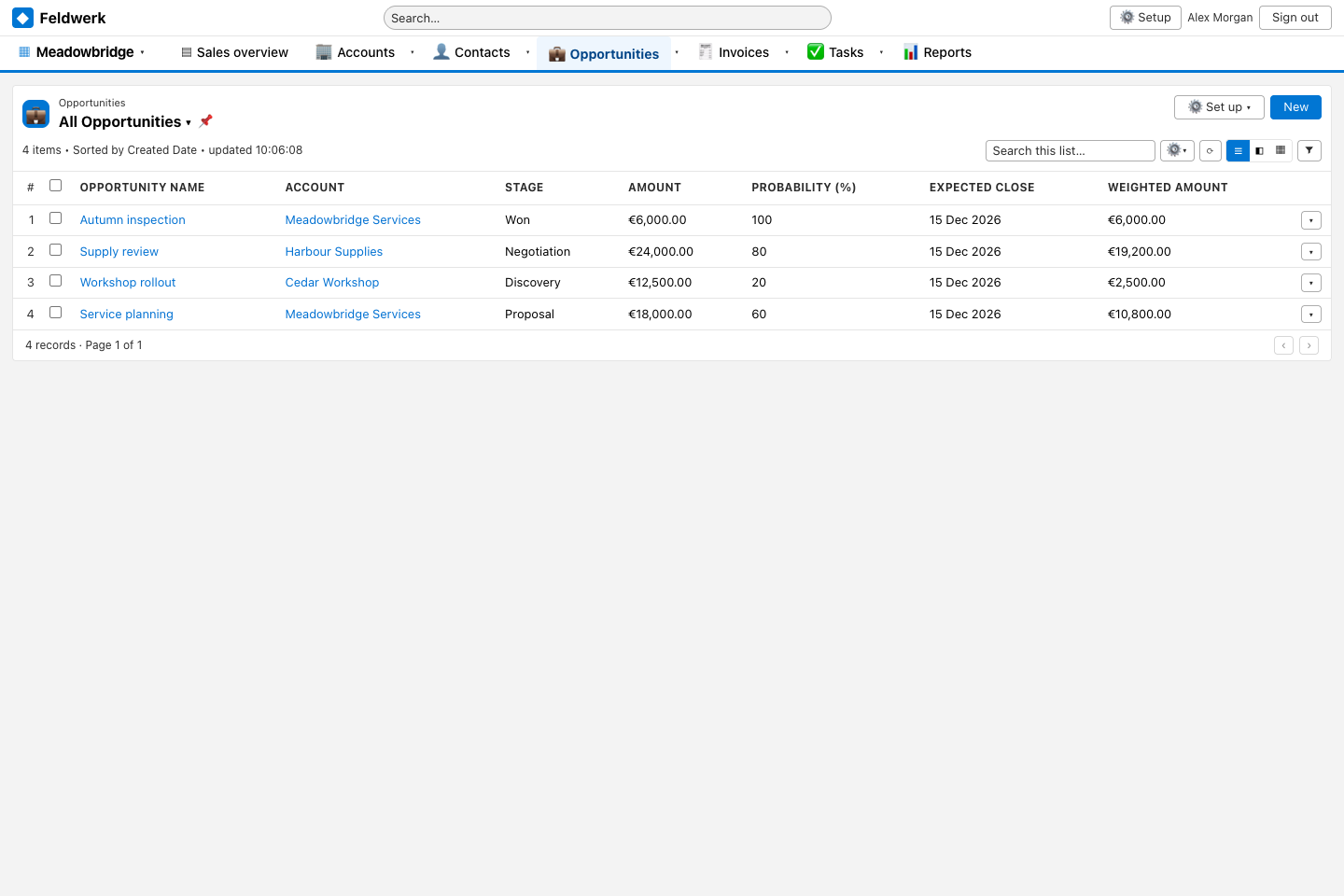
Choose or pin a list view.
Search, configure or change the display mode.
Open records or use their row actions.
Select the screenshot to open the full-size image.
Create, edit and clone
Select New on the object list.
Complete the required fields marked with an asterisk. For a lookup, choose the intended related record from the suggestions.
Select Save and check the result. If validation blocks the save, correct the indicated values; closing the dialog does not save them.
Use the row action menu to view or edit an existing record. Opening the record gives access to its configured actions, including Clone when available. A clone is a new record: review copied values, required fields and unique values before saving. Calculated fields and automatic numbers follow their field definitions; do not treat the clone as a second identity for the original.
Search and sort the list
Type in Search this list… to narrow the current object list. Clear the text to return to the view’s ordinary results. This differs from the search box in the global header, which searches across accessible objects.
Select a column heading to sort, or focus it with Tab and press Enter or Space. The list’s status line shows the active sort field. Open List view controls to save the sort order to the view or reset column sorting. Use Refresh after changes made elsewhere. For long results, use the pagination controls at the bottom.
Choose visible columns
Open List view controls → Select Fields to Display.
Select a field in Available Fields or Visible Fields, then use Add or Remove to move it between the lists. You can focus a field with Tab and select it with Enter or Space.
Use Move up and Move down to arrange the visible columns.
Keep at least one visible column and save.
Hiding a column changes presentation; it does not remove the field or protect its data. Field access is controlled by permissions.
Filter the records
Select Filter.
Choose an owner scope, such as all records or your own records.
Select Add filter, then choose a field, operator and value.
Add further conditions as needed and select Apply.
Conditions normally all have to match. For alternatives, add Filter Logic using numbered conditions, for example 1 AND (2 OR 3). Check the preview and the resulting records. A related-list link can also add a relationship filter; use Remove related filter when you want to leave that scope.
Date conditions can use a fixed date, a value relative to today, or a custom formula such as TODAY() - 30. Relative values move as the date changes. A fixed date stays fixed. An expression that cannot be evaluated never matches that condition; correct it rather than assuming the list is empty.
Table, split view and Kanban
Table view is useful for comparing columns. Split view keeps the record list on the left and opens the selected record alongside it. Select another record to review it without leaving the list.
Kanban view groups cards by a picklist field. Open Kanban Settings to choose the grouping field, an optional sum field, and column visibility and order. Our example groups opportunities by Stage and totals Amount. A picklist field is required.
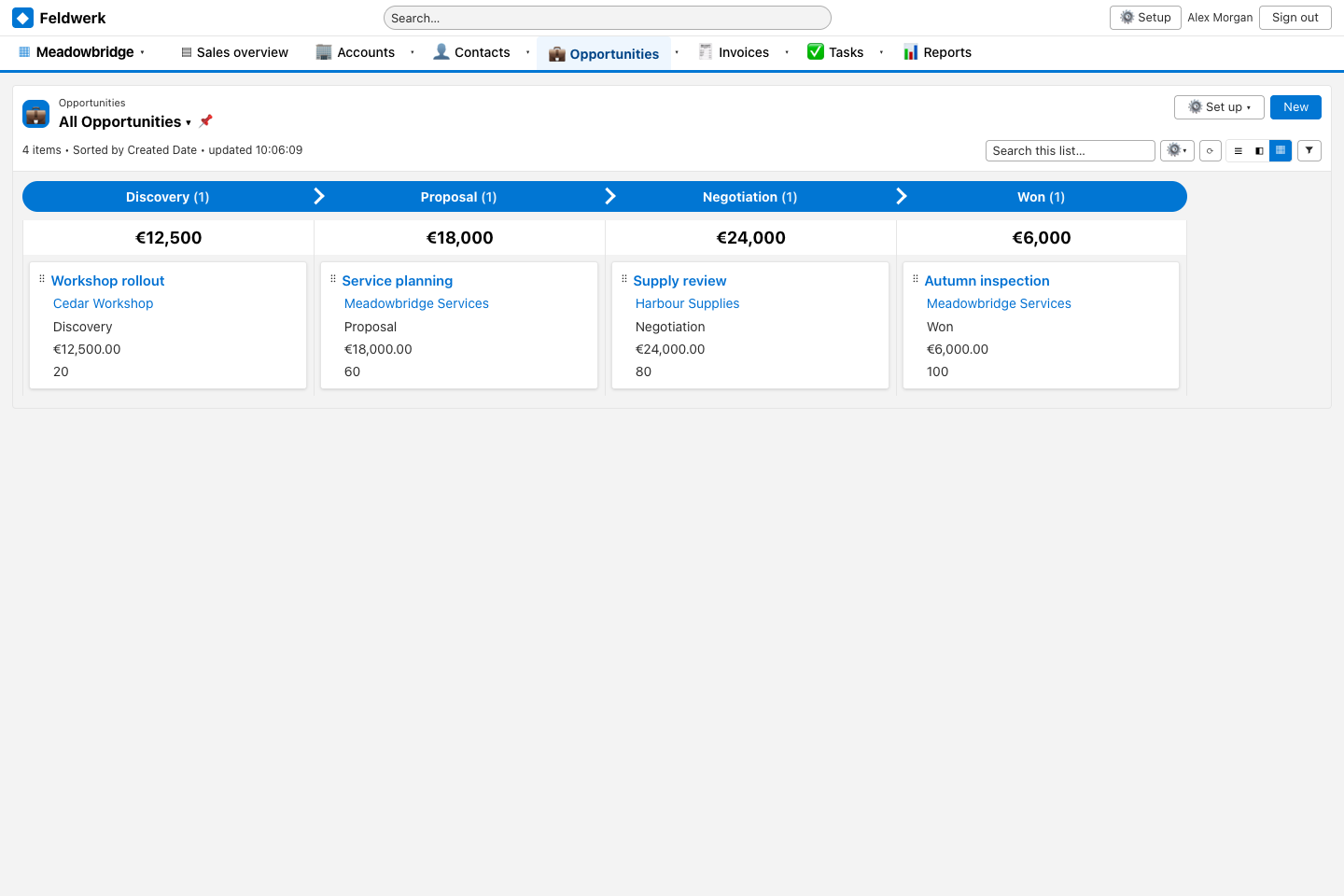
Each column represents a picklist value.
Amount totals summarise the loaded cards.
A card represents a record; moving it changes its stage.
Select the screenshot to open the full-size image.
Dragging a card to another column changes its picklist value. This is a real save, so validation, permissions and automation still apply. If the move fails, read the message and verify the record’s actual stage. For large datasets, respect the board’s limit warning: visible cards and column totals may cover only the loaded portion.
List actions and deletion
Administrators can add active screen flows through Action buttons …. These buttons start their configured flow without an individual record context. Their meaning depends on the flow; do not assume checked rows are automatically passed to every action.
Row deletion and bulk deletion require confirmation. Select individual row checkboxes, or use the checkbox in the table header to select the currently loaded page. The deletion button shows the selected count. Before confirming a bulk delete, check that count and the intended records. Cancel keeps the records; confirm Delete only when the selection is correct. Deleting a list view removes its configuration, not the records. Deleting records is a different operation and can affect related information.
Working with records · Chapter 4
Work on a record page
Read a record, follow its relationships and use the actions configured for your work.
Open the right record
Select a record name in a list, search result or lookup link. Check the object name and record title before editing. Names are not necessarily unique; use the other fields to distinguish records with similar names.
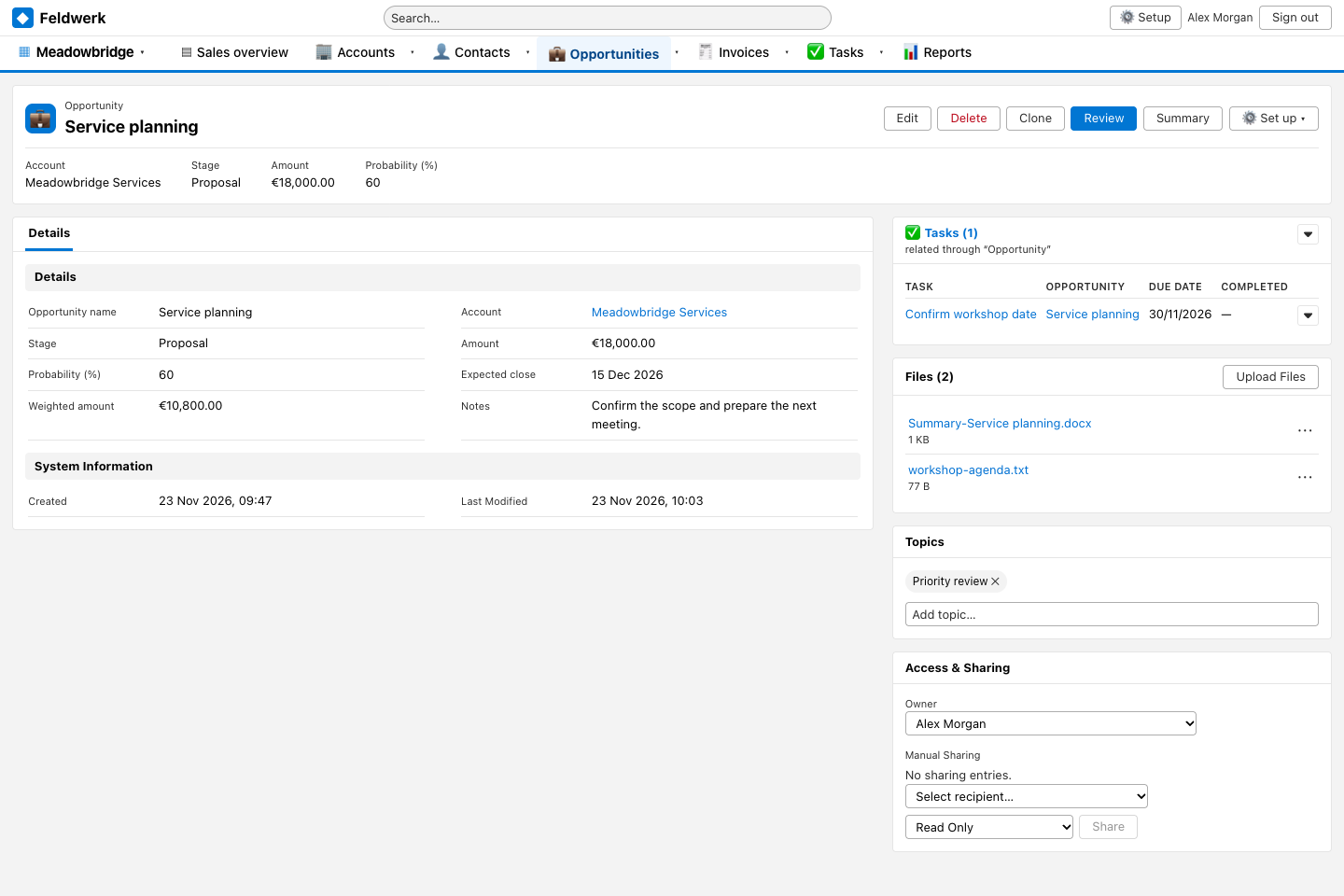
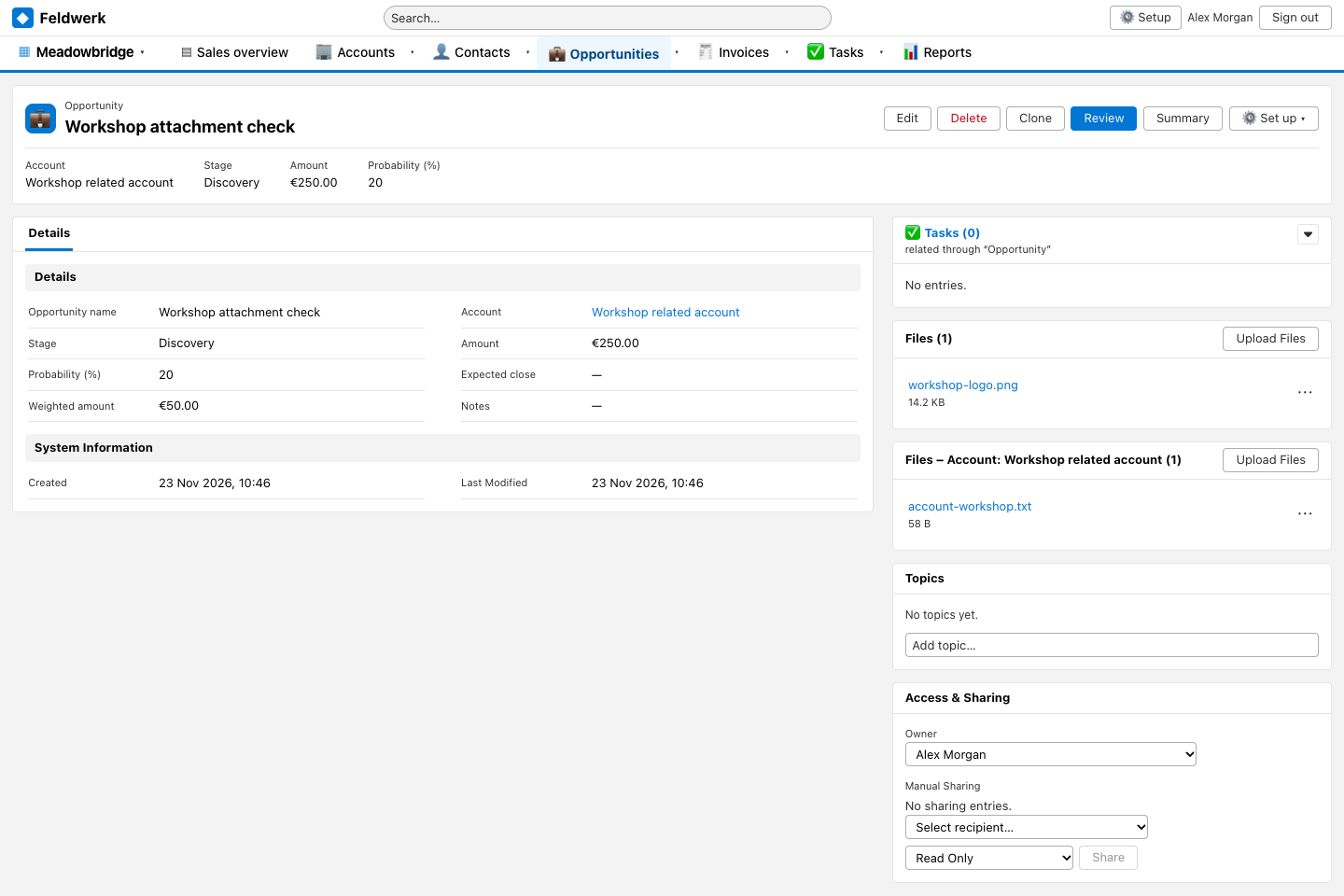
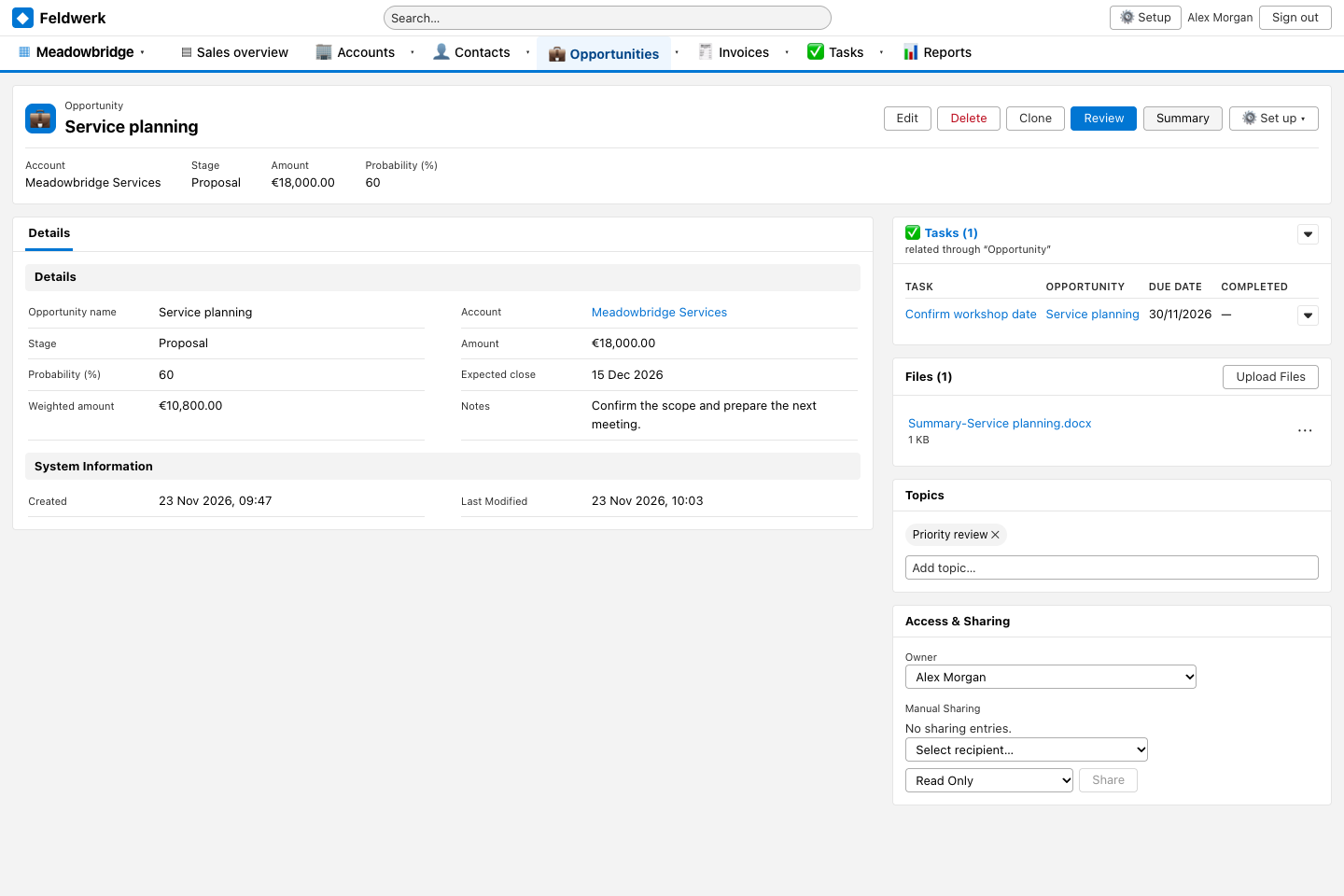
A record page combines components chosen by your administrator. Your page may have different tabs, fields, related lists and buttons from the handbook example. The example opportunity uses a highlights area, Details, related Tasks, Files, Topics and Access & Sharing.
Confirm the record and choose an action.
Read fields and system timestamps.
Follow related tasks through the configured relationship.
Select the screenshot to open the full-size image.
Read the details
The top area summarises important values. The Details area contains the configured fields. A blue lookup value opens the related record; it does not copy that record’s information into a separate object.
Formula and roll-up values are calculated. Automatic numbers are assigned by Feldwerk. Read-only fields cannot be edited through the ordinary input. System Information shows creation and modification timestamps and helps you check whether a recent change has reached the record.
Make a change
Select Edit, or use an available field-edit control on the page.
Change the intended value. For a relationship, search and select the correct target record.
Select Save.
Confirm the displayed value after saving. If a message blocks the change, correct the value and try again.
Use Cancel to discard unsaved input. A successful save may also run automation, so review dependent values. For the handbook opportunity, Amount 18000 and Probability 60 produce a Weighted amount of 10800.
Work with related information
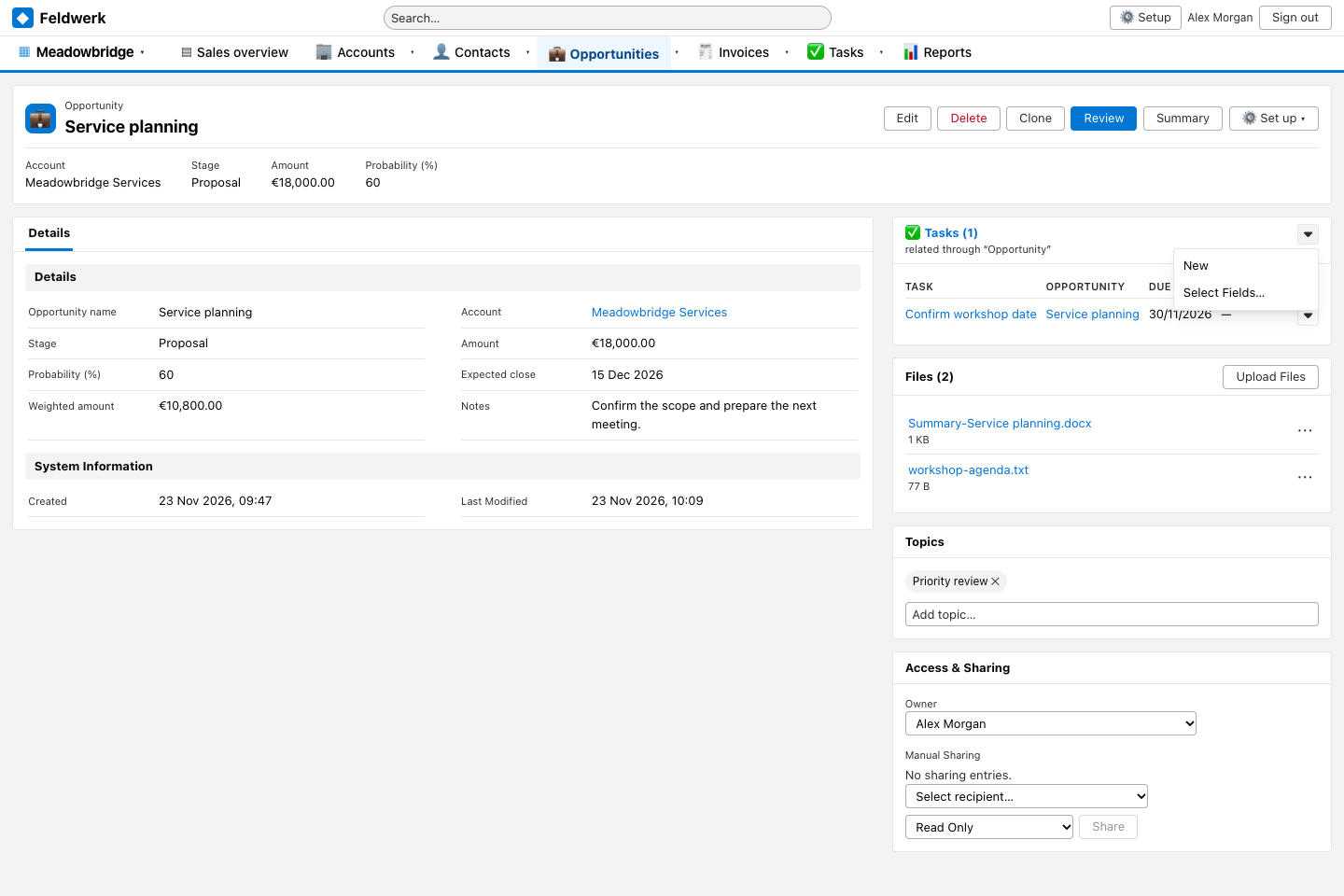
A related list shows records connected through the relationship named below its heading. The opportunity’s Tasks list shows tasks whose Opportunity lookup points to this record. Select a related record to open it. Controls such as View All and row menus depend on the configured component and your access.
In the Tasks related list, open the Actions arrow beside the list heading and choose New.
Enter the task’s Subject and other required details. Check that Opportunity already points to the current record.
Save and verify that the task appears in this related list.
Use the task’s row Actions menu to edit or delete it. Deletion asks for confirmation and removes the task, not its parent opportunity.
Open all tasks linked to this opportunity.
Create a task with the Opportunity relationship already filled in.
Open an individual related task; its row menu provides permitted edit and delete actions.
Select the screenshot to open the full-size image.
Select the Tasks (count) heading to open the complete Tasks list with a relationship filter. Remove related filter returns to the list without that relationship restriction; the saved view’s own filters still apply. Creating, editing and deleting require the corresponding object permissions.
If the page includes an activity timeline or email area, use its configured controls to inspect or link entries. A record page can also show attachments from a related record; check the panel title before deciding where a file belongs.
Understand record actions
Standard actions include Edit, Delete and Clone when configured. Other buttons may run a screen flow, invoke a plugin, generate a document or open an email action. Their labels are chosen by the administrator.
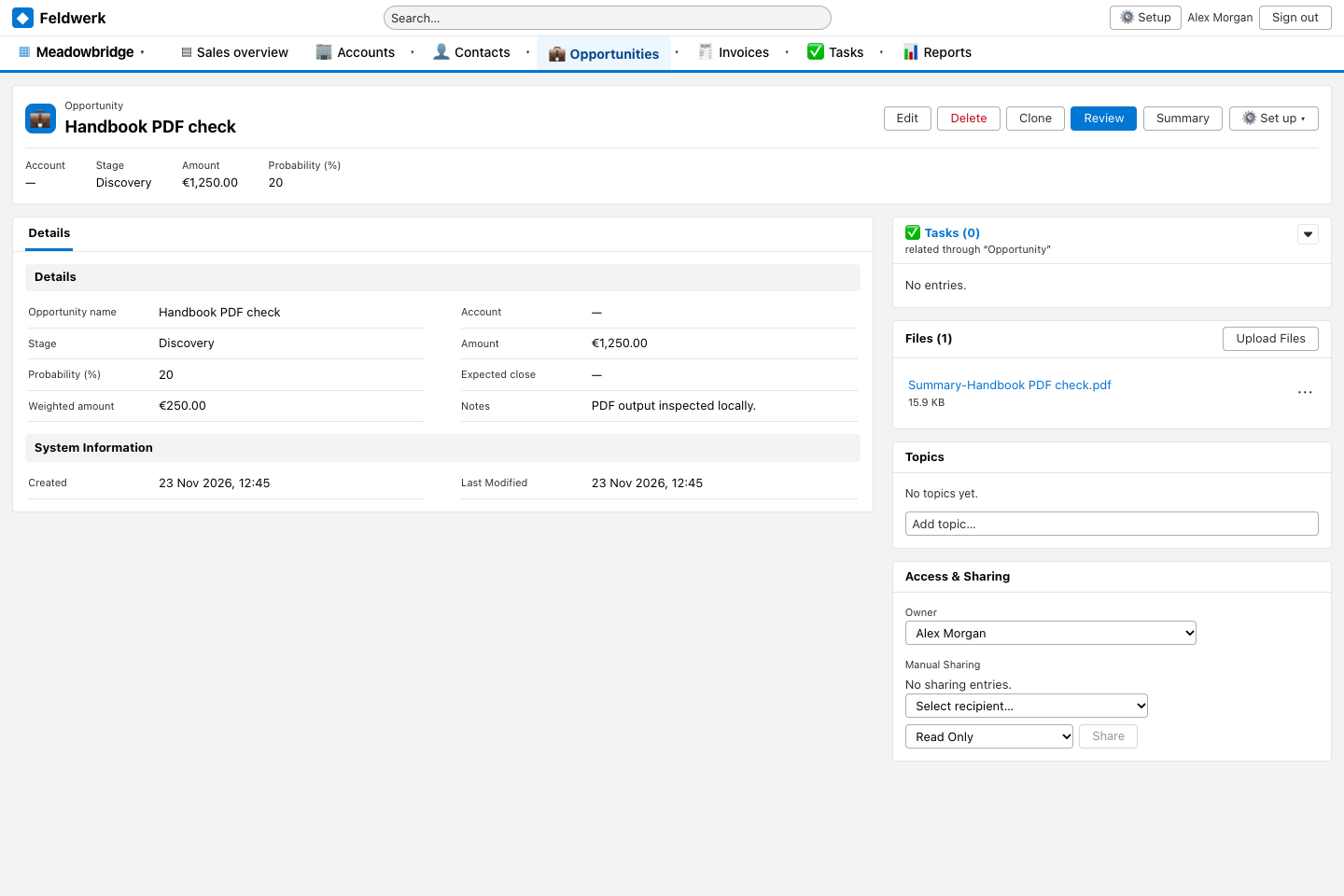
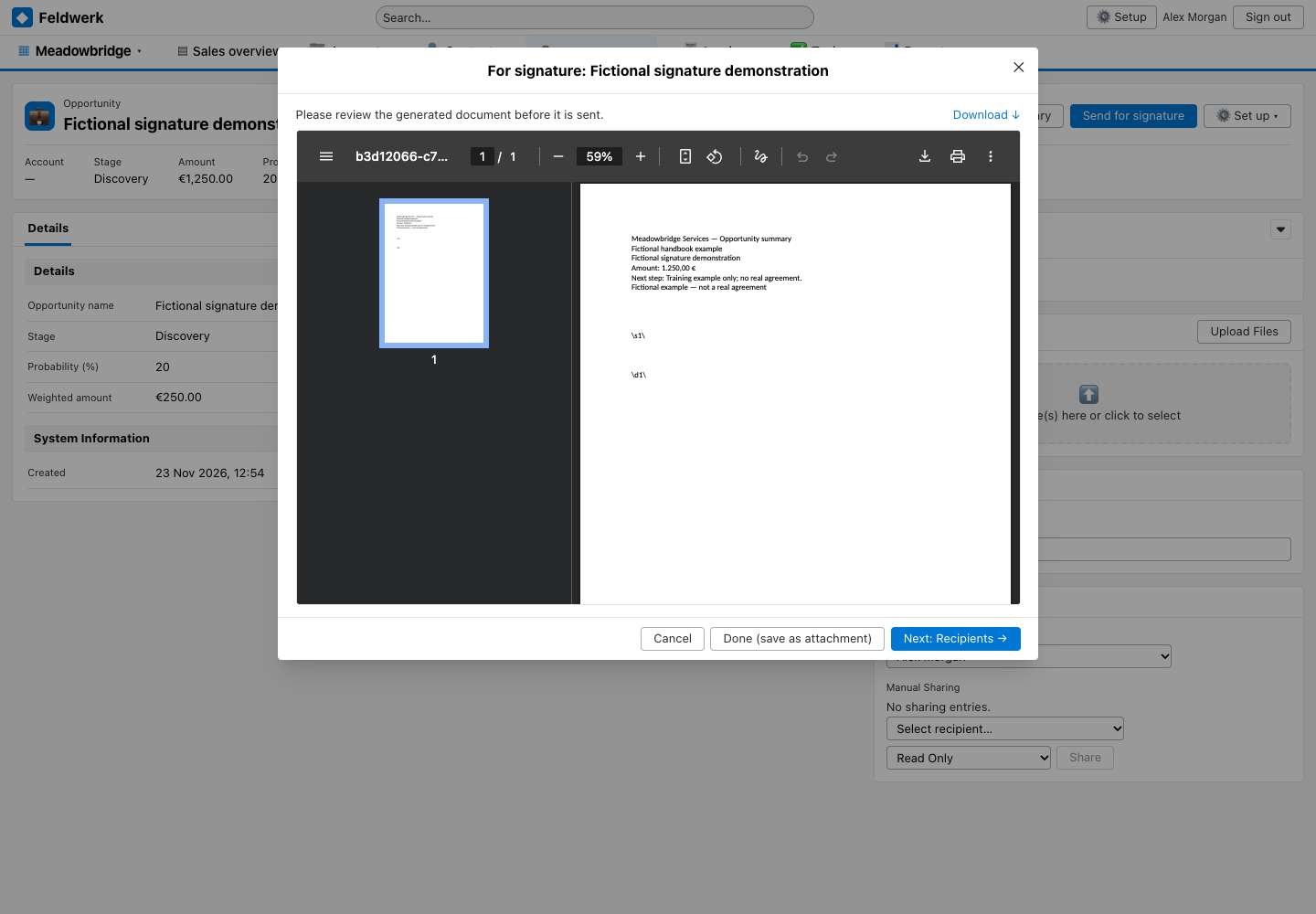
In our example, Review opens a guided next-step screen. Summary generates a DOCX from the opportunity. Wait for the action’s result before repeating it. Generating an unchanged DOCX again downloads it again while recognising an identical existing attachment.
Files, topics and access
Use Files to upload or open attachments and Topics to organise records with tags. Access & Sharing, when present and permitted, shows the owner and explicit sharing controls. Changing a visual layout does not grant access. A missing action can result from permissions, configuration or the current record state.
Clone or delete deliberately
Clone opens a new record based on the source values. Review the new record before saving. Delete asks for confirmation; check the record name in that confirmation. Cancelling a dialog does not reverse a deletion that has already completed.
When the page looks wrong
Refresh after changes made elsewhere. If a field is absent, check the active page and form configuration as well as field permissions. If a related list is empty, check the relationship on the child records and your visibility. Give an administrator the object, record and exact message when asking for help.
Working with records · Chapter 5
Global search
Find records across objects and understand what the results cover.
Use the global search
Select Search… in the application header. On a narrow screen, use the search icon to open the search control.
Type at least two characters. Wait for the suggestions to finish loading.
Select a suggested record, or press Enter to open Search Results.
Focusing an empty search can show Recently Viewed records. These are navigation shortcuts, not a new search. When you search from an object, that object is preferred in the result ordering.
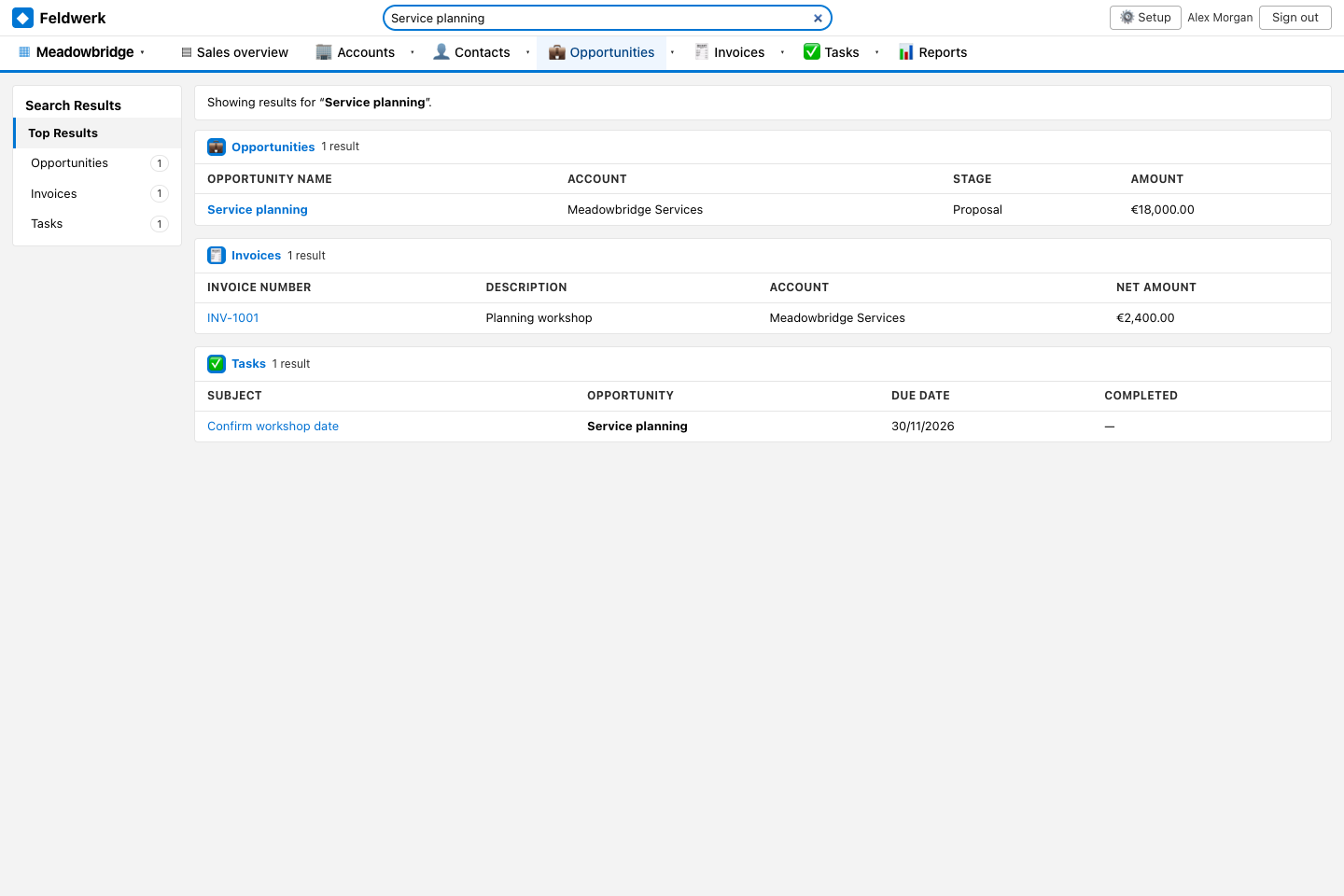
Enter a search term in the global header.
Choose Top Results or an object group.
Open a matching record and inspect its values.
Select the screenshot to open the full-size image.
Read the results
Results are grouped by object. Top Results shows a cross-object overview; the object choices narrow the displayed group. On narrow screens, these choices appear above the results. Use Show More where offered to load additional results. Select a record name to open it.
In the example, searching for Service planning finds the opportunity and records containing the same text in their stored values, including relationship display information. The result title need not be the matching field. Read the row and open the record before assuming it is a duplicate.
If you know a record’s public ID, paste the complete ID into global search. An exact ID match is placed first. This is useful when names are similar; your normal object and record permissions still apply.
Global search versus list search
The header search spans the objects you can access. Search this list… belongs to an object list and works within that list’s scope. A list’s filters, owner scope or relationship filter can hide a record even when another authorised route can find it. Clear the list search and inspect the filters when a record seems to be missing.
What is searchable
The current global search searches stored record values. It is not a general full-text index of every attached file. Uploading a PDF does not by itself make all text inside it searchable.
If document text must be searchable, an administrator can configure an attachment-triggered flow to extract supported text and write it into an appropriate record field through the normal record pipeline. The field, object, permissions and extraction rules determine the resulting search behaviour. Do not promise a match in file contents before that workflow exists and has been tested.
When you cannot find a record
Check spelling and try a shorter distinctive part of a stored value.
Use at least two characters for the global search.
Check whether you are searching the global header or only a filtered list.
Open the expected object directly and check its views.
Ask an administrator to verify object access, field access and record visibility if the record still cannot be found.
No results does not prove that the record was deleted. Search respects access, and newly extracted document text must first have been saved into a searchable record field.
Working with records · Chapter 6
Attachments and topics
Keep supporting files with records and organise related work using topics.
Attach a file to the right record
Open the record and find its Files panel. Check the panel title: some page layouts show files from a related record, so the visible page alone does not always identify the attachment’s owner.
Select Upload Files, or drag files onto the upload area. When the panel is empty, you can also focus the upload area with Tab and press Enter or Space to choose a file.
Choose one or more files and wait for the upload to finish.
Check that each filename appears in the panel.
If the page reports a failed upload, review the filename and error before retrying.
The current upload limit is 25 MB per file. Uploading several files can partially succeed; do not assume the entire selection failed because one file was rejected. File operations follow the record’s access rules.
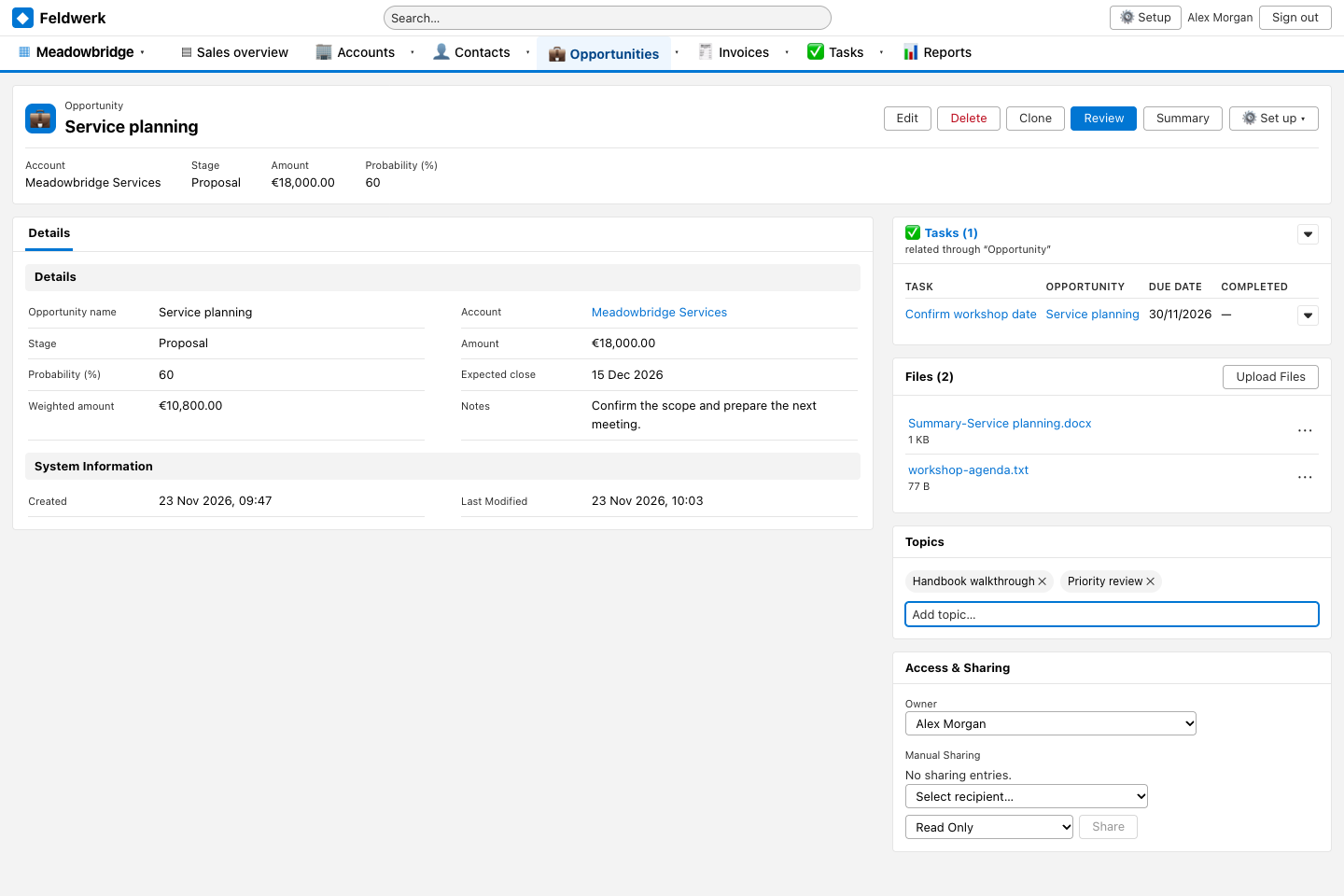
Check the files attached to this record.
Add or remove topics.
Upload supporting files.
Select the screenshot to open the full-size image.
Files from a related record
An administrator can configure the page to include files from records linked through lookup fields. In this example, the opportunity has its own Files panel and a separate Files – Account: Workshop related account panel. Uploading through the Account panel stores the file on that account. It does not create another copy on the opportunity. Check the panel heading before uploading or deleting.
Files owned by the opportunity.
Files owned by the linked account.
This upload button adds files to the account.
Select the screenshot to open the full-size image.
Open or remove an attachment
Select the filename to download the attachment, then open the downloaded file with a suitable application. The Files panel’s filename link is a download action; it does not open an in-page preview. Use the attachment’s More actions menu for its available actions, including deletion. Confirm the filename before deleting. Removing an attachment does not delete the parent record.
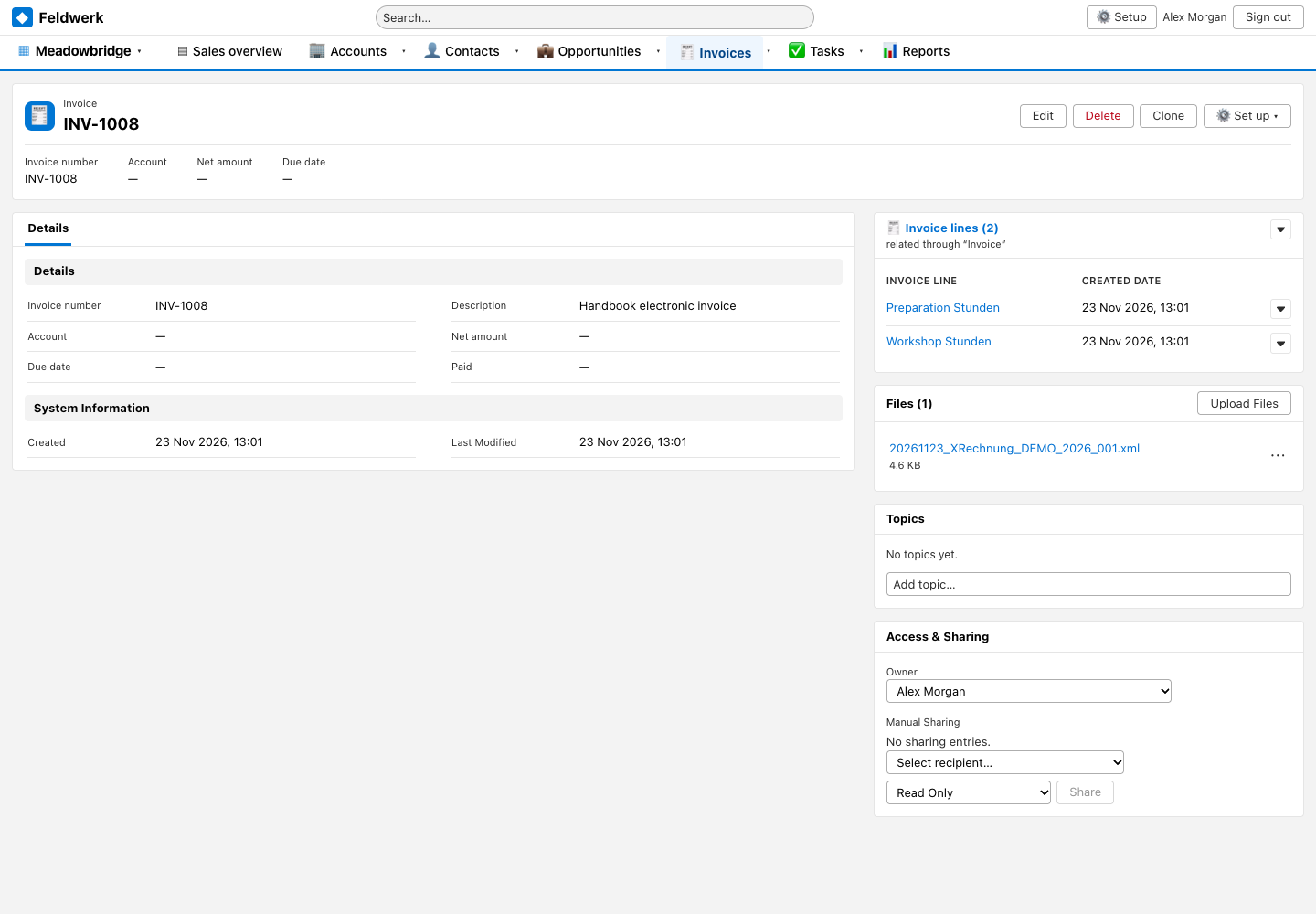
Generated documents can also appear here. The document action normally attaches its output as well as downloading it when permitted. An unchanged generated DOCX can reuse the identical attachment; a changed document is a different output. Check the action’s result message.
Add and remove topics
Find the Topics panel.
Type in Add topic….
Select an existing suggestion, or press Enter to add the typed topic.
Confirm the topic appears as a chip.
Use the remove control on a chip to remove that topic from this record. This removes the association; it does not delete the record. Prefer consistent existing topic names so related work can be grouped predictably.
Topics complement structured fields. Use fields for values requiring a defined type, calculations, validation or controlled business states. A topic is not a substitute for an ownership rule or a permission.
Files and search are separate
A file being attached does not automatically make its contents part of the global record search. For searchable document text, configure extraction into a record field. An attachment-triggered flow can perform that work using the supported extraction action and the ordinary record update pipeline.
Resolve common problems
File absent after upload: wait for the result, check the reported filename and refresh. Check whether the panel refers to a different related record.
File too large: reduce its size below the supported limit and retry.
Access denied: ask the owner or administrator to check record and object permissions.
File does not open: first check that the download completed, then use an application that supports its format.
Topic not added: read the error and check editing access; simply typing without confirming does not create the association.
Build your data model · Chapter 7
Objects and fields
Define the kinds of records your organisation uses and the values each record can store.
Start with the information model
An object is a type of record, such as Account, Contact or Invoice. A field defines one value on those records. Before adding an object, decide what one record represents and how it relates to existing objects. Avoid creating separate objects merely to represent different statuses of the same kind of work.
Administrators manage this structure in Setup → Object Manager. Users work with the resulting records through apps, lists and record pages. Adding an object alone does not finish the user experience: also check its forms, page, app navigation and permissions.
Create an object
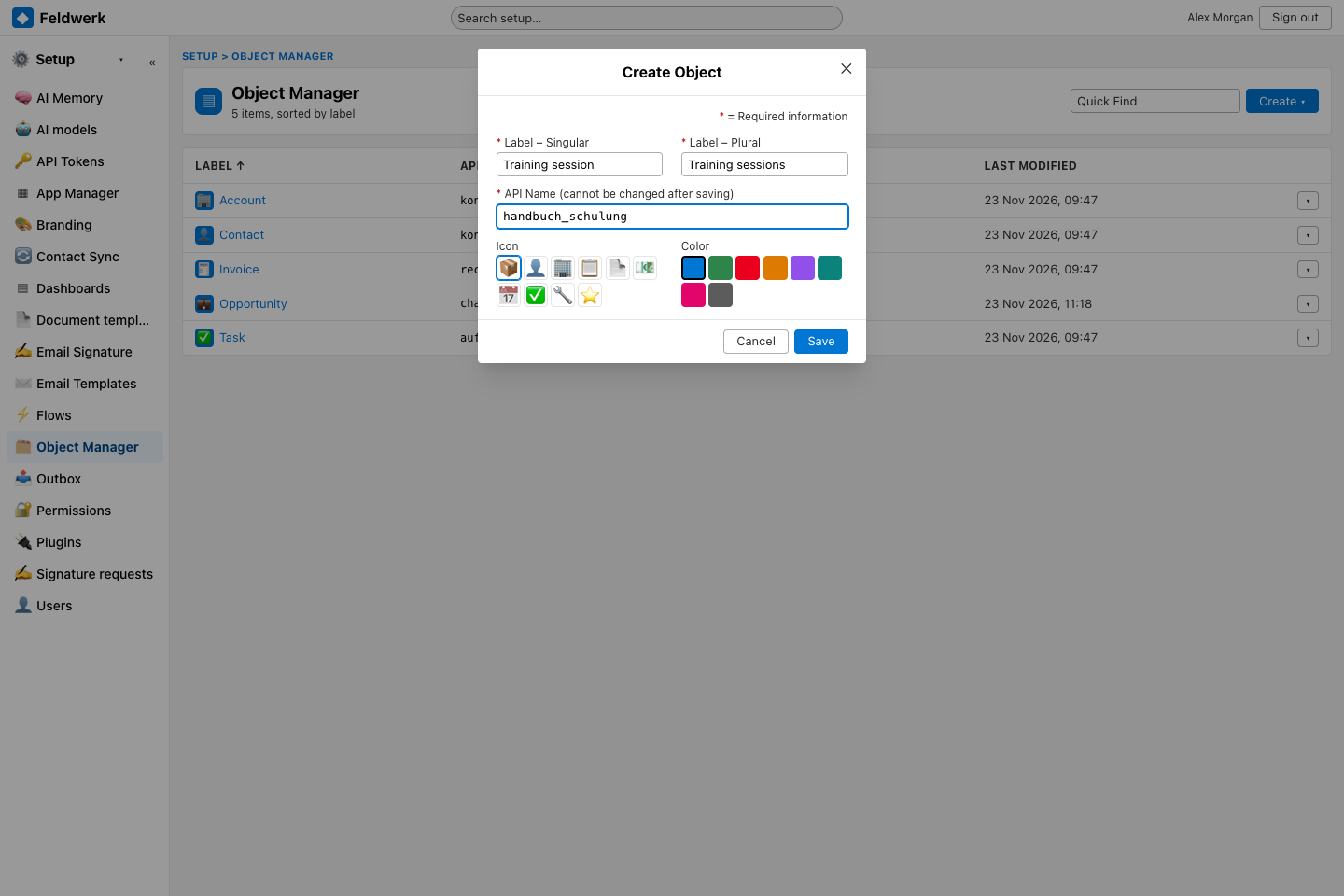
Open Object Manager and choose Create.
Choose a singular label and a plural label that people will recognise.
Review the API name before saving. This is the stable technical identifier used by formulas and integrations.
Choose the available visual settings, then save.
Review the new object’s Details and Fields & Relationships.
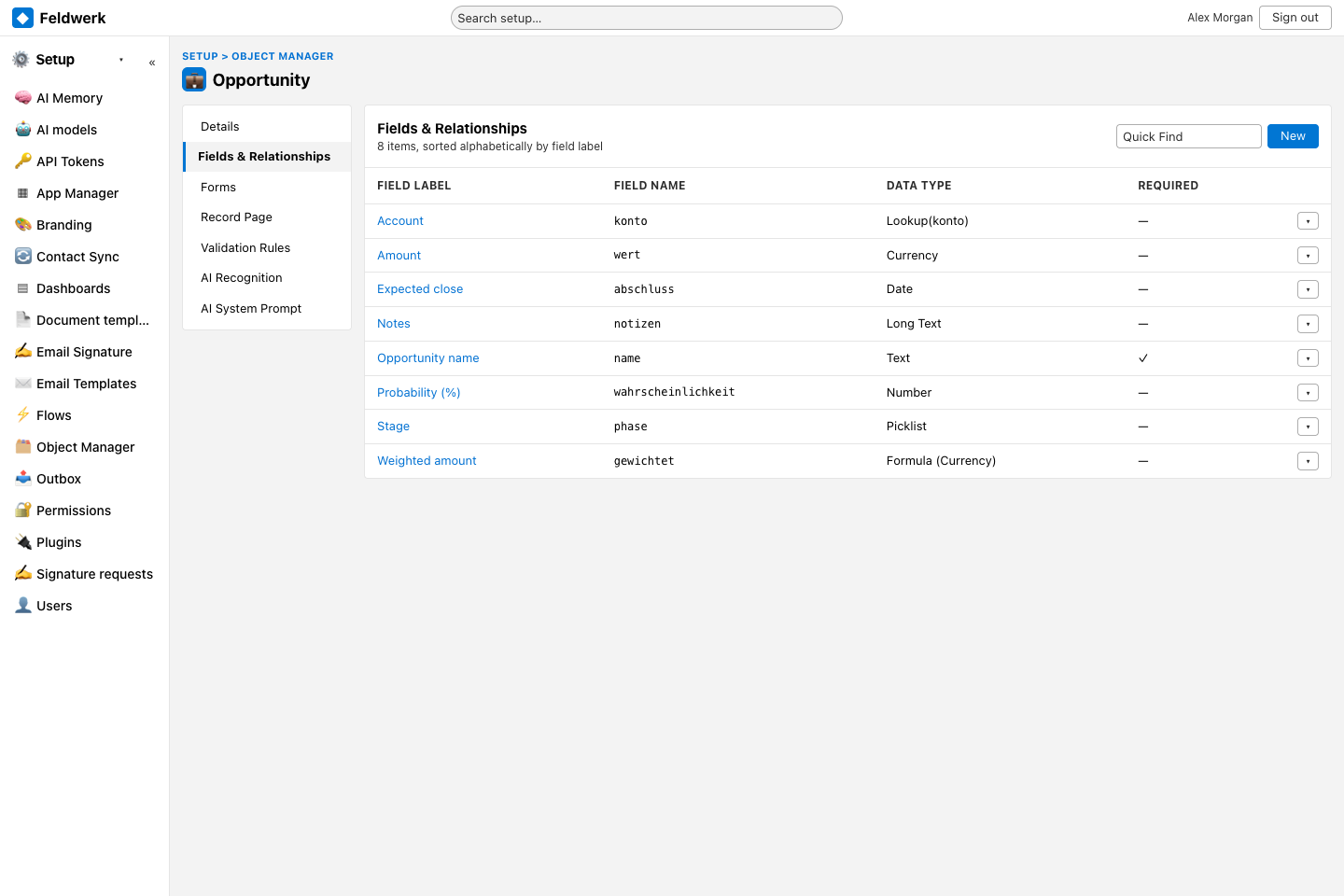
A label can be written for the audience; the API name is a technical contract. In the handbook, the English label Opportunities belongs to the API name chance. Do not substitute the label for that name in a formula or integration.
Open Fields & Relationships for the object.
Compare labels, API names and field types.
Add a new field.
Select the screenshot to open the full-size image.
Enter singular and plural labels.
Review the permanent API name.
Choose an icon and colour.
Save the new object.
Select the screenshot to open the full-size image.
Choose how records are named
In the object’s Details, choose Edit and review Display Name. Select a suitable field, such as Session code, so lookups and record links show a recognisable name. The automatic setting uses the first two text fields. A text formula can combine values when one field is not enough. This displayed name does not replace the record’s stable public ID.
Existing lookup values contain a saved display-name snapshot. Use Check display names to inspect outdated references and Recalculate display names when you intend to update them. Changing the label or displayed name does not change the relationship’s target record.
Create a field
Choose the object and open Fields & Relationships.
Select New and choose the field type.
Enter its label and review the generated API name.
Set type-specific options, required or unique behaviour where supported, and useful help text.
Save, then review the field in the object’s form and record page.
Create a test record, save representative values and check the displayed result.
The API name cannot be changed after creation. The field’s type cannot be changed either. A lookup’s target mode and target object set are fixed after creation. Plan those choices before storing business data.
Choose the right field type
Type
Use
Text / Long Text
Short names and codes, or longer notes. Choose an appropriate length.
Number / Currency / Percent
Numeric values, with precision and display decimals where supported. A formatted amount is still numeric.
Date / Date-Time
A calendar date, or a value that also includes a time. Choose based on the business meaning.
Checkbox
A yes/no state.
Picklist / Multi-Select Picklist
Controlled choices. Each option has a displayed label and a stored API value.
Email / Phone / URL
Contact and address values with the appropriate input and display behaviour.
Lookup Relationship
A link to a record. The target mode determines which objects can be selected.
Object Reference
A reference to an object definition, not a particular record. Useful in configuration.
Formula
A calculated read-only value from an expression.
Roll-Up Summary
A calculated value across related child records.
Auto Number
An automatically assigned formatted sequence value.
Signature
A signature captured through the supported field input.
File/Image
A file value belonging to a field. This differs from the record’s general Files panel.
Required values, uniqueness and defaults
A required field must be populated when a record is saved. A unique field prevents the same permitted value from being reused on another record of that object. Test both behaviours with representative data before applying them to an established workflow.
A default supplies a missing or blank initial value on creation; it is not a continuously recalculated field. For example, a Location default of Online is applied to a new record. Changing that default to Workshop room does not replace Online on an existing record when it is edited later. A Default Value Formula, configured in the field details, can supply values such as today’s date and takes precedence over a static default when it produces a value. Use a Formula field when the value should remain derived from other values. Formula, Roll-Up Summary and Auto Number fields cannot be supplied as ordinary editable inputs.
Maintain picklist choices
Keep the stored option value stable even if the human-readable label changes. Formulas and automation may use that stored value. Review active and default options and their ordering. Existing picklist options cannot be deleted, even if currently unused. Deactivate obsolete options instead.
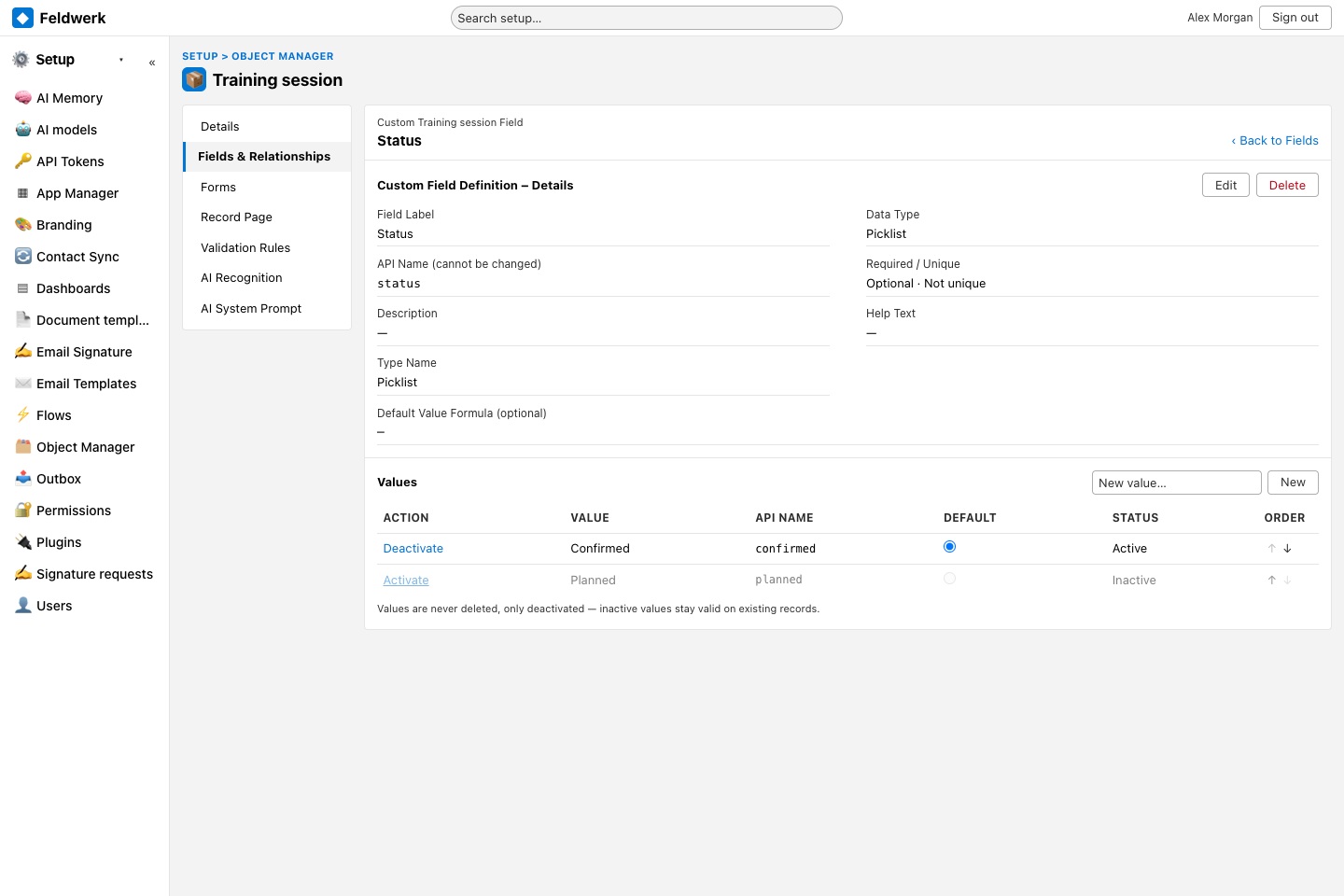
Open the picklist field’s detail page and find its Values table.
Use the default radio button to select an active default option.
Use the up/down buttons to change option order.
Select Deactivate to retire an option; select Activate to make it available again. Deactivating the default also clears its default flag.
To add a choice, enter its label in the new-value input and select New. Review the resulting API value.
These actions save immediately. Existing record data is not rewritten to another option merely because an option is deactivated. Keep the stored API value stable when maintaining labels through the API.
Activate or deactivate options while retaining their API values.
Choose an active default.
Change the display order.
Select the screenshot to open the full-size image.
Change structure carefully
Changing a field label does not rename its API identifier. Changing a form only changes the input layout; it does not change the field type. Review references in formulas, reports, flows, documents and integrations before removing a field or object.
Deleting structure can remove stored information. Work on a test instance first, inspect dependencies and preserve the business data you need before destructive changes. An object or field hidden from navigation may still exist and be used elsewhere.
Delete a field
A required field is protected from deletion; first make it optional only if that change is intended. References from flows, reports, formulas and roll-ups can also block deletion. Resolve the reported dependencies before trying again. A successful field deletion removes its stored values from the object’s records and removes its references from forms and list layouts. It is not equivalent to hiding the field from a form.
Delete an object
In Object Manager, open the object’s action menu and select Delete.
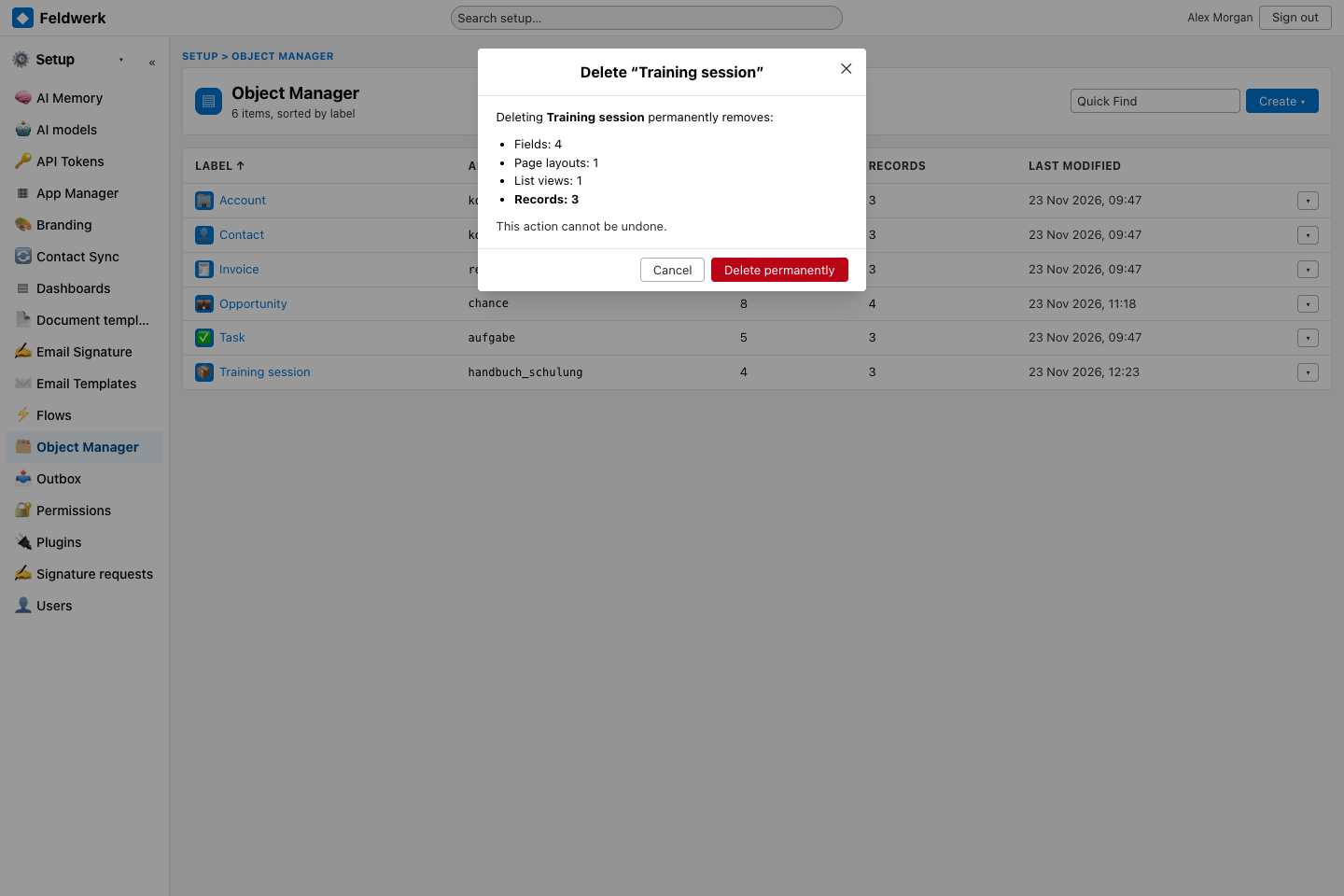
Review the confirmation dialog’s counts for fields, forms, list views and records.
Select Cancel if you need to retain or export anything. Select Delete permanently only when the removal is intended.
An incoming lookup from another object can block deletion, even when no record currently uses that lookup. Plugin-owned internal objects cannot be deleted this way. Successful deletion removes the object’s records and structure, including its forms, pages, lists, reports, flows, validation rules, attachments and app tabs. Open polymorphic relationships elsewhere can retain a stale display snapshot after the target object is removed; it no longer points to an existing record. There is no ordinary undo for deleting the object.
Review the counts and permanent effect.
Cancel to keep the object.
Confirm only when you intend to remove the listed data and structure.
Select the screenshot to open the full-size image.
Build your data model · Chapter 8
Lookups and related lists
Connect records with lookups and use those relationships in pages, formulas and reports.
What a lookup stores
A lookup points to another record. For example, a Contact has an Account lookup. Many contacts can point to the same account; the account’s related list can show those contacts. The relationship belongs to the lookup field on the child object.
Use a lookup when the target is a record with its own identity and data. Typing an account name into a plain text field does not create the same relationship. An Object Reference identifies an object definition and is also different from a record lookup.
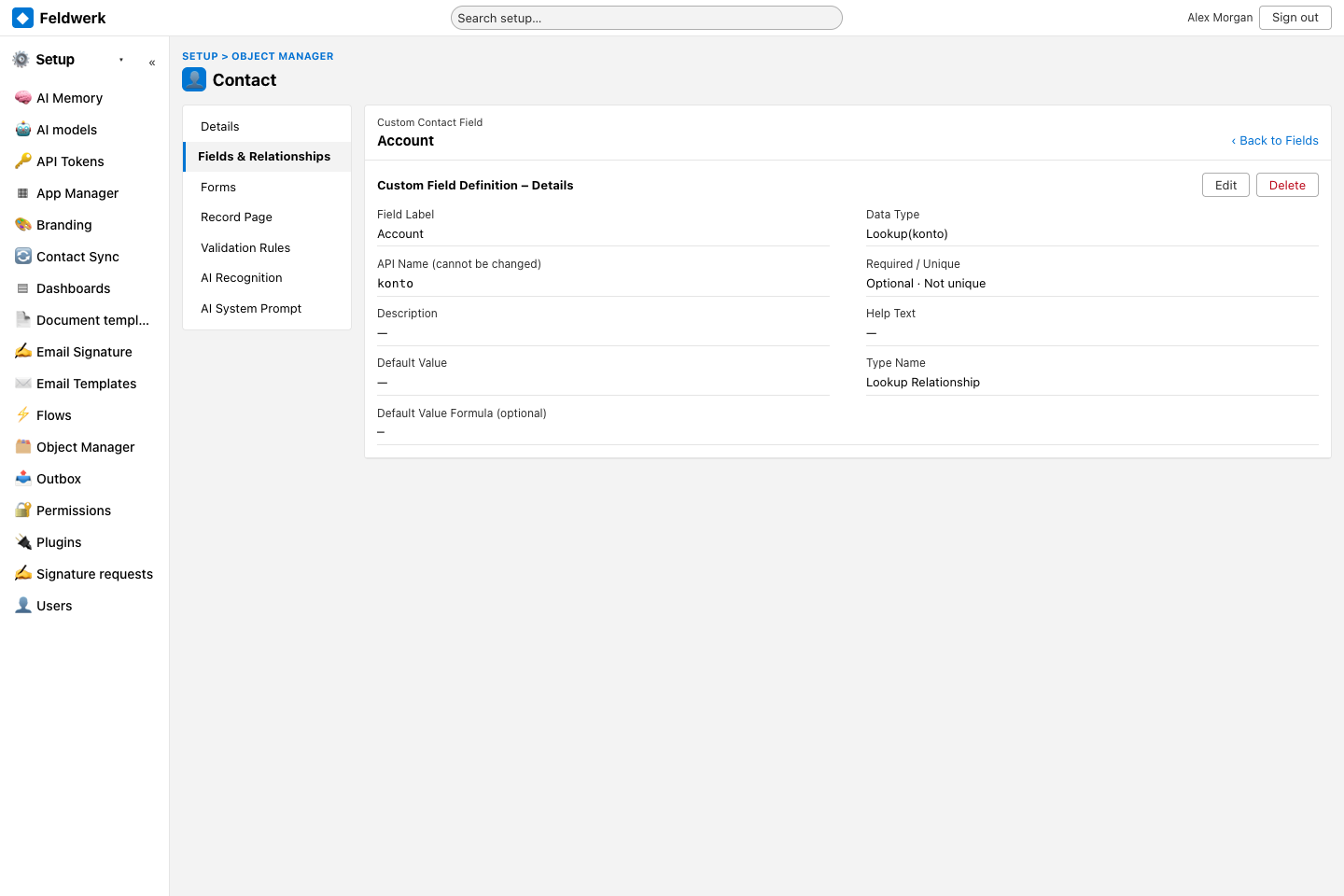
The field label is shown to users.
The lookup target is part of the field definition.
Use the stable API name in configuration.
Select the screenshot to open the full-size image.
Configure the target
In Object Manager, choose the child object and open Fields & Relationships.
Create a field of type Lookup Relationship.
Choose one Target Object. The current field wizard creates a relationship to one fixed object.
Set the label, API name and other supported properties, then save.
Place the field on the appropriate form and check the corresponding related-list configuration on the parent page.
The platform also supports a fixed set of target objects or any permitted object. These multi-object relationships are configured through the regular API, not through the current field wizard. To allow Accounts and Contacts, use their actual API names in the field definition:
Use exactly one target mode: zielObjekt for one object, zielObjekte for a fixed set, or zielBeliebig: true for an open relationship. With more than one possible target, the user must also choose the target object. The target mode and target set are immutable after creation; create a new relationship and plan a migration if the model must change.
Select a related record
Edit the source record.
For a multi-object lookup, select the intended object first.
Type a distinctive part of the record name and choose the correct suggestion.
Save and verify the linked value on the record page.
Use other identifying information when several suggestions have the same name. Clear selection to remove an optional relationship, or select another record to replace it. A required lookup cannot be left empty, including when you edit an existing record. Save is rejected until you select an allowed target. An open relationship still lists only objects you can access; it does not bypass object or record permissions.
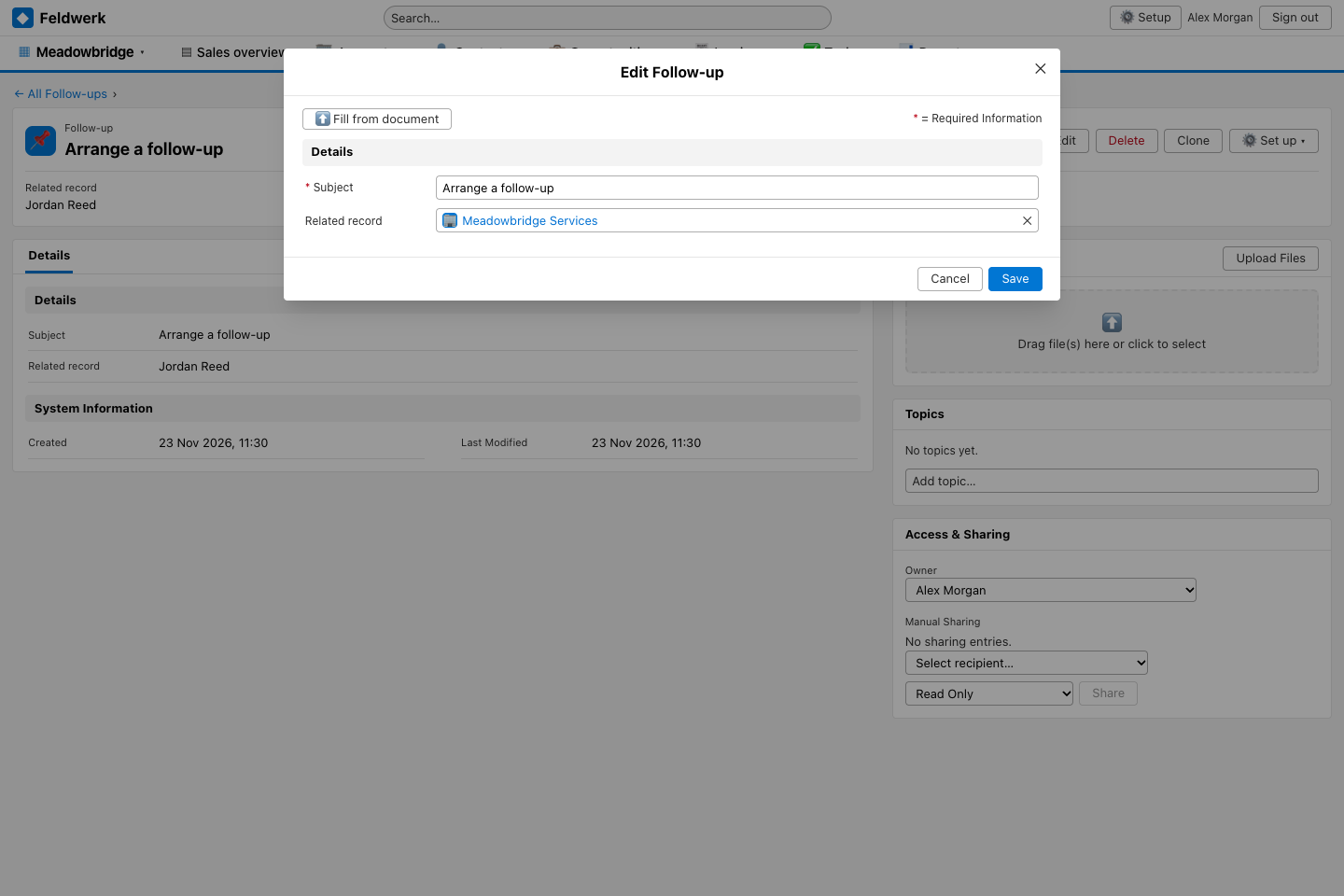
Check the selected record and its object icon. This field allows Accounts or Contacts.
Clear the selection to remove or replace the relationship.
Save to persist the change; the background still shows the previously saved contact.
Select the screenshot to open the full-size image.
Follow the relationship
Select the lookup link to open the related record. On the parent record, a configured related list identifies the child records pointing to it. A related-list filter changes the scope of a list; it does not create a new set of records.
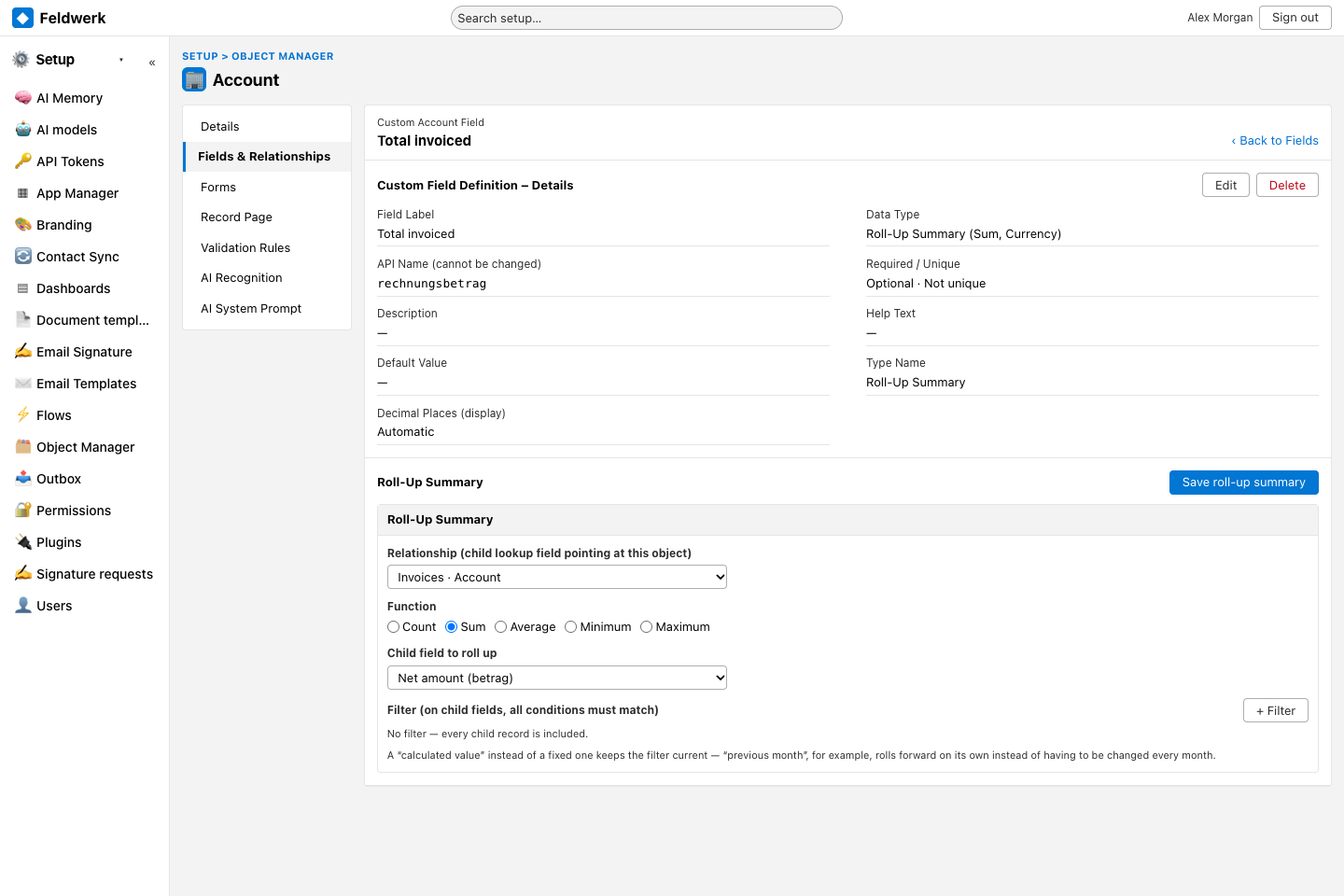
In the handbook, Service planning points to Meadowbridge Services. Its Tasks related list uses the Opportunity lookup on Tasks. The Account’s Total invoiced field follows the Account lookup on Invoices to calculate its roll-up.
Use lookup paths
Formulas can traverse supported lookup paths using field API names, for example konto.name for the related account’s name. The formula editor’s field picker helps choose a valid path. Missing relationships and inaccessible data require deliberate blank handling; test those cases instead of only testing a fully populated record.
In Flow conditions, record fields use the Flow context notation, for example $Datensatz.konto. Do not mix that notation with a plain field formula without checking the expression context.
Check access and lifecycle
A relationship is not a permission grant. The user still needs the appropriate access to select or open the target. If a relationship cannot be selected, check target configuration, permissions and whether the target exists.
Before deleting a referenced record, review the incoming relationships and the effect on related lists, formulas and automation. Do not assume all child records will be deleted with the parent. After an intentional deletion, verify the surviving records and repair any business process that depended on the relationship.
Build your data model · Chapter 9
Formula fields
Calculate values from record fields with typed expressions, explicit blank handling and a verified function reference.
Choose a formula rather than a copied value
A Formula field derives its value when the record is read. It is read-only in ordinary forms. Use it when the result should follow its inputs; use a default or automation when a value must instead be assigned or stored at a particular event.
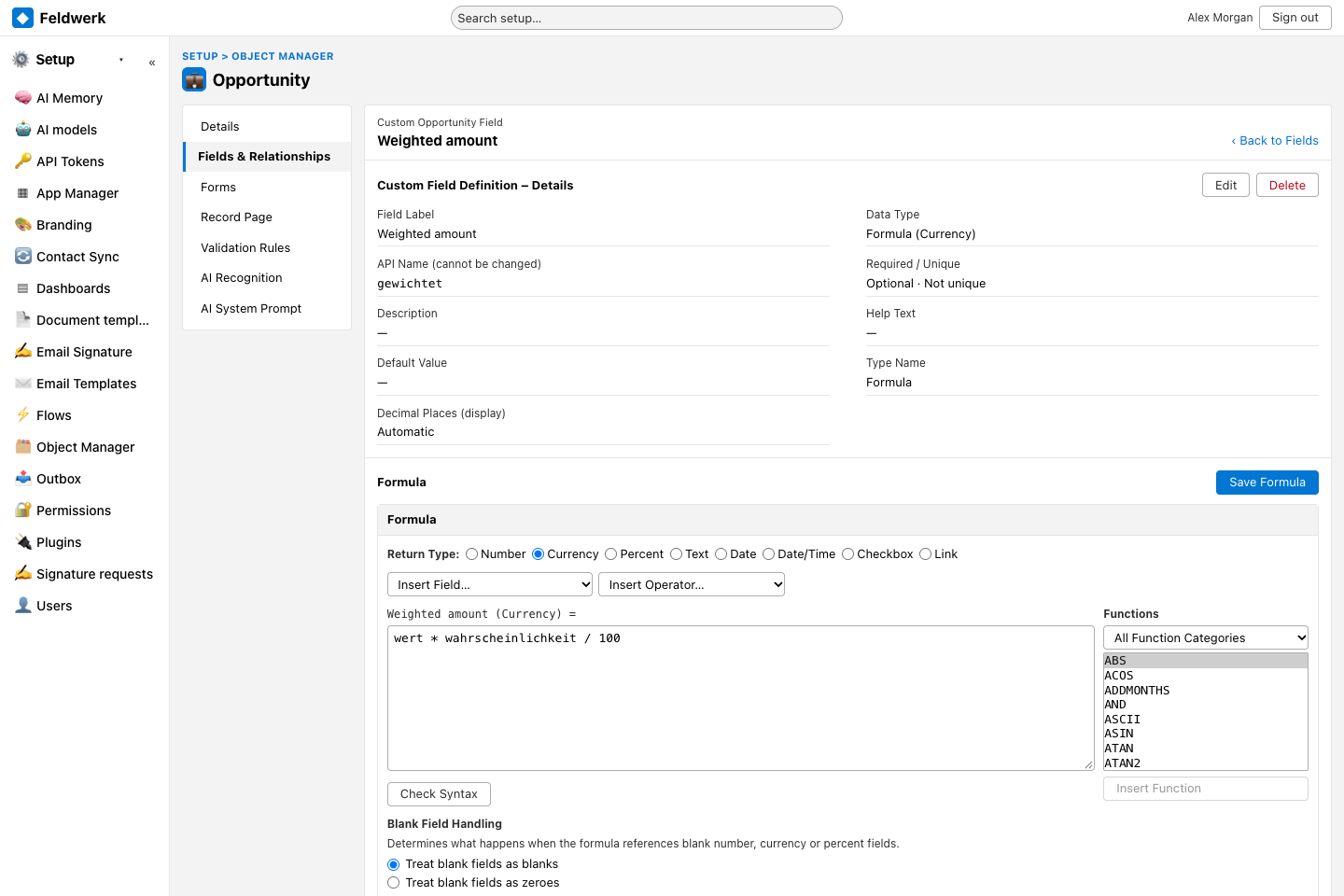
The handbook’s Weighted amount field uses wert * wahrscheinlichkeit / 100. Here wert is Amount and wahrscheinlichkeit is the Number field labelled Probability (%). With 18000 and 60, the result is 10800. Changing probability to 50 changes the calculated result to 9000.
Choose the result type.
Use stable field API names in the expression.
Check syntax before saving.
Decide how blank numeric inputs behave.
Select the screenshot to open the full-size image.
Create and validate a formula
Open the object’s Fields & Relationships and create a Formula field.
Choose the Return Type: Number, Currency, Percent, Text, Date, Date/Time, Checkbox or Link.
Enter the expression, using Insert Field, Insert Operator and the Functions list where helpful.
Choose how blank numeric fields are treated.
Select Check Syntax, correct any errors and select Save in the new-field wizard. For an existing field, use Save Formula.
Inspect records with ordinary, blank and boundary values.
A successful syntax check does not prove the business calculation is right. Check known inputs and independently calculate the expected result. Review the declared return type and display decimals. The syntax check reports the expression’s inferred result family: adding two Currency inputs can report Number while the field’s declared Return Type remains Currency. The declared type controls the field output.
Expression basics
Use field API names rather than labels. Supported arithmetic includes +, -, *, / and ^; parentheses control grouping. Use & to concatenate text. Comparisons include =, <>, <, >, <= and >=. Text literals use quotes, and function arguments are separated by commas.
Related values can be accessed through supported lookup paths such as konto.name. Formula field expressions use this field context. Flow expressions have their own context, including $Datensatz; copy expressions only after checking the context.
Blank values and invalid calculations
Blank Field Handling determines whether blank Number, Currency and Percent inputs remain blank or are treated as zero. Use ISBLANK, BLANKVALUE or a conditional expression when the business meaning needs an explicit fallback.
Division by zero returns a blank result. A missing lookup is another reason a derived value can be blank. Avoid hiding these cases behind an arbitrary zero unless zero is the correct business meaning. References to other calculations must not create cycles.
For a concrete blank-value check, create Currency inputs betrag and zuschlag, then a Currency formula betrag + zuschlag. With Amount 100 and Surcharge blank, Treat blank fields as zeroes gives 100; Treat blank fields as blanks gives a blank result. Setting Surcharge to 25 produces 125. Trying to assign the formula result directly through the API is rejected.
Insert Field adds a field’s API name at the cursor. Insert Operator adds the selected symbol. Choose a function category, select a function and click Insert Function to insert its name and empty parentheses; fill in its arguments before checking syntax. Lookup paths can be typed manually. A successful local syntax check still needs the server’s final path and cycle validation when saving.
Executed examples
These examples were run through the same formula engine used by Feldwerk.
Expression
Result
ROUND(18.456, 2)
18.46
IF(2 > 1, "Ready", "Waiting")
Ready
UPPER("Meadowbridge")
MEADOWBRIDGE
FIXED(2400, 2)
2400.00
FORMATNUMBERDE(2400, 2)
2.400,00
DATE(2026, 12, 15)
2026-12-15
YEAR(DATE(2026, 12, 15))
2026
Choose functions by purpose
Logic: IF and CASE choose values; AND, OR and NOT combine conditions. ISPICKVAL compares the stored picklist value.
Numbers: ROUND and TRUNC control decimals; MIN and MAX select extremes. CEILING/FLOOR and MCEILING/MFLOOR differ for negative values: CEILING(-3.2) is -4, while MCEILING(-3.2) is -3.
Text: LEFT, RIGHT, MID and FIND work with portions and positions. FIND is case-sensitive and returns a one-based position, or zero when not found. REGEXEXTRACT returns the first matching text or group; an invalid pattern or no match returns empty text. REGEXTEST returns false for an invalid pattern.
Formatting: FIXED produces fixed decimals with a dot and no thousands separator. FORMATNUMBERDE produces German number formatting. These function names are stable language-independent identifiers.
Dates: TODAY and NOW use the engine’s current time. YEAR, MONTH and DAY extract date components; ADDMONTHS moves by calendar months and clamps an overflowing day to the last day of the target month. DATETIMEVALUE interprets text without a timezone as UTC. LOCALTEXT formats date/time in Europe/Berlin.
Links and encoding: HYPERLINK returns a Link value. RECORDURL produces a record URL from a lookup. URLENCODE and XMLENCODE encode values for the corresponding output context.
Attachments: ATTACHMENTCOUNT returns the current record’s attachment count; HASATTACHMENTS indicates whether it has any.
Compatibility limitations
IMAGE returns its alternative text rather than embedding an image. CASESAFEID returns the input text without converting an ID. HYPERLINK accepts an optional target argument but ignores it. TIMENOW currently returns a Date/Time value. FORMATDURATION formats an absolute whole-second duration as hours:minutes:seconds; its optional second argument is not used.
CURRENCYRATE, DISTANCE, GEOLOCATION, GETSESSIONID and PICKLISTCOUNT are available. Currency rates require a current provider snapshot; the session identifier requires an authenticated browser session. See the individual function pages for examples and limits.
Available functions: syntax and examples
Select a function to read what each argument means, which arguments are optional and what the example returns. New formulas always use English function names, including in the German interface. Existing German names remain valid as compatibility aliases. Field API names and text values are unchanged. The complete reference is also included in the PDF.
Test whether the current record has at least one attachment.
Context-dependent functions
All functions in this catalog are implemented. GETSESSIONID requires an authenticated browser session. CURRENCYRATE requires an available, current rate from the configured provider. Their detail pages explain the empty or null results when context is absent.
Build your data model · Chapter 10
Roll-up and auto-number fields
Summarise related records and assign identifiers without manual calculation or typing.
Roll up child records
A Roll-Up Summary field belongs to the parent object and calculates across child records that point to it through a lookup. Choose the relationship carefully: the field on the child determines which records contribute.
Our Accounts object has Total invoiced. It follows Invoices · Account, sums the child field Net amount, and displays a Currency result. The two Meadowbridge invoices contribute 2400 and 6000, producing 8400.
Select the child relationship.
Choose the aggregation function.
Select the child value field.
Limit contributors with optional filters.
Select the screenshot to open the full-size image.
Configure a roll-up
Open the parent object’s Fields & Relationships and create a Roll-Up Summary field.
Choose the child lookup relationship pointing at this object.
Select Count, Sum, Average, Minimum or Maximum.
For functions that need a value, choose a compatible child field.
Add child-field filters if only some related records should contribute.
Select Save roll-up summary and check the result on a parent record.
Count counts matching records. Sum adds the chosen values. Average, Minimum and Maximum summarise the chosen compatible field. Their result type depends on the input and function. Roll-up values are calculated when records are read and are read-only; change the contributing records to change the result. Count includes matching records even when the selected value field would be blank. The other functions ignore blank values: amounts 100, 200 and blank give a sum of 300 and an average of 150. With no usable matching values, the result is blank rather than zero; Count returns zero for an empty set. Minimum and Maximum also support compatible date fields.
Filter the contributing records
Filters apply to child fields, and all configured conditions must match. Without filters, every child record in the relationship contributes. For a moving date range, use a supported calculated or relative value rather than manually changing a fixed date each month.
Test a matching child, a non-matching child, a changed value and a removed relationship. In the handbook test, creating two linked invoices of 100 each raises Total invoiced from 8400 to 8600; deleting those test invoices returns it to 8400.
A filtered cost example
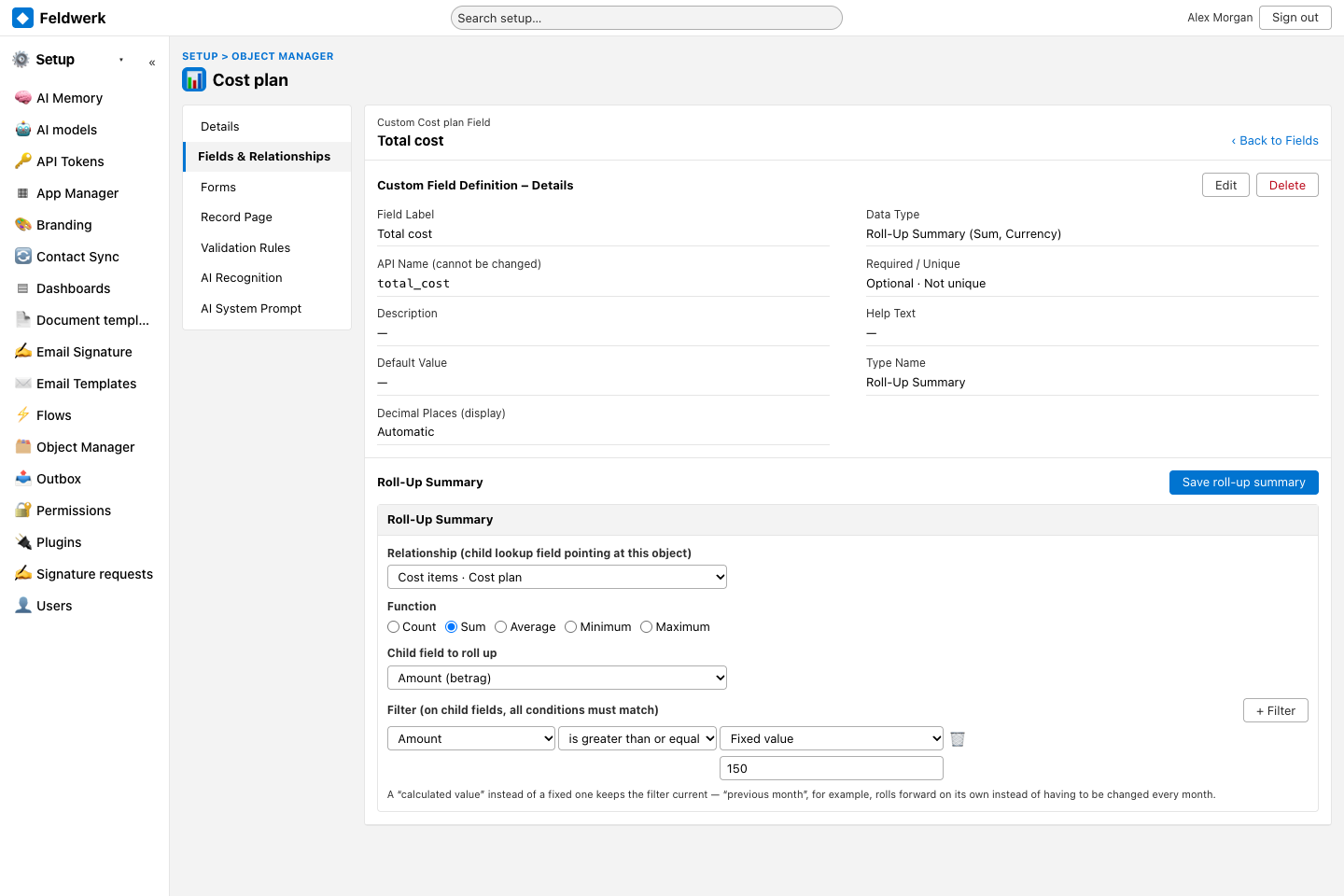
The isolated Cost plans example has three related Cost items with amounts 100, 200 and blank. Choose Sum, Amount, then add the filter Amount is greater than or equal to 150. The total becomes 200. Changing the contributing item to 250 changes the total to 250; clearing its Cost plan lookup or deleting it leaves a blank total because no item matches.
Choose the child relationship, Sum and Amount.
Include only amounts of at least 150.
Save the configuration and read the parent again.
Select the screenshot to open the full-size image.
Select Save roll-up summary after changing the function or filters, then refresh the parent record. Changing the selected relationship clears the draft child-value field and filters; choose them again for the new relationship.
Assign automatic numbers
An Auto Number field assigns a formatted sequence value. It is not editable record input. The example Invoice number uses INV-{0000} with a start of 1001, producing values such as INV-1001.
Create an Auto Number field on the object.
Choose a format containing exactly one zero placeholder, such as {0000}.
Set the initial sequence value and save the field.
Create two test records and check that they receive distinct successive numbers.
The zero placeholder sets the minimum padded width. The sequence is assigned by Feldwerk; integrations and users must not supply their own replacement value. Adding the field to an object with existing records also assigns numbers to those records, so review the intended starting value before doing this on business data.
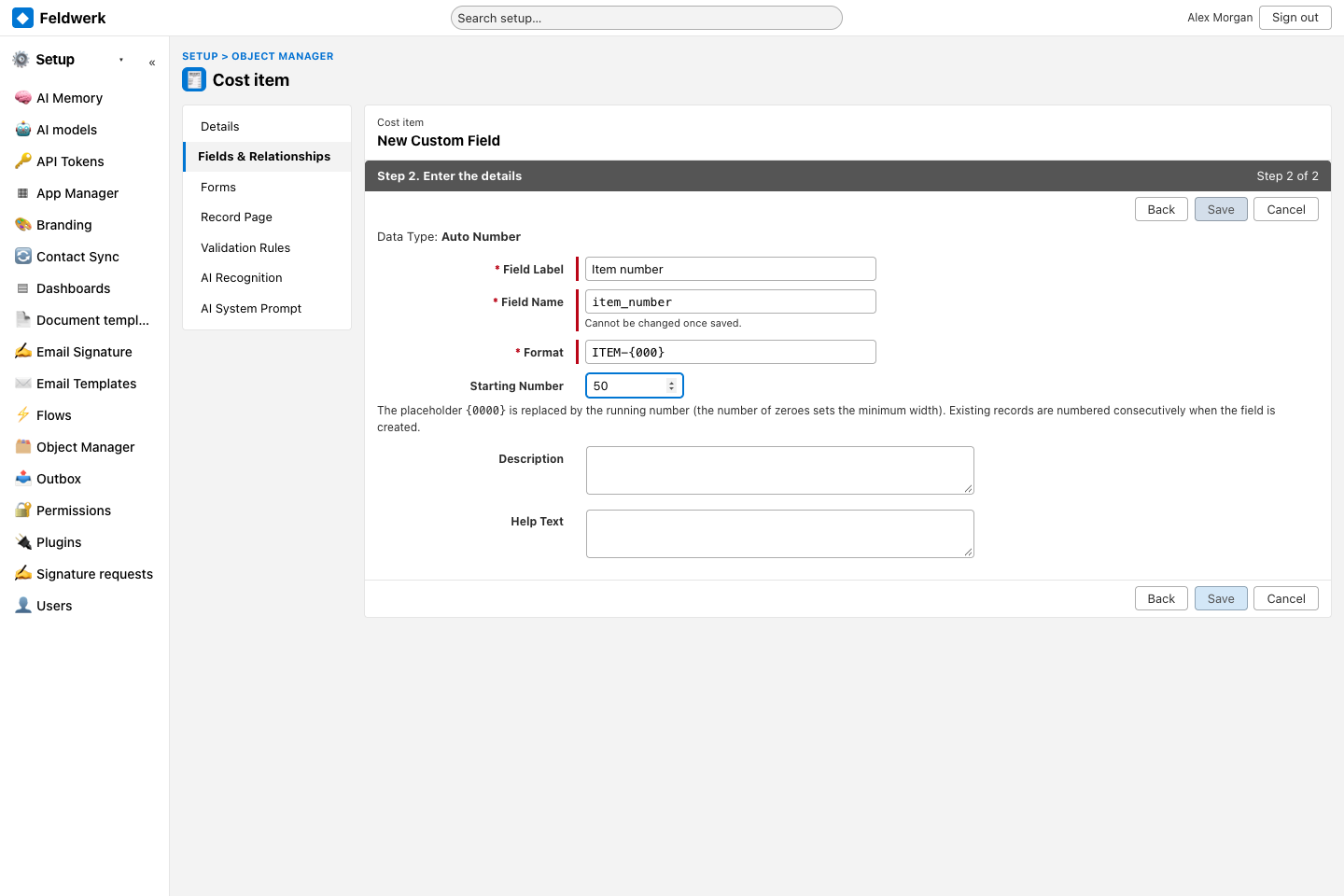
Name the field; its API name stays fixed after creation.
Use one zero placeholder and choose the initial number.
Save; existing records receive numbers too.
Select the screenshot to open the full-size image.
In the illustrated Cost items check, ITEM-{000} with a starting number of 50 assigns ITEM-050 and ITEM-051 to the two existing records. A new record receives ITEM-052. After deleting that record, the next new record receives ITEM-053. Supplying a replacement number through the API does not override the generated or previously assigned value.
Understand sequence behaviour
Automatic numbers are identifiers, not a count of current records. Deleting a record does not make its number available for ordinary reuse. Test records consume numbers too. A gap therefore does not prove data loss, and the highest number does not tell you how many records remain.
A formatted business number differs from the record’s internal/public identity. Integrations should use the supported record ID when addressing a specific record. Changing a display label does not change that identity.
Check unexpected results
Wrong roll-up total: inspect the child lookup, selected field and filters, then refresh the parent.
No relationship offered: create or check the child lookup pointing to this parent object.
Read-only value: edit the source values or configuration, not the calculated field.
Number differs from the example: the local sequence state and starting value determine it; the handbook numbers are illustrative.
Build your data model · Chapter 11
Validation rules
Prevent invalid changes and give people a useful correction message.
What a validation rule does
A validation rule checks a record when it is saved. Its formula describes the invalid case: when the result is true, Feldwerk rejects the save and shows the message configured for the rule. This is different from a required field, which simply requires a value, and from automation that changes a value.
Administrators configure rules on the object. People editing records encounter the resulting messages without needing access to Setup. Rules also apply when changes arrive through the regular API or an automation that uses the record service.
Example: reject a negative opportunity amount
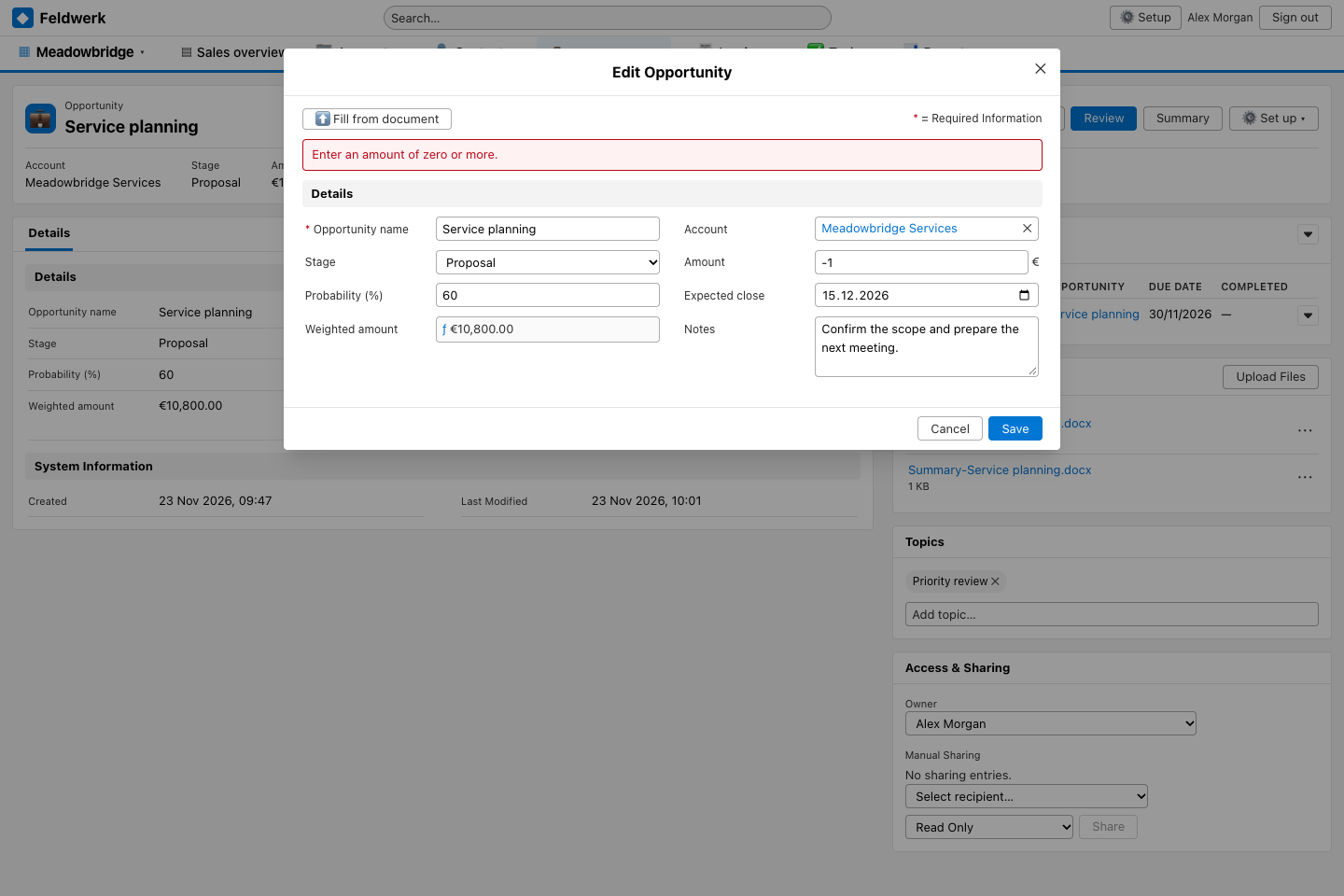
Our Opportunities object has an Amount field with the API name wert. A negative amount is invalid for this example. The rule formula is wert < 0, and its message is Enter an amount of zero or more. The message explains what the person can do next.
Open Setup → Object Manager and select the object.
Open Validation Rules, then choose New.
Name the rule so another administrator can identify its purpose.
Enter the invalid-case formula using the actual field API names.
Enter a specific error message and save the rule.
Check that the rule is active. An inactive rule does not protect subsequent saves.
Use ordinary field API names in validation formulas. The $Datensatz.field notation used in Flow conditions belongs to the Flow context; do not copy that notation blindly into this formula.
Test both outcomes
Open a test opportunity and select Edit.
Set Amount to -1 and select Save.
Confirm that the dialog remains open with the configured correction message. The invalid value has not been saved.
Set Amount to 18000, save again, and check the value on the record page.
Read the configured correction message.
Replace the invalid amount.
Save the corrected record.
Select the screenshot to open the full-size image.
In the example, the negative save returns a validation error; the corrected save succeeds. Also test zero, an empty value if the field allows it, and any boundary relevant to your business rule. A formula that rejects every record can interrupt everyday work.
Add an upper limit when needed
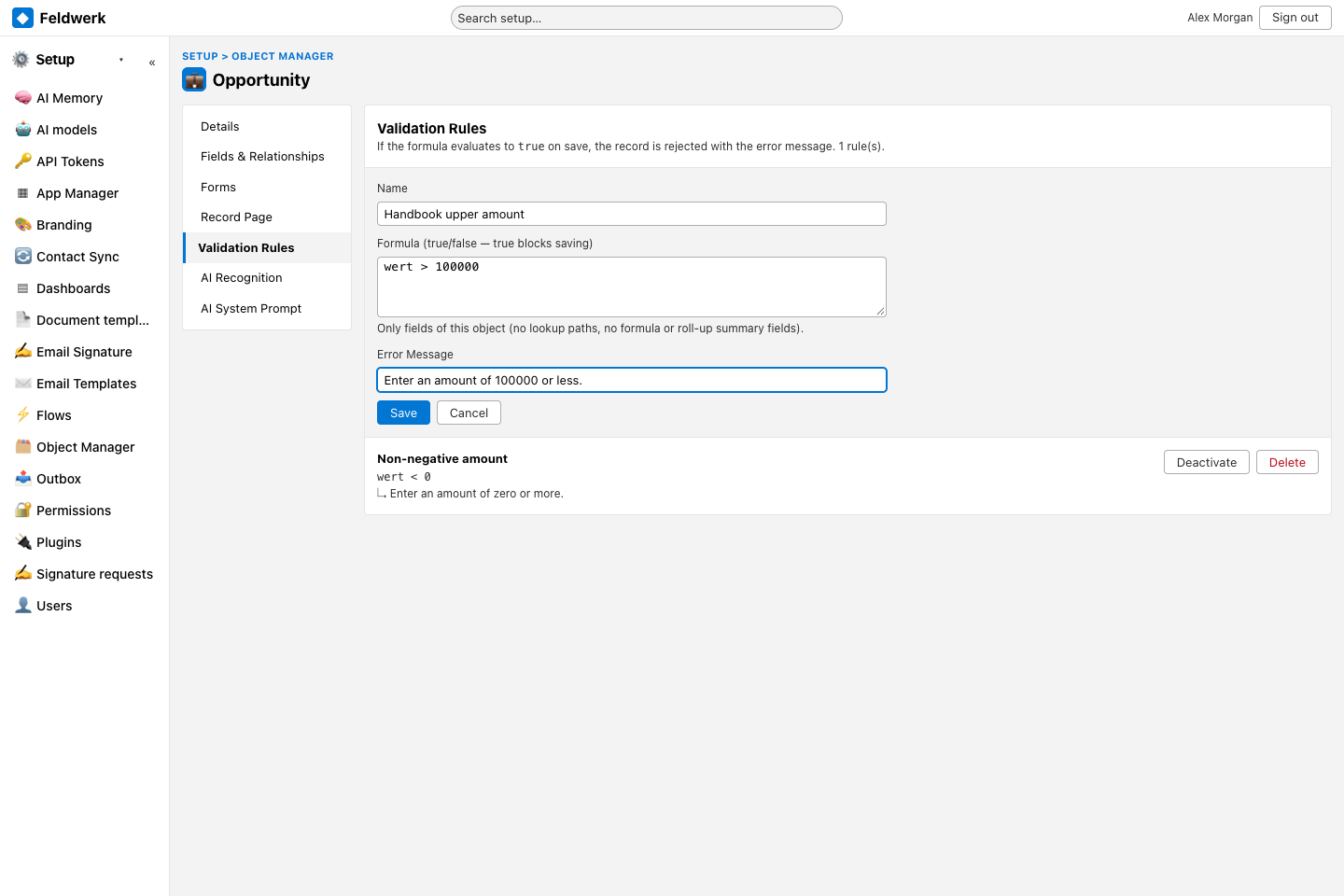
A separate rule can reject amounts above a business limit. The configuration below uses wert > 100000 with the message Enter an amount of 100000 or less. It accepts exactly 100000 and rejects 100001. In our example, zero and a blank Amount also pass this upper-limit rule. If blank amounts must be rejected, use the field’s required setting or a separate rule.
Give the rule a meaningful name.
True means the save is rejected.
Explain how to correct the value.
Select the screenshot to open the full-size image.
Write messages people can act on
Describe the correction, not just the fact that validation failed. For example, “Choose an end date on or after the start date” is more useful than “Invalid record”. Configured messages are your organisation’s content and remain in the language in which you wrote them; changing the interface language does not translate them.
Change or deactivate a rule
Use the rule’s controls in Validation Rules. Deactivation stops future enforcement but does not repair existing data. Before deleting a rule, record why it existed and test the replacement. If an unexpected rule blocks work, give an administrator the object, the attempted change and the exact message; never include credentials.
When the message is unexpected
Check the formula’s direction first: true means reject. Then check field API names, blank values and other active rules on the same object. Saving can also run configured automation. Correct the rule or the underlying data instead of relying on a different entry screen to bypass validation.
Build your data model · Chapter 12
Form builder
Arrange record inputs into sections and columns, then test the saved form.
Forms and record pages have different jobs
A form arranges the fields used to enter or edit values. A record page arranges components such as Details, related lists and Files. Changing the form does not create new fields or change the object’s permissions.
Administrators open Setup → Object Manager → the object → Forms and choose Builder for a form. The builder header identifies which layout is being edited. Check that name before saving when the object has several forms.
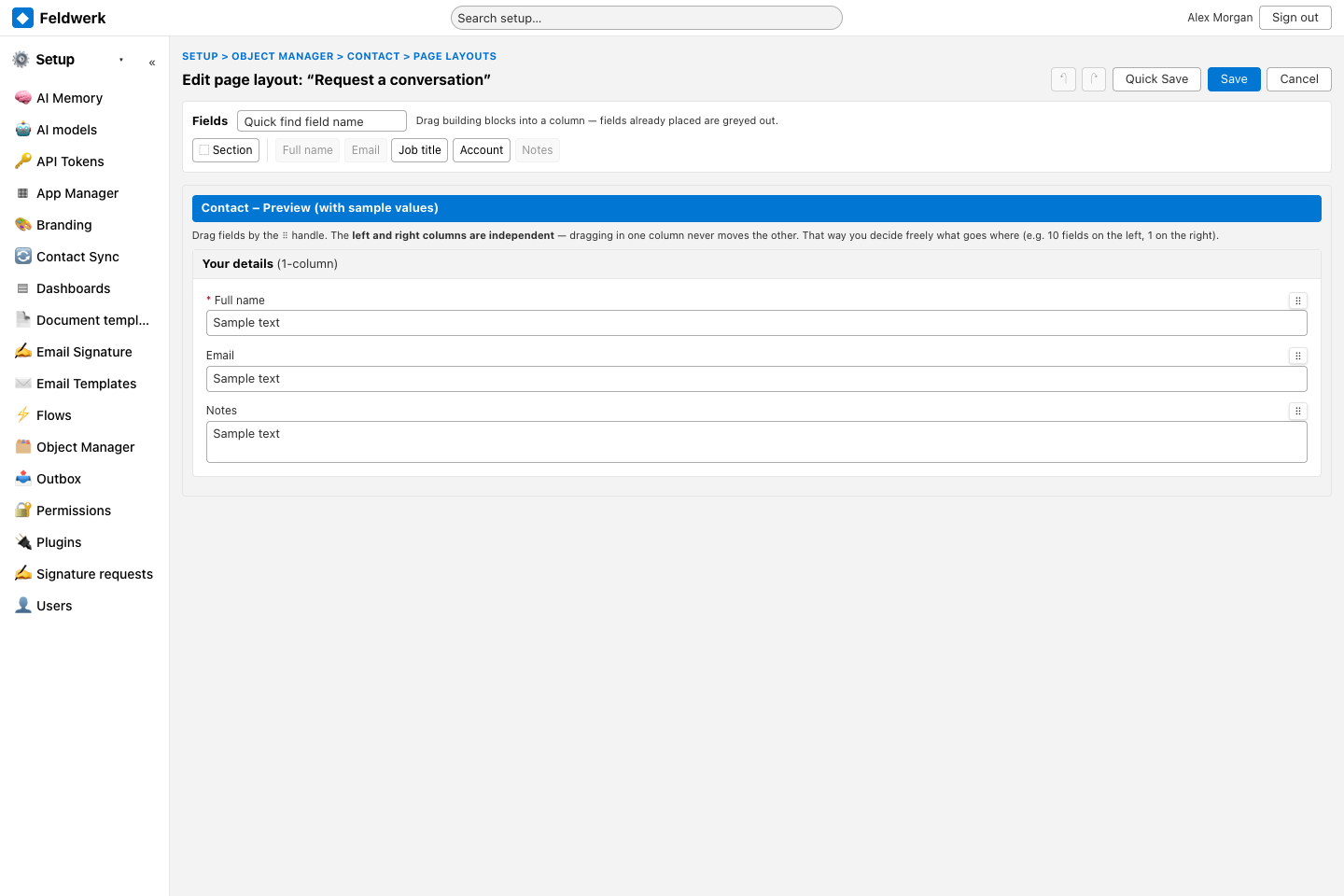
Choose fields and section building blocks.
Arrange fields in independent columns.
Save the form and verify it with real records.
Select the screenshot to open the full-size image.
Arrange fields
Find a field in the Fields palette, using Quick find field name when needed.
Drag it into a section column. Fields already placed are greyed out in the palette.
Use the field’s drag handle to move it to the intended position.
Review the sample preview and continue arranging the other fields.
The left and right columns are independent. Moving a field in one column does not move the corresponding field in the other. A long notes field can therefore sit below several short fields without forcing a rigid row-by-row pairing.
Configure sections
Drag a Section building block into the layout and open its properties. Choose a section name, whether to show its heading, and one or two columns. Select a tab order across rows or down columns, then confirm the properties.
Changing the column count redistributes the existing section contents. Review the resulting order and keyboard navigation. Group fields around a user task, such as contact details, rather than around their technical field types.
Keep required inputs reachable
Required fields cannot simply be removed from the layout. A section containing required fields is also protected against removal. If a field should no longer be required, review that business rule at the field definition rather than trying to hide the input.
Removing an optional field from a layout does not delete its definition or existing values. It also does not restrict access to that field. Use field-level permissions for access control.
Save and verify
Use Undo and Redo to review recent layout changes.
Select Quick Save to save while staying in the builder, or Save to save and return.
Open the actual record creation or editing form that uses the layout.
Check field order, required markers, help text, lookups and keyboard navigation.
Save a test record and verify its values.
The builder preview uses sample values. It does not prove that a real lookup is available or that validation accepts a record. Test with the intended user’s permissions as well as an administrator account.
Forms used publicly
A form can also back a public web form when activated in the Forms list. Before publishing its link, check the exact fields and wording a visitor will see. Platform buttons follow the supported interface language; your labels and section headings remain configured content.
If changes do not appear
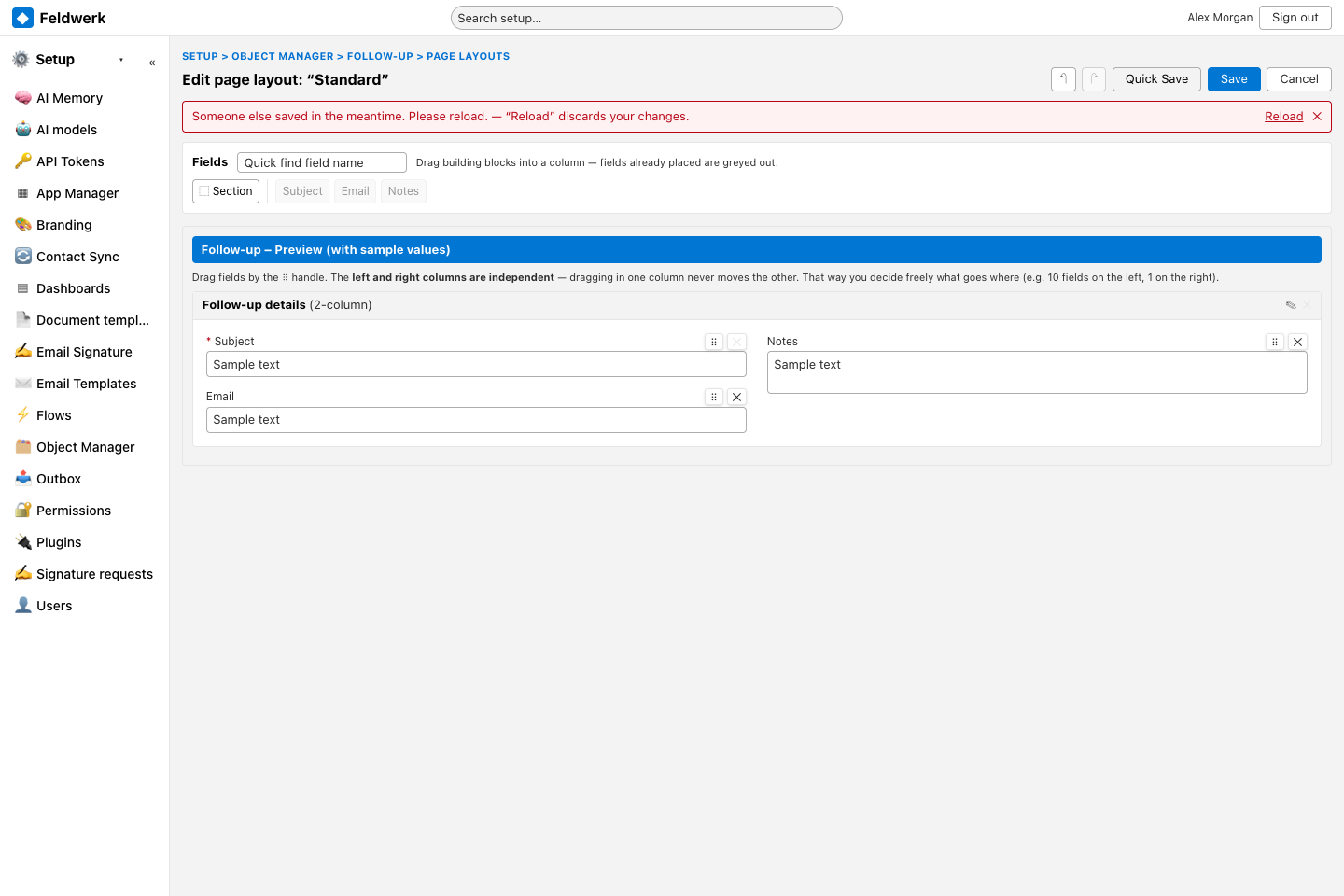
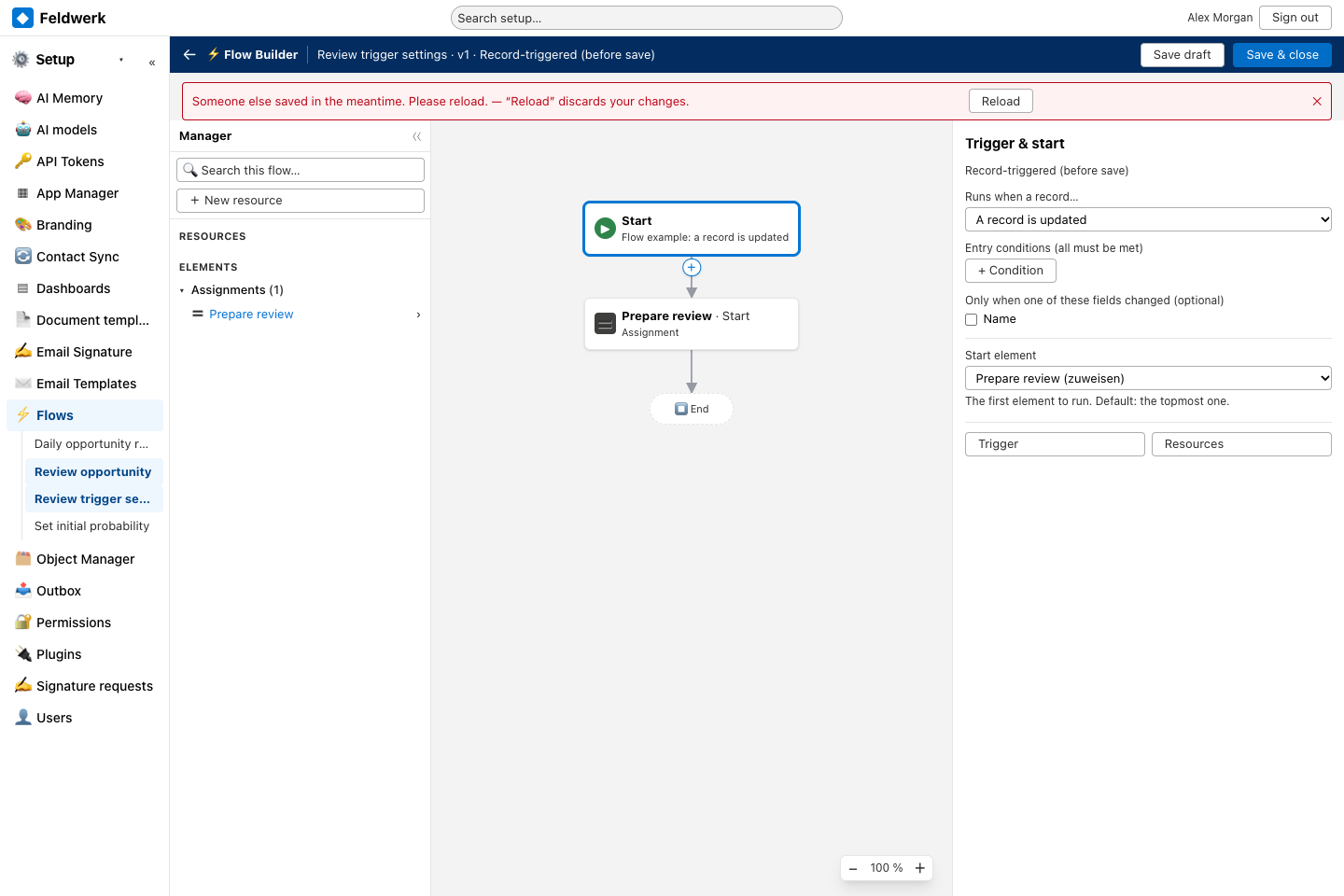
Confirm that the save succeeded and that you edited the form actually used by the workflow. Check for several forms on the same object and refresh the target screen. If a save reports a concurrent-change conflict, another editor has saved a newer version. Your attempted save is rejected. Select Reload to discard your unsaved layout and load the current version, then apply the changes you still need. Note your intended changes before reloading. The example shows a two-column layout whose save was rejected; the layout displayed below the warning is still the local draft.
The save was rejected because a newer version exists.
Reload discards this draft and opens the latest saved layout.
These fields still show the local draft until you reload.
Select the screenshot to open the full-size image.
Build your data model · Chapter 13
Public web forms
Collect information through a public form and verify the resulting record.
What a public web form is
A public web form lets someone submit information without signing in to Feldwerk. It is based on a form for an object, so the selected fields and layout determine what the visitor sees. The submission creates a record through Feldwerk’s normal record-writing path, including validation and configured automation.
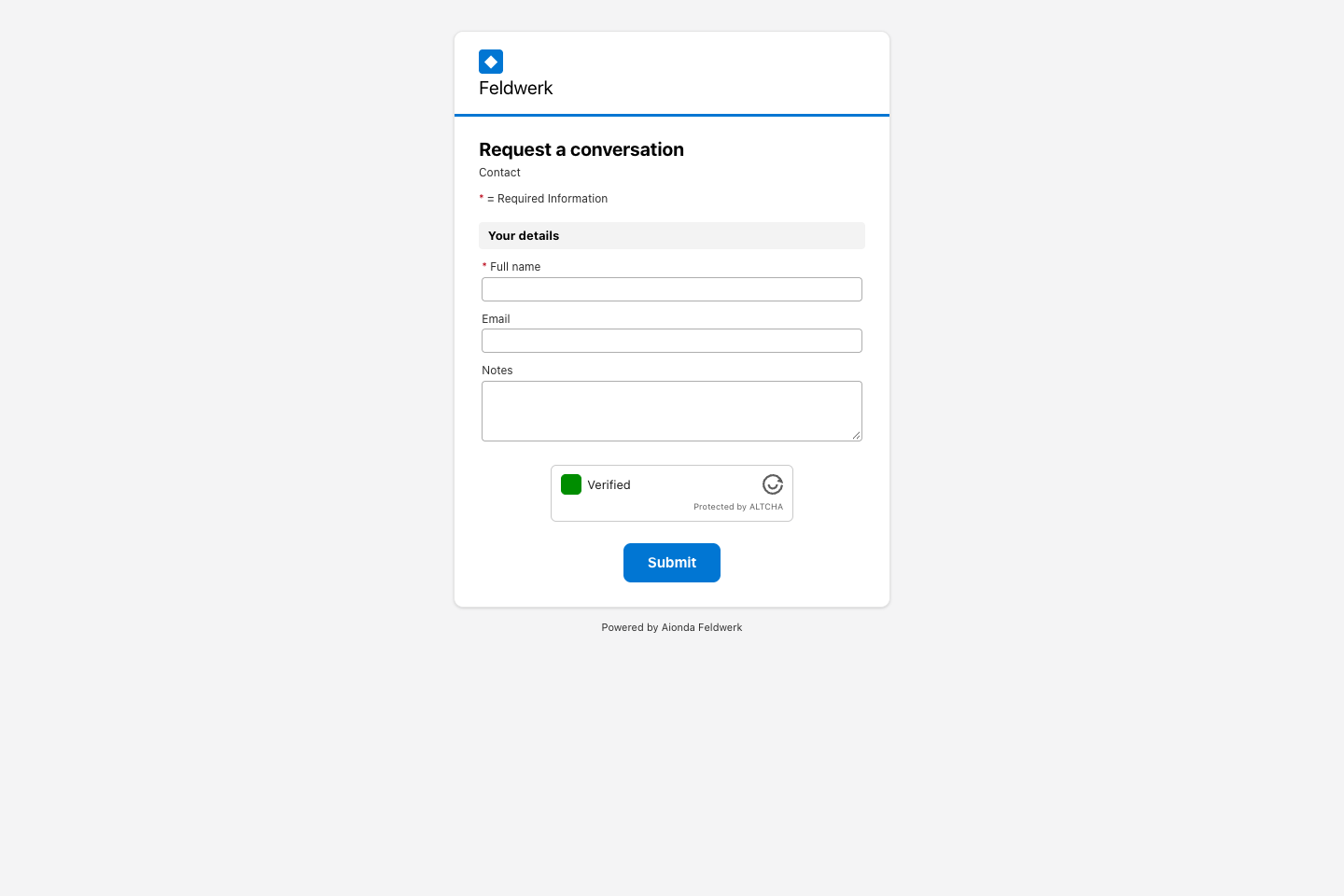
Publishing a form does not publish the object’s ordinary record list. Public forms exclude lookup fields; visitors cannot browse or select related records through an internal lookup. Choose the fields you actually need from a visitor. In the handbook example, Request a conversation collects a contact’s name, email address and notes.
Prepare and activate a form
As an administrator, open Setup → Object Manager and choose the target object.
Open Forms. Create a clearly named form or select an existing one.
Open Builder and arrange the fields and sections. Include required fields the visitor needs to supply.
Save the layout and activate the web form using its action in the Forms list.
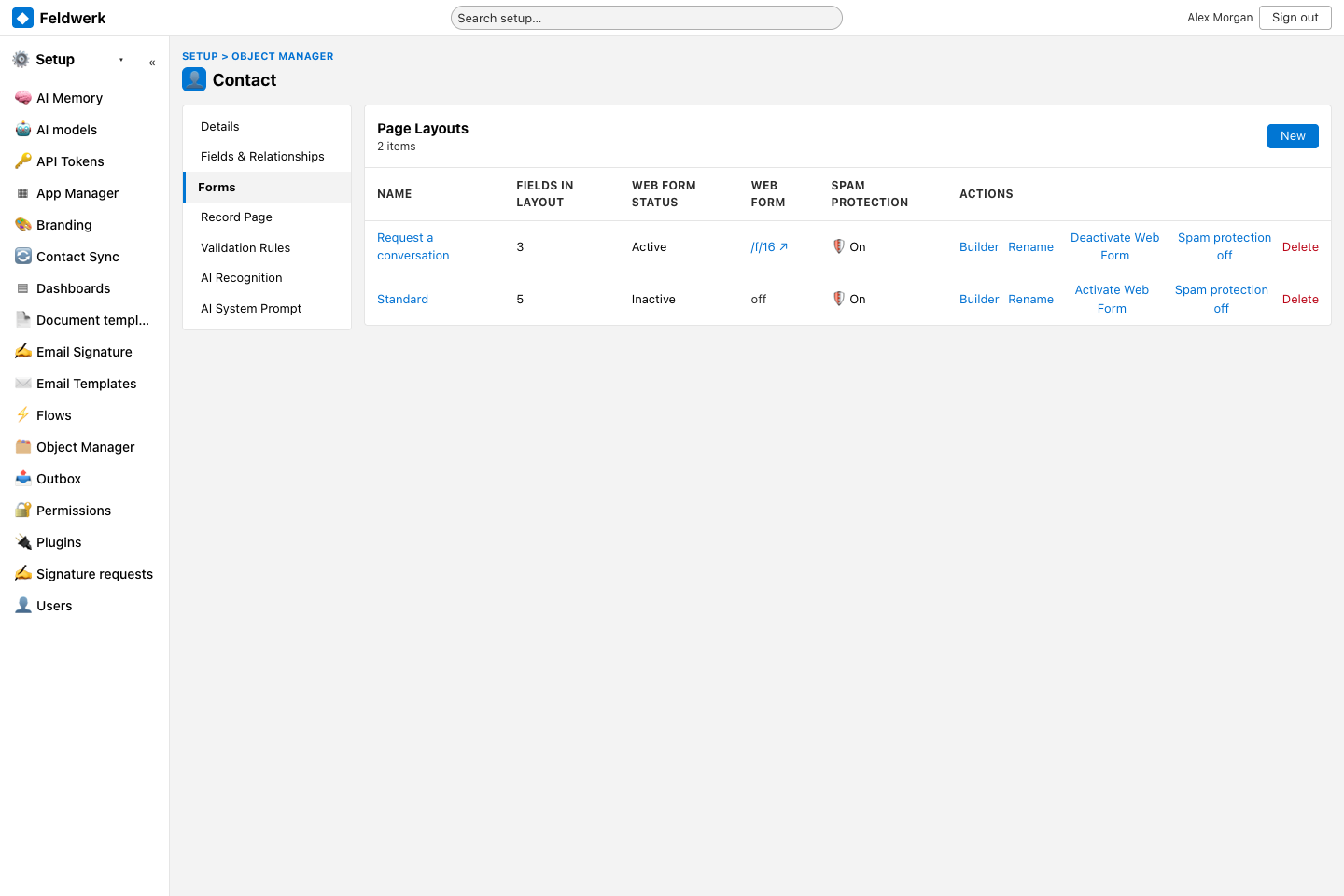
Keep spam protection enabled. The Forms list shows the web form’s status, public link and spam-protection state.
Open the public link in a separate browser context without an authenticated Feldwerk session.
Use the actual link shown by Feldwerk, such as /f/16 on the example instance. The numeric form ID is assigned by your instance and will differ from the example.
Check the active status and public link.
Keep spam protection on.
Deactivate the public form when collection ends.
Select the screenshot to open the full-size image.
Enter the requested information.
Check spam-protection verification.
Submit and wait for confirmation.
Select the screenshot to open the full-size image.
Submit and check the result
Enter a fictional name and email address for your test.
Complete the fields marked with an asterisk. Check the spam-protection status and follow any instruction it displays.
Select Submit.
Wait for Thank you! and the confirmation that the information was saved.
In the authenticated workspace, find the newly created record and check its values and any expected automation results.
Submit another entry returns to the form for a new submission. It creates another record; it does not edit the previous submission. Each submission needs a fresh spam-protection verification.
Interface language and form content
Without a signed-in account, the browser language selects the supported interface language. With a signed-in account, the account language applies. Buttons, status messages and spam protection are translated. Your form title, section headings, field labels and custom validation messages remain as configured. Prepare those texts for the audience receiving the form.
Prefill a link
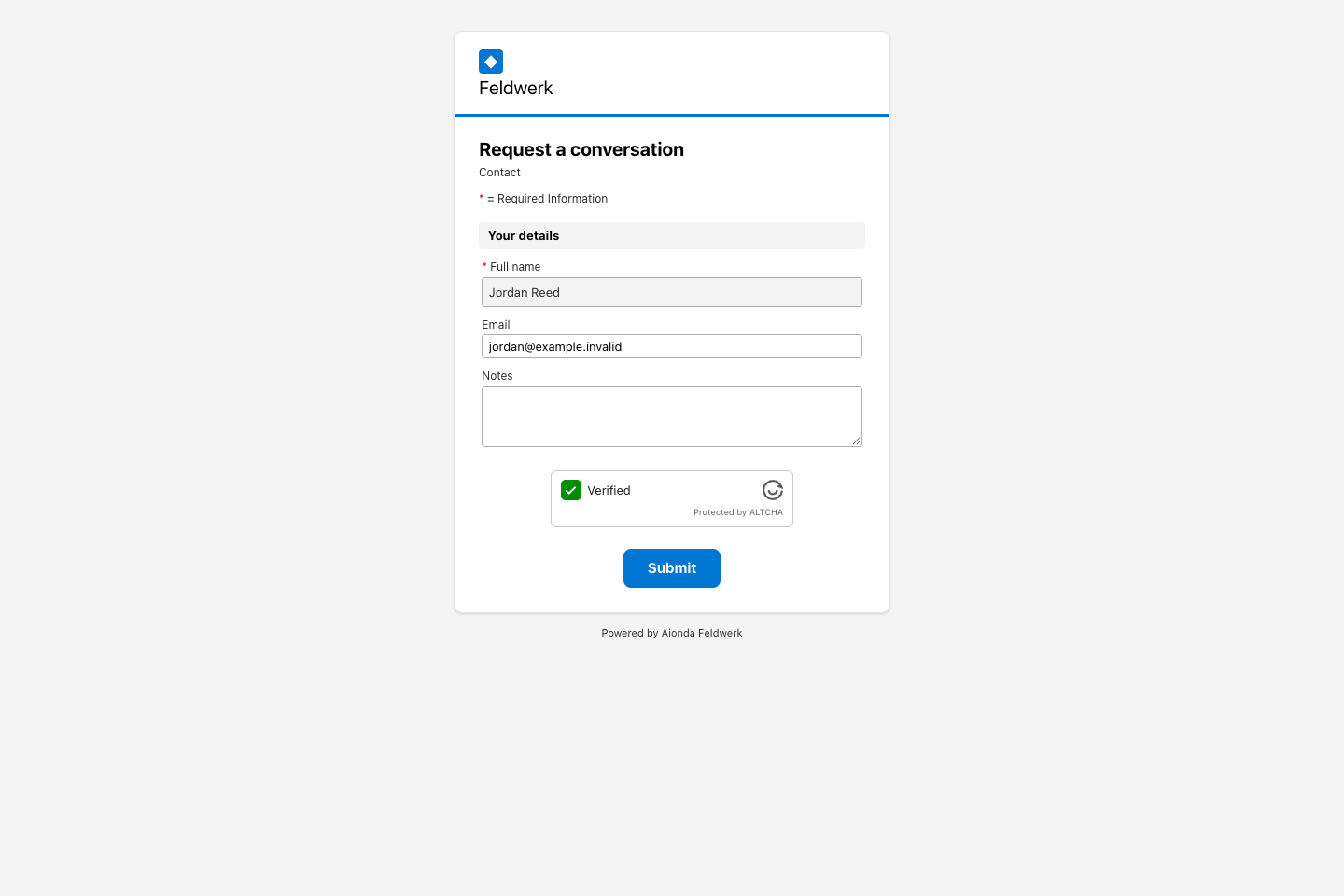
Query parameters can supply initial values using field API names. For example, /f/16?name=Jordan%20Reed prefills the name field when that field belongs to the form. URL-encode values. A fest parameter can make an already prefilled field read-only in the form, for example &fest=name.
These parameters are part of the link and can be changed by its recipient. A read-only display is not proof that the submitted value is authorised. For reference-based links, configure the supported server-side reference check and, where appropriate, an alternative form.
The prefilled name is displayed read-only.
The prefilled email address remains editable.
Select the screenshot to open the full-size image.
Configure reference-based links
Reference checks are field options configured through the API or the generic MCP API tools. They are not a separate switch in the form builder. On the text field used for the reference, set optionen.webformPruefung with the target object’s API name in objekt and its reference field’s API name in feld. Read the current field first and include its current version when updating it. Preserve its other options.
The submitted reference must match an existing value in that target field. Use a dedicated, hard-to-guess reference value for personalised links. A matching name or a read-only URL parameter does not identify the visitor. Include the reference field in the public form’s layout so both the initial link check and the submission check apply.
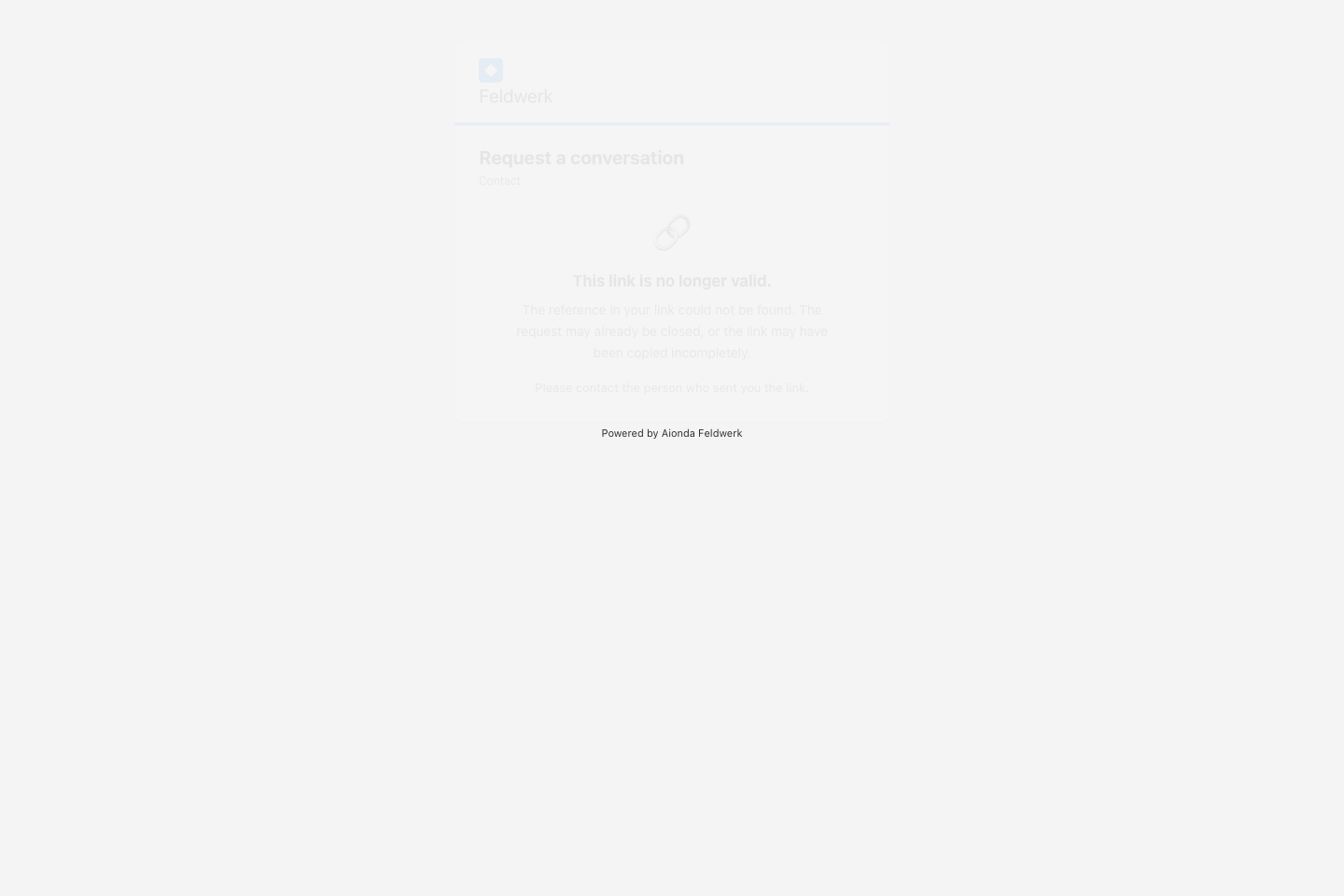
Optionally set fallbackFormularId to an active alternative form. The recovery link passes the failed value as ?referenz=…&fest=referenz; include a suitable referenz field in that alternative form if it needs to retain this value. Test the recovery path before distributing links. Without an alternative form, Feldwerk asks the visitor to contact the person who sent the link.
An unmatched reference prevents submission.
Follow the contact instruction when no alternative form is configured.
Select the screenshot to open the full-size image.
Resolve common problems
Form not available: check that it exists and its web form is active. Visitors should contact the person who sent the link.
Invalid reference: the referenced value could not be matched. Use the alternative form if one is provided, or request a fresh link.
Highlighted fields: correct the indicated values and submit again. A record is not accepted merely because all visible fields contain text.
Spam-protection failure: follow the message and reload the form if necessary. Re-enter any unsaved information before retrying.
Stop collecting submissions
Select Deactivate Web Form in the Forms list. The public link then shows an unavailable message. Deactivation does not delete records already collected; handle those through the normal record workflow.
Build your data model · Chapter 14
Record page builder and actions
Compose an object’s record page from reusable components and actions.
Open the object’s record page configuration
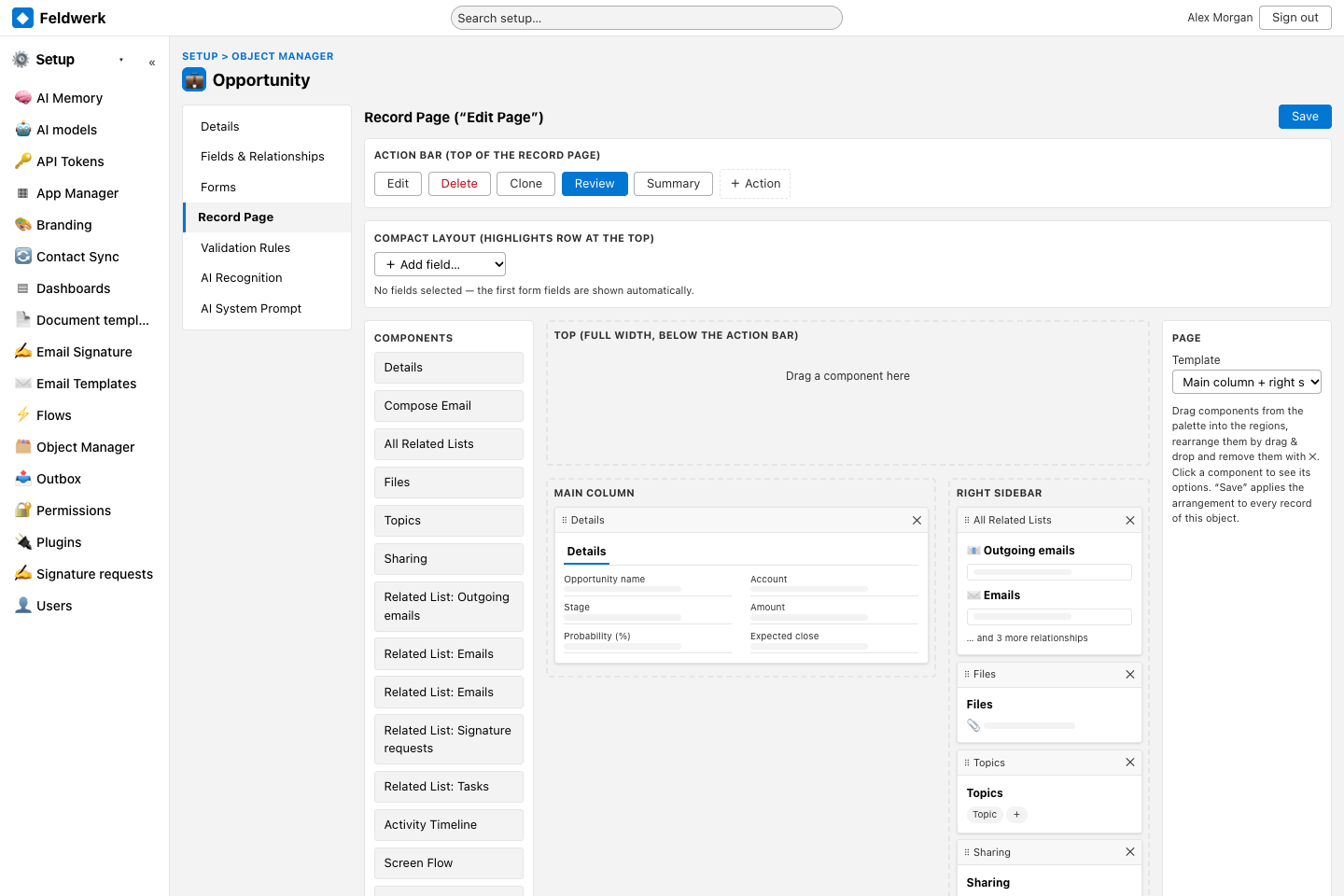
As an administrator, open Setup → Object Manager → the object → Record Page. The page layout applies to the records of that object. Test changes with representative records, including records with no related data and users with restricted access.
The page builder controls the action bar, compact highlights and component regions. The Details component uses the object’s form layout; use Form Builder to rearrange its fields.
Configure the available record actions.
Choose a component.
Arrange the record page regions.
Inspect the selected component or page options.
Select the screenshot to open the full-size image.
Configure the action bar
Use + Action to add supported actions. Standard actions include Edit, Delete and Clone. Configured actions can also launch screen flows, generate documents, call plugin actions or compose emails. Choose a label that explains the result, and review each action’s configuration.
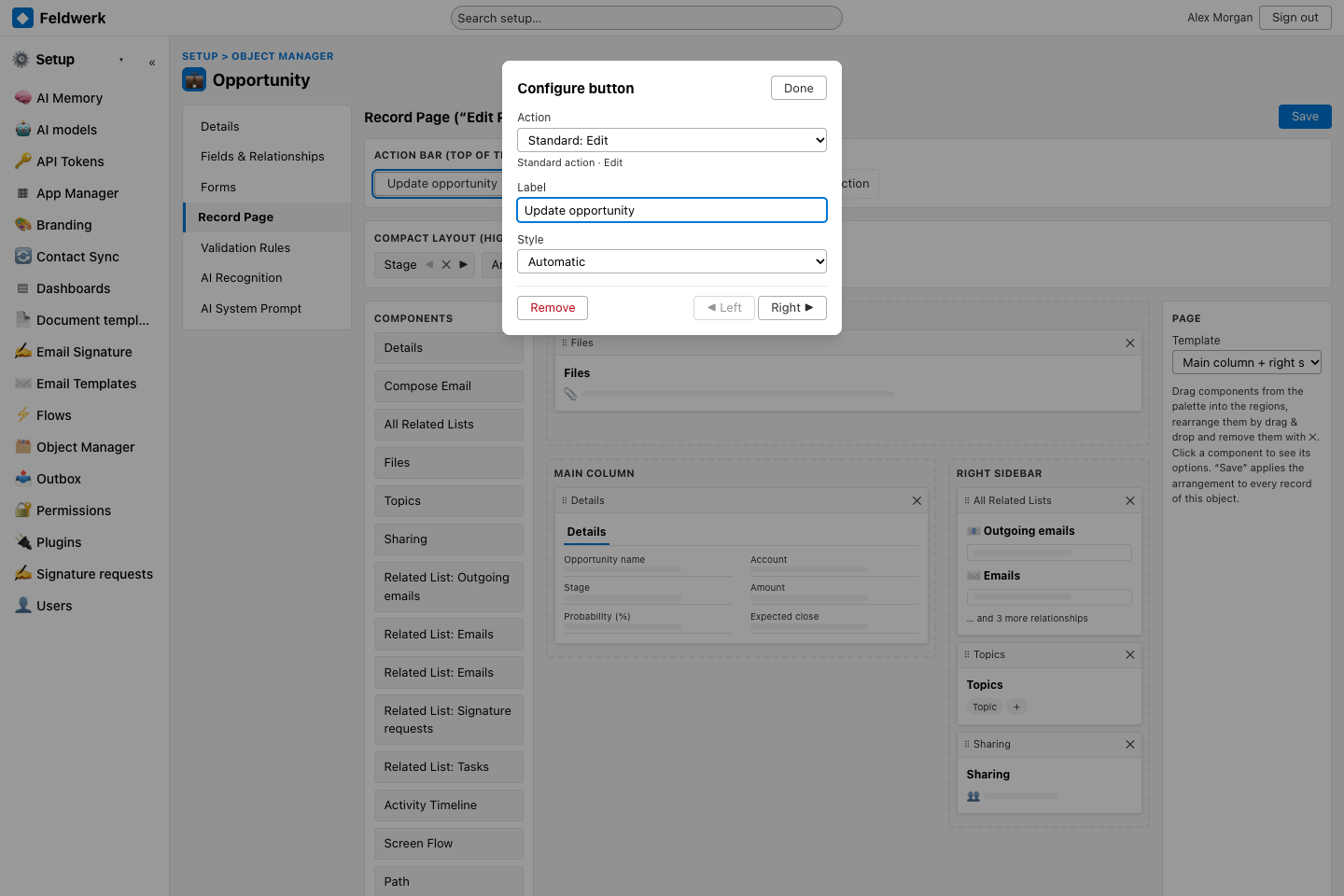
Select an existing button in the preview, or use + Action.
Choose its Action. For example, Standard: Edit opens the record’s editing form.
Enter a clear Label and choose a Style. Changing the label does not change what the action does.
Use Left and Right to move the button, or Remove to remove it from the bar.
Select Done to close the configuration. This keeps the change in the builder; select the page’s Save button to persist it.
Choose the action that the button performs.
Set the visible label.
Done closes the dialog and keeps the builder draft.
Save persists the complete page configuration.
Select the screenshot to open the full-size image.
Adding a button does not bypass its permissions, validation or prerequisites. Edit and inline editing require object editing permission; Delete requires deletion permission, and Clone requires creation permission. These standard controls are hidden when the corresponding object permission is absent. Record-level access and field permissions are also checked when an operation is performed. Test the action on a fictional record and inspect the resulting data, file or queued email. Repeating an action may repeat its effects; do not use a success message as the only evidence.
Select compact highlights
The compact layout determines the important values in the top highlights row. Use + Add field… to select fields that help users identify and assess the record quickly. Use the arrows on each field chip to change its position; remove a chip to remove that field from the highlights. If no fields are explicitly selected, the page uses the first form fields automatically. Check both the label and the displayed value after saving.
Place components
Choose the page template, such as Main column + right sidebar or Main column only.
Drag a component from the palette into the top region, main column or sidebar.
Drag existing components to reorder them.
Select a component to configure its options.
Remove unwanted components with their explicit remove control.
Component
Purpose
Details
Displays the record’s configured field layout.
Related List / All Related Lists
Shows child records through lookup relationships.
Files
Shows attachments from the record or configured related sources.
Topics
Provides topic tags for organising records.
Sharing
Shows ownership and explicit sharing controls where permitted.
Compose Email / Activity Timeline
Supports configured communication and activity workflows.
Screen Flow
Embeds a guided flow associated with the page.
Path
Represents stages from a configured picklist field.
Plugin component
Displays capabilities supplied by an installed plugin.
Configure relationships and sources
For a related list, select the lookup relationship that points to this object. Check the fields shown on each row. For Files with related sources, make the source understandable from the panel title so users know which record owns an attachment.
A Path must refer to a suitable picklist field. A Screen Flow must refer to the intended active flow. The same component type can behave differently depending on these choices.
Save and verify the page
Select Save.
Open a record of this object and check the highlights, component order and actions.
Follow a related record and upload a harmless test attachment if those components are part of the page.
Test a narrow viewport and a user with the intended access.
Removing a component changes the page arrangement; it does not remove its underlying records, attachments or permissions. If information must be protected, configure permissions rather than relying on the absence of a component.
Analyze · Chapter 15
Reports
Build repeatable analyses, check the full result and export the intended data.
Create a report
Open Reports from an app. Choose New Report, select the source object and give the report a meaningful name. Existing reports can be run directly or opened in the builder.
A report reads records; it does not create a separate data store. Results depend on the definition, current data and the viewing user’s access.
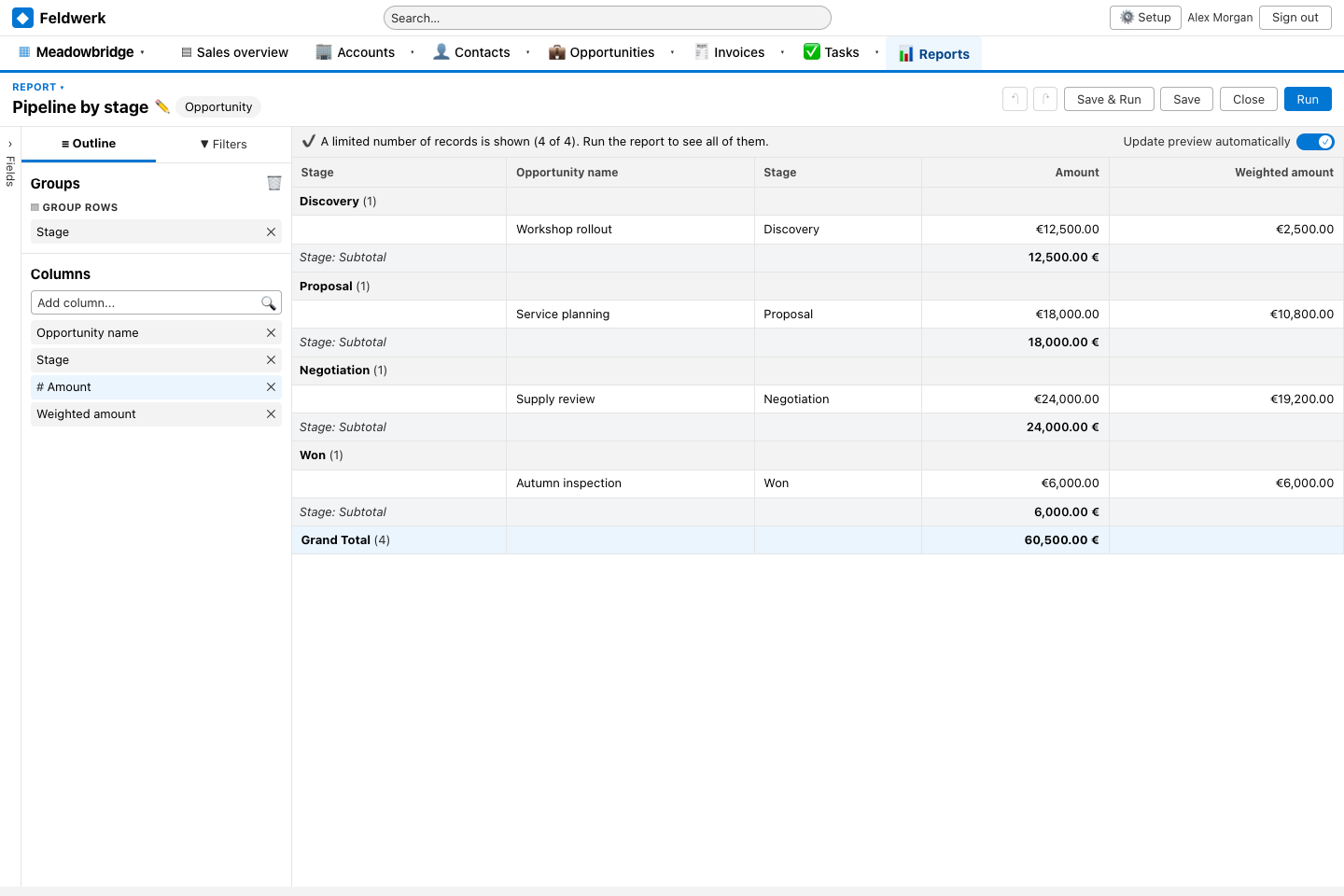
Configure columns, groups and filters.
Check preview coverage.
Inspect grouped values and totals.
Save and run the report.
Select the screenshot to open the full-size image.
Choose columns and groups
Use the Fields panel or the column search to add fields.
Remove unnecessary column chips and arrange the relevant columns.
Add a row grouping when records should be summarised by a category, such as Stage.
Use column actions to sort, group by a field or summarise a compatible value.
The builder’s group picker selects a single grouping field. If the report already has several grouping levels configured through the API/MCP, Groups shows their order, for example Stage → Account. Remove grouping clears all of those levels. Selecting a new grouping field, including through a column action, replaces the existing hierarchy with that field. Use Undo and Redo before saving if you need to review the change.
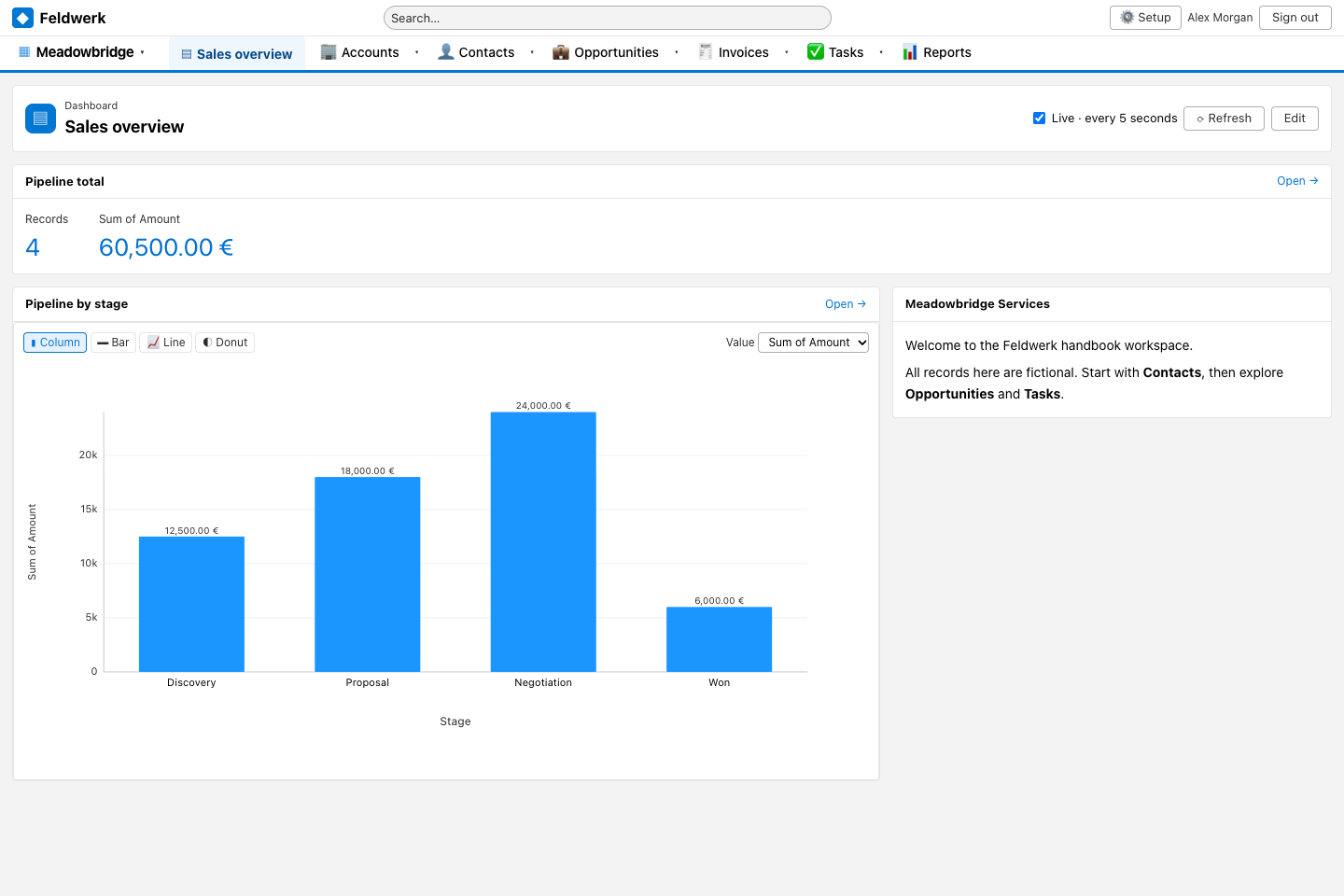
Our Pipeline by stage report groups opportunities by Stage and sums Amount. Four example records total 60500. Weighted amount is included as a detail column; displaying it does not automatically add a corresponding summary calculation.
Choose the report scope
Open Filters to add field conditions. Choose the operator and value deliberately, especially for blank values, dates and related records. Relative dates are useful for a report that should move with the current day; a fixed date remains fixed.
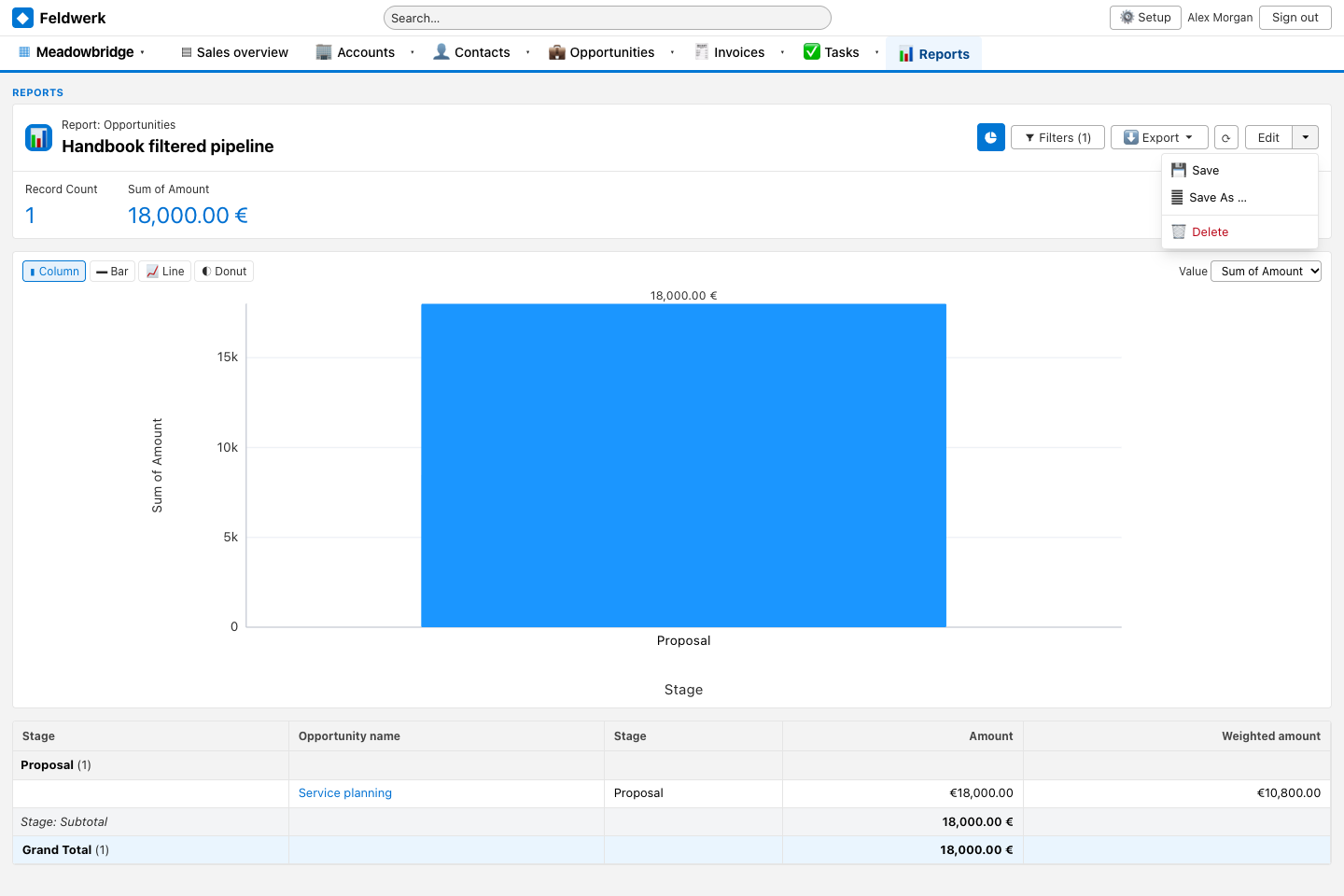
In the running report, select Filters, add or edit a condition, select Done for the condition, then Apply. This runs the current selection without changing the stored report definition. Open More actions, the arrow beside Edit, and select Save to persist the applied filters. Choose Save As … instead to create another report with the current definition and filters; enter Name of the copy and save. The original report remains unchanged. These editing controls are available to the report owner and administrators. Review the name and scope before replacing a shared definition.
Review the applied filter count.
Save replaces the stored filters.
Save As creates a separate report with this scope.
Verify the record count and total before exporting.
Select the screenshot to open the full-size image.
Preview versus full execution
The builder preview may show a limited number of records. Its banner states the loaded coverage. Automatic preview updates can be turned off; in that case refresh the preview when you want to inspect your latest changes.
Use Save & Run to persist the definition and execute it, or the available Save and Run controls for their separate tasks. The running view shows the record count and configured metrics. Verify totals against known records before relying on the report.
Read groups, totals and charts
Group rows identify the category and count. Subtotals and the grand total appear for the configured aggregations. Display toggles control whether details or totals are shown where supported; hiding a row does not change its data or permissions.
Use Show chart to inspect the configured chart. A chart summarises the report result and should be interpreted with its grouping, aggregation and filters. Open the underlying report when a dashboard chart needs explanation.
Export CSV or Excel
Run the report with the intended filters.
Open Export.
Choose As CSV (.csv) or As Excel (.xlsx), where offered.
Open the downloaded file and check its headings, representative records and totals.
For a report with row groupings, the export contains detail rows and grouping columns; the on-screen subtotal and grand-total rows are not appended to that detail export. For example, filtering this pipeline to Service planning produces one detail row with an Amount of 18000. CSV contains the displayed currency text, while Excel stores the amount as a numeric value with currency formatting so it can be summed. Cross-check the detail amounts against the report’s total. An export is a file snapshot. It does not update when the source records change. Review its contents before sharing it outside your organisation.
Annual progress, budgets and forecasts
A report with an annual-progress configuration adds a January–December analysis. The configuration identifies a relationship, year and date fields, metrics and optional budget fields. This is configured through the regular API/MCP definition; the ordinary builder preserves it.
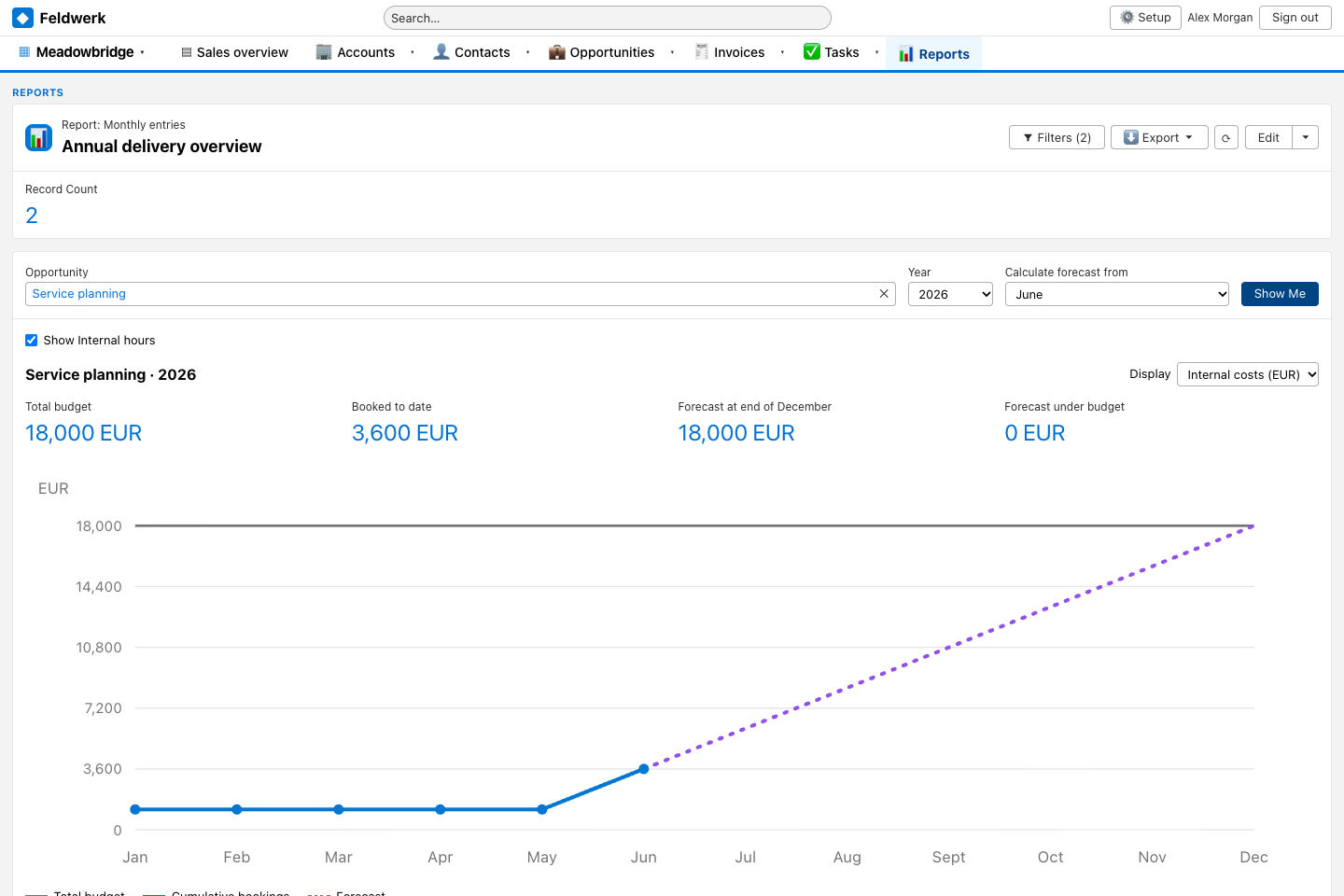
Choose the reference record and Year in the running report, then select Show Me. For the current year, the data cutoff is the latest month that contains a booking, not automatically today’s month. Months through that cutoff with no bookings are zero; later months remain open. A past year is treated as complete through December. Check the data cutoff before interpreting a forecast: missing recent bookings can leave it earlier than expected. The budget is the related record’s current total budget, not a historical yearly snapshot. A missing budget is unknown and differs from an explicit zero.
Use Calculate forecast from to start automatically at the first non-zero activity of the first configured metric, or select a month and apply it with Show Me. The selection is temporary until saved through More actions → Save or Save As …. It adds the average over the base period multiplied by the remaining months to all actual bookings so far. Zero months within the base period count; a current month is weighted by elapsed calendar days. The displayed method and data cutoff explain the calculation. A linear forecast is not a staffing plan.
Use Display to choose the plotted metric. Optional metrics have a Show … checkbox; this changes the internal display, not access rights. A configured customer export selects exactly one metric and excludes the other internal metrics, budgets and detail records, independently of those visibility toggles. Its menu entries are Customer report as CSV and Customer report with chart (.xlsx). The current customer-report template uses German headings and explanatory text, including when the application interface is English. The Excel file includes an editable line chart; it is not a screenshot. Check which export mode and metric are configured before downloading customer material.
In this fictional annual example, January has 5 person-days and 1200 EUR of internal cost; June has 10 person-days and 2400 EUR. With June as the forecast start and latest booking month, the forecast keeps the full 3600 EUR already booked and adds six months at June’s 2400 EUR rate: 18000 EUR. The customer export contains only person-days, even while Internal costs and Internal hours are visible internally. A detail-row limit of one does not truncate this annual calculation.
Choose the reference record and year.
Choose the forecast start and apply it with Show Me.
Optional metrics affect the internal display.
Compare booked costs, forecast and the current total budget.
Select the screenshot to open the full-size image.
Investigate unexpected totals
Check the source object, filter values, grouping, aggregation function, result limits and user access. Distinguish a limited preview from the full report. For annual reports also check the reference, year, budget source and forecast base period. Saving a report definition does not repair incorrect source records.
Analyze · Chapter 16
Dashboards
Combine reports, lists, flows and guidance into a useful starting page.
Choose the work the dashboard should support
A dashboard is a page without a single record context. It combines reusable report, list, screen-flow and text components. It can be added as an app tab and used as the app’s starting point.
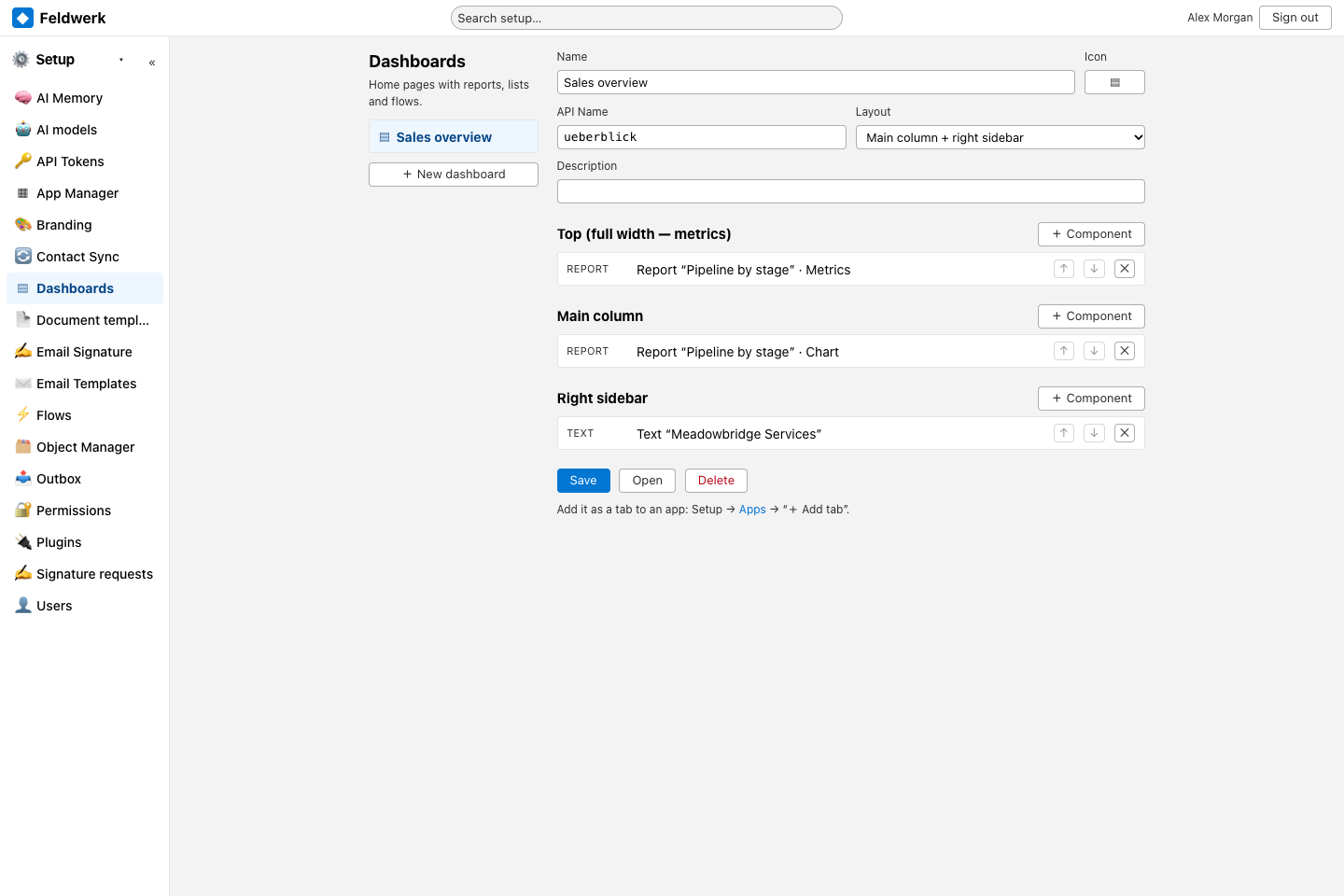
The example Sales overview shows Pipeline by stage as metrics and a chart, plus a text panel. Its report is the same saved report available from Reports; the dashboard does not keep an independent copy of the numbers.
Set the dashboard identity and layout.
Add and arrange reusable components.
Save and open the result.
Select the screenshot to open the full-size image.
Create a dashboard
As an administrator, open Setup → Dashboards.
Select New dashboard.
Enter a name, review the API name, and choose an icon and description.
Choose a layout: Main column + right sidebar, Two equal columns or Single column.
Add components to the top, main and sidebar regions as appropriate.
Choose components
Component
Configuration and behaviour
Report
Select a saved report and display it as Metrics, Chart or Table. Table display can limit the visible rows.
List
Select a saved list view. Its filters and sorting define the working list; the widget has a visible-row limit.
Screen Flow
Select an active flow designed to start without an individual record context.
Text
Add Markdown guidance, context or a heading for the intended audience.
Use component titles to explain scope, for example “Open opportunities” rather than just “Total”. Reorder components with the available move controls and remove those that do not support the task.
Save, open and add to an app
Select Create dashboard for a new dashboard, or Save when editing an existing one.
Select Open and inspect the rendered page.
In App Manager, add the dashboard as a tab to the relevant app.
Choose it as the start entry if it should be the first page of that app.
Open the app as a representative user and verify the result.
The API name determines the dashboard route, such as /d/ueberblick for the example. Use the actual entry created in your instance rather than copying an example identifier.
Refresh the information
Select Refresh to reload the data components. Enable Live · every 5 seconds for automatic updates while this browser tab is visible. The setting is reflected in the dashboard URL as ?live=1; turn it off to stop polling. The live update refreshes data widgets without restarting an embedded screen flow.
Use Open → on a report component to open the saved report and inspect its filters and full results. A list component’s row limit controls the number shown on the dashboard, not the underlying saved list or the number of records in the object.
Enable periodic data refresh while the tab is visible.
Refresh data immediately.
Open the source report to inspect filters and detail records.
Select the screenshot to open the full-size image.
A dashboard does not grant access
Components load through the ordinary permission-checked operations. Users can therefore see different results on the same dashboard. An app tab, title or layout does not grant object, field or record access.
A small table can show only part of the underlying result. Open the corresponding report or list for the full working context. A flow embedded here must collect or find its own target records; there is no current record merely because the dashboard sits beside an object tab.
Maintain the page
Recheck widgets after changing reports, list views or flows they reference. Verify both desktop and narrow layouts, and keep the most important information near the top. Avoid repeating the same unexplained total in several components.
Deleting a dashboard removes its page and tabs pointing to it. It is different from deleting the reports or records displayed by its widgets. Review the confirmation before deletion.
When a widget is empty or fails
Open the referenced report or list directly with the same user account. Check its filters, data and permissions. For a flow, check activation and whether it expects a record context. Refresh the dashboard after configuration changes and inspect any message rather than assuming an empty widget means there is no business data.
Automate · Chapter 17
Automate with flows
Build and version automation with explicit triggers, conditions and observable results.
Choose the trigger before building the flow
Administrators manage automation in Setup → Flows. A flow definition has a stable identity and versioned logic. Choose the trigger according to when the work should happen.
Type
Use
Record-triggered, before save
Set values on the record being saved before validation and persistence.
Record-triggered, after save
Perform follow-up work after the record has been stored.
Attachment, after upload
React to a newly stored attachment on a record.
Scheduled
Run at configured times, optionally for records matching a filter.
Screen flow
Guide an authenticated user through inputs and actions.
Incoming email
Process messages from a configured mailbox with entry conditions.
Work with versions
Open the flow definition and inspect its versions.
Create a new draft, or clone a new version from an existing flow.
Edit the draft in Flow Builder and save it.
Check the trigger, resources, elements, connectors and failure paths.
Activate only after testing the intended behaviour.
Check the flow definition and create a replacement draft.
Identify the active version and its controls.
Follow the immutable-version workflow.
Select the screenshot to open the full-size image.
Active versions are immutable. To change one, create a new draft and activate the replacement. Activation deactivates the previous active version. Running screen interviews and execution logs refer to a specific version, so the definition name alone does not identify the exact logic that ran.
Save without losing a draft
Save draft keeps the builder open. Save & close returns to the version list only after a successful save. If another editor saved the same version, your local changes remain on screen. Copy anything you need before choosing Reload: reloading replaces your local draft with the saved version.
Read the conflict notice before choosing Reload.
Your unsaved trigger setting stays visible.
Save & close leaves the editor only after a successful save.
Select the screenshot to open the full-size image.
Build the graph
Select Start to configure the trigger and entry conditions. Add elements for assignment, decisions, loops, record reads and writes, email, AI queries or supported plugin actions. Screen elements are used for interactive flows. Connect each branch to its intended next element and give elements meaningful names.
Resources hold values, records or collections between steps. Choose the appropriate data type and, for record or collection resources, the related object. An assignment changes flow state; a record-writing element persists the intended changes through the normal record service.
Configure resources
Open Resources in the builder and add a resource. Give it a unique technical name using letters, digits and underscores, beginning with a letter or underscore. Expressions refer to this name, for example total or current_item.name.
Kind
How to use it
Variable
Stores a value produced by an assignment, screen input, record read or action. Scalar and record variables start empty; collections start as an empty list.
Constant
Provides a typed starting value. Enter the value in Initial value, for example 100 for a number or true for Yes/No. A text starting value is literal text rather than a quoted expression.
Formula
Enter a formula expression. It is evaluated during resource initialisation in resource order. Put any required initial values before it. It is not automatically recalculated after later assignments; use another Assignment at the point where a fresh calculation is needed.
Choice
This kind appears in the resource selector, but the current resource panel does not configure its source. Choosing it alone does not load picklist options. Configure screen choices in the screen component instead.
The resource panel exposes Name, Kind, Data type, the object for records/collections, and the starting value or formula where applicable. Input/output direction and nullability exist in the flow definition but are not separate controls in this panel. Do not confuse a resource’s data type with a screen component’s required-input setting.
Define the constant and its initial value.
Define the formula after the resource it depends on.
Save the draft and test the persisted result before using the flow.
Select the screenshot to open the full-size image.
In the illustrated example, the Number constant base_amount starts at 100 and the Number formula total evaluates base_amount * 2. A before-save Assignment writes total into the source field gesamt. The saved test record contains 200. Give intermediate resources distinct names so they do not collide with source fields already available in the flow.
Choose the element for the operation
Element
Configuration and result
Assignment
Set a resource, add to a numeric value or append to a collection. The right-hand value is an expression; quote text literals such as "Ready". Changing a resource does not itself save a database record.
Decision
Define ordered outcomes and their conditions. The first matching outcome wins; use the default outcome when none matches. Connect both expected and fallback paths.
Loop
Choose a collection and a current-item resource. Connect the loop body back to the Loop element and connect the after-loop branch to the next step. An optional index starts at 1. An empty collection goes directly to the after-loop branch. Exceeding the iteration limit is an error, not successful completion of a partial list.
Get Records
Select the object, filters, ordering and result resource. First record produces one record or empty; retrieving several records produces a collection. Use an explicit filter and limit appropriate to the task.
Create Records
Supply field expressions and optionally store the created record in a record resource. That resource can then be read by field or used as an update target.
Update Records
Select the actual record resource or configured filter target and supply field expressions. Check the persisted values after execution.
Screen
Collect input or display results in an interactive flow. See Screen flows for required inputs, navigation and downloads.
Action
Choose an action from the installed catalogue, map its parameters and optionally store its result. Use the parameter’s supported expression or merge-text mode. See Plugins and integrations.
AI Query
Map a prompt to a configured model and capture either a text answer or structured fields. Set the error behaviour explicitly, as described below.
Existing flows may contain the older Send Email element. New email work uses the email.senden catalogue action. There is no dedicated Delete Records element in the current flow graph.
Use AI output in a flow
Create resources for the expected output. Use Text for a free-form answer or suitable scalar types for structured fields.
Add AI Query and choose a configured model, or the setup default. A specifically selected model does not silently fall back to another model if unavailable.
Enter the task in the prompt, optionally with a system instruction. Merge record values with syntax such as {!$Datensatz.notizen}.
For a text response, choose the destination resource. For structured output, define each destination resource, output type and a description of the expected value.
Choose whether an unavailable or failing AI should continue with empty results or take the error path/stop. Add a Decision to check the result before any record update.
Persist approved values using the normal Create Records or Update Records elements. AI output alone does not save a field.
Prompts and their included record values are processed by the configured provider. Use only the data needed by the task. Empty structured fields are possible; a flow that continues after an AI error must not erase existing values accidentally. The execution protocol includes a note when the AI step was skipped. See AI models and configuration for the shared model setup.
Use the right expression context
In Flow conditions, refer to current record fields as $Datensatz.feld, using the actual field API name. For example, $Datensatz.wahrscheinlichkeit refers to the probability field. A comparison can use a fixed value or a supported expression on its right side.
Assignment targets and record resources are separate configuration choices. For the handbook’s before-save example, the field-backed assignment target is wahrscheinlichkeit and the expression is 20. Do not assume every target input accepts the same syntax as a condition.
Example: set an initial probability
Create a before-save flow for Opportunities, triggered when a record is created.
Add an entry condition that $Datensatz.wahrscheinlichkeit is blank.
Add an assignment that sets the probability field resource to 20.
Connect Start to that assignment, save and activate the version.
Create a test opportunity with Amount 500 and no probability.
Read it back: Probability should be 20 and Weighted amount should be 100.
Also test a record with an explicit probability to confirm that the default does not overwrite it. A defaulting flow should have a narrow condition, not run on every later edit.
Select the actual write target
For Update Records, provide the record resource that should be updated. A common pattern is Get Records into a record resource, then Update Records using that resource. Verify the saved value afterwards; a flow reaching a final screen does not by itself prove that any record was changed.
Before-save flows update their own record values. Use after-save or an appropriate other flow type for work on additional records. Automatic and scheduled flows can run with system privileges, so their conditions and targets require careful administrator review. Screen flows use the running user’s access.
Example: create a follow-up after saving
Create an after-save flow for the source object. Select the created event and an entry condition such as $Datensatz.ausfuehren equals true.
Add Create Records for the follow-up object. Supply all required fields. A name expression such as "Review " & $Datensatz.name combines a literal with the source name.
Connect Start, save the draft and activate it from the version list.
Create one matching and one nonmatching source record. Only the matching record should produce a follow-up. Read both objects back.
In the checked example, Workshop produced Review Workshop; Not ready produced nothing. A replacement version changed the generated name. Activating it deactivated the original version. To stop future automatic runs, deactivate the active version.
Example: process records on a schedule
Create a Scheduled flow and open Trigger / start.
Select Daily, enter 09:00, and choose Europe/Berlin as the time zone.
Add a filter for the intended records. The example selects Name equals Workshop.
Read the target record into a record resource and use Update Records to set Processed to true. Add an email action only when a notification is required.
Save, activate and ensure the server scheduler is enabled. Check the saved record, execution record and any queued email after the scheduled time.
Set frequency, local time and time zone.
Restrict the records and choose catch-up behaviour.
Persist the processing result with Update Records.
Select the screenshot to open the full-size image.
The checked schedule ran once for its time slot; a second scheduler tick created no duplicate run or queued message. Queueing a message does not prove delivery. The illustration includes the existing Send Email element; for a new flow, select the supported email.senden action from the action catalogue.
Daily schedules follow the configured time zone, including daylight-saving changes. Hourly schedules use stable hourly slots. Catch up on missed runs replays missed slots after a previous run, up to 50 per check. With catch-up disabled, only the newest due slot runs. On the first check, only the newest slot is considered. Catch-up disabled therefore does not mean a late scheduler will never execute.
The supported Cron patterns are M H * * * (daily), M * * * * (hourly) and * * * * * (every minute), with numeric minute and hour values where shown. Do not assume that ranges, lists or weekday expressions are supported.
Example: make PDF attachment text searchable
Create a File attachment (after upload) flow on the object containing the records. Add entry conditions to restrict processing.
Add a text resource, for example extrahiert, and a single-record resource, for example ziel, for the same object.
Add the action dokument.pdf_text_extrahieren and store its output in extrahiert.
Add Get Records for the current object. Match ID against the expression $Datensatz.id, retrieve the first matching record and store it in ziel.
Add Update Records using ziel as its record resource. Map the destination long-text field to the expression extrahiert.
Connect the elements, save and activate. Upload a PDF containing selectable text, then read the record back and search for a distinctive phrase.
Extract local PDF text.
Read the current record into the target resource.
Save the extracted text in the destination field.
Keep the text result and target record in separate resources.
Select the screenshot to open the full-size image.
This action extracts PDF text locally without an AI request. It does not perform OCR on scanned pages. Its single primitive output is stored directly in the resource: use extrahiert, not extrahiert.text. Actions returning multiple properties instead store a JSON string.
The upload trigger runs after every successful attachment upload. The action searches the record’s attachments: an explicit filename filter takes precedence; otherwise it prefers a CV/resume/profile filename, or the only PDF. Multiple ambiguous PDFs, a missing match or extraction failure can produce an empty result. Add a Decision checking that the extracted text is not blank before overwriting an existing destination value. Merely attaching a file does not add its contents to global search; saving the extracted text in a searchable record field does.
Process incoming email
An Incoming email flow uses the active Microsoft 365 account under Setup → Outbox. It cannot select a separate mailbox. Configure the source object, filter conditions and the folder for processed messages in the trigger panel. Filters for sender address, sender name, recipient, subject and text are combined with AND; text matching is case-insensitive.
The flow uses the active Microsoft 365 account under Setup → Outbox.
Add conditions before activating this draft.
Successful processing moves the message to this folder.
Select the screenshot to open the full-size image.
The illustrated draft has no filter yet. Add the intended subject or sender condition before activation; an empty filter matches all incoming messages. The English editor saves Processed as the default destination folder.
Use the $Email context, for example $Email.betreff for the subject, in flow expressions. Add Create Records or another explicit writing action to persist the intended result. The local check matched TRAINING against a training subject filter, created one record and ignored an unrelated message. Repeating the poll did not create a duplicate.
After all matching flows succeed, the message is moved out of the inbox into the configured processed folder. If several flows match, they all run; the first matching flow supplies the destination folder. This is separate from mailbox capture, which does not move messages. A failed flow releases the processing claim so a later poll can retry. Earlier successful writes are not automatically rolled back, so design retries to avoid duplicate effects. If moving the message fails after successful processing, the claim remains and the flows are not automatically rerun.
The handbook check uses a simulated mailbox and the real flow engine; it does not establish delivery or access for a live Microsoft account. Verify the account connection and folder behaviour before enabling this automation for real mail.
Handle a failing element deliberately
Connect the element’s error branch to a recovery step when the workflow has a meaningful fallback. In the checked example, Create Records omitted a required name; its error branch created a correctly named follow-up instead. The execution status was ok_mit_fehlerbehandlung (completed with handled error).
The attempted write fails because a required field is missing.
The error connector selects the fallback.
The recovery step creates the valid follow-up.
Select the screenshot to open the full-size image.
A recovery path should record enough information to identify the original failure. Do not use a success-looking final screen as proof that every intended write succeeded. After-save work occurs after the original record is stored; a later failure does not undo that original save.
Test and inspect execution
The builder’s Debug control is available for screen flows. It saves the draft first and runs real actions; see Run screen flows. Automatic flows are tested through their actual event: save a record, upload a file, process a scheduled slot or receive a matching message.
There is currently no execution-history screen. Administrators can inspect the latest 50 execution records for a version through GET /api/fluss-versionen/{versionId}/ausfuehrungen. Check the execution status, error, element protocol and duration, then verify the resulting record, attachment or outbox item. See API and MCP for authenticated access.
Automate · Chapter 18
Screen flows
Run guided tasks and build screens that save the intended result.
Start a guided task
A screen flow asks for input and runs configured logic between screens. It can be launched from a record action, embedded on a record page or placed on a dashboard. The launch point determines whether a current record is available.
In the handbook, the opportunity’s Review action starts a flow with Service planning as its record context. The first screen displays the opportunity name and an editable Next step.
Confirm the record and instructions.
Enter the next step.
Continue to the configured save and completion steps.
Select the screenshot to open the full-size image.
Open the intended opportunity and select Review.
Read the instructions and check the current record.
Enter the next step and select Save review.
Wait for the confirmation screen, then finish the flow.
Refresh or reopen the opportunity and verify the saved Notes value.
Navigation and persistence
Next, Back and completion controls depend on the flow. Required inputs and configured validation must pass before continuing. Back is not a general undo button: after a write or other irreversible effect, the runtime can prevent returning to an earlier screen.
Cancel closes or abandons the interaction but does not promise to reverse work already performed. If an error appears after an action, inspect the actual record or outbox state before repeating the flow.
Build the Review example
Create a Screen flow associated with Opportunities.
Add a text resource for the next step and a record resource for the target opportunity.
Add a screen with an instruction and a required text input. Use the current record’s notes as the starting value.
Add Get Records filtered to the current record ID, storing the result in the target resource.
Add Update Records using that resource and write the text input to Notes.
Add a completion screen and connect the elements in order.
Save, test, activate and attach the flow to the record action.
The handbook test changes Notes, reads the new value through the API, and then restores the starting value. This checks the persisted result rather than only the screen text.
Edit a screen visually
Select a Screen element in the graph, then choose Edit screen (WYSIWYG). Add components from the left, select one in the preview and configure its properties on the right. The component’s Name identifies the resource used by later expressions; Label is the text the user sees. Use Done to return to the graph, then save the flow draft.
Add the required input or display component.
Select the component in the preview.
Configure its resource name, label, required setting and validation.
Apply the screen changes, then save the flow draft.
Select the screenshot to open the full-size image.
The visual editor is a layout preview. Its displayed sample values do not prove that a default expression or calculation works at runtime. Use Debug from Flow Builder to test the actual version. Debug saves the draft first and performs real writes, downloads and configured actions.
Choose screen components
Use supported input components for text, numbers, dates, choices and lookups. Display text can explain the task and include supported merge values. Tables and calculated displays can help users review information. Visibility conditions and component validation should be tested with both matching and non-matching inputs.
Name resources consistently and choose compatible data types. A screen component’s value must be used by the later assignment or record-writing element; putting an input on a screen alone does not persist it to a record.
Component
Use and configuration
Display Text / Section
Explain the task or divide the screen into sections. Text supports configured merge values.
Text / Long Text
Collect a short value or a multi-line note. Add a required rule and a clear validation message where needed.
Number / Currency / Percent
Collect numeric values. Choose the type that matches the resource and destination field; a displayed currency or percent suffix does not itself save a field.
Date / Date-Time
Collect a date or date and time. Verify the intended value after saving, including the workspace’s date/time interpretation.
Checkbox
Collect a Yes/No value. Use it in a later Decision or in the visibility rule of a subsequent screen.
Choice
Configure inline stored values and display labels, or use the supported field-derived options. Inline options take precedence. The label shown to users can differ from the stored value.
Lookup
Select the target object and let the user search its accessible records. Selecting a lookup does not grant access to that record.
Table
Load records into a collection with Get Records, choose that collection as the table source and configure columns. Single selection returns one selected record; multiple selection returns a collection. Optional select-all preselection applies to multiple selection.
Calculated
Display a formula result that reacts to current inputs. Choose text, number, currency or percent formatting. Use a later writing element to persist the result.
Document Upload / File Selection
Upload documents for configured AI extraction, then optionally choose among those files. File Selection refers to files uploaded during this interview; it is not a browser for every attachment in the workspace.
Download File
Generate a browser download from content and filename expressions. It does not create an attachment automatically.
For a selection table, the server accepts only rows from its configured source collection. A row is not saved merely because it is selected. Use the selected record or collection explicitly in the later flow logic.
Document uploads and attachment storage
Document Upload can extract values into flow resources using the configured AI provider and target object schema. Review the proposed values before continuing; extraction is not a substitute for a record-writing element. Files are held by the running browser until the flow creates records and reaches the attachment-upload stage.
Attachment routing can direct a file to a particular created record. Without a specific mapping, remaining files go to the configured fallback object or the first created record. If no record is created, selecting a file does not by itself establish a stored attachment. Check the resulting Files panel and any upload warning. A record may have been saved successfully even if its later attachment upload failed.
Example: validate a workshop registration
Add a required Text component named name and labelled Participant name.
Add a Number component named menge, labelled Seats, with default expression 1.
Set its validation expression to menge < 1 and its message to Choose at least one seat. A validation expression returning true means the input is invalid.
Add a Calculated component with expression menge * 50 and Currency format. In the checked example, entering 3 immediately displayed €150.00.
Start Debug, leave the name blank and continue. The required-field message appears without closing the form. Enter a name and 0 seats to check the custom error, then correct the value.
Debug runs real actions for this version.
The entered participant name remains available.
Correct the seats value before continuing.
The calculated total responds to the input.
Select the screenshot to open the full-size image.
Automatic required-field messages follow the user’s language. Custom validation messages are content written by the flow author and remain as configured. A calculated display previews a result; it does not by itself update a field or resource.
Conditional screens and Back
The checked flow has an Add a note checkbox on its first screen. On the review screen, Registration note is visible and required only when that checkbox is true. Continue without selecting it to verify that the hidden required component does not block the flow. Return with Back, select the checkbox and continue again to verify the visible case.
Visibility and conditional required rules are evaluated when the server renders a screen, including after submission. Do not assume a checkbox instantly changes visibility on the same screen. Place dependent questions on the next screen when the user needs a predictable transition. Calculated displays do update as the user types.
Back retains values already submitted from an earlier screen. It does not submit the changes currently being edited on the screen being left. It is offered only when enabled, a previous screen exists and no write or other protected effect has run. Closing the interaction does not undo a saved record.
Complete a flow and download a generated file
The workshop example uses Create Records after the review screen. Its final screen confirms the save and includes a Download File component. Configure content as an expression such as "Registration: " & name, filename as "registration.txt" and MIME type as text/plain.
Read the configured completion message.
Retrieve the generated file or download it again.
Open the actual record to verify the write, or finish the interaction.
Select the screenshot to open the full-size image.
The browser downloads the generated text when the component is displayed; Download again repeats it. This creates a browser download, not a stored record attachment. In the checked example, registration.txt contained Registration: Taylor Reed and a separate API read confirmed the new record. Use Open record to inspect it, or Done to finish. Embedded widgets can be configured to start a fresh interview after completion.
Record context and user access
Launch point
Record context
Record-page action or record-page flow widget
The current record is supplied.
Flow in a list row’s action menu
That row’s record is supplied.
List-header flow button
No record is supplied, even when rows are checked.
Dashboard flow widget
No record is supplied. The flow must ask for or find its target.
A checked row does not become the flow context.
The list-header button starts the interview.
Context remains empty; ask the user for a target if needed.
Select the screenshot to open the full-size image.
Check the embedded flow’s completion message.
Open the created record or select Done to start a fresh interview.
Select the screenshot to open the full-size image.
A flow that expects a current record must handle launch points without one. In Display Text, Context: {!$Datensatz.name} shows the current record name when one is supplied; the dollar sign is required. For example, ask for a lookup selection before Get Records instead of assuming $Datensatz is populated. A context record from a different object is rejected. Dashboard widgets can restart a fresh interview after Done; previously submitted values should not be mistaken for the new interview’s inputs.
Screen flows execute under the running user’s permissions. Starting with a context record requires read access to that record. Read access alone does not permit a Create Records or Update Records step. Testing a specific draft version through Debug is restricted to administrators. An interview belongs to the user who started it; another user cannot take it over merely by knowing its run ID. A flow that works for an administrator may fail for a member who cannot read a lookup target or edit a field. Test with the intended account and inspect every read and write the flow performs.
Public collection is a separate feature
Use a public web form for anonymous single-form collection. Do not treat a signed-in screen flow as a public endpoint merely because it has a URL. Public screen-flow designs in planning documents are not evidence of an available feature.
Troubleshoot a stalled flow
Check that an active version exists, that the launch action references the right definition and that the current record is valid. For a failed step, inspect the version’s execution information and the user’s access. If a completed flow did not change a record, inspect the target resource and field mapping first.
Automation and integration · Chapter 19
Email templates, signatures and delivery
Prepare record-based messages, verify recipients and follow their delivery status.
Before sending
Email availability depends on the installed actions, your permissions and the instance’s configured outbound connection. A template prepares content; it does not establish a mail connection. Administrators manage delivery settings and inspect Setup → Outbox.
Use fictional recipients or an administrator-controlled test mailbox while learning. A message queued successfully is not yet evidence that the recipient received it. Check delivery status before retrying a message.
Name the template and select its source object.
Write subject and body with field placeholders.
Check the resolved sample preview.
Save the template.
Select the screenshot to open the full-size image.
Create a reusable template
Open Setup → Email Templates and select New template.
Enter a descriptive name and choose the source object, such as Opportunities.
Write the subject and body. Use the available-field list to copy exact placeholders instead of typing field labels.
Configure the recipient field or expression if the template should prefill an address.
Choose a sample record and inspect Preview.
Save the template, then check it from a record of the source object.
Placeholders use field API names, such as {{name}}. For the Service planning opportunity, “Update: {{name}}” becomes “Update: Service planning”. The preview resolves content against the selected sample record. Without a sample, placeholders remain empty in the preview; this is not proof that the template is ready.
Check required values and the resolved recipient separately. A contact name without an email address is not a valid destination. Changing a template does not retroactively change messages already queued.
Edit the signature.
Switch to HTML source if needed.
Save it for your account.
Select the screenshot to open the full-size image.
Set your personal signature
Open Setup → Email Signature.
Enter your signature in the visual editor, or select Edit HTML source to maintain its HTML.
Use externally hosted images if the signature includes images.
Select Save.
The signature belongs to your account and is appended when you send from a record. The exact placeholder {referenz} is replaced with the originating record’s public ID. Do not translate that technical placeholder. It helps configured email capture associate replies with a record.
Send from a record
Open the intended record and select its Send email action.
Choose an available template, or compose without one.
Review every recipient, the resolved subject and the body. Remove incorrect recipient chips and add the correct contact or address.
Select the attachments needed for this message. Available record and related-list files depend on access; check the actual filenames and contents.
Review the message and attachments, then select Send. Your saved personal signature is appended by the server; it is not previewed in this compose dialog.
Wait for the dialog to close after successful queueing, then check the outgoing message’s status. An embedded email form instead stays open and shows a queued confirmation.
Type a contact name into To and select the matching suggestion, or enter a complete address and press Enter to add it as a recipient chip. Use the chip’s remove control to correct the recipient list. Existing files may already be selected when the dialog opens. Review every checkbox and clear any file you do not want to send. The browse control adds extra files to this message only; those files are not stored as new attachments on the source record.
Check the actual recipient address; remove incorrect chips.
Keep only the record files intended for this message.
Add extra files for this message without creating record attachments.
Send queues the message for background processing.
Select the screenshot to open the full-size image.
If the record has no suitable template, an administrator can create one in Setup. If an attachment is missing, check that it belongs to an accessible record and is available to the send action. Avoid uploading a second copy merely because the selection list has not refreshed.
Understand queued delivery
Feldwerk queues messages for background delivery. A successful queue operation means the message has been accepted for processing. Outgoing records distinguish queued, sent and failed states. Administrators can inspect failure details and the configured mail connection. A development instance may use a logging transport that does not deliver external email.
Before sending again after an error, check whether the original message was queued or sent. Repeating the user action can create another message. For automated messages, inspect the relevant flow execution as well as the outbox. See Flows and automation.
In Setup → Outbox, check Status, Attempts, Earliest send and Sent at. After a temporary transport failure, an open message can have a future earliest-send time while it waits for another attempt. Once the configured attempt limit is reached, it becomes Failed and shows the last error. Earliest send is managed by the system; it is not an editable scheduling control.
Read the failure reason before retrying.
Attempts records how often the worker tried; this test stopped after two failures.
Sent means the configured transport completed. This screenshot uses a local logging transport and does not demonstrate delivery to an external mailbox.
Select the screenshot to open the full-size image.
Incoming messages and replies
Capture requires a connected Microsoft 365 mailbox and the appropriate capture option on its outbound connection record. A connection alone does not enable capture. Administrators enable Capture incoming email for the inbox and, separately, Capture sent email for Sent Items. Capture stores matching messages as records; it does not itself move messages out of the inbox. Email-triggered flows are a separate configuration and may move processed messages.
For an incoming message, Feldwerk matches the sender address against the Contact email field, with Lead as a fallback. For Sent Items, it matches a recipient instead. Independently, the first existing public record ID in the subject or body can supply the related business record. In the handbook example, Jordan Reed identifies the contact and the Service planning reference identifies the opportunity. A valid reference can establish a relationship even without a matching contact.
A message with neither a matching person nor a valid record reference is not automatically captured. Capture checks message IDs to avoid importing the same message repeatedly. Messages sent through Feldwerk already have outgoing logs and are excluded from duplicate Sent Items capture. Check the actual contact and business-record links after enabling capture; a quoted reference can point to a different record from the one you intended.
Understand open tracking
When enabled and a public application URL is configured, outgoing HTML messages receive a small tracking image. The outbound connection option Disable open tracking turns this off. A request for the image after successful sending updates Opened at and Opens on the outgoing-email record. The first opening time is retained; subsequent requests increase the count.
This measures image requests, not confirmed reading by a person. Blocked images can produce no event, and automatic image fetching can produce an event without deliberate reading. Do not treat an opening count as a delivery receipt or a count of distinct readers. In the local handbook check, two image requests produced two openings; no external mailbox was contacted.
Common problems
Empty substituted text usually means a missing source value or the wrong sample record. An unavailable template can belong to another source object. A queued message that stays queued needs a delivery-worker or connection check. A failed message needs its actual failure detail, rather than repeated clicks on Send. Ask your administrator to inspect the outbox and relevant execution log.
Automate · Chapter 20
Documents and templates
Generate documents from record-backed templates and verify the resulting file and attachment.
Templates and generated documents
Feldwerk can fill a Word template with record values and generate a DOCX or PDF as a product operation. This is separate from this handbook’s delivery: the handbook is interactive HTML, with PDF as its only downloadable edition.
A document template is a record in the internal Document templates object. Its DOCX attachment contains the layout and merge tokens. Configuration identifies the source object, output format, filename and any prerequisite formula.
Prepare a template
Create a document template record and give it a descriptive name.
Set the source object to its API name; the example uses chance.
Choose DOCX or PDF output and a filename pattern, such as Summary-{name}.
Upload the DOCX template as an attachment to the template record.
Configure a document-generation action on the source object’s record page.
PDF generation requires the server’s LibreOffice conversion capability to be configured and working. DOCX generation fills the template without that conversion step. A missing converter is a server configuration issue, not a reason to rename a DOCX file to PDF.
One template record, several documents
A template record can contain more than one DOCX attachment. The generator processes each file and returns a ZIP containing the individual outputs. The output format applies to each document; the enclosing download remains a ZIP. Give template attachments distinct filenames so each output is identifiable.
Insert merge tokens
A Content token inserts a field value. For example, <# <Content Select="/chance/name"/> #> inserts the opportunity name. Use actual field API names and supported paths. The field-token widget helps identify available references where configured.
A TableRow token repeats a table row for related child records; Content tokens inside that row use relative paths such as ./feld. Verify the relationship and child order with more than one test child. Supported image tokens require a compatible file value and image type.
Formatting follows the document generator’s rules rather than the viewer’s interface language. The current generator formats values in German conventions. A Format="zahl" Content attribute can suppress a currency or percent symbol where the unit already appears in the column heading.
Repeat a table row for related records
Create a normal table in the Word template. Keep its column headings in a separate header row.
In the row to repeat, insert a TableRow token identifying the child relationship. Use the qualified form child_object.lookup_field when more than one lookup could match.
Place relative Content tokens in the cells of that same row. A path beginning with ./ reads the current child record.
Set an explicit Sort attribute when row order matters, then generate with at least two children to verify it.
Example for a source object handbuch_dokument and child lookup handbuch_zeile.dokument:
The example sorts by the child’s position field, inserts its name and formats its currency amount without repeating the currency symbol. Put “Amount (EUR)” in the header cell if that is the unit used by your data. With no related children, the repeating row disappears; an ordinary header row remains. The relationship loader respects record visibility, so verify the result with the account that will generate the document.
Insert an image from a file field
Store a PNG or JPEG in a File field on the source record. A general Files-panel attachment is not the same as a File field value. Insert an Image token as its own text run; placing it on a separate paragraph helps keep it independent of surrounding text.
Replace the object and field names with your own. Width and Height use centimetres. With Width only, the generator preserves the image’s aspect ratio; with neither dimension it uses a width of 3.5 cm. The current image resolver supports File fields directly on the source record, not a multi-step lookup path or a child-row image field.
A missing or unreadable image is omitted without a placeholder. Check the output before sending it, especially when the image carries essential information. Text tokens can be split across Word runs, but Image tokens must remain in one run. Inspect the actual generated PDF as well as the template.
Require complete source data
A template prerequisite is a boolean formula over the source record’s fields. It must be true before generation is allowed. This is the opposite direction from a validation rule that describes an invalid case.
Provide a useful prerequisite message, such as “Assign an invoice number before generating this document.” A malformed prerequisite also blocks generation. The prerequisite is checked for download, attachment generation and use as a generated email attachment.
Generate and inspect the output
Open a source record with known values.
Select the configured document action, such as Summary.
Wait for the download or an explanatory error message.
Open the file and inspect the record name, values, layout and any repeated rows.
Check the record’s Files panel and the result message to see whether the output was attached.
Choose the source object, output filename and format.
Configure an optional prerequisite and its message.
Attach the document template file.
Select the screenshot to open the full-size image.
Generate the configured document.
Check the resulting attachment and filename.
Select the screenshot to open the full-size image.
The example Summary inserts Service planning and the current next step into a DOCX. Its tokens are resolved and the output is attached to the opportunity. Repeating generation with unchanged data produces the same DOCX content and recognises the identical attachment.
Example: generate and verify a PDF
The checked PDF template uses Opportunities as its source object, PDF as output format and Summary-{name} as filename pattern. The source record is Handbook PDF check, with Amount 1250 and Notes “PDF output inspected locally.”
Set a prerequisite such as wert > 2000 and a useful message. Generation is blocked and no attachment is created.
Change the prerequisite to wert > 1000. Generate again.
Open the PDF and check that the name and notes were inserted and no merge tokens remain.
Confirm that the PDF appears in Files on the source record.
Confirm the source record.
Compare the known source values with the generated document.
Verify the PDF attachment separately from the download.
Select the screenshot to open the full-size image.
The example was converted with the local LibreOffice converter and its PDF text checked. Template values use the generator’s formatting rules, which can differ from the English record display. For a separate check, two DOCX files on the template produced a ZIP with both merged documents.
Download and attachment are distinct results
The standard generation route normally also attaches the document when permitted. A user with read-only access may receive a download without attachment storage. Read the displayed result rather than assuming both operations succeeded. A configured action can explicitly require attachment storage. In the checked read-only case, the member could download the generated document but could not attach it; requesting mandatory attachment storage returned an error. API callers can use ?ablegen=0 for download only or ?ablegen=1 to require storage, and inspect the X-Anhang-Ablage response header.
Identical-output detection concerns actual content. If source values or template content change, a new output may be stored. Do not infer version history solely from filenames, since different files can share a name.
Resolve common document problems
Generation blocked: read the prerequisite message and correct the source record.
Unresolved or blank value: check the token, source object, field API name, lookup path and access.
Missing child rows: check the child relationship and whether the generating user can read the records.
PDF conversion fails: ask an administrator to check the configured converter and its logs.
Download succeeded but no attachment: check the action result and editing access.
Generate an electronic invoice
The Generate XRechnung (EN16931 / XRechnung 3.0) generator produces an XML file from a record in the rechnung object and its related line items. It does not convert an ordinary PDF invoice into an electronic invoice. Its declared profile describes the generated XML; successful generation alone does not establish that a receiving system will accept it.
An administrator must first provide the objects and field API names expected by the generator. A generic Invoices object with just a name, amount and due date is insufficient. Display labels may be English, but the technical field names below must match the configured data model.
Record
Required mapping and values
Invoice: rechnung
rechnungsnummer (fallback name), rechnungsdatum, faelligkeit and email_primaer must be present. Dates use ISO date values. Customer details come from rechnungsfirma and rechnung_strasse, rechnung_stadt, rechnung_plz, rechnung_land. The net total comes from summe_netto.
Supplier: firma
The invoice’s rechnungssteller display value is matched against firmenname. Supplier address fields use the same rechnung_* names. Other mapped fields include email, ust_idnr, steuernummer, handelsregisternummer, rechtsform, iban and bic.
Line items: belegposten
The rechnung lookup links each line to its invoice. Lines are loaded through this relationship, independently of the invoice’s display name. Each line uses leistungsbeschreibung, optional details/leistung_details, einheit, menge, einzelpreis, betrag_netto and mwst. Lines are sorted by description.
Because the current generator resolves the supplier by display text, set the supplier object’s display field to firmenname, use an unambiguous supplier name and inspect the selected supplier. Access permissions and field visibility also affect the data available to the generator.
Complete the invoice, supplier and related line-item records.
Open the invoice and use the configured document-generation action for xrechnung.rechnung. Administrators can add this generator through the record-page action configuration.
Download the XML and check the filename, invoice number, dates, parties, payment information, line items and totals.
Check attachment storage separately. API users can request download only with GET /api/datensaetze/{id}/dokument/xrechnung.rechnung?ablegen=0.
Validate the resulting file against the receiving system’s required profile before using it for delivery. This generator does not submit it to an invoicing network.
For example, the generator checks with net amount 1000 produce tax 190 and payable amount 1190. The output filename follows YYYYMMDD_XRechnung_NUMBER.xml; characters outside letters, digits, underscores and hyphens in the number are replaced with underscores.
Confirm the source record.
Check the related invoice lines used for generation.
Inspect the generated XML filename and attachment.
Select the screenshot to open the full-size image.
The local API example used two related lines with net amounts 800 and 200, and explicitly stored the XML attachment. The record’s general page layout shows its existing fields; administrators can add the generator-specific fields to that layout. Its automatic display number is separate from the invoice number inserted into this example XML.
Current generator limits
Currency is fixed to EUR, document-level tax to 19%, invoice type to 380 and buyer reference to B2B_Rechnung. These are not selected from invoice fields.
Line-level mwst can differ, but the document total still uses 19%. A missing or zero line tax rate falls back to 19%. Do not use these defaults for other tax scenarios.
The generator takes summe_netto from the invoice; it does not reconcile that amount with the sum of the exported lines.
The supplier contact block is not implemented. Missing supplier data can produce fallback values rather than a blocking error, so check the XML even when generation succeeds.
Unit mapping uses stored values: Stunden becomes HUR, Personentage becomes PD, while PT becomes EA. Unrecognised values, including untranslated English unit names, fall back to C62. Changing an interface language does not translate stored unit values.
The recognised country names are Deutschland, Frankreich, Italien, Österreich and Schweiz. Other values pass through unchanged; use suitable country codes instead of assuming every country name is translated.
Payment-reference and payment-term text in the XML currently uses German wording independently of the interface language.
If generation reports a missing invoice number, invoice date, due date or primary email, correct the source record and retry. Missing objects or field mappings require administrator configuration. The handbook’s generator tests cover XML structure, field mapping, totals, unit/country fallbacks and missing-field errors; receiving-system acceptance is a separate check.
Prepare an envelope template
A document template supplies the generated file; an envelope template supplies the signature workflow. Under Envelope Templates, create a template and work through Document, Recipients, Options and Button.
Give the envelope a name, select its source object and choose the PDF document generator.
Configure each recipient from a record lookup or a fixed address. Distinguish signers from copy recipients. Check the resolved name and address before sending.
Set the email subject and message. Configure any required source-record field updates for sending, an individual signature or completion.
Save the template and configure its record-page button. Conditions can restrict the button to matching records.
Choose the recipient source and whether this person signs.
Check the address and role; signer positions match the document anchors.
Save the template or continue to the next configuration step.
Select the screenshot to open the full-size image.
When you use Set up button in the Button step, the current template changes are saved before the record-page action is configured. Open a source record to check the resulting Send for signature button.
Signer positions correspond to the PDF anchors \s1\, \s2\ and so on. Optional date anchors use \d1\, \d2\. Copy recipients do not occupy a signer position. Verify the generated PDF contains the correct anchors before sending it: an ordinary PDF without signature fields does not provide a place to sign in the public viewer.
The current sending action uses parallel routing. Copy recipients receive the completed documents, without a signing link. Reminder and expiry values on a template are configuration fields; the current sending action does not automatically implement a reminder schedule or copy the expiry interval into the request. Configure and test the intended automation separately.
Review and send a signature request
A record-page Send for signature action can open the signature assistant. Review the generated document and resolved recipients before confirming. The preparation action resolves configuration without sending a request. Sending creates a signature request, stores the original PDF and its hash, creates signer records and queues invitation emails.
Open the source record and select Send for signature.
Inspect the PDF, including its values and signature anchors. Opening this preview or using Download does not attach a file to the source record.
To store the document without sending a signature request, select Done (save as attachment). To continue to signing, select Next: Recipients.
Check each name, email address, role and action. A signer needs the Sign action; a copy recipient does not sign. Add or correct recipients as necessary.
Optionally enter a message, then select Send. Use Back if you need to inspect the document again.
Inspect the generated values and signature anchors.
Save an attachment without sending a request.
Continue to review recipients before sending.
Select the screenshot to open the full-size image.
Check each name, address, role and action.
Add a message if needed.
Send queues the invitations; verify delivery separately in Outbox.
Select the screenshot to open the full-size image.
Keep each recipient’s signing link private. It grants access to that recipient’s document without a Feldwerk account. Check the request and Outbox separately: a queued invitation is not proof that the recipient has received it. The handbook demonstration used a local queue and fictional addresses; it sent no external mail.
Sign a document as a recipient
Open your personal signing link and read the document.
Select Start to move to your first signature field, then select Sign here.
Type your name or switch to Draw. Check the displayed signature.
Read and select the consent checkbox. Apply remains unavailable until a signature and consent are present.
Select Apply. If you have more fields, select each remaining field to apply the same signature.
Confirm the request title and use Start to find your field.
Read the document before signing.
Select the highlighted signature field.
Select the screenshot to open the full-size image.
Type or draw the signature and inspect its preview.
Read and explicitly select the consent checkbox.
Apply the signature or cancel the dialog.
Select the screenshot to open the full-size image.
On a narrow screen, scroll the PDF horizontally inside its viewer to inspect the full page. Start brings your signature field into view.
Completing the final assigned signature field automatically submits the signature after a short delay. You do not need to find an additional final confirmation screen. If submission fails, read the error and use Finish to retry after checking whether the signature was recorded.
Check signature completion and the resulting files
Check the Signed state and confirmation message.
Inspect the visible signature and date; other recipients may still need to sign.
Select the screenshot to open the full-size image.
The Signed state confirms that this recipient’s signature was recorded. It does not mean every other recipient has signed. Reopening the same link shows a confirmation instead of requesting another signature.
After all signers have signed, the request is marked completed. Feldwerk then attempts to create the signed PDF, a separate completion certificate and completion emails. This final processing is best-effort: inspect the request’s Files and Outbox rather than relying solely on its completed status. The checked fictional example produced the original PDF, signed PDF and certificate.
The certificate records signing events and document identification. Treat the generated documents as the output of this configured workflow; this handbook does not establish their suitability for a particular legal form requirement.
Resend or cancel a request
If an invitation has not arrived, inspect Outbox first. Use the request’s configured resend action to issue a replacement invitation. Resending replaces the recipient’s signing token: the previous link stops working. Ask the recipient to use the newest invitation. This does not require creating a second request or generating a different document.
To stop a request, use its configured cancellation action and verify the cancelled status. A cancelled request rejects further signature submissions, even if a recipient still has its old link open. An invalid, expired or cancelled link should be resolved with the sender. The local demonstration checked both replacement-link invalidation and rejection of a signature after cancellation.
Administration · Chapter 21
Users, permissions and sharing
Give people the access they need, and verify it from their own account.
Understand the access layers
Feldwerk combines object permissions, field permissions and record sharing. An object permission answers whether a person may read, create, edit or delete records of that type. Field permissions control individual values. Sharing controls which records a person can access. A visible tab alone grants none of these rights.
Administrators have full access. Use a member account when checking restrictions: testing with an administrator cannot demonstrate that a field is protected. A member can have several permission sets; grants combine across their assignments. A restrictive set does not cancel access granted by another set.
Grant Read on Opportunity without granting Edit.
Restrict both Read and Edit for Amount.
Assign the set to Robin Ellis.
Select the screenshot to open the full-size image.
Create a permission set
Open Setup → Permissions and select New Permission Set.
Give the set a clear name, such as Opportunity readers, and describe its purpose.
Open the set and grant the required object permissions. Start with Read for Opportunities if the role only needs to review the pipeline.
Review field permissions for that object. For example, hide Amount when the role should see the opportunity without its commercial value.
Assign the set to the intended users and review their other assignments.
Sign in as a member and test the resulting access.
View All and Modify All are broad object-level overrides of record sharing. They are different from ordinary Read and Edit. Give them only to roles that need access across all records of that object.
Check field access carefully
In normal field-access mode, fields are available by default within the granted object access unless restricted. Another assigned set can grant the field again. For a narrowly scoped integration account, Closed field access in the user settings changes the default: only explicitly granted fields are available, including when administrators add fields later.
A calculated field has its own field permissions. Hiding an input does not automatically hide a formula derived from it. Review related formula and roll-up results as well as the original field. Lookup display names also deserve a separate check; a name shown in a relationship is not equivalent to permission to open the linked record.
Control individual records
The object’s sharing default can be private, publicly readable, or publicly readable and writable. Ownership, manual sharing and criteria-based sharing can add access. Object permissions are still required. A user who can read a shared record does not automatically gain permission to edit it.
Choose the object’s sharing default in Object Manager.
Use an appropriate owner for each record.
Add a sharing rule when a repeatable criterion should grant access to a user or permission set.
Use an individual record share for an exceptional case, choosing read or read/write deliberately.
Retest lists, individual records, related lists, search and reports with the affected account.
Manage users and support access
Use Setup → Users to manage accounts and their administrator or member role. An administrator can use the sign-in-as-user action to inspect an active account’s view. The resulting session uses that user’s permissions, and a visible banner provides the return action. Return to the administrator session when finished; changing the view is not a reason to grant the user administrator rights.
Check whose permissions are active.
Return to the administrator account.
The restricted Amount values are hidden; calculated fields have separate permissions.
Select the screenshot to open the full-size image.
Worked check: a read-only opportunity reviewer
In the handbook example, Robin Ellis receives Read on Opportunities and cannot read Amount. Robin can retrieve Service planning, while the wert field is omitted. Editing the name is refused, and permission-set administration is refused. The same read through an authenticated MCP client omits Amount too. Alex Morgan, the administrator, retains full access.
Repeat this check after changing assignments. For integration use, also test the account’s token, because an administrator’s token would hide mistakes in the member configuration. See API and MCP.
Administration · Chapter 22
Apps and branding
Arrange navigation for a team and give the workspace its visual identity.
Choose a workspace for the task
An app groups navigation tabs into a workspace. It can contain object lists, dashboards and supported pages. It does not copy records or create a separate database. The same Contacts object can appear in several apps, and access still follows the user’s permissions.
Use the app switcher at the top left to change apps. A configured landing tab opens when switching. In the Meadowbridge example, Contacts is the landing tab, with Sales overview, Accounts, Opportunities, Invoices, Tasks and Reports available alongside it.
Select or create an app.
Arrange its tabs.
Choose the landing tab.
Save the app.
Select the screenshot to open the full-size image.
Create or change an app
Open Setup → App Manager.
Select an existing app, or choose New App.
Enter its name, icon, API name and description. Use a name that tells the team what the app is for.
Use Add tab… to select an available object, dashboard or page, then select Add.
Move tabs with the up and down controls. Remove a tab with its remove control if it should no longer appear in this app.
Choose the Landing tab. If no explicit destination is selected, the default is the first object tab.
Select Create app for a new app, or Save for an existing one. Switch to the app and verify the navigation.
The arrows in the app list change the order of apps in the switcher; the arrows beside tabs change navigation inside the selected app. Removing a tab does not delete its object or records. Deleting an app removes that navigation configuration, so check who uses it first. The Setup app is a system app.
The configuration below places Accounts before Contacts, but explicitly selects Contacts as the landing tab. Switching to the app therefore opens Contacts even though Accounts appears first.
Arrange the tabs and remove unwanted entries.
Choose the destination opened when switching apps.
Add another object, dashboard or supported page.
Select the screenshot to open the full-size image.
Add a useful landing dashboard
Create and save the dashboard before adding it as a tab. For a sales team, Sales overview can show a pipeline report and a task list. Select it as the landing tab if users should see the overview first. Dashboard widgets still use the current user’s access; an administrator’s preview can show more information than a member’s view. See Dashboards.
Upload or remove the logo.
Set the name and its visibility.
Save the text settings.
Select the screenshot to open the full-size image.
Change the logo and name
Open Setup → Branding as an administrator.
Select Choose logo and choose a PNG, SVG, JPEG or WebP file of at most 2 MB. The upload is applied separately from the text settings.
Check the logo preview and the header.
Enter the text to show beside the logo and choose whether that text should be visible.
Select Save to apply the text settings.
Use Remove logo to return to the standard logo. With no custom logo, Feldwerk uses its standard mark. Branding is shared across the instance, rather than attached only to the currently selected app.
Check the result
Test the switcher, landing tab and each navigation item with a team member’s account. If an object is missing, review both its app tab and its access permissions. If a dashboard is empty, inspect its widgets and data permissions before changing the app. Check the logo at a narrow browser width as well as on a desktop.
Choose an account’s interface language
An administrator can open Setup → Users, edit the intended user, select Language and save. The setting belongs to that account, so colleagues can use different languages in the same instance. For your own account, the API operation PUT /api/auth/sprache accepts {"sprache":"en"} or {"sprache":"de"}; MCP also provides the language tools.
The interface language changes platform controls and supported system metadata. Your organisation’s object names, field labels, custom validation messages, form content and record values remain as configured. Translate those deliberately for their audience rather than expecting an interface-language change to rewrite them. Public visitors without an authenticated account use their browser language for supported platform text.
The language names are shown in their own language, such as Deutsch and English, so they remain recognisable when the current interface language is unfamiliar.
Choose the interface language for this account.
Save, then check the user’s own session.
Select the screenshot to open the full-size image.
Reset a dedicated demo instance
Setup → Demo is relevant only to an instance explicitly configured for demonstration. On an ordinary instance it states This instance is not running in demo mode. This is not a way to undo one mistaken edit.
Confirm that you are in the intended demo instance and that its displayed initial snapshot is the one you want to restore.
Select Reset demo data.
Read the confirmation: records, objects, fields, forms, flows, reports, uploaded files and user accounts created or changed since the snapshot will be lost.
Choose Cancel to keep the current state, or Reset to restore the snapshot.
Wait for the server to restart, then sign in again with an account from the restored snapshot.
Check the scope of the reset before proceeding.
Cancel preserves the current demo; Reset restores its snapshot.
Select the screenshot to open the full-size image.
The reset button is disabled when no initial snapshot is available. If the restart does not complete, use the displayed reload instruction and contact the instance administrator. A demo reset is unrelated to deleting an app or removing one navigation tab.
Automation and integration · Chapter 23
AI assistant and memory
Use the assistant with record context, review proposed changes and manage remembered facts.
Before you start
The AI assistant needs a configured, available model. Administrators manage model records under Setup → AI models. If the assistant is unavailable, ask the administrator to check the model and provider configuration. A conversation cannot be completed simply by opening the panel when no provider is configured.
The assistant uses the same application tools and permission checks as supported API and MCP operations. It can help find records, explain data and prepare changes. Its answer still needs review, particularly before sending information or applying changes.
Ask a question with clear context
Open the object or record you want to discuss, then select Assistant in the top bar.
Check the object or record context displayed in the panel.
Ask a specific question, such as “Summarise the Service planning opportunity and list the next actions mentioned in its notes.”
Review the tool results and open the referenced record to check important facts.
Ask a follow-up if the answer lacks the scope, date range or fields you need.
Use New chat for a separate topic. History lets you reopen previous conversations and rename or delete them. Expanding the panel or using full screen gives more room for a longer response.
Check the current object context.
Open history, start a new chat or resize the panel.
Enter a prompt, attach a supported file and send.
Select the screenshot to open the full-size image.
Review proposed actions
When a tool needs confirmation, inspect the proposed operation and its arguments. Approve only when the target and values match your request. Reject an incorrect proposal and describe the correction. Always allow permits that tool for the rest of the session without asking again; it is broader than approving one operation.
Read the proposed operation.
Check the field value.
Cancel, allow this tool for the session, or approve this one operation.
Select the screenshot to open the full-size image.
Use Stop to stop an ongoing response. Stopping is not an undo operation for changes already executed. Check the affected records before retrying a request that might have completed. Messages entered while the assistant is busy can be queued; remove an unwanted queued message before it is sent.
Use files and dictation
The assistant supports attaching PNG, JPEG and WebP images, PDFs and Word (.docx) documents through its attachment control or by dropping files into the panel. Check the selected files before sending; the current interface reports unsupported types and files over 10 MB. Each message accepts up to eight files. PDF and Word text is extracted on the server; a scanned PDF with little selectable text may need to be supplied as an image. Images require a configured vision model. The selected model provider receives the conversation context and the prepared file content. Dictation requires browser microphone permission and a configured transcription service. Review transcribed wording before relying on names, amounts or dates.
Attaching a file to a chat is different from attaching it to a business record. For record file management, use Attachments and topics. For document recognition during record creation, review the extracted fields before saving the record; recognition is not proof that the values are correct.
Memories belong to your account.
Add a lasting preference.
Review and manage stored facts.
Select the screenshot to open the full-size image.
Manage remembered preferences
Open Setup → AI Memory.
Enter a stable preference, such as “Use EUR when I do not specify a currency,” and select Add.
Use the edit control to correct a stored fact, then save it.
Use the delete control and confirm to remove a fact that should no longer guide the assistant.
Memories persist across conversations and belong to the current user. Deleting a conversation and deleting a memory are separate actions. The memory list identifies whether a fact was added manually or by the assistant. Keep individual customer facts on their records, where they can be maintained with the rest of the business data.
Give the assistant lasting business context
An administrator can maintain an object’s business AI system prompt in Object Manager. Explain what the object represents, how fields are interpreted and which procedures matter. This context accompanies relevant AI/MCP tool results. Do not place one record’s temporary facts in an object-wide prompt.
The document-recognition prompt serves a different purpose: it describes how to read typical source documents and map their information to fields. Keep both prompts specific and check results with representative examples. Business context does not override application permissions.
When an answer or action fails
Check the selected model, connection and account permissions. If a response was interrupted, inspect the current record before submitting the same change again. If the assistant cannot find a field, provide its exact label or API name and the intended object. For external assistants and tool discovery, see API and MCP.
Configure a model
Open Setup → AI Models and choose New.
Enter a name that users can recognise. Choose the purpose: chat for conversations and structuring extracted text, or vision for reading images.
Enter the provider’s model identifier, compatible base URL and API key. These values must belong to the same provider. Never include a key in screenshots or support reports.
Choose the parameter style and optional reasoning settings supported by that model. Mark the model active and select the default where appropriate.
Save and reopen the assistant. When more than one chat model is available, use the selector below the input to choose one.
Try a simple read-only question, then check a proposed change without approving it. Verify both the provider response and your account’s permitted operations.
Active, complete model records are used before the server’s legacy environment configuration. An unavailable provider is still an error even when its model appears in the selector. An administrator must correct the connection or choose a working configuration.
Choose the model’s purpose.
Configure the provider’s model ID, base URL and API key.
Select only options supported by that model.
Select the screenshot to open the full-size image.
Review extracted values before saving
Open a new record and select Fill from document.
Paste source text or choose the files to read. Use the formats shown in this dialog; its source options differ from chat attachments.
Select Extract and wait for the form to be populated.
Check each recognised field, any warnings and suggested relationships. Resolve a relationship to the intended existing record, rather than treating the suggested name as a saved link.
Correct the fields and save the record only when the result is right. Cancel leaves the unsaved record uncreated.
Extraction only proposes form values. It does not save a record by itself. Your object and field permissions still apply. Object Manager’s document-recognition prompt can explain recurring source formats; it is distinct from the object’s general business context.
Paste source text.
Add supported files if needed.
Extract field suggestions.
Select the screenshot to open the full-size image.
Read the recognition summary.
Review the marked field and correct it if necessary.
Save the record or cancel; extraction alone has not saved it.
Select the screenshot to open the full-size image.
Read a provider error
In the example below, a controlled local provider deliberately returns HTTP 503. The assistant shows the error so the user can distinguish a failed provider request from a successful answer. Ask the administrator to check availability and configuration. Before retrying a change, inspect whether an earlier tool call already completed.
Read the provider error and status.
Check the outcome before sending a retry.
Select the screenshot to open the full-size image.
The training screenshots use a local, deterministic provider. They demonstrate the interface and confirmation workflow; they do not measure a model’s answer quality.
Automation and integration · Chapter 24
API, MCP and integrations
Connect assistants, import records, upload files and configure contact synchronisation.
Choose the integration account
The REST API and Model Context Protocol (MCP) provide access to Feldwerk without reproducing browser clicks. Operations run as the account that owns the token. A member token does not become an administrator token merely because an assistant uses it.
For a recurring integration, use a dedicated account with the required object and field permissions. Consider closed field access when only explicitly approved fields should be exposed. Test with that account before connecting the integration. See Users, permissions and sharing.
Tokens act as their owner.
Create a named token.
Review last use and expiry.
Select the screenshot to open the full-size image.
Create and revoke a token
Sign in as the account the integration should use.
Open Setup → API Tokens and select New Token.
Give it a name that identifies its purpose and choose an appropriate validity period.
Copy the token when it is shown. The complete value is returned only once.
Store it in the integration’s credential settings and use the header Authorization: Bearer YOUR_TOKEN.
Return to the token list to review last use and expiry. Revoke a token when the integration is retired or the credential needs replacing.
Each user manages their own tokens. Do not place a real token in a prompt, screenshot, shared script or source repository. The examples below deliberately use a placeholder.
Name the integration.
Set the validity period.
Create the token; copy its secret only into your credential store.
Select the screenshot to open the full-size image.
Read through the REST API
Use your organisation’s Feldwerk address as the base URL. For example, request GET /api/objekte with the authorization header to discover accessible objects. Read the object’s field definitions before constructing record values. Object labels help people navigate; field API names are the keys used in the record’s werte object.
Record writes use the regular validation and automation pipeline. A field can be required, calculated, restricted or subject to a validation rule. Handle the returned error instead of assuming that a successful connection means every operation is permitted. Use pagination when reading lists.
Connect an MCP client
Choose a client that supports an HTTP MCP server with bearer-token authentication.
Set the server URL to https://YOUR-FELDWERK-HOST/mcp.
Configure the bearer token in the client’s credential field.
Connect and let the client initialise and discover tools.
Start with a read-only task, such as listing the accessible objects.
The server uses HTTP POST and is stateless. Opening /mcp as an ordinary browser page is not a connection test. Its tool names and API identifiers remain technical German names even when the interface language is English; use the discovered names exactly.
Discover before writing
Call objekte_auflisten to identify the object API name.
Call felder_auflisten for that object and inspect its field API names and types.
Call datensaetze_auflisten with an appropriate filter or page size.
Read the intended record before proposing a change. Use a specific record ID rather than assuming a name is unique.
After a permitted write, read back the result, including calculated values and relevant automation effects.
For the example Opportunities object, a tool call is {"name":"datensaetze_auflisten","arguments":{"objekt":"chance"}}. The handbook’s local client verifies that a read-only member receives these records without the restricted wert field. The same account’s API edit attempt is refused.
Use the generic API tools
If no dedicated tool covers an operation, use api_operationen_auflisten to discover a registered route, then api_operation_lesen to inspect its schema. Missing historical schema documentation is explicitly flagged; do not guess an unknown request body. Pass the exact route template, parameters and body to api_aufrufen.
Large results are returned in sections. Use api_ergebnis_lesen with the supplied next offset to continue reading the stored response. This does not execute the original operation again. The cache lasts at most ten minutes and can be evicted earlier; it is a snapshot of the original authorised response, not a live query after permissions change. Do not automatically repeat a mutation just because its cached response expired.
Binary responses initially provide metadata and a download link. Request binary contents explicitly only when needed. The generic bridge does not perform browser OAuth consent, change the authentication session, or expose newly created secret tokens in the model context. Configure credentials through the intended user-facing channel.
Diagnose connection and permission errors
For authentication failures, check the base URL, bearer header, token expiry and revocation. For forbidden operations, inspect the token owner’s permissions and record sharing. A tool result can report an operation error even when the HTTP request itself succeeded; inspect the MCP result’s isError and message. If a write timed out, read the target record before retrying to avoid duplicate work.
Upload a file through an integration
Files belong to records and require permission to edit the target record. For a small file, the MCP tool anhang_hochladen accepts base64 content. For larger files, use anhang_upload_ticket so your client can transfer the file directly without putting its contents into an assistant’s context.
Identify the destination record and request an upload ticket. The equivalent REST request is POST /api/anhaenge/upload-ticket with {"datensatzId":"RECORD_ID"}.
Use the returned uploadUrl. Send a multipart POST with the file in the field named by feld (currently datei) and the ticket in the header named by header (currently X-Upload-Ticket).
Check the successful response and read the record’s attachment list. Download the attachment through its normal authorised download route if you need to verify its contents.
A ticket is a credential: keep it private. It expires after 15 minutes, is lost on server restart and can be used only once. A failed upload attempt also consumes it; request a fresh ticket before retrying. The record-attachment limit is 25 MiB. The handbook check uploads a small text file, compares the downloaded bytes and verifies that replaying the ticket is refused.
Inspect registered plugins
As an administrator, open Setup → Plugins. The catalogue shows the extensions registered on this server, their versions, action identifiers, generators, importers and feeds. It is an inventory, not an installation or enable/disable screen. Configuration belongs to the extension’s own settings or records. For example, an email plugin entry does not mean that a mailbox has been connected.
Use the exact technical identifiers shown in the catalogue when discovering an action through the API or configuring automation. A coverage percentage is a snapshot of automated code tests, not a health check of the live external service. A dash does not establish that a connection is broken.
Identify the installed extension and version.
Copy the exact importer identifier.
Treat test coverage as a code-test snapshot, not a live connection status.
Select the screenshot to open the full-size image.
Import JSON records
The built-in import-json plugin provides named importers, rather than a generic CSV upload wizard. An administrator can send one JSON object or an array to POST /api/import/IMPORTER_NAME. Discover the registered names through GET /api/plugins. Import writes follow the normal permission, field validation and automation pipeline.
import.opportunity targets the object whose API name is exactly opportunity. It does not automatically target the handbook’s chance object just because that object is labelled Opportunities. Prepare the destination schema before importing. Its mapping includes Opportunity_Name → name and External_ID → externe_id; an external ID is preferred as the update key, with SF_ID/sf_id supported as a fallback key. Technical source keys are case-sensitive and are not translated with the interface.
When a matching key exists, the importer updates that record; otherwise it creates one. Use a stable, unique key and configure uniqueness where appropriate. A missing key is an error. Blank source values are skipped, so this importer is not a way to clear a stored field.
import.kontakt targets kontakt. It uses an external ID when supplied, otherwise email. Its predefined source mapping includes Nachname, Vorname and E-Mail-Adresse, and it supplies default contact-type and status values. The destination must contain the fields expected by that mapping; it does not automatically resolve account relationships. Review the installed importer’s mapping before using it with your own data model.
Prepare the target object, fields and update key. Try a small representative batch first.
Send the JSON to the chosen importer.
Inspect erstellt (created), aktualisiert (updated) and every entry in fehler (errors).
Use the error’s zeile to locate the input row; numbering starts at 1. A whole-input error can use row 0.
Read back successful records, including calculated fields and automation effects. Correct failed rows before retrying them.
An HTTP 200 response can contain partial success. Successful rows remain stored when another row fails. Do not treat the response as an all-or-nothing transaction or blindly resubmit a batch with unstable keys. The handbook’s two-row check creates one record, reports the other row as an error, then updates the existing record on a second import without creating a duplicate.
Configure Microsoft 365 contact synchronisation
Contact synchronisation uses the object with API name kontakt. As an administrator, open Setup → Contact Sync to map fields and inspect mailbox status. The screenshot shows the local configuration with no external mailbox connected; it does not claim a live Microsoft 365 sync.
Select a field or disable the slot.
Check both-way versus push-only synchronisation.
Save and review the mapping version.
Inspect mailbox status and check for unlinked Outlook contacts.
Select the screenshot to open the full-size image.
Review the contact object and the information that may be exported. The synchronisation service uses a system identity; a mailbox user’s field-level restrictions are not an export filter. The mapping is the explicit selection of contact properties to synchronise.
For each Outlook property, select a compatible Feldwerk field or — do not synchronise —. The available slots cover first and last name, one email address, business and home phone, mobile phone, job title, department and company.
Read the direction column. Most slots synchronise both ways. Company is push-only, from Feldwerk to Outlook; a lookup can supply the related record’s display name. The contact’s own display name is also sent as Outlook’s display name and filing name, outside the configurable slots.
Select Save. A changed mapping increments its version and schedules a full reconciliation on the next worker run. Saving an unchanged mapping does not increment the version.
In Setup → Outbox, use an active Microsoft-connected mailbox and enable Synchronise contacts. The Microsoft connection needs contact access (Contacts.ReadWrite). If the status requests renewed authorisation, reconnect through the mailbox’s Microsoft consent flow.
Return to Contact Sync and inspect the last run, mapping version, active/disconnected/failed link counts and last error. A pending version means the mailbox has not yet reconciled the latest mapping.
In the configuration API, PUT /api/kontakt-sync/konfig replaces the complete mapping. Omitted slots become disabled; send the full intended mapping rather than a one-slot patch. The server rejects incompatible field types. A saved field that has disappeared or changed to an incompatible type is shown as such in the selector; choose a valid replacement.
Which contacts go where?
An internal contact, including one with empty visibility, is eligible for every mailbox with contact sync enabled. A private contact is eligible only for its owner’s linked mailbox. This contact visibility field does not itself change who can read the record inside Feldwerk. Configure object defaults and sharing separately; see Users, permissions and sharing.
Create new contacts in Feldwerk. The sync creates their Outlook counterparts and exchanges changes on linked contacts. A new card created only in Outlook is not automatically imported into Feldwerk. During initial matching, an existing Outlook card can be adopted when its email, or then its name, identifies an unambiguous match. Ambiguous matches are not guessed.
Changes, conflicts and deletion
Changes to different fields can merge. When both sides change the same synchronised field, Feldwerk wins. Company and the record display name remain controlled by Feldwerk. Deleting a linked Outlook card disconnects the link; it does not delete the Feldwerk record or automatically recreate the card. Moving it outside the supported contact folder can also disconnect it. Ask an administrator to investigate the link state.
Deleting a contact in Feldwerk removes its synchronised counterparts. Changing an internal contact to private removes copies from other eligible mailboxes. Switching off Synchronise contacts pauses work; it does not remove copies already in Outlook. Shared mailboxes, contact subfolders, photos, notes, addresses and birthdays are outside this synchronisation’s supported scope.
Investigate an unlinked Outlook card
Select Check now under Unlinked Outlook contacts to read the enabled mailboxes on demand. This diagnostic is not a bulk importer. A duplicate indication links to the corresponding Feldwerk record. Compare the information and preserve needed details before removing any obsolete Outlook card. Changes made on an unlinked card do not flow into Feldwerk. If no mailbox has contact sync enabled, the screen says so rather than reporting a successful remote sync.
Reference · Chapter 25
Troubleshooting
Diagnose common problems using messages, configuration and the actual saved result.
Start with the exact result
Read the message before retrying. A useful problem report gives the steps, expected result, actual message, object and record reference, time and interface language. State whether one or several records are affected, and whether anything was saved, downloaded or queued. Omit credentials and private message content.
Reproduce with a harmless test record. Reopen the saved record, inspect the attachment or check Outbox to verify the result. An administrator can then inspect the matching configuration and logs.
Sign-in or access problems
Check that you are using your organisation’s Feldwerk address and the correct account. If credentials are rejected, ask the administrator to check the account. If a tab or object is missing after sign-in, check the selected app and the account’s permissions. A missing navigation item does not prove that data was deleted.
A record will not save
Check required fields and input formats.
Read the specific validation message and correct the indicated value.
Check whether a unique value is already used on another record.
If the message indicates a concurrent change, reload the current version and reconcile your changes.
If the failure remains, ask an administrator to inspect rules and triggered automation.
Read the concrete correction message.
Correct the input.
Save and verify the result.
Select the screenshot to open the full-size image.
In the example, Amount -1 is rejected with “Enter an amount of zero or more.” Correcting it to 18000 allows the save. The attempted invalid value is not the saved value.
Missing records or fields
Clear the list search and inspect filters, owner scope and relationship scope. Try the global search with at least two characters. Check field-level access and record visibility. Document contents are not automatically searchable merely because a file was uploaded; extraction into a searchable record field must be configured.
Unexpected calculations
Check the field API names, return type and blank handling of a formula. For roll-ups, inspect the child lookup, selected value field and filters. For a report, distinguish a limited preview from a full run and check grouping and aggregation. Do not manually overwrite a calculated field to conceal incorrect inputs.
Files and documents
For upload failures, check the per-file size limit and the result for each selected file. Some files may have succeeded even when another failed. Verify the target record and panel source.
For generated documents, check the template’s source object, tokens and prerequisite. PDF conversion also requires the configured server converter. A successful download and successful attachment storage are separate outcomes; inspect the result message.
Automation did not run or changed nothing
Check the active version, trigger event and entry conditions. Flow conditions use the current record context, for example $Datensatz.feld. Inspect the execution for that version and compare its path with the expected branch.
If an Update Records step produces no change, verify the target record resource and field mapping. For scheduled flows, check scheduler operation, timezone, schedule and record filters. For screen flows, test with the actual user’s permissions. After-save failures do not necessarily undo the original saved record.
An email did not arrive
First distinguish draft, queued, delayed, failed and sent states in the available email and Outbox views. Check recipient, configured sender connection, scheduled sending window and the latest error. A queued message is not proof of delivery. Avoid repeatedly queuing the same message while diagnosing a transport problem.
AI is unavailable or gives an unexpected result
Check whether an active model is configured for the required capability and whether its provider connection is valid. Review the selected model, supplied context and tool result. A generated answer should be checked against the underlying record or document. Do not paste provider keys into support messages or screenshots.
Contact synchronisation problems
Check the configured direction, object mapping, connection and latest sync status. Confirm which side owns each value before retrying a write. If a remote service fails, preserve the reported error and identify a single affected example rather than making broad changes to all contacts.
Formula reference
Arguments and checked examples for all 94 available functions. Use the linked catalog in Formula fields to find a function.
Reading the examples
Square brackets mark optional arguments; do not type those brackets. Separate arguments with commas, quote text and write numeric decimals with a point.
Quotes in results indicate text; a backslash followed by n indicates a newline. Dates use ISO notation. Display formatting depends on the field type and interface language.
Using your fields
Replace example values with your field API names. Record formulas use names such as amount; flow expressions use context such as $Datensatz.amount. Select a compatible return type.
Return the magnitude of a number without its sign.
Syntax
ABS(number)
Square brackets mark optional arguments; omit the brackets. Separate arguments with commas, quote text and use a point for decimals.
Arguments, in order
Argument
Meaning
number
The number to process. Use a decimal point in numeric literals.
Returns: Number.
Worked examples
Example 1
Formula
ABS(-125)
Result
125
Quotes in the result indicate text; \n indicates a newline. Date results use ISO notation. The application may display dates and numbers differently according to the selected field type and interface language.
Behaviour and limits
Useful for the size of a difference, regardless of direction.
Use it with your fields
Replace example values with the relevant field API names when needed. A record formula uses names such as amount; a flow expression uses its context, such as $Datensatz.amount. Use your actual API names and a compatible return type. See expression basics and flows.
Return the inverse cosine, as an angle in radians.
Syntax
ACOS(number)
Square brackets mark optional arguments; omit the brackets. Separate arguments with commas, quote text and use a point for decimals.
Arguments, in order
Argument
Meaning
number
The number to process. Use a decimal point in numeric literals.
Returns: Number.
Worked examples
Example 1
Formula
ACOS(1)
Result
0
Quotes in the result indicate text; \n indicates a newline. Date results use ISO notation. The application may display dates and numbers differently according to the selected field type and interface language.
Behaviour and limits
Input must be between -1 and 1. An out-of-domain numeric result is blank when saved as a numeric formula field.
Use it with your fields
Replace example values with the relevant field API names when needed. A record formula uses names such as amount; a flow expression uses its context, such as $Datensatz.amount. Use your actual API names and a compatible return type. See expression basics and flows.
Square brackets mark optional arguments; omit the brackets. Separate arguments with commas, quote text and use a point for decimals.
Arguments, in order
Argument
Meaning
date_or_datetime
A typed date or date/time value.
months
Number of months to add; negative values move backwards. Fractional values are truncated.
Returns: Date.
Worked examples
Example 1
Formula
ADDMONTHS(DATE(2026, 1, 31), 1)
Result
"2026-02-28"
Example 2
Formula
ADDMONTHS(DATE(2026, 3, 31), -1)
Result
"2026-02-28"
Quotes in the result indicate text; \n indicates a newline. Date results use ISO notation. The application may display dates and numbers differently according to the selected field type and interface language.
Behaviour and limits
Clamps the day to the final day of the target month. It is not an addition of 30 days.
Use it with your fields
Replace example values with the relevant field API names when needed. A record formula uses names such as amount; a flow expression uses its context, such as $Datensatz.amount. Use your actual API names and a compatible return type. See expression basics and flows.
Square brackets mark optional arguments; omit the brackets. Separate arguments with commas, quote text and use a point for decimals.
Arguments, in order
Argument
Meaning
condition1
First Boolean condition; at least one is required.
condition2, ...
Optional additional conditions.
Returns: Boolean (true/false).
Worked examples
Example 1
Formula
AND(10 > 5, 3 < 7)
Result
true
Quotes in the result indicate text; \n indicates a newline. Date results use ISO notation. The application may display dates and numbers differently according to the selected field type and interface language.
Behaviour and limits
Conditions are evaluated from left to right, stopping as soon as the answer is known.
Use it with your fields
Replace example values with the relevant field API names when needed. A record formula uses names such as amount; a flow expression uses its context, such as $Datensatz.amount. Use your actual API names and a compatible return type. See expression basics and flows.
Return the UTF-16 code unit of the first character.
Syntax
ASCII(text)
Square brackets mark optional arguments; omit the brackets. Separate arguments with commas, quote text and use a point for decimals.
Arguments, in order
Argument
Meaning
text
Text whose first character is inspected.
Returns: Number.
Worked examples
Example 1
Formula
ASCII("ABC")
Result
65
Quotes in the result indicate text; \n indicates a newline. Date results use ISO notation. The application may display dates and numbers differently according to the selected field type and interface language.
Behaviour and limits
Despite its name, this uses JavaScript character codes. Empty text returns blank.
Use it with your fields
Replace example values with the relevant field API names when needed. A record formula uses names such as amount; a flow expression uses its context, such as $Datensatz.amount. Use your actual API names and a compatible return type. See expression basics and flows.
Square brackets mark optional arguments; omit the brackets. Separate arguments with commas, quote text and use a point for decimals.
Arguments, in order
Argument
Meaning
number
The number to process. Use a decimal point in numeric literals.
Returns: Number.
Worked examples
Example 1
Formula
ASIN(0)
Result
0
Quotes in the result indicate text; \n indicates a newline. Date results use ISO notation. The application may display dates and numbers differently according to the selected field type and interface language.
Behaviour and limits
Input must be between -1 and 1.
Use it with your fields
Replace example values with the relevant field API names when needed. A record formula uses names such as amount; a flow expression uses its context, such as $Datensatz.amount. Use your actual API names and a compatible return type. See expression basics and flows.
Return the inverse tangent, as an angle in radians.
Syntax
ATAN(number)
Square brackets mark optional arguments; omit the brackets. Separate arguments with commas, quote text and use a point for decimals.
Arguments, in order
Argument
Meaning
number
The number to process. Use a decimal point in numeric literals.
Returns: Number.
Worked examples
Example 1
Formula
ATAN(0)
Result
0
Quotes in the result indicate text; \n indicates a newline. Date results use ISO notation. The application may display dates and numbers differently according to the selected field type and interface language.
Behaviour and limits
Use ATAN2 when you have separate vertical and horizontal components.
Use it with your fields
Replace example values with the relevant field API names when needed. A record formula uses names such as amount; a flow expression uses its context, such as $Datensatz.amount. Use your actual API names and a compatible return type. See expression basics and flows.
Return the angle of a two-dimensional vector in radians.
Syntax
ATAN2(y, x)
Square brackets mark optional arguments; omit the brackets. Separate arguments with commas, quote text and use a point for decimals.
Arguments, in order
Argument
Meaning
y
Vertical component; this is the FIRST argument.
x
Horizontal component; this is the SECOND argument.
Returns: Number.
Worked examples
Example 1
Formula
ATAN2(0, 1)
Result
0
Quotes in the result indicate text; \n indicates a newline. Date results use ISO notation. The application may display dates and numbers differently according to the selected field type and interface language.
Behaviour and limits
The order is y, x. Both signs determine the quadrant.
Use it with your fields
Replace example values with the relevant field API names when needed. A record formula uses names such as amount; a flow expression uses its context, such as $Datensatz.amount. Use your actual API names and a compatible return type. See expression basics and flows.
Formula reference · Record context and compatibility
Square brackets mark optional arguments; omit the brackets. Separate arguments with commas, quote text and use a point for decimals.
Arguments, in order
No arguments. Keep the empty parentheses ().
Returns: Number.
Worked examples
Example 1
Example context: the current record has 3 attachments.
Formula
ATTACHMENTCOUNT()
Result
3
Quotes in the result indicate text; \n indicates a newline. Date results use ISO notation. The application may display dates and numbers differently according to the selected field type and interface language.
Compatibility:ANZAHL_ANHAENGE remains valid in existing formulas. Use ATTACHMENTCOUNT in new formulas, regardless of interface language.
Behaviour and limits
The example uses a current record with three attachments. A context without an attachment count returns 0 or false; these functions do not count File/Image fields.
Use it with your fields
Replace example values with the relevant field API names when needed. A record formula uses names such as amount; a flow expression uses its context, such as $Datensatz.amount. Use your actual API names and a compatible return type. See expression basics and flows.
Square brackets mark optional arguments; omit the brackets. Separate arguments with commas, quote text and use a point for decimals.
Arguments, in order
Argument
Meaning
text
Complete text to check.
prefix
Text expected at the beginning.
Returns: Boolean (true/false).
Worked examples
Example 1
Formula
BEGINS("INV-1042", "INV-")
Result
true
Quotes in the result indicate text; \n indicates a newline. Date results use ISO notation. The application may display dates and numbers differently according to the selected field type and interface language.
Behaviour and limits
Comparison is case-sensitive.
Use it with your fields
Replace example values with the relevant field API names when needed. A record formula uses names such as amount; a flow expression uses its context, such as $Datensatz.amount. Use your actual API names and a compatible return type. See expression basics and flows.
Replace a missing value or empty string with a fallback.
Syntax
BLANKVALUE(value, fallback)
Square brackets mark optional arguments; omit the brackets. Separate arguments with commas, quote text and use a point for decimals.
Arguments, in order
Argument
Meaning
value
Original value to use when it is not blank.
fallback
Replacement when the original value is missing or empty.
Returns: Type of the selected value.
Worked examples
Example 1
Formula
BLANKVALUE("", "Not specified")
Result
"Not specified"
Example 2
Formula
BLANKVALUE(0, 100)
Result
0
Quotes in the result indicate text; \n indicates a newline. Date results use ISO notation. The application may display dates and numbers differently according to the selected field type and interface language.
Behaviour and limits
Zero and false are retained. The two functions currently behave identically.
Use it with your fields
Replace example values with the relevant field API names when needed. A record formula uses names such as amount; a flow expression uses its context, such as $Datensatz.amount. Use your actual API names and a compatible return type. See expression basics and flows.
Square brackets mark optional arguments; omit the brackets. Separate arguments with commas, quote text and use a point for decimals.
Arguments, in order
No arguments. Keep the empty parentheses ().
Returns: Text.
Worked examples
Example 1
Formula
"First line" & BR() & "Second line"
Result
"First line\nSecond line"
Quotes in the result indicate text; \n indicates a newline. Date results use ISO notation. The application may display dates and numbers differently according to the selected field type and interface language.
Behaviour and limits
The result is a newline character, not an HTML <br> tag. Whether it appears as a visual line break depends on the destination.
Use it with your fields
Replace example values with the relevant field API names when needed. A record formula uses names such as amount; a flow expression uses its context, such as $Datensatz.amount. Use your actual API names and a compatible return type. See expression basics and flows.
Square brackets mark optional arguments; omit the brackets. Separate arguments with commas, quote text and use a point for decimals.
Arguments, in order
Argument
Meaning
value
Value to compare.
match1, result1
First comparison value followed by its result.
match2, result2, ...
Optional further match/result pairs, checked in order.
fallback
Value to use if no match succeeds; include it explicitly.
Returns: Type of the selected value.
Worked examples
Example 1
Formula
CASE("won", "new", 10, "won", 100, 0)
Result
100
Example 2
Formula
CASE("unknown", "won", 100, 0)
Result
0
Quotes in the result indicate text; \n indicates a newline. Date results use ISO notation. The application may display dates and numbers differently according to the selected field type and interface language.
Behaviour and limits
The registry permits 3 or more arguments, but a complete call with one pair and a fallback has 4. With no fallback and no match the result is blank. Match pairs must stay together.
Use it with your fields
Replace example values with the relevant field API names when needed. A record formula uses names such as amount; a flow expression uses its context, such as $Datensatz.amount. Use your actual API names and a compatible return type. See expression basics and flows.
Formula reference · Record context and compatibility
Return the input as text without converting the identifier.
Syntax
CASESAFEID(value)
Square brackets mark optional arguments; omit the brackets. Separate arguments with commas, quote text and use a point for decimals.
Arguments, in order
Argument
Meaning
value
Identifier or value to convert to text.
Returns: Text.
Worked examples
Example 1
Formula
CASESAFEID("DEMO_ACCOUNT")
Result
"DEMO_ACCOUNT"
Quotes in the result indicate text; \n indicates a newline. Date results use ISO notation. The application may display dates and numbers differently according to the selected field type and interface language.
Behaviour and limits
Compatibility behaviour only: no checksum is added and no ID validation is performed.
Use it with your fields
Replace example values with the relevant field API names when needed. A record formula uses names such as amount; a flow expression uses its context, such as $Datensatz.amount. Use your actual API names and a compatible return type. See expression basics and flows.
Square brackets mark optional arguments; omit the brackets. Separate arguments with commas, quote text and use a point for decimals.
Arguments, in order
Argument
Meaning
number
The number to process. Use a decimal point in numeric literals.
Returns: Number.
Worked examples
Example 1
Formula
CEILING(-3.2)
Result
-4
Quotes in the result indicate text; \n indicates a newline. Date results use ISO notation. The application may display dates and numbers differently according to the selected field type and interface language.
Behaviour and limits
This differs from MCEILING for negative numbers.
Use it with your fields
Replace example values with the relevant field API names when needed. A record formula uses names such as amount; a flow expression uses its context, such as $Datensatz.amount. Use your actual API names and a compatible return type. See expression basics and flows.
Square brackets mark optional arguments; omit the brackets. Separate arguments with commas, quote text and use a point for decimals.
Arguments, in order
Argument
Meaning
code
Character code; ordinarily an integer from 0 to 65535.
Returns: Text.
Worked examples
Example 1
Formula
CHR(65)
Result
"A"
Quotes in the result indicate text; \n indicates a newline. Date results use ISO notation. The application may display dates and numbers differently according to the selected field type and interface language.
Behaviour and limits
This is not a full Unicode-code-point constructor for supplementary characters.
Use it with your fields
Replace example values with the relevant field API names when needed. A record formula uses names such as amount; a flow expression uses its context, such as $Datensatz.amount. Use your actual API names and a compatible return type. See expression basics and flows.
Square brackets mark optional arguments; omit the brackets. Separate arguments with commas, quote text and use a point for decimals.
Arguments, in order
Argument
Meaning
text
Text to search.
search_text
Substring to find.
Returns: Boolean (true/false).
Worked examples
Example 1
Formula
CONTAINS("Service planning", "planning")
Result
true
Quotes in the result indicate text; \n indicates a newline. Date results use ISO notation. The application may display dates and numbers differently according to the selected field type and interface language.
Behaviour and limits
Comparison is case-sensitive.
Use it with your fields
Replace example values with the relevant field API names when needed. A record formula uses names such as amount; a flow expression uses its context, such as $Datensatz.amount. Use your actual API names and a compatible return type. See expression basics and flows.
Square brackets mark optional arguments; omit the brackets. Separate arguments with commas, quote text and use a point for decimals.
Arguments, in order
Argument
Meaning
angle
Angle in radians, not degrees.
Returns: Number.
Worked examples
Example 1
Formula
COS(0)
Result
1
Quotes in the result indicate text; \n indicates a newline. Date results use ISO notation. The application may display dates and numbers differently according to the selected field type and interface language.
Behaviour and limits
Convert degrees to radians with degrees * PI() / 180.
Use it with your fields
Replace example values with the relevant field API names when needed. A record formula uses names such as amount; a flow expression uses its context, such as $Datensatz.amount. Use your actual API names and a compatible return type. See expression basics and flows.
Formula reference · Record context and compatibility
Return units of the corporate currency per one unit of the requested currency.
Syntax
CURRENCYRATE(currency_code)
Square brackets mark optional arguments; omit the brackets. Separate arguments with commas, quote text and use a point for decimals.
Arguments, in order
Argument
Meaning
currency_code
Three-letter ISO currency code, such as "USD". Codes are case-insensitive. The corporate currency defaults to EUR.
Returns: Number.
Worked examples
Example 1
Example context: corporate currency EUR; any shown exchange rates are fixed fictional test values.
Formula
CURRENCYRATE("USD")
Result
0.8
Example 2
Example context: corporate currency EUR; any shown exchange rates are fixed fictional test values.
Formula
100 * CURRENCYRATE("USD")
Result
80
Example 3
Example context: corporate currency EUR; any shown exchange rates are fixed fictional test values.
Formula
CURRENCYRATE("EUR")
Result
1
Quotes in the result indicate text; \n indicates a newline. Date results use ISO notation. The application may display dates and numbers differently according to the selected field type and interface language.
Behaviour and limits
Examples use a fictional fixed rate, not a current quote. Multiply a foreign-currency amount by the returned rate to convert it to the corporate currency. The configured free Frankfurter feed supplies reference rates, not live trading quotes. Feldwerk checks for new rates at most hourly when API requests arrive. The API endpoint GET /api/wechselkurse reports source, oldest included observation date, retrieval time and expiry. On provider failure, the last valid snapshot remains usable until expiry; failed requests can retry after one minute. A snapshot expires after at most 36 hours and never includes observations older than seven days. Missing, unsupported or expired rates return null, never a guessed 1:1 rate. The corporate currency itself always returns 1 when the server context is available. This missing-rate behaviour intentionally differs from systems that return 1 for invalid codes. Rates are evaluated at read time; they do not freeze a historical invoice exchange rate.
Use it with your fields
Replace example values with the relevant field API names when needed. A record formula uses names such as amount; a flow expression uses its context, such as $Datensatz.amount. Use your actual API names and a compatible return type. See expression basics and flows.
Square brackets mark optional arguments; omit the brackets. Separate arguments with commas, quote text and use a point for decimals.
Arguments, in order
Argument
Meaning
year
Full year, for example 2026.
month
Month number, normally 1–12.
day
Day of the month, normally 1–31.
Returns: Date.
Worked examples
Example 1
Formula
DATE(2026, 12, 15)
Result
"2026-12-15"
Quotes in the result indicate text; \n indicates a newline. Date results use ISO notation. The application may display dates and numbers differently according to the selected field type and interface language.
Behaviour and limits
Use valid calendar components. The current engine uses UTC construction and normalises overflowing components rather than rejecting every invalid calendar date.
Use it with your fields
Replace example values with the relevant field API names when needed. A record formula uses names such as amount; a flow expression uses its context, such as $Datensatz.amount. Use your actual API names and a compatible return type. See expression basics and flows.
Parse a timestamp or convert a typed date to a date/time.
Syntax
DATETIMEVALUE(value)
Square brackets mark optional arguments; omit the brackets. Separate arguments with commas, quote text and use a point for decimals.
Arguments, in order
Argument
Meaning
value
ISO timestamp text or a typed date. A space between date and time is accepted.
Returns: Date/Time.
Worked examples
Example 1
Formula
DATETIMEVALUE("2026-12-15 09:30:00")
Result
"2026-12-15T09:30:00Z"
Quotes in the result indicate text; \n indicates a newline. Date results use ISO notation. The application may display dates and numbers differently according to the selected field type and interface language.
Behaviour and limits
Text without a timezone suffix is interpreted as UTC, not as the user’s local timezone. Invalid timestamps return blank.
Use it with your fields
Replace example values with the relevant field API names when needed. A record formula uses names such as amount; a flow expression uses its context, such as $Datensatz.amount. Use your actual API names and a compatible return type. See expression basics and flows.
Convert an ISO date string or typed date/time into a date.
Syntax
DATEVALUE(value)
Square brackets mark optional arguments; omit the brackets. Separate arguments with commas, quote text and use a point for decimals.
Arguments, in order
Argument
Meaning
value
YYYY-MM-DD text or a typed date/date-time value.
Returns: Date.
Worked examples
Example 1
Formula
DATEVALUE("2026-12-15")
Result
"2026-12-15"
Quotes in the result indicate text; \n indicates a newline. Date results use ISO notation. The application may display dates and numbers differently according to the selected field type and interface language.
Behaviour and limits
A typed date/time is truncated to its UTC date. Do not pass a full timestamp string here; parse it with DATETIMEVALUE first.
Use it with your fields
Replace example values with the relevant field API names when needed. A record formula uses names such as amount; a flow expression uses its context, such as $Datensatz.amount. Use your actual API names and a compatible return type. See expression basics and flows.
Square brackets mark optional arguments; omit the brackets. Separate arguments with commas, quote text and use a point for decimals.
Arguments, in order
Argument
Meaning
date_or_datetime
A typed date or date/time value; use DATEVALUE or DATETIMEVALUE for raw text.
Returns: Number.
Worked examples
Example 1
Formula
DAY(DATE(2026, 12, 15))
Result
15
Quotes in the result indicate text; \n indicates a newline. Date results use ISO notation. The application may display dates and numbers differently according to the selected field type and interface language.
Behaviour and limits
Uses UTC components, not the browser’s timezone.
Use it with your fields
Replace example values with the relevant field API names when needed. A record formula uses names such as amount; a flow expression uses its context, such as $Datensatz.amount. Use your actual API names and a compatible return type. See expression basics and flows.
Extract the day number within the year (1–366) from a date.
Syntax
DAYOFYEAR(date_or_datetime)
Square brackets mark optional arguments; omit the brackets. Separate arguments with commas, quote text and use a point for decimals.
Arguments, in order
Argument
Meaning
date_or_datetime
A typed date or date/time value; use DATEVALUE or DATETIMEVALUE for raw text.
Returns: Number.
Worked examples
Example 1
Formula
DAYOFYEAR(DATE(2026, 2, 1))
Result
32
Quotes in the result indicate text; \n indicates a newline. Date results use ISO notation. The application may display dates and numbers differently according to the selected field type and interface language.
Behaviour and limits
Uses UTC components, not the browser’s timezone.
Use it with your fields
Replace example values with the relevant field API names when needed. A record formula uses names such as amount; a flow expression uses its context, such as $Datensatz.amount. Use your actual API names and a compatible return type. See expression basics and flows.
Quotes in the result indicate text; \n indicates a newline. Date results use ISO notation. The application may display dates and numbers differently according to the selected field type and interface language.
Behaviour and limits
Uses a spherical Earth with mean radius 6371.0088 km. This is an approximate surface distance, not a driving route. Missing coordinates return null. Invalid coordinates or units cause an error.
Use it with your fields
Replace example values with the relevant field API names when needed. A record formula uses names such as amount; a flow expression uses its context, such as $Datensatz.amount. Use your actual API names and a compatible return type. See expression basics and flows.
Raise the mathematical constant e to the supplied power.
Syntax
EXP(number)
Square brackets mark optional arguments; omit the brackets. Separate arguments with commas, quote text and use a point for decimals.
Arguments, in order
Argument
Meaning
number
The number to process. Use a decimal point in numeric literals.
Returns: Number.
Worked examples
Example 1
Formula
EXP(0)
Result
1
Quotes in the result indicate text; \n indicates a newline. Date results use ISO notation. The application may display dates and numbers differently according to the selected field type and interface language.
Behaviour and limits
The input is an exponent, not a base. Use the ^ operator for other bases.
Use it with your fields
Replace example values with the relevant field API names when needed. A record formula uses names such as amount; a flow expression uses its context, such as $Datensatz.amount. Use your actual API names and a compatible return type. See expression basics and flows.
Square brackets mark optional arguments; omit the brackets. Separate arguments with commas, quote text and use a point for decimals.
Arguments, in order
Argument
Meaning
search_text
Substring to find; this argument comes first.
text
Complete text to search.
start
Optional first position to search from; defaults to 1.
Returns: Number.
Worked examples
Example 1
Formula
FIND("plan", "Service planning")
Result
9
Example 2
Formula
FIND("a", "banana", 3)
Result
4
Quotes in the result indicate text; \n indicates a newline. Date results use ISO notation. The application may display dates and numbers differently according to the selected field type and interface language.
Behaviour and limits
Positions start at 1. Returns 0 when not found or when start is outside the text.
Use it with your fields
Replace example values with the relevant field API names when needed. A record formula uses names such as amount; a flow expression uses its context, such as $Datensatz.amount. Use your actual API names and a compatible return type. See expression basics and flows.
Format a number as fixed-decimal text with a decimal point and no grouping.
Syntax
FIXED(number [, decimal_places])
Square brackets mark optional arguments; omit the brackets. Separate arguments with commas, quote text and use a point for decimals.
Arguments, in order
Argument
Meaning
number
Value to format.
decimal_places
Optional; defaults to 2. Truncated to an integer and limited to 0–15.
Returns: Text.
Worked examples
Example 1
Formula
FIXED(2400, 2)
Result
"2400.00"
Example 2
Formula
FIXED(12)
Result
"12.00"
Quotes in the result indicate text; \n indicates a newline. Date results use ISO notation. The application may display dates and numbers differently according to the selected field type and interface language.
Compatibility:FESTKOMMA remains valid in existing formulas. Use FIXED in new formulas, regardless of interface language.
Behaviour and limits
The result is text, not a numeric amount. This format is independent of the interface language. Blank numeric input returns empty text.
Use it with your fields
Replace example values with the relevant field API names when needed. A record formula uses names such as amount; a flow expression uses its context, such as $Datensatz.amount. Use your actual API names and a compatible return type. See expression basics and flows.
Square brackets mark optional arguments; omit the brackets. Separate arguments with commas, quote text and use a point for decimals.
Arguments, in order
Argument
Meaning
number
The number to process. Use a decimal point in numeric literals.
Returns: Number.
Worked examples
Example 1
Formula
FLOOR(-3.8)
Result
-3
Quotes in the result indicate text; \n indicates a newline. Date results use ISO notation. The application may display dates and numbers differently according to the selected field type and interface language.
Behaviour and limits
This differs from MFLOOR for negative numbers.
Use it with your fields
Replace example values with the relevant field API names when needed. A record formula uses names such as amount; a flow expression uses its context, such as $Datensatz.amount. Use your actual API names and a compatible return type. See expression basics and flows.
Format an elapsed duration as hours:minutes:seconds.
Syntax
FORMATDURATION(seconds [, compatibility_option])
Square brackets mark optional arguments; omit the brackets. Separate arguments with commas, quote text and use a point for decimals.
Arguments, in order
Argument
Meaning
seconds
Duration in seconds. The absolute integer part is used.
compatibility_option
Optional second argument; accepted but ignored.
Returns: Text.
Worked examples
Example 1
Formula
FORMATDURATION(3661)
Result
"1:01:01"
Example 2
Formula
FORMATDURATION(-61, true)
Result
"0:01:01"
Quotes in the result indicate text; \n indicates a newline. Date results use ISO notation. The application may display dates and numbers differently according to the selected field type and interface language.
Behaviour and limits
Hours can exceed 23. This does not format a calendar timestamp. Negative durations lose their sign.
Use it with your fields
Replace example values with the relevant field API names when needed. A record formula uses names such as amount; a flow expression uses its context, such as $Datensatz.amount. Use your actual API names and a compatible return type. See expression basics and flows.
Format a number as German numeric text with grouped thousands and a decimal comma.
Syntax
FORMATNUMBERDE(number [, decimal_places])
Square brackets mark optional arguments; omit the brackets. Separate arguments with commas, quote text and use a point for decimals.
Arguments, in order
Argument
Meaning
number
Value to format.
decimal_places
Optional; defaults to 2. Truncated to an integer and limited to 0–15.
Returns: Text.
Worked examples
Example 1
Formula
FORMATNUMBERDE(2400, 2)
Result
"2.400,00"
Example 2
Formula
FORMATNUMBERDE(12)
Result
"12,00"
Quotes in the result indicate text; \n indicates a newline. Date results use ISO notation. The application may display dates and numbers differently according to the selected field type and interface language.
Compatibility:TEXTDE remains valid in existing formulas. Use FORMATNUMBERDE in new formulas, regardless of interface language.
Behaviour and limits
The result is text, not a numeric amount. This format is independent of the interface language. Blank numeric input returns empty text.
Use it with your fields
Replace example values with the relevant field API names when needed. A record formula uses names such as amount; a flow expression uses its context, such as $Datensatz.amount. Use your actual API names and a compatible return type. See expression basics and flows.
Square brackets mark optional arguments; omit the brackets. Separate arguments with commas, quote text and use a point for decimals.
Arguments, in order
Argument
Meaning
seconds
Seconds since 1 January 1970, 00:00:00 UTC.
Returns: Date/Time.
Worked examples
Example 1
Formula
FROMUNIXTIME(60)
Result
"1970-01-01T00:01:00Z"
Quotes in the result indicate text; \n indicates a newline. Date results use ISO notation. The application may display dates and numbers differently according to the selected field type and interface language.
Behaviour and limits
Do not pass a JavaScript millisecond timestamp without dividing it by 1000.
Use it with your fields
Replace example values with the relevant field API names when needed. A record formula uses names such as amount; a flow expression uses its context, such as $Datensatz.amount. Use your actual API names and a compatible return type. See expression basics and flows.
Quotes in the result indicate text; \n indicates a newline. Date results use ISO notation. The application may display dates and numbers differently according to the selected field type and interface language.
Behaviour and limits
The coordinate pair is an internal value, not a new storable field type. Use it inside DISTANCE. Blank coordinates return null; out-of-range coordinates cause an error. This function does not look up an address or contact a map service.
Use it with your fields
Replace example values with the relevant field API names when needed. A record formula uses names such as amount; a flow expression uses its context, such as $Datensatz.amount. Use your actual API names and a compatible return type. See expression basics and flows.
Formula reference · Record context and compatibility
Return the public identifier of the current authenticated browser session.
Syntax
GETSESSIONID()
Square brackets mark optional arguments; omit the brackets. Separate arguments with commas, quote text and use a point for decimals.
Arguments, in order
No arguments. Keep the empty parentheses ().
Returns: Text.
Worked examples
Example 1
Example context: an authenticated browser session with the fictional public identifier shown below. Without session context, the result is empty text.
Formula
GETSESSIONID()
Result
"SES0123456789ABCDE"
Example 2
Formula
GETSESSIONID()
Result
""
Quotes in the result indicate text; \n indicates a newline. Date results use ISO notation. The application may display dates and numbers differently according to the selected field type and interface language.
Behaviour and limits
The 18-character identifier uses the SES prefix and the same alphabet as record IDs. It is random, stable within the session and cannot authenticate a request. It is not the secret login token or its hash. A new login gets a different identifier. API-token requests, public pages and scheduled jobs without a browser session return empty text. Computed field values can therefore differ between sessions; do not use this as a stable business identifier.
Use it with your fields
Replace example values with the relevant field API names when needed. A record formula uses names such as amount; a flow expression uses its context, such as $Datensatz.amount. Use your actual API names and a compatible return type. See expression basics and flows.
Formula reference · Record context and compatibility
Test whether the current record has at least one attachment.
Syntax
HASATTACHMENTS()
Square brackets mark optional arguments; omit the brackets. Separate arguments with commas, quote text and use a point for decimals.
Arguments, in order
No arguments. Keep the empty parentheses ().
Returns: Boolean (true/false).
Worked examples
Example 1
Example context: the current record has 3 attachments.
Formula
HASATTACHMENTS()
Result
true
Quotes in the result indicate text; \n indicates a newline. Date results use ISO notation. The application may display dates and numbers differently according to the selected field type and interface language.
Compatibility:HAT_ANHAENGE remains valid in existing formulas. Use HASATTACHMENTS in new formulas, regardless of interface language.
Behaviour and limits
The example uses a current record with three attachments. A context without an attachment count returns 0 or false; these functions do not count File/Image fields.
Use it with your fields
Replace example values with the relevant field API names when needed. A record formula uses names such as amount; a flow expression uses its context, such as $Datensatz.amount. Use your actual API names and a compatible return type. See expression basics and flows.
Square brackets mark optional arguments; omit the brackets. Separate arguments with commas, quote text and use a point for decimals.
Arguments, in order
Argument
Meaning
date_or_datetime
A typed date or date/time value; use DATEVALUE or DATETIMEVALUE for raw text.
Returns: Number.
Worked examples
Example 1
Formula
HOUR(DATETIMEVALUE("2026-12-15 09:30:45"))
Result
9
Quotes in the result indicate text; \n indicates a newline. Date results use ISO notation. The application may display dates and numbers differently according to the selected field type and interface language.
Behaviour and limits
Uses UTC components, not the browser’s timezone.
Use it with your fields
Replace example values with the relevant field API names when needed. A record formula uses names such as amount; a flow expression uses its context, such as $Datensatz.amount. Use your actual API names and a compatible return type. See expression basics and flows.
Quotes in the result indicate text; \n indicates a newline. Date results use ISO notation. The application may display dates and numbers differently according to the selected field type and interface language.
Behaviour and limits
Select Link as the formula field return type. Supplying target does not control which browser tab opens.
Use it with your fields
Replace example values with the relevant field API names when needed. A record formula uses names such as amount; a flow expression uses its context, such as $Datensatz.amount. Use your actual API names and a compatible return type. See expression basics and flows.
Choose between two values according to a condition.
Syntax
IF(condition, value_if_true, value_if_false)
Square brackets mark optional arguments; omit the brackets. Separate arguments with commas, quote text and use a point for decimals.
Arguments, in order
Argument
Meaning
condition
Boolean test to evaluate first.
value_if_true
Returned when the condition is true.
value_if_false
Returned when the condition is false; this argument is required.
Returns: Type of the selected value.
Worked examples
Example 1
Formula
IF(18000 > 10000, "Priority", "Standard")
Result
"Priority"
Quotes in the result indicate text; \n indicates a newline. Date results use ISO notation. The application may display dates and numbers differently according to the selected field type and interface language.
Behaviour and limits
Only the selected branch is evaluated. Keep both value branches compatible with the formula field’s selected return type.
Use it with your fields
Replace example values with the relevant field API names when needed. A record formula uses names such as amount; a flow expression uses its context, such as $Datensatz.amount. Use your actual API names and a compatible return type. See expression basics and flows.
Quotes in the result indicate text; \n indicates a newline. Date results use ISO notation. The application may display dates and numbers differently according to the selected field type and interface language.
Behaviour and limits
Use a File/Image field and the appropriate page component when you need to display an image.
Use it with your fields
Replace example values with the relevant field API names when needed. A record formula uses names such as amount; a flow expression uses its context, such as $Datensatz.amount. Use your actual API names and a compatible return type. See expression basics and flows.
Square brackets mark optional arguments; omit the brackets. Separate arguments with commas, quote text and use a point for decimals.
Arguments, in order
Argument
Meaning
choices
Multi-select field; its stored values are represented as semicolon-separated text.
stored_value
Exact stored API value to find, not a display label.
Returns: Boolean (true/false).
Worked examples
Example 1
Formula
INCLUDES("email;phone", "phone")
Result
true
Quotes in the result indicate text; \n indicates a newline. Date results use ISO notation. The application may display dates and numbers differently according to the selected field type and interface language.
Behaviour and limits
Comparison is case-sensitive. A substring inside one choice is not a match.
Use it with your fields
Replace example values with the relevant field API names when needed. A record formula uses names such as amount; a flow expression uses its context, such as $Datensatz.amount. Use your actual API names and a compatible return type. See expression basics and flows.
Square brackets mark optional arguments; omit the brackets. Separate arguments with commas, quote text and use a point for decimals.
Arguments, in order
Argument
Meaning
text
Text to process.
Returns: Text.
Worked examples
Example 1
Formula
INITCAP("SERVICE PLANNING")
Result
"Service Planning"
Quotes in the result indicate text; \n indicates a newline. Date results use ISO notation. The application may display dates and numbers differently according to the selected field type and interface language.
Behaviour and limits
Uses simple word boundaries. Check names with punctuation or non-ASCII characters.
Use it with your fields
Replace example values with the relevant field API names when needed. A record formula uses names such as amount; a flow expression uses its context, such as $Datensatz.amount. Use your actual API names and a compatible return type. See expression basics and flows.
Test whether a value is missing or an empty string.
Syntax
ISBLANK(value)
Square brackets mark optional arguments; omit the brackets. Separate arguments with commas, quote text and use a point for decimals.
Arguments, in order
Argument
Meaning
value
The field or expression to inspect.
Returns: Boolean (true/false).
Worked examples
Example 1
Formula
ISBLANK("")
Result
true
Example 2
Formula
ISBLANK(0)
Result
false
Quotes in the result indicate text; \n indicates a newline. Date results use ISO notation. The application may display dates and numbers differently according to the selected field type and interface language.
Behaviour and limits
These two functions currently have the same behaviour. Zero, false and whitespace-only text are not blank.
Use it with your fields
Replace example values with the relevant field API names when needed. A record formula uses names such as amount; a flow expression uses its context, such as $Datensatz.amount. Use your actual API names and a compatible return type. See expression basics and flows.
Test whether a value is missing or an empty string.
Syntax
ISNULL(value)
Square brackets mark optional arguments; omit the brackets. Separate arguments with commas, quote text and use a point for decimals.
Arguments, in order
Argument
Meaning
value
The field or expression to inspect.
Returns: Boolean (true/false).
Worked examples
Example 1
Formula
ISNULL("")
Result
true
Example 2
Formula
ISNULL(0)
Result
false
Quotes in the result indicate text; \n indicates a newline. Date results use ISO notation. The application may display dates and numbers differently according to the selected field type and interface language.
Behaviour and limits
These two functions currently have the same behaviour. Zero, false and whitespace-only text are not blank.
Use it with your fields
Replace example values with the relevant field API names when needed. A record formula uses names such as amount; a flow expression uses its context, such as $Datensatz.amount. Use your actual API names and a compatible return type. See expression basics and flows.
Test whether a value is numeric or can be parsed as a number.
Syntax
ISNUMBER(value)
Square brackets mark optional arguments; omit the brackets. Separate arguments with commas, quote text and use a point for decimals.
Arguments, in order
Argument
Meaning
value
Number or text to inspect.
Returns: Boolean (true/false).
Worked examples
Example 1
Formula
ISNUMBER("125.50")
Result
true
Example 2
Formula
ISNUMBER("workshop")
Result
false
Quotes in the result indicate text; \n indicates a newline. Date results use ISO notation. The application may display dates and numbers differently according to the selected field type and interface language.
Behaviour and limits
This accepts numeric text, not only numeric fields.
Use it with your fields
Replace example values with the relevant field API names when needed. A record formula uses names such as amount; a flow expression uses its context, such as $Datensatz.amount. Use your actual API names and a compatible return type. See expression basics and flows.
Square brackets mark optional arguments; omit the brackets. Separate arguments with commas, quote text and use a point for decimals.
Arguments, in order
Argument
Meaning
date_or_datetime
A typed date or date/time value; use DATEVALUE or DATETIMEVALUE for raw text.
Returns: Number.
Worked examples
Example 1
Formula
ISOWEEK(DATE(2026, 11, 23))
Result
48
Quotes in the result indicate text; \n indicates a newline. Date results use ISO notation. The application may display dates and numbers differently according to the selected field type and interface language.
Behaviour and limits
Uses UTC components, not the browser’s timezone. The ISO year can differ from the calendar year around New Year.
Use it with your fields
Replace example values with the relevant field API names when needed. A record formula uses names such as amount; a flow expression uses its context, such as $Datensatz.amount. Use your actual API names and a compatible return type. See expression basics and flows.
Square brackets mark optional arguments; omit the brackets. Separate arguments with commas, quote text and use a point for decimals.
Arguments, in order
Argument
Meaning
date_or_datetime
A typed date or date/time value; use DATEVALUE or DATETIMEVALUE for raw text.
Returns: Number.
Worked examples
Example 1
Formula
ISOYEAR(DATE(2021, 1, 1))
Result
2020
Quotes in the result indicate text; \n indicates a newline. Date results use ISO notation. The application may display dates and numbers differently according to the selected field type and interface language.
Behaviour and limits
Uses UTC components, not the browser’s timezone. The ISO year can differ from the calendar year around New Year.
Use it with your fields
Replace example values with the relevant field API names when needed. A record formula uses names such as amount; a flow expression uses its context, such as $Datensatz.amount. Use your actual API names and a compatible return type. See expression basics and flows.
Compare a single-choice picklist with a stored API value.
Syntax
ISPICKVAL(picklist, stored_value)
Square brackets mark optional arguments; omit the brackets. Separate arguments with commas, quote text and use a point for decimals.
Arguments, in order
Argument
Meaning
picklist
The picklist field or its stored text value.
stored_value
Exact stored API value, in quotes; not its translated display label.
Returns: Boolean (true/false).
Worked examples
Example 1
Formula
ISPICKVAL("won", "won")
Result
true
Quotes in the result indicate text; \n indicates a newline. Date results use ISO notation. The application may display dates and numbers differently according to the selected field type and interface language.
Behaviour and limits
Comparison is case-sensitive. For a multi-select picklist use INCLUDES.
Use it with your fields
Replace example values with the relevant field API names when needed. A record formula uses names such as amount; a flow expression uses its context, such as $Datensatz.amount. Use your actual API names and a compatible return type. See expression basics and flows.
Square brackets mark optional arguments; omit the brackets. Separate arguments with commas, quote text and use a point for decimals.
Arguments, in order
Argument
Meaning
text
Source text.
count
Number of characters to keep; zero or a negative count returns empty text.
Returns: Text.
Worked examples
Example 1
Formula
LEFT("INV-1042", 3)
Result
"INV"
Quotes in the result indicate text; \n indicates a newline. Date results use ISO notation. The application may display dates and numbers differently according to the selected field type and interface language.
Behaviour and limits
A count longer than the source returns the whole text.
Use it with your fields
Replace example values with the relevant field API names when needed. A record formula uses names such as amount; a flow expression uses its context, such as $Datensatz.amount. Use your actual API names and a compatible return type. See expression basics and flows.
Square brackets mark optional arguments; omit the brackets. Separate arguments with commas, quote text and use a point for decimals.
Arguments, in order
Argument
Meaning
text
Text to process.
Returns: Number.
Worked examples
Example 1
Formula
LEN("Workshop")
Result
8
Quotes in the result indicate text; \n indicates a newline. Date results use ISO notation. The application may display dates and numbers differently according to the selected field type and interface language.
Behaviour and limits
The engine counts UTF-16 code units; some emoji count as two.
Use it with your fields
Replace example values with the relevant field API names when needed. A record formula uses names such as amount; a flow expression uses its context, such as $Datensatz.amount. Use your actual API names and a compatible return type. See expression basics and flows.
Square brackets mark optional arguments; omit the brackets. Separate arguments with commas, quote text and use a point for decimals.
Arguments, in order
Argument
Meaning
number
The number to process. Use a decimal point in numeric literals.
Returns: Number.
Worked examples
Example 1
Formula
LN(1)
Result
0
Quotes in the result indicate text; \n indicates a newline. Date results use ISO notation. The application may display dates and numbers differently according to the selected field type and interface language.
Behaviour and limits
Use positive input. Non-finite numeric results become blank in a numeric formula field.
Use it with your fields
Replace example values with the relevant field API names when needed. A record formula uses names such as amount; a flow expression uses its context, such as $Datensatz.amount. Use your actual API names and a compatible return type. See expression basics and flows.
Format a date/time as text in Europe/Berlin local time.
Syntax
LOCALTEXT(date_or_datetime)
Square brackets mark optional arguments; omit the brackets. Separate arguments with commas, quote text and use a point for decimals.
Arguments, in order
Argument
Meaning
date_or_datetime
A typed date or date/time value; parse raw text first if necessary.
Returns: Text.
Worked examples
Example 1
Formula
LOCALTEXT(DATETIMEVALUE("2026-11-23 12:34:56"))
Result
"2026-11-23T13:34:56"
Quotes in the result indicate text; \n indicates a newline. Date results use ISO notation. The application may display dates and numbers differently according to the selected field type and interface language.
Compatibility:TEXTLOKAL remains valid in existing formulas. Use LOCALTEXT in new formulas, regardless of interface language.
Behaviour and limits
Daylight-saving time is applied. The output has no Z suffix because it is local time, not UTC.
Use it with your fields
Replace example values with the relevant field API names when needed. A record formula uses names such as amount; a flow expression uses its context, such as $Datensatz.amount. Use your actual API names and a compatible return type. See expression basics and flows.
Square brackets mark optional arguments; omit the brackets. Separate arguments with commas, quote text and use a point for decimals.
Arguments, in order
Argument
Meaning
number
The number to process. Use a decimal point in numeric literals.
Returns: Number.
Worked examples
Example 1
Formula
LOG(1000)
Result
3
Quotes in the result indicate text; \n indicates a newline. Date results use ISO notation. The application may display dates and numbers differently according to the selected field type and interface language.
Behaviour and limits
Accepts one argument; there is no optional logarithm-base argument.
Use it with your fields
Replace example values with the relevant field API names when needed. A record formula uses names such as amount; a flow expression uses its context, such as $Datensatz.amount. Use your actual API names and a compatible return type. See expression basics and flows.
Square brackets mark optional arguments; omit the brackets. Separate arguments with commas, quote text and use a point for decimals.
Arguments, in order
Argument
Meaning
text
Text to process.
Returns: Text.
Worked examples
Example 1
Formula
LOWER("Meadowbridge")
Result
"meadowbridge"
Quotes in the result indicate text; \n indicates a newline. Date results use ISO notation. The application may display dates and numbers differently according to the selected field type and interface language.
Use it with your fields
Replace example values with the relevant field API names when needed. A record formula uses names such as amount; a flow expression uses its context, such as $Datensatz.amount. Use your actual API names and a compatible return type. See expression basics and flows.
Square brackets mark optional arguments; omit the brackets. Separate arguments with commas, quote text and use a point for decimals.
Arguments, in order
Argument
Meaning
text
Original text.
length
Target total character count; use a non-negative integer.
padding
Optional padding text; defaults to a space and repeats as necessary.
Returns: Text.
Worked examples
Example 1
Formula
LPAD("42", 5, "0")
Result
"00042"
Example 2
Formula
LPAD("A", 3)
Result
" A"
Quotes in the result indicate text; \n indicates a newline. Date results use ISO notation. The application may display dates and numbers differently according to the selected field type and interface language.
Behaviour and limits
If the original is already long enough, it is cut to the requested length. Multi-character padding can be clipped.
Use it with your fields
Replace example values with the relevant field API names when needed. A record formula uses names such as amount; a flow expression uses its context, such as $Datensatz.amount. Use your actual API names and a compatible return type. See expression basics and flows.
Square brackets mark optional arguments; omit the brackets. Separate arguments with commas, quote text and use a point for decimals.
Arguments, in order
Argument
Meaning
number1
First value; at least one argument is required.
number2, ...
Optional further values. Supply additional comma-separated arguments.
Returns: Number.
Worked examples
Example 1
Formula
MAX(12, 27, 19)
Result
27
Quotes in the result indicate text; \n indicates a newline. Date results use ISO notation. The application may display dates and numbers differently according to the selected field type and interface language.
Behaviour and limits
Blank or non-numeric arguments are ignored. If no numeric value remains, the result is blank.
Use it with your fields
Replace example values with the relevant field API names when needed. A record formula uses names such as amount; a flow expression uses its context, such as $Datensatz.amount. Use your actual API names and a compatible return type. See expression basics and flows.
Square brackets mark optional arguments; omit the brackets. Separate arguments with commas, quote text and use a point for decimals.
Arguments, in order
Argument
Meaning
number
The number to process. Use a decimal point in numeric literals.
Returns: Number.
Worked examples
Example 1
Formula
MCEILING(-3.2)
Result
-3
Quotes in the result indicate text; \n indicates a newline. Date results use ISO notation. The application may display dates and numbers differently according to the selected field type and interface language.
Behaviour and limits
For a positive number, MCEILING(3.2) is 4.
Use it with your fields
Replace example values with the relevant field API names when needed. A record formula uses names such as amount; a flow expression uses its context, such as $Datensatz.amount. Use your actual API names and a compatible return type. See expression basics and flows.
Square brackets mark optional arguments; omit the brackets. Separate arguments with commas, quote text and use a point for decimals.
Arguments, in order
Argument
Meaning
number
The number to process. Use a decimal point in numeric literals.
Returns: Number.
Worked examples
Example 1
Formula
MFLOOR(-3.2)
Result
-4
Quotes in the result indicate text; \n indicates a newline. Date results use ISO notation. The application may display dates and numbers differently according to the selected field type and interface language.
Behaviour and limits
For a positive number, MFLOOR(3.2) is 3.
Use it with your fields
Replace example values with the relevant field API names when needed. A record formula uses names such as amount; a flow expression uses its context, such as $Datensatz.amount. Use your actual API names and a compatible return type. See expression basics and flows.
Square brackets mark optional arguments; omit the brackets. Separate arguments with commas, quote text and use a point for decimals.
Arguments, in order
Argument
Meaning
text
Source text.
start
First character position, starting at 1.
count
Maximum number of characters to return.
Returns: Text.
Worked examples
Example 1
Formula
MID("INV-1042", 5, 4)
Result
"1042"
Quotes in the result indicate text; \n indicates a newline. Date results use ISO notation. The application may display dates and numbers differently according to the selected field type and interface language.
Behaviour and limits
A start beyond the text returns empty text. Starts below 1 are treated as 1.
Use it with your fields
Replace example values with the relevant field API names when needed. A record formula uses names such as amount; a flow expression uses its context, such as $Datensatz.amount. Use your actual API names and a compatible return type. See expression basics and flows.
Quotes in the result indicate text; \n indicates a newline. Date results use ISO notation. The application may display dates and numbers differently according to the selected field type and interface language.
Behaviour and limits
Uses UTC components, not the browser’s timezone.
Use it with your fields
Replace example values with the relevant field API names when needed. A record formula uses names such as amount; a flow expression uses its context, such as $Datensatz.amount. Use your actual API names and a compatible return type. See expression basics and flows.
Square brackets mark optional arguments; omit the brackets. Separate arguments with commas, quote text and use a point for decimals.
Arguments, in order
Argument
Meaning
number1
First value; at least one argument is required.
number2, ...
Optional further values. Supply additional comma-separated arguments.
Returns: Number.
Worked examples
Example 1
Formula
MIN(12, 27, 19)
Result
12
Quotes in the result indicate text; \n indicates a newline. Date results use ISO notation. The application may display dates and numbers differently according to the selected field type and interface language.
Behaviour and limits
Blank or non-numeric arguments are ignored. If no numeric value remains, the result is blank.
Use it with your fields
Replace example values with the relevant field API names when needed. A record formula uses names such as amount; a flow expression uses its context, such as $Datensatz.amount. Use your actual API names and a compatible return type. See expression basics and flows.
Square brackets mark optional arguments; omit the brackets. Separate arguments with commas, quote text and use a point for decimals.
Arguments, in order
Argument
Meaning
date_or_datetime
A typed date or date/time value; use DATEVALUE or DATETIMEVALUE for raw text.
Returns: Number.
Worked examples
Example 1
Formula
MINUTE(DATETIMEVALUE("2026-12-15 09:30:45"))
Result
30
Quotes in the result indicate text; \n indicates a newline. Date results use ISO notation. The application may display dates and numbers differently according to the selected field type and interface language.
Behaviour and limits
Uses UTC components, not the browser’s timezone.
Use it with your fields
Replace example values with the relevant field API names when needed. A record formula uses names such as amount; a flow expression uses its context, such as $Datensatz.amount. Use your actual API names and a compatible return type. See expression basics and flows.
Square brackets mark optional arguments; omit the brackets. Separate arguments with commas, quote text and use a point for decimals.
Arguments, in order
Argument
Meaning
dividend
Number being divided.
divisor
Number to divide by.
Returns: Number.
Worked examples
Example 1
Formula
MOD(17, 5)
Result
2
Example 2
Formula
MOD(-17, 5)
Result
-2
Example 3
Formula
MOD(17, 0)
Result
17
Quotes in the result indicate text; \n indicates a newline. Date results use ISO notation. The application may display dates and numbers differently according to the selected field type and interface language.
Behaviour and limits
The remainder follows the dividend’s sign. In this implementation a zero divisor returns the dividend.
Use it with your fields
Replace example values with the relevant field API names when needed. A record formula uses names such as amount; a flow expression uses its context, such as $Datensatz.amount. Use your actual API names and a compatible return type. See expression basics and flows.
Square brackets mark optional arguments; omit the brackets. Separate arguments with commas, quote text and use a point for decimals.
Arguments, in order
Argument
Meaning
date_or_datetime
A typed date or date/time value; use DATEVALUE or DATETIMEVALUE for raw text.
Returns: Number.
Worked examples
Example 1
Formula
MONTH(DATE(2026, 12, 15))
Result
12
Quotes in the result indicate text; \n indicates a newline. Date results use ISO notation. The application may display dates and numbers differently according to the selected field type and interface language.
Behaviour and limits
Uses UTC components, not the browser’s timezone.
Use it with your fields
Replace example values with the relevant field API names when needed. A record formula uses names such as amount; a flow expression uses its context, such as $Datensatz.amount. Use your actual API names and a compatible return type. See expression basics and flows.
Square brackets mark optional arguments; omit the brackets. Separate arguments with commas, quote text and use a point for decimals.
Arguments, in order
Argument
Meaning
condition
A true/false expression.
Returns: Boolean (true/false).
Worked examples
Example 1
Formula
NOT(5 > 2)
Result
false
Quotes in the result indicate text; \n indicates a newline. Date results use ISO notation. The application may display dates and numbers differently according to the selected field type and interface language.
Use it with your fields
Replace example values with the relevant field API names when needed. A record formula uses names such as amount; a flow expression uses its context, such as $Datensatz.amount. Use your actual API names and a compatible return type. See expression basics and flows.
Square brackets mark optional arguments; omit the brackets. Separate arguments with commas, quote text and use a point for decimals.
Arguments, in order
No arguments. Keep the empty parentheses ().
Returns: Date/Time.
Worked examples
Example 1
Example clock: 23 November 2026, 12:34:56 UTC.
Formula
NOW()
Result
"2026-11-23T12:34:56Z"
Quotes in the result indicate text; \n indicates a newline. Date results use ISO notation. The application may display dates and numbers differently according to the selected field type and interface language.
Behaviour and limits
This example fixes the clock at 23 November 2026, 12:34:56 UTC. Actual results depend on evaluation time.
Use it with your fields
Replace example values with the relevant field API names when needed. A record formula uses names such as amount; a flow expression uses its context, such as $Datensatz.amount. Use your actual API names and a compatible return type. See expression basics and flows.
Replace a missing value or empty string with a fallback.
Syntax
NULLVALUE(value, fallback)
Square brackets mark optional arguments; omit the brackets. Separate arguments with commas, quote text and use a point for decimals.
Arguments, in order
Argument
Meaning
value
Original value to use when it is not blank.
fallback
Replacement when the original value is missing or empty.
Returns: Type of the selected value.
Worked examples
Example 1
Formula
NULLVALUE("", "Not specified")
Result
"Not specified"
Example 2
Formula
NULLVALUE(0, 100)
Result
0
Quotes in the result indicate text; \n indicates a newline. Date results use ISO notation. The application may display dates and numbers differently according to the selected field type and interface language.
Behaviour and limits
Zero and false are retained. The two functions currently behave identically.
Use it with your fields
Replace example values with the relevant field API names when needed. A record formula uses names such as amount; a flow expression uses its context, such as $Datensatz.amount. Use your actual API names and a compatible return type. See expression basics and flows.
Square brackets mark optional arguments; omit the brackets. Separate arguments with commas, quote text and use a point for decimals.
Arguments, in order
Argument
Meaning
condition1
First Boolean condition; at least one is required.
condition2, ...
Optional additional conditions.
Returns: Boolean (true/false).
Worked examples
Example 1
Formula
OR(10 < 5, 3 < 7)
Result
true
Quotes in the result indicate text; \n indicates a newline. Date results use ISO notation. The application may display dates and numbers differently according to the selected field type and interface language.
Behaviour and limits
Conditions are evaluated from left to right, stopping as soon as the answer is known.
Use it with your fields
Replace example values with the relevant field API names when needed. A record formula uses names such as amount; a flow expression uses its context, such as $Datensatz.amount. Use your actual API names and a compatible return type. See expression basics and flows.
Square brackets mark optional arguments; omit the brackets. Separate arguments with commas, quote text and use a point for decimals.
Arguments, in order
No arguments. Keep the empty parentheses ().
Returns: Number.
Worked examples
Example 1
Formula
ROUND(PI(), 4)
Result
3.1416
Quotes in the result indicate text; \n indicates a newline. Date results use ISO notation. The application may display dates and numbers differently according to the selected field type and interface language.
Behaviour and limits
Use empty parentheses: this function takes no arguments. The example rounds the approximate constant for display.
Use it with your fields
Replace example values with the relevant field API names when needed. A record formula uses names such as amount; a flow expression uses its context, such as $Datensatz.amount. Use your actual API names and a compatible return type. See expression basics and flows.
Count the selected values in a multi-select picklist.
Syntax
PICKLISTCOUNT(selection)
Square brackets mark optional arguments; omit the brackets. Separate arguments with commas, quote text and use a point for decimals.
Arguments, in order
Argument
Meaning
selection
A multi-select picklist field. In literal examples, choices are separated by semicolons.
Returns: Number.
Worked examples
Example 1
Formula
PICKLISTCOUNT("red;blue")
Result
2
Example 2
Formula
PICKLISTCOUNT("")
Result
0
Quotes in the result indicate text; \n indicates a newline. Date results use ISO notation. The application may display dates and numbers differently according to the selected field type and interface language.
Behaviour and limits
Empty choices are ignored. A blank field returns 0. Use the field API name in record formulas and $Datensatz.field in flow expressions.
Use it with your fields
Replace example values with the relevant field API names when needed. A record formula uses names such as amount; a flow expression uses its context, such as $Datensatz.amount. Use your actual API names and a compatible return type. See expression basics and flows.
Return the relative Feldwerk URL of a referenced record.
Syntax
RECORDURL(lookup)
Square brackets mark optional arguments; omit the brackets. Separate arguments with commas, quote text and use a point for decimals.
Arguments, in order
Argument
Meaning
lookup
A lookup reference with a target object and record ID, not merely its display text.
Returns: Text.
Worked examples
Example 1
Example context: account is a lookup pointing to object konto, record DEMO_ACCOUNT (fictional identifier).
Formula
RECORDURL(account)
Result
"/o/konto/r/DEMO_ACCOUNT"
Quotes in the result indicate text; \n indicates a newline. Date results use ISO notation. The application may display dates and numbers differently according to the selected field type and interface language.
Compatibility:DATENSATZURL remains valid in existing formulas. Use RECORDURL in new formulas, regardless of interface language.
Behaviour and limits
The example field account points to the fictional account reference shown below. Empty or non-reference input returns empty text.
Use it with your fields
Replace example values with the relevant field API names when needed. A record formula uses names such as amount; a flow expression uses its context, such as $Datensatz.amount. Use your actual API names and a compatible return type. See expression basics and flows.
Extract the first regular-expression match or a capture group.
Syntax
REGEXEXTRACT(text, pattern [, group])
Square brackets mark optional arguments; omit the brackets. Separate arguments with commas, quote text and use a point for decimals.
Arguments, in order
Argument
Meaning
text
Text to search.
pattern
JavaScript-style regular expression as quoted text, without / delimiters.
group
Optional capture number; 0 (default) is the entire match, 1 is the first parenthesised group.
Returns: Text.
Worked examples
Example 1
Formula
REGEXEXTRACT("INV-1042", "INV-([0-9]+)", 1)
Result
"1042"
Example 2
Formula
REGEXEXTRACT("INV-1042", "[0-9]+")
Result
"1042"
Quotes in the result indicate text; \n indicates a newline. Date results use ISO notation. The application may display dates and numbers differently according to the selected field type and interface language.
Behaviour and limits
Returns empty text if no match exists, the group is absent, or the pattern is invalid.
Use it with your fields
Replace example values with the relevant field API names when needed. A record formula uses names such as amount; a flow expression uses its context, such as $Datensatz.amount. Use your actual API names and a compatible return type. See expression basics and flows.
Test whether a regular expression matches any part of the text.
Syntax
REGEXTEST(text, pattern)
Square brackets mark optional arguments; omit the brackets. Separate arguments with commas, quote text and use a point for decimals.
Arguments, in order
Argument
Meaning
text
Text to test.
pattern
JavaScript-style pattern, without / delimiters. Use ^ and $ to match the whole value.
Returns: Boolean (true/false).
Worked examples
Example 1
Formula
REGEXTEST("INV-1042", "^INV-[0-9]+$")
Result
true
Quotes in the result indicate text; \n indicates a newline. Date results use ISO notation. The application may display dates and numbers differently according to the selected field type and interface language.
Behaviour and limits
Invalid patterns return false. No separate flags argument is available.
Use it with your fields
Replace example values with the relevant field API names when needed. A record formula uses names such as amount; a flow expression uses its context, such as $Datensatz.amount. Use your actual API names and a compatible return type. See expression basics and flows.
Square brackets mark optional arguments; omit the brackets. Separate arguments with commas, quote text and use a point for decimals.
Arguments, in order
Argument
Meaning
text
Text to process.
Returns: Text.
Worked examples
Example 1
Formula
REVERSE("ABC123")
Result
"321CBA"
Quotes in the result indicate text; \n indicates a newline. Date results use ISO notation. The application may display dates and numbers differently according to the selected field type and interface language.
Behaviour and limits
Uses UTF-16 code units; do not rely on it to preserve compound emoji.
Use it with your fields
Replace example values with the relevant field API names when needed. A record formula uses names such as amount; a flow expression uses its context, such as $Datensatz.amount. Use your actual API names and a compatible return type. See expression basics and flows.
Square brackets mark optional arguments; omit the brackets. Separate arguments with commas, quote text and use a point for decimals.
Arguments, in order
Argument
Meaning
text
Source text.
count
Number of characters to keep; zero or a negative count returns empty text.
Returns: Text.
Worked examples
Example 1
Formula
RIGHT("INV-1042", 4)
Result
"1042"
Quotes in the result indicate text; \n indicates a newline. Date results use ISO notation. The application may display dates and numbers differently according to the selected field type and interface language.
Behaviour and limits
A count longer than the source returns the whole text.
Use it with your fields
Replace example values with the relevant field API names when needed. A record formula uses names such as amount; a flow expression uses its context, such as $Datensatz.amount. Use your actual API names and a compatible return type. See expression basics and flows.
Round a number to the specified number of decimal places.
Syntax
ROUND(number, decimal_places)
Square brackets mark optional arguments; omit the brackets. Separate arguments with commas, quote text and use a point for decimals.
Arguments, in order
Argument
Meaning
number
Value to round.
decimal_places
Required number of places. 2 means hundredths, 0 means an integer, -2 means hundreds.
Returns: Number.
Worked examples
Example 1
Formula
ROUND(18.456, 2)
Result
18.46
Example 2
Formula
ROUND(-1.45, 1)
Result
-1.5
Example 3
Formula
ROUND(1250, -2)
Result
1300
Quotes in the result indicate text; \n indicates a newline. Date results use ISO notation. The application may display dates and numbers differently according to the selected field type and interface language.
Behaviour and limits
Halfway values round away from zero. The result is numeric; use FIXED when trailing zeros must appear in text.
Use it with your fields
Replace example values with the relevant field API names when needed. A record formula uses names such as amount; a flow expression uses its context, such as $Datensatz.amount. Use your actual API names and a compatible return type. See expression basics and flows.
Square brackets mark optional arguments; omit the brackets. Separate arguments with commas, quote text and use a point for decimals.
Arguments, in order
Argument
Meaning
text
Original text.
length
Target total character count; use a non-negative integer.
padding
Optional padding text; defaults to a space and repeats as necessary.
Returns: Text.
Worked examples
Example 1
Formula
RPAD("A", 4, ".")
Result
"A..."
Example 2
Formula
RPAD("A", 3)
Result
"A "
Quotes in the result indicate text; \n indicates a newline. Date results use ISO notation. The application may display dates and numbers differently according to the selected field type and interface language.
Behaviour and limits
If the original is already long enough, it is cut to the requested length. Multi-character padding can be clipped.
Use it with your fields
Replace example values with the relevant field API names when needed. A record formula uses names such as amount; a flow expression uses its context, such as $Datensatz.amount. Use your actual API names and a compatible return type. See expression basics and flows.
Square brackets mark optional arguments; omit the brackets. Separate arguments with commas, quote text and use a point for decimals.
Arguments, in order
Argument
Meaning
date_or_datetime
A typed date or date/time value; use DATEVALUE or DATETIMEVALUE for raw text.
Returns: Number.
Worked examples
Example 1
Formula
SECOND(DATETIMEVALUE("2026-12-15 09:30:45"))
Result
45
Quotes in the result indicate text; \n indicates a newline. Date results use ISO notation. The application may display dates and numbers differently according to the selected field type and interface language.
Behaviour and limits
Uses UTC components, not the browser’s timezone.
Use it with your fields
Replace example values with the relevant field API names when needed. A record formula uses names such as amount; a flow expression uses its context, such as $Datensatz.amount. Use your actual API names and a compatible return type. See expression basics and flows.
Square brackets mark optional arguments; omit the brackets. Separate arguments with commas, quote text and use a point for decimals.
Arguments, in order
Argument
Meaning
angle
Angle in radians, not degrees.
Returns: Number.
Worked examples
Example 1
Formula
SIN(0)
Result
0
Quotes in the result indicate text; \n indicates a newline. Date results use ISO notation. The application may display dates and numbers differently according to the selected field type and interface language.
Behaviour and limits
Convert degrees to radians with degrees * PI() / 180.
Use it with your fields
Replace example values with the relevant field API names when needed. A record formula uses names such as amount; a flow expression uses its context, such as $Datensatz.amount. Use your actual API names and a compatible return type. See expression basics and flows.
Square brackets mark optional arguments; omit the brackets. Separate arguments with commas, quote text and use a point for decimals.
Arguments, in order
Argument
Meaning
number
The number to process. Use a decimal point in numeric literals.
Returns: Number.
Worked examples
Example 1
Formula
SQRT(81)
Result
9
Quotes in the result indicate text; \n indicates a newline. Date results use ISO notation. The application may display dates and numbers differently according to the selected field type and interface language.
Behaviour and limits
A negative input has no finite real result and becomes blank in a numeric formula field.
Use it with your fields
Replace example values with the relevant field API names when needed. A record formula uses names such as amount; a flow expression uses its context, such as $Datensatz.amount. Use your actual API names and a compatible return type. See expression basics and flows.
Square brackets mark optional arguments; omit the brackets. Separate arguments with commas, quote text and use a point for decimals.
Arguments, in order
Argument
Meaning
text
Original text.
old_text
Exact text to find; this is not a regular expression.
new_text
Replacement text; use "" to remove the match.
Returns: Text.
Worked examples
Example 1
Formula
SUBSTITUTE("draft-draft", "draft", "final")
Result
"final-final"
Quotes in the result indicate text; \n indicates a newline. Date results use ISO notation. The application may display dates and numbers differently according to the selected field type and interface language.
Behaviour and limits
Matching is case-sensitive. There is no fourth argument to select one occurrence.
Use it with your fields
Replace example values with the relevant field API names when needed. A record formula uses names such as amount; a flow expression uses its context, such as $Datensatz.amount. Use your actual API names and a compatible return type. See expression basics and flows.
Square brackets mark optional arguments; omit the brackets. Separate arguments with commas, quote text and use a point for decimals.
Arguments, in order
Argument
Meaning
angle
Angle in radians, not degrees.
Returns: Number.
Worked examples
Example 1
Formula
TAN(0)
Result
0
Quotes in the result indicate text; \n indicates a newline. Date results use ISO notation. The application may display dates and numbers differently according to the selected field type and interface language.
Behaviour and limits
Convert degrees to radians with degrees * PI() / 180.
Use it with your fields
Replace example values with the relevant field API names when needed. A record formula uses names such as amount; a flow expression uses its context, such as $Datensatz.amount. Use your actual API names and a compatible return type. See expression basics and flows.
Square brackets mark optional arguments; omit the brackets. Separate arguments with commas, quote text and use a point for decimals.
Arguments, in order
Argument
Meaning
value
Number, Boolean, date, date/time or text to convert.
Returns: Text.
Worked examples
Example 1
Formula
TEXT(1250)
Result
"1250"
Quotes in the result indicate text; \n indicates a newline. Date results use ISO notation. The application may display dates and numbers differently according to the selected field type and interface language.
Behaviour and limits
Date/time conversion uses UTC and a Z suffix. Missing values become empty text. This does not apply a custom format string.
Use it with your fields
Replace example values with the relevant field API names when needed. A record formula uses names such as amount; a flow expression uses its context, such as $Datensatz.amount. Use your actual API names and a compatible return type. See expression basics and flows.
Return the current date and time, like NOW in this implementation.
Syntax
TIMENOW()
Square brackets mark optional arguments; omit the brackets. Separate arguments with commas, quote text and use a point for decimals.
Arguments, in order
No arguments. Keep the empty parentheses ().
Returns: Date/Time.
Worked examples
Example 1
Example clock: 23 November 2026, 12:34:56 UTC.
Formula
TIMENOW()
Result
"2026-11-23T12:34:56Z"
Quotes in the result indicate text; \n indicates a newline. Date results use ISO notation. The application may display dates and numbers differently according to the selected field type and interface language.
Behaviour and limits
This example fixes the clock at 23 November 2026, 12:34:56 UTC. Actual results depend on evaluation time. TIMENOW is not a time-only result.
Use it with your fields
Replace example values with the relevant field API names when needed. A record formula uses names such as amount; a flow expression uses its context, such as $Datensatz.amount. Use your actual API names and a compatible return type. See expression basics and flows.
Return a typed date/time value from an existing typed date or date/time.
Syntax
TIMEVALUE(date_or_datetime)
Square brackets mark optional arguments; omit the brackets. Separate arguments with commas, quote text and use a point for decimals.
Arguments, in order
Argument
Meaning
date_or_datetime
A typed date or date/time, not a raw time string.
Returns: Date/Time.
Worked examples
Example 1
Formula
TIMEVALUE(DATETIMEVALUE("2026-12-15 09:30:00"))
Result
"2026-12-15T09:30:00Z"
Quotes in the result indicate text; \n indicates a newline. Date results use ISO notation. The application may display dates and numbers differently according to the selected field type and interface language.
Behaviour and limits
The date part is retained. TIMEVALUE("09:30:00") returns blank in this implementation.
Use it with your fields
Replace example values with the relevant field API names when needed. A record formula uses names such as amount; a flow expression uses its context, such as $Datensatz.amount. Use your actual API names and a compatible return type. See expression basics and flows.
Square brackets mark optional arguments; omit the brackets. Separate arguments with commas, quote text and use a point for decimals.
Arguments, in order
No arguments. Keep the empty parentheses ().
Returns: Date.
Worked examples
Example 1
Example clock: 23 November 2026, 12:34:56 UTC.
Formula
TODAY()
Result
"2026-11-23"
Quotes in the result indicate text; \n indicates a newline. Date results use ISO notation. The application may display dates and numbers differently according to the selected field type and interface language.
Behaviour and limits
This example fixes the clock at 23 November 2026, 12:34:56 UTC. Actual results depend on evaluation time.
Use it with your fields
Replace example values with the relevant field API names when needed. A record formula uses names such as amount; a flow expression uses its context, such as $Datensatz.amount. Use your actual API names and a compatible return type. See expression basics and flows.
Square brackets mark optional arguments; omit the brackets. Separate arguments with commas, quote text and use a point for decimals.
Arguments, in order
Argument
Meaning
text
Text to process.
Returns: Text.
Worked examples
Example 1
Formula
TRIM(" Service planning ")
Result
"Service planning"
Quotes in the result indicate text; \n indicates a newline. Date results use ISO notation. The application may display dates and numbers differently according to the selected field type and interface language.
Behaviour and limits
Spaces inside the text are retained.
Use it with your fields
Replace example values with the relevant field API names when needed. A record formula uses names such as amount; a flow expression uses its context, such as $Datensatz.amount. Use your actual API names and a compatible return type. See expression basics and flows.
Square brackets mark optional arguments; omit the brackets. Separate arguments with commas, quote text and use a point for decimals.
Arguments, in order
Argument
Meaning
number
Value to truncate.
decimal_places
Optional; defaults to 0. A positive value keeps that many fractional digits.
Returns: Number.
Worked examples
Example 1
Formula
TRUNC(18.459, 2)
Result
18.45
Example 2
Formula
TRUNC(-18.459)
Result
-18
Quotes in the result indicate text; \n indicates a newline. Date results use ISO notation. The application may display dates and numbers differently according to the selected field type and interface language.
Behaviour and limits
Truncation moves towards zero.
Use it with your fields
Replace example values with the relevant field API names when needed. A record formula uses names such as amount; a flow expression uses its context, such as $Datensatz.amount. Use your actual API names and a compatible return type. See expression basics and flows.
Quotes in the result indicate text; \n indicates a newline. Date results use ISO notation. The application may display dates and numbers differently according to the selected field type and interface language.
Behaviour and limits
Uses seconds, not milliseconds. Fractions of a second are rounded down.
Use it with your fields
Replace example values with the relevant field API names when needed. A record formula uses names such as amount; a flow expression uses its context, such as $Datensatz.amount. Use your actual API names and a compatible return type. See expression basics and flows.
Square brackets mark optional arguments; omit the brackets. Separate arguments with commas, quote text and use a point for decimals.
Arguments, in order
Argument
Meaning
text
Text to process.
Returns: Text.
Worked examples
Example 1
Formula
UPPER("Meadowbridge")
Result
"MEADOWBRIDGE"
Quotes in the result indicate text; \n indicates a newline. Date results use ISO notation. The application may display dates and numbers differently according to the selected field type and interface language.
Use it with your fields
Replace example values with the relevant field API names when needed. A record formula uses names such as amount; a flow expression uses its context, such as $Datensatz.amount. Use your actual API names and a compatible return type. See expression basics and flows.
Square brackets mark optional arguments; omit the brackets. Separate arguments with commas, quote text and use a point for decimals.
Arguments, in order
Argument
Meaning
text
For example, a query-parameter value.
Returns: Text.
Worked examples
Example 1
Formula
URLENCODE("Service planning & review")
Result
"Service%20planning%20%26%20review"
Quotes in the result indicate text; \n indicates a newline. Date results use ISO notation. The application may display dates and numbers differently according to the selected field type and interface language.
Behaviour and limits
Do not encode the entire URL, otherwise separators such as / and ? are encoded too.
Use it with your fields
Replace example values with the relevant field API names when needed. A record formula uses names such as amount; a flow expression uses its context, such as $Datensatz.amount. Use your actual API names and a compatible return type. See expression basics and flows.
Square brackets mark optional arguments; omit the brackets. Separate arguments with commas, quote text and use a point for decimals.
Arguments, in order
Argument
Meaning
text
Text containing a number, using the shared numeric parser.
Returns: Number.
Worked examples
Example 1
Formula
VALUE("125.50")
Result
125.5
Quotes in the result indicate text; \n indicates a newline. Date results use ISO notation. The application may display dates and numbers differently according to the selected field type and interface language.
Behaviour and limits
Invalid numeric text returns blank. Prefer unambiguous machine-formatted values when exchanging data.
Use it with your fields
Replace example values with the relevant field API names when needed. A record formula uses names such as amount; a flow expression uses its context, such as $Datensatz.amount. Use your actual API names and a compatible return type. See expression basics and flows.
Extract the weekday (1 = Sunday, 7 = Saturday) from a date.
Syntax
WEEKDAY(date_or_datetime)
Square brackets mark optional arguments; omit the brackets. Separate arguments with commas, quote text and use a point for decimals.
Arguments, in order
Argument
Meaning
date_or_datetime
A typed date or date/time value; use DATEVALUE or DATETIMEVALUE for raw text.
Returns: Number.
Worked examples
Example 1
Formula
WEEKDAY(DATE(2026, 11, 23))
Result
2
Quotes in the result indicate text; \n indicates a newline. Date results use ISO notation. The application may display dates and numbers differently according to the selected field type and interface language.
Behaviour and limits
Uses UTC components, not the browser’s timezone.
Use it with your fields
Replace example values with the relevant field API names when needed. A record formula uses names such as amount; a flow expression uses its context, such as $Datensatz.amount. Use your actual API names and a compatible return type. See expression basics and flows.
Square brackets mark optional arguments; omit the brackets. Separate arguments with commas, quote text and use a point for decimals.
Arguments, in order
Argument
Meaning
text
Text to insert as XML content or an attribute value.
Returns: Text.
Worked examples
Example 1
Formula
XMLENCODE("A&B <C>")
Result
"A&B <C>"
Quotes in the result indicate text; \n indicates a newline. Date results use ISO notation. The application may display dates and numbers differently according to the selected field type and interface language.
Behaviour and limits
Escapes &, <, >, double quotes and apostrophes. Apply it to values, not to an entire XML document.
Use it with your fields
Replace example values with the relevant field API names when needed. A record formula uses names such as amount; a flow expression uses its context, such as $Datensatz.amount. Use your actual API names and a compatible return type. See expression basics and flows.
Square brackets mark optional arguments; omit the brackets. Separate arguments with commas, quote text and use a point for decimals.
Arguments, in order
Argument
Meaning
date_or_datetime
A typed date or date/time value; use DATEVALUE or DATETIMEVALUE for raw text.
Returns: Number.
Worked examples
Example 1
Formula
YEAR(DATE(2026, 12, 15))
Result
2026
Quotes in the result indicate text; \n indicates a newline. Date results use ISO notation. The application may display dates and numbers differently according to the selected field type and interface language.
Behaviour and limits
Uses UTC components, not the browser’s timezone.
Use it with your fields
Replace example values with the relevant field API names when needed. A record formula uses names such as amount; a flow expression uses its context, such as $Datensatz.amount. Use your actual API names and a compatible return type. See expression basics and flows.